

In this article I would like to explain SharePoint groups, levels and how to add, edit and delete user’s permissions.
What is SharePoint permission?
- Permissions enable users to access resources that they need.
- You can associate permissions with permission levels and also associate permission levels with users and SharePoint groups.
- Users and SharePoint groups are associated with securable objects, such as sites, lists, list items, libraries, folders within lists and libraries, and documents.
SharePoint Permission levels
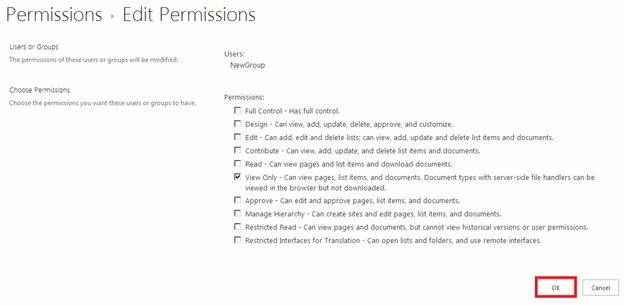
Full Control: This permission level contains all permissions. Assigned to the site name Owner's SharePoint Group by default. This permission level cannot be customized or deleted.
Design: Users can create lists and document libraries, edit pages and apply themes, borders, and style sheets in the Web site. Not assigned to any SharePoint group, by default.
Contribute: Users can add, edit, and delete items in existing lists and document libraries. Assigned to the site name Member's SharePoint Group, by default.
Read: Read-only access to the Web site. Users and SharePoint groups with this permission level can view items and pages, open items, and documents. Assigned to the Site name Visitor's SharePoint Group, by default.
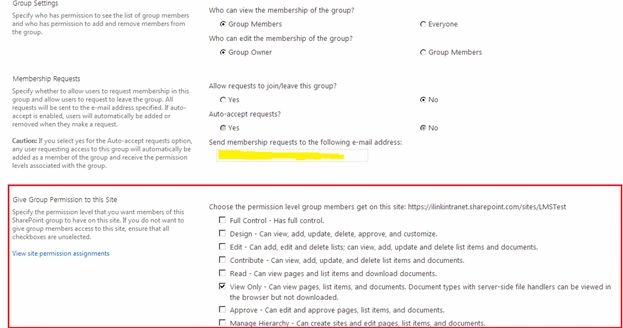
View Only: This permission enables users to view application pages. The View Only permission level is used for the Excel Services Viewer's Group. Document types with server-side file handlers can be viewed in the browser but not downloaded.
Approve: Users can edit and approve the pages, list items and documents.
Manage Hierarchy: Users can create sites and edit pages, list items and documents.
Restricted Read: Can view the pages and documents but cannot view the historical versions or user permissions.
Restricted Interfaces for Translation: Can open lists and folders, and use remote interface.
SharePoint permission group and how to create a group in SharePoint
- SharePoint groups enable you to manage access for sets of users instead of individual users
- SharePoint groups usually contain many individual users, but a group can also have one or more Windows Security groups
- When a new template site is created three SharePoint groups are created to control access to the site
Groups and their default permissions levels are:
- <site name> Owners: Full control
- <site name> Members: Contribute
- <site name> Visitors: Read
Procedure to create a group in SharePoint
Use the following procedure to create a SharePoint group.
Step 1: In your site, click on the settings and from the drop down choose the site settings as shown below,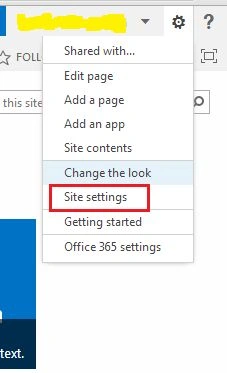
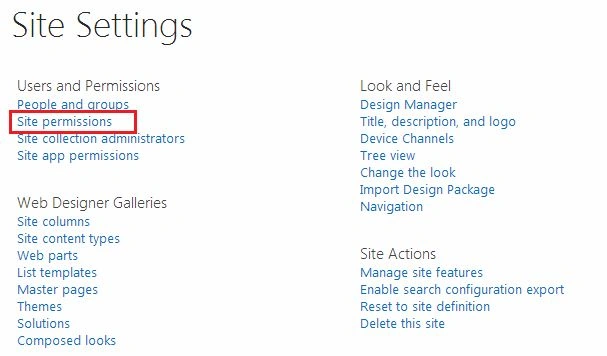
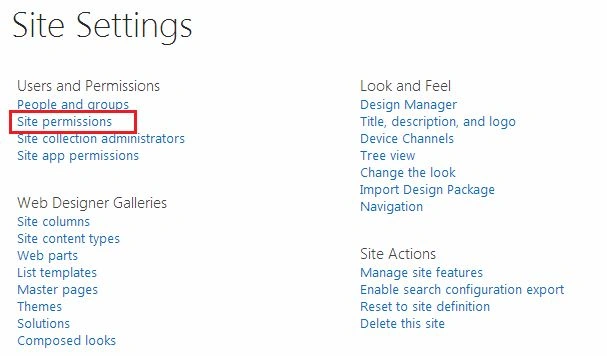
Step 2: On your site settings page, click on the “Site Permission” under the Users and Permission as shown below,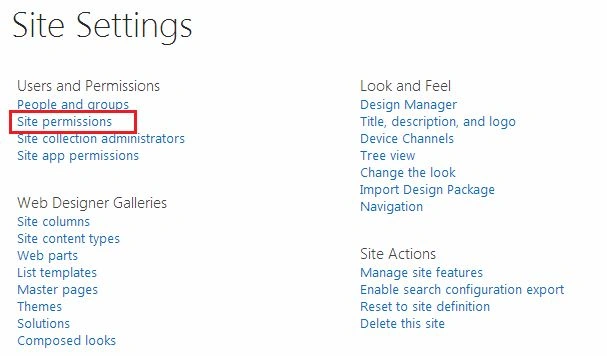
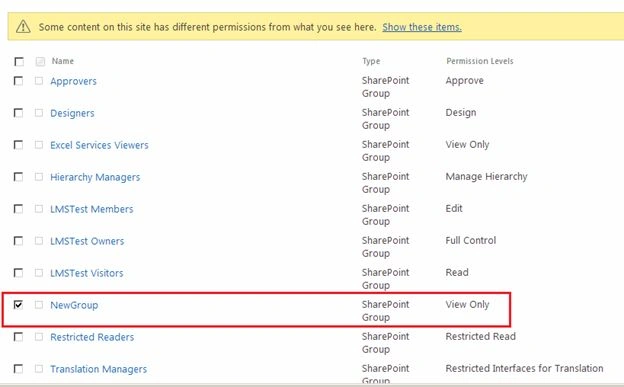
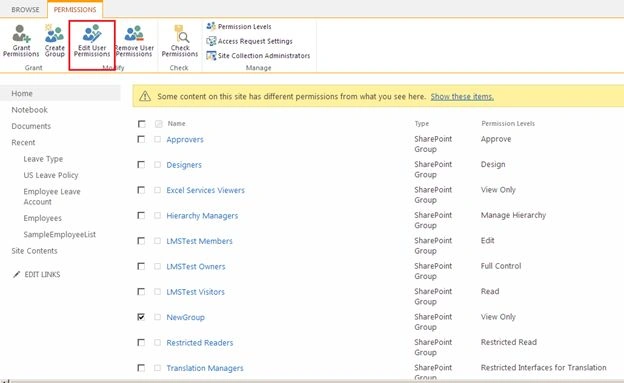
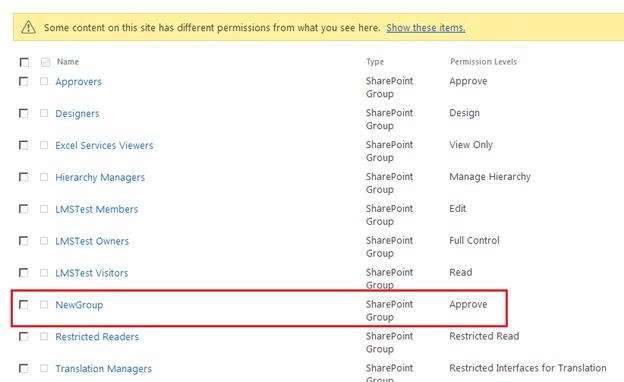
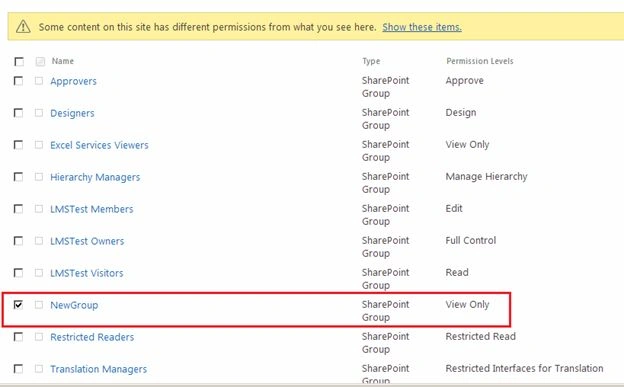
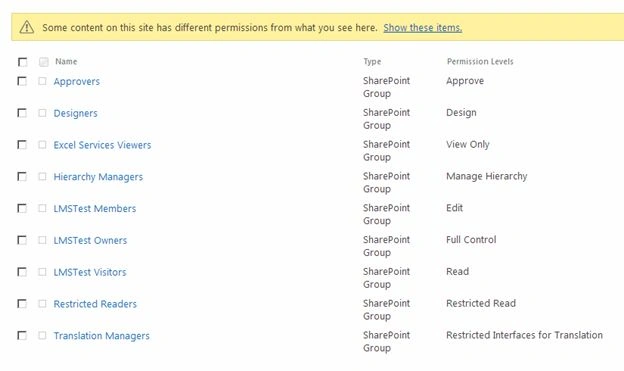
Step 3: When you click on the site permissions in the site settings page you will get the page as in the following.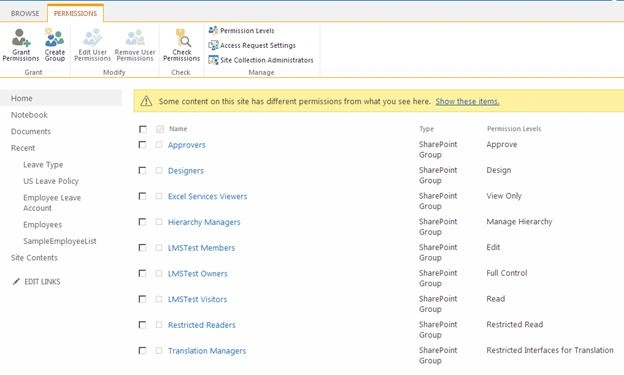
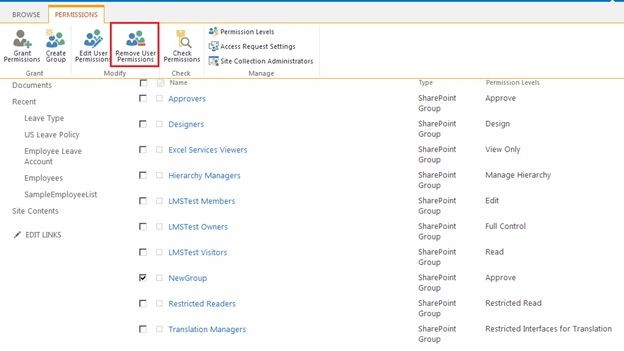
Step 4: Then click on the “Create Group” option in the grant section from the top ribbon bar as shown as below.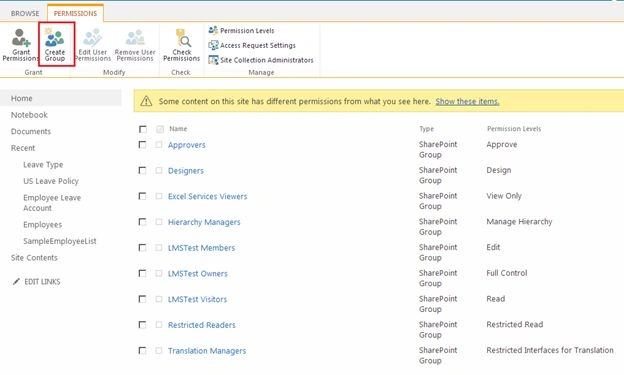
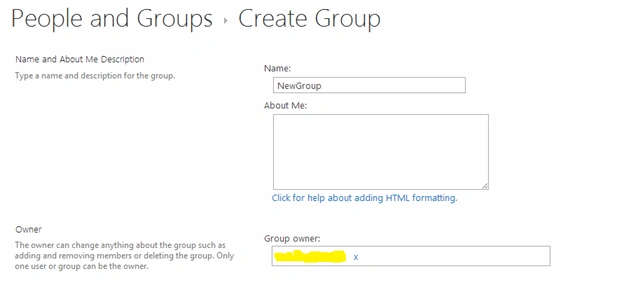
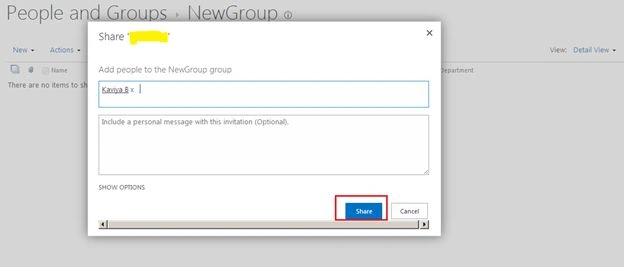
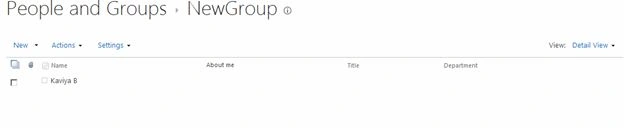
Step 5: When you click on the “Create Group” option in the grant section from the top ribbon bar you will get the following page as shown as below, then:
- Provide your name of the group
- Choose the owner of the group and specify the necessary settings as per your need
- Choose the permission level group members get on the site



Join the conversation! Your thoughts help the community grow.