

When you click on the "Configure Backup Settings" link, you are landed on the Backup and Restore page. This page gives an option to the SharePoint administrator to manage backup & restore default settings for the farm (which include the number of threads for Backup & Restore, Path location).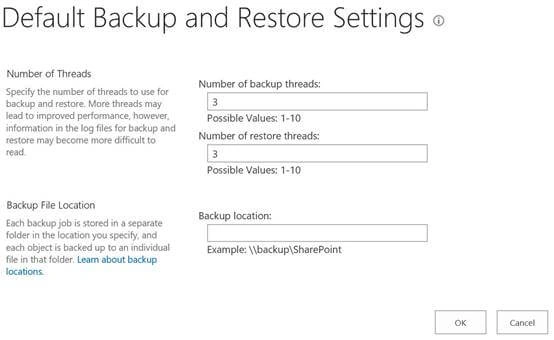
Page’s direct link: /_admin/BackupSettings.aspx
As an administrator, we love to configure different options in SharePoint. In SharePoint central admin, we get an option where we can configure the backup & restore settings for the farm. But don’t be so happy, it gives us only limited options to configure; i.e., number of threads for Backup / restore and path location. There are only 3 configurable options:
- Number of Backup of thread.
- Number of restore thread.
- Backup location.
These settings help improve the performance of backup & restore in the farm. A higher number of threads means, you can complete the backup & restore quickly but we have to check the performance of the SharePoint servers and SQL server, increasing the number of threads means that backup and restore process will take more resources on the server which can hurt the overall SharePoint performance. Another drawback of increasing the number of threads means a big mess in backup logs (I call it a big mess), and each thread will write individual log entries in the file which made it tough to interpret.
Default values for the number of threads is 3, we can select one value from 1 to 10.
Before configuring the backup & restore settings, please make sure you understand the impact of these changes. I would highly recommend to test it before making it final.
We can also configure the backup location via the same settings page, we have to make sure that the proper permissions are applied to that folder; i.e., farm account and sql service account should have read and write permission on the folder. Backup and restore jobs create a new folder for every backup job.
To configure the Backup and Restore Settings, please follow the steps given below.
- Login to Central Admin with account member of farm administrator group.
- Go to “Backup and Restore” then click on “Default Backup and Restore Settings” page.
- On this page, please enter the following information.
- Number of backup threads: We can select any number from 1 to 10 as per our requirement. i.e. 5 in this case.
- Number of Restore threads: We can select any number from 1 to 10 as per our requirement. i.e. 5 in this case.
- Backup Location: Please enter the shared location where we want to store the backup. i.e. “\\kf-sp\backup”
- Click Ok.

- If everything is fine, it will configure the settings and return to backup and restore page.
- You can verify the settings by clicking again “Default Backup and Restore Settings” page.
We can see the following error, if permissions are missing from the backup location.
We are lucky that SharePoint is telling us that which accounts don’t have proper permission. We have to make sure the following accounts should have read & write access to the backup folder.
- Account running SQL service, called SQL service account, should have read and write permission
- Farm admin account also should have read and write permission.
- Lastly, if you are logged in with a different account than farm admin then that account should have same permission.
If farm admin account does not have the permission of the shared folder, then you will see the following error “Access ot the path “kf-sp\back” is denied”. Another interesting thing - this time, it is not showing the account name. When I dig deep in the logs, I found that the farm admin account getting access denied.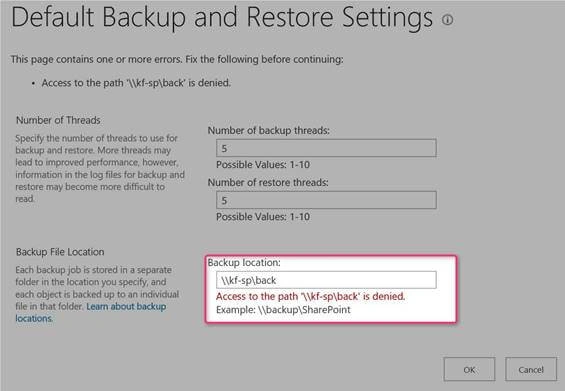
This concludes this article. We learned about the Backup and Restore Settings. Please keep reading.
Join the conversation! Your thoughts help the community grow.