

When you click on the export a site or list link, you will land on the site or list export page. This page will allow you to export a list or library or sub site.

Site Or List Export Page’s direct link - /_admin/SiteAndListExport.aspx
Sometimes, we need to move a list or library or subsite from one site collection to another site collection or making a copy of these in the same site collection. There are couple of methods to do the same thing.
- Export and import of a site / list/ library.
- Using the Save As Template method.
- Use a third party tool.
Every method has its own limitation. In this article, I will explain the steps to export a list/ library /subsite, using the Central Admin page.
Note
We can use PowerShell to export the list/ library/ site, but this is not the scope of this article.
Scenario
We have a requirement, where we have to export the Task List (Team Task List) from the team site collection.
Prerequisites
You have to make sure of the following things before exporting a task list.
- Login on the Central admin with the farm admin account.
- If you create a folder on the Server, make sure that the farm admin (Account running SharePoint Timer Service) has read and write access to that folder.
- If you are using the network share folder, make sure that Farm admin should have read and write access to it.
Export a list
To export a task list, we have to follow the steps given below.
- On the site or list export page, please enter the required data.
- Site collection details
- You have to select the site collection, which contains the task list.
- Now, select the site, which contains the list. (see the end of this article, so as to understand how we select the site).
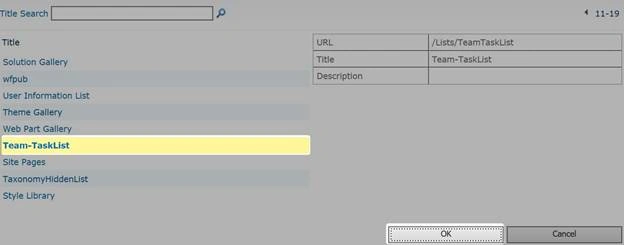
- Now, select the list name. (see the end of this article, so as to understand how we select the list).

- File Location
Please select the file location, where the export file will be stored. Please make sure you enter the complete path with file name and extension, else it will generate the hundreds of files.
- Export Full security
If we want to export the security of the list, which includes author, editors, times etc., then you have to select this option.
- Export versions
You have to select one of the version options from All versions, Last Major, Current Version and Last Minor. In our case, we will select the all versions, as we need the full history of the list items.
- Click Start Export.
- Site collection details
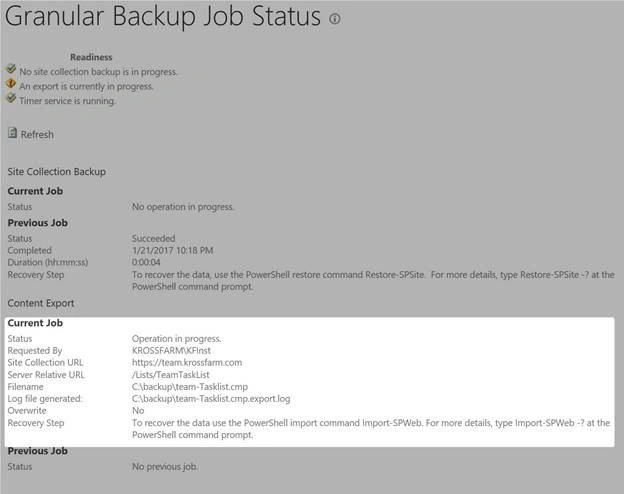
- Now, you will see the status page. This page will refresh automatically after every 30 seconds. On this page, you will check the status of the content export job. We will see success or failure status, once the job is complete.




Join the conversation! Your thoughts help the community grow.