

When you click on the Configure Service accounts link, you will land on the Service Accounts page. This page will give an option to the SharePoint administrator to manage the Services accounts for a given app pool or Service Application pool.
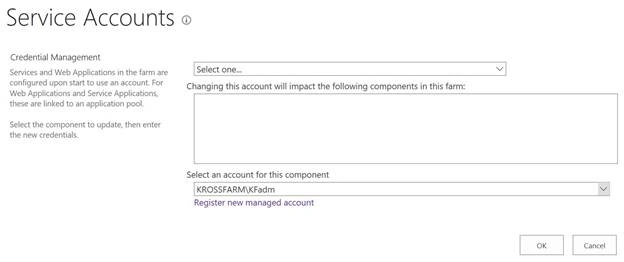
Configure Service accounts page’s direct link - /_admin/FarmCredentialManagement.aspx
There are situations when SharePoint administrator wants to change the Service account for a given Web Application’s app pool or a Service Application’s app pool.
There is a big mistake which the SharePoint administrator often makes and try to change the app pool account from the IIS. It is not correct and not supported. There are multiple reasons for this.
- When you change the app pool account from IIS, it will not grant the required permission on the content databases and wss_wpg_admin group.
- SharePoint will not be aware about this change.
- This account will not be added into SharePoint managed account.
Hence, this method is not supported and please avoid it.
Only supported method is change the Services account for app pool from Central Admin or via PowerShell. SharePoint will automatically fix the permission for that Service account on the required area. You have to restart IIS after this change.
Please make sure that before starting of the this process, your Service account is a valid domain account and is registered in the managed Service account.
To change Service account
In this example, we will change the Public Web Applications app pool’s account from krossfarm\kfadm to krossfarm\kfinst. Please follow the steps given below to change the Service account.
- Login to Central admin with an account member of Farm administrator group and also local admin on the Server.
- Go to Security -> click Configure Service account.
- On this page, please enter the information given below.
- From the first dropdown, select the desired Application pool i.e. Web Application Pool – Public_AppPool.

- In this, you will see which app pool is going to change.
- From Service account dropdown, please select the desired account i.e. krossfarm\kfinst.

- If your account is still not registered as a Managed Account, then you can click Registered managed account and register it.
- Click OK.
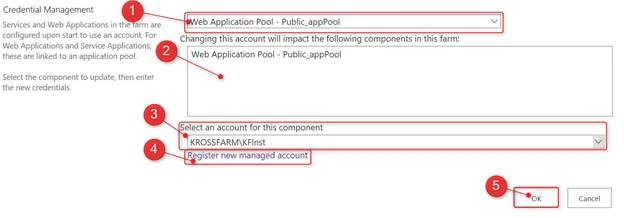
- From the first dropdown, select the desired Application pool i.e. Web Application Pool – Public_AppPool.
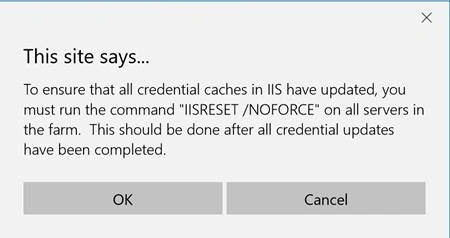
- You will get the warning for IIS reset. Click OK.
- Wait for a moment and it will change the app pool account.
- This is an important step. Now, perform IIS reset on all the Servers in Farm.
- After this test, the Web Application makes sure that it is working.
If you want to change the Service account for the Service Application, then follow the same steps.
This concludes this article. We successfully changed the Service account for the Application pool.
Keep reading and liking SharePoint.
Waqas SarwarPosted Mar 16, 2017, 10:46 AM
Appreciate your comment, Thank you! Beginner & mid-level are my target audience
Madhanmohan DevarajanPosted Mar 16, 2017, 10:19 AM
Thanks for sharing very good article on SharePoint Administration.