

When you click on the defined blocked file type link, you will be landed on Blocked file type page. This page will give an option to the SharePoint administrator to manage the file types, which don’t want to be added into a single Web Application or the entire Farm.
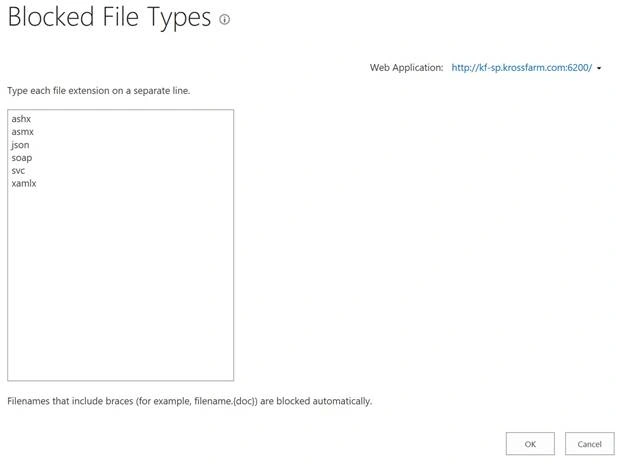
Define blocked file type page’s direct link: /_admin/BlockedFileType.aspx
There is always a requirement as per the company policy, which blocks certain types of files being uploaded into SharePoint. As a SharePoint administrator, we can manage the block file list via Central Admin.
We can do it for the single Web Application or globally (for all thre Web Applications). Once we add a extension into the blocked list, then all filenames using that extension will be blocked.
If we add a file extension into the block list, then variation of that file extension is also blocked. i.e. if we block .exe, then the files given below should be blocked.
- exe
- exe.
- exe.{3050F4D8-98B5-11CF-BB82-00AA00BDCE0B}
- exe::$DATA
By default, there are 6 file types (reduced from 105 from SharePoint 2013), which are blocked.
- ashx
- asmx
- json
- soap
- svc
- xamlx
Note
If any file name contains braces, then SharePoint will block it automatically. i.e. Testwaqas.{doc}
Add block file types
In this example, we will add the exe as block file type. Please follow the steps given below.
- Login to Central Admin with an account member of Farm administrator group.
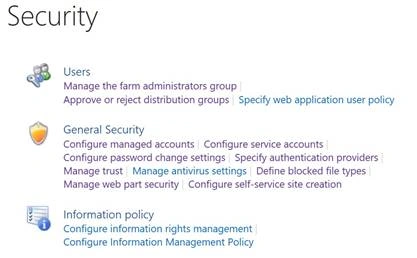
- Go to Security > Define blocked file types.
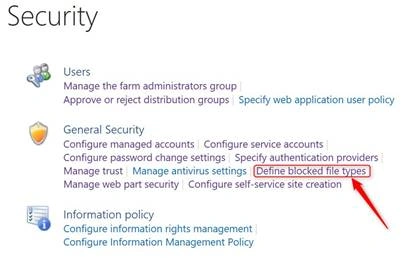
- On this page,
- Select the correct Web Application. Click the Arrow and click Change Web Application.
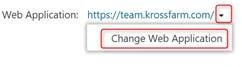
- On this popup, select the desired Web Application.

- Now, define Block page, type Exe at the end of the list. (If we want to add multiple file extension, just hit enter to move the curser to the next line. One file type per line.)
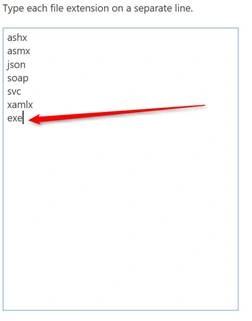
- Click OK.
- Select the correct Web Application. Click the Arrow and click Change Web Application.
- It will take back to Security page and click Define Blocked type.
- You will see the exe will be in the list. SharePoint automatically arranges the list alphabetically.
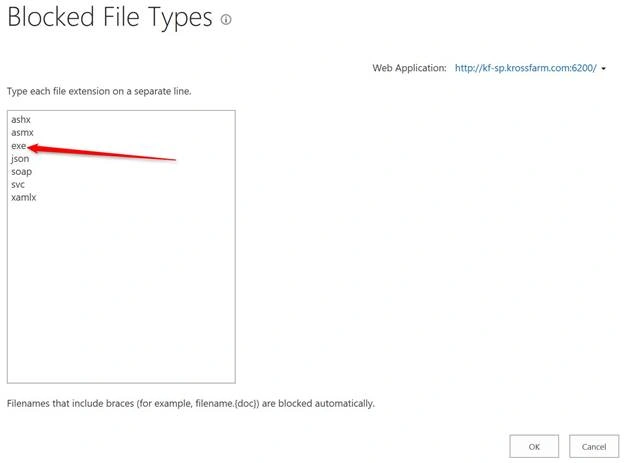
Now, we successfully added the exe into the blocked file type. If we want to block this for other Web Applications, then we have to repeat the steps given above.
Remove Block File Types
In this example, we will remove bak from block file type list. Please follow the steps given below.
- Login to Central Admin with an account member of Farm administrator group.
- Go to Security > Define blocked file type.
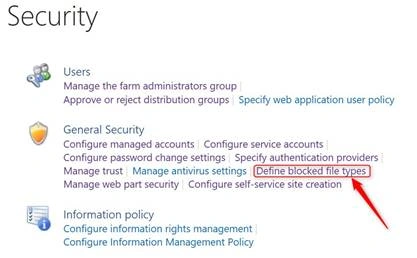
- On this page
- Select the correct Web Application. Click arrow and click Change Web Application.
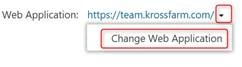
- On this pop up, select the desired Web Application.

- Now, define Block page. Select the BAK file, followed by deleting it. (If we want to remove the multiple file extensions, just select them and delete it).
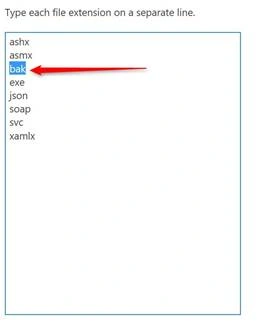
- Click OK.
- Select the correct Web Application. Click arrow and click Change Web Application.
- It will take you back to the Security page, followed by clicking Define Blocked type.
- You will see the BAK is not in this list anymore.
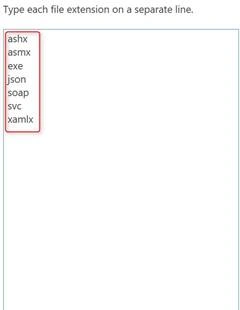
Now, we learned how to remove a file type from the blocked file type list. If you have multiple Web Applications, then you have to repeat the steps given above for each Web Application.
Join the conversation! Your thoughts help the community grow.