

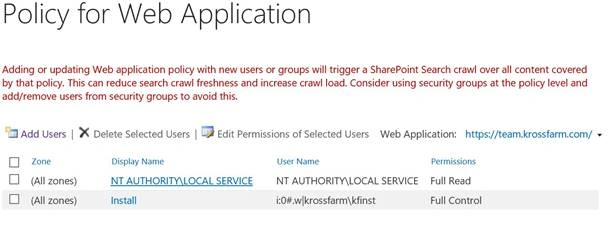
When you click 'Specify Web Application user policy link', you will land on the Policy for Web Application page. This page will let you manage the Web Application User Policy.
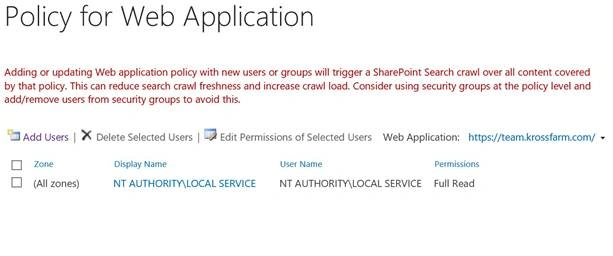
Policy for Web Application page’s direct link - /_admin/policy.aspx
There are many ways to manage the permissions on the site collection; i.e., you add primary or secondary site collection administrator from central admin or add an extra site collection administrator within the site collection. This is easy for single site collections, but if you have to give the permissions to a user or a group of the users into all the site collections in a farm, then add the user manually in all the site collections or use the policy for the Web Application option from central admin.
There are many accounts which require the permission in the Web Application including:
- Search content crawl account, which requires full read access in the Web Application level.
- Object Cache’s super user requires full control at the Web Application.
- Object Cache’s Super reader account requires full control at the Web Application.
- Sometimes in a company, an auditor needs full access to the Web Application.
You can also restrict the permission for single user or a group at the Web Application level. Once you deny the permission, then the user or the group will not get access to the server.
Policy of the Web Application is in a centralized location, where we can manage the permissions for the Web Application. There are a couple of different level of permissions, you can assign it to a single user or a group.
- Full Control - Has full control.
- Full Read - Has full read-only access.
- Deny Write - Has no write access.
- Deny All - Has no access.
- Custom permission level.
Zone- As we know, a Web Application can be in multiple zones (Default, intranet, internet, extranet and Custom).Thus, we can set the permissions at the single zone or all the zones. When you set a permission for the Web Application, you select the correct zone or select all the zones.
System Account- Sometimes you don’t want to show the account’s information to the end user to avoid any information leak or any information leak about the enterprise Service accounts. Thus, select this system account option, when you add a user into Policy for the Web Application, then account is displayed as SharePoint\System regardless of its name & details.
To Add a User in Policy of the Web Application
In order to add a user into the Web Application policy, please follow steps given below.
- Login on central admin with an account, who is a part of farm administrator group.
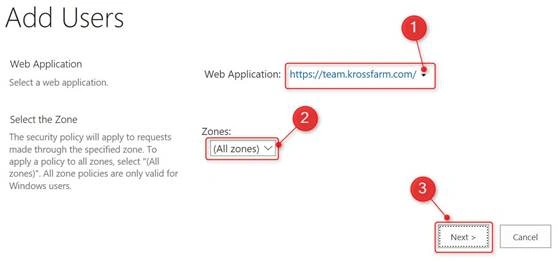
- On Policy of Web Application page, click Add User
- On Add User page, please enter the required information.
- Web Application- Make sure that you select the correct Web Application.
- Zone- Select the correct zone, if you want to assign the permission single zone or select All Zone.
- Click Next.
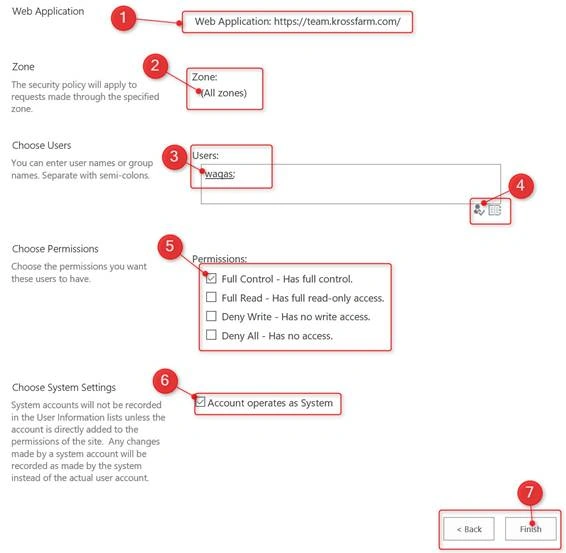
- On this page, please enter the information given below.
- Web Application- Double Check correct web application selected
- Zone- Make sure that the correct zone is selected.
- User- Enter the user Id.
- Click on Man icon to resolve the name.
- Permission- Check the correct permission level.
- System Settings- Check the account operates as systems box.
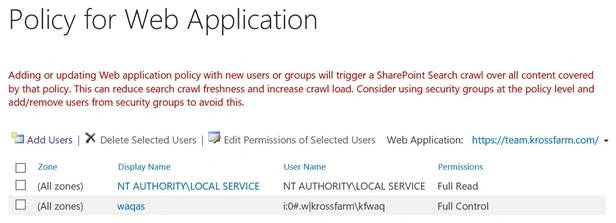
- Now, you will see the Waqas is added as a full control in all zone for the team Web Application.

To edit permission for a User in the Policy of Web Application
To edit the permission for an existing user, please follow the steps given below.
- Login to central admin with an account, who is a part of farm administrator group.
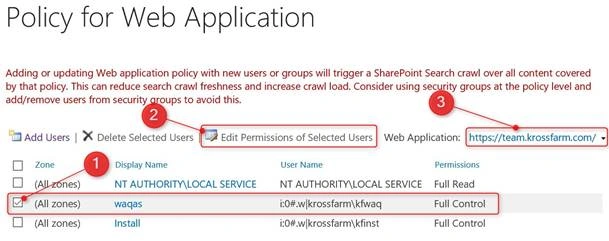
- On Policy of Web Application page, select the correct Web Application (3), select the User (1), click Edit Permissions of the selected users (2).
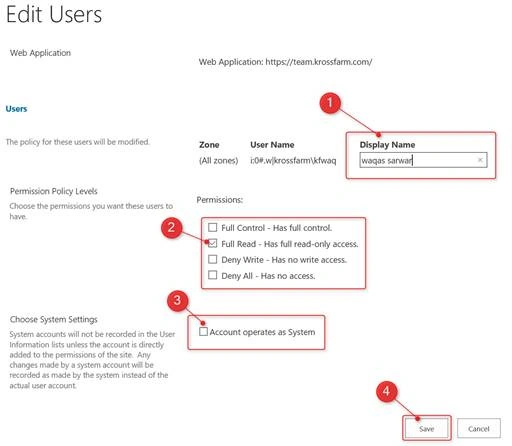
- On Edit Users page, please enter the required information.
- Display Name- Change the display name to what you want i.e. Waqas Sarwar.
- Permissions Policy Level- Now, select the correct permission level i.e. Full Read.
- System Settings- Choose systems settings i.e. in our case no as full read never masked as system account.
- Click Save.
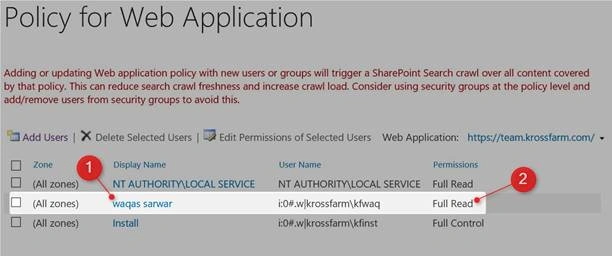
- Now, you will see the Display name changed to Waqas Sarwar and Permission level also changed to Full Read.
To delete the permission for a user in the policy of the Web Application
To edit the permission for the existing user, please follow the steps given below.
- Login to central admin with an account that is a part of a farm administrator group.
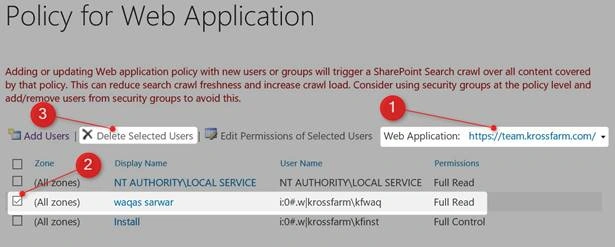
- On policy of Web Application page, select the correct Web Application (1), select the user (2), click delete selected users (3).
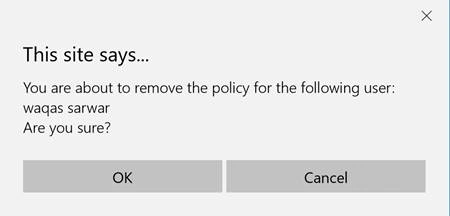
- Click OK on the warning pop up.
- Now, you will see the user account Waqas is deleted from the policy.
Note
You have to be careful when granting the permission to a user or a group into the policy of the Web Application because this permission applies to all the site collections in the Web Applications.
Join the conversation! Your thoughts help the community grow.