

In the previous article SharePoint 2016: Forms Based Authentication – Part 3 of this series on implementing FBA with SharePoint, we saw the execution of step 5 for the process.
- SharePoint 2016 - Forms Based Authentication - Part One
- SharePoint 2016 - Forms Based Authentication - Part Two
- SharePoint 2016 - Forms Based Authentication - Part Two
In this last article of the series, we are going to see the execution of steps 6 & 7. For a quick review, I am putting up the process diagram again here.
Process Diagram
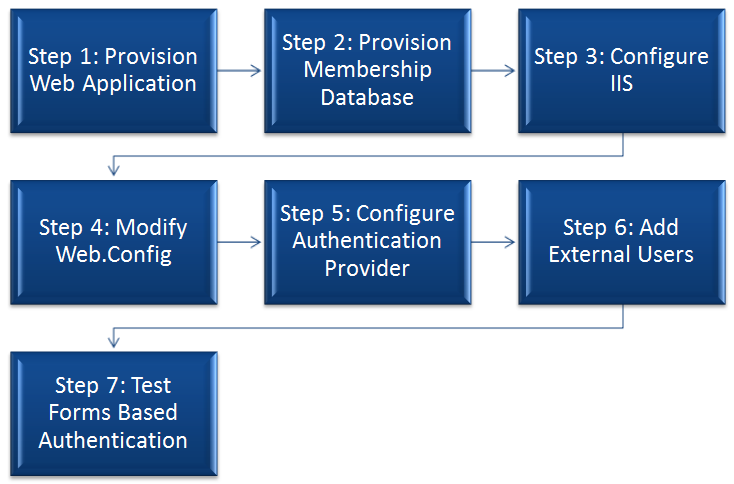
Step 6 Add External Users
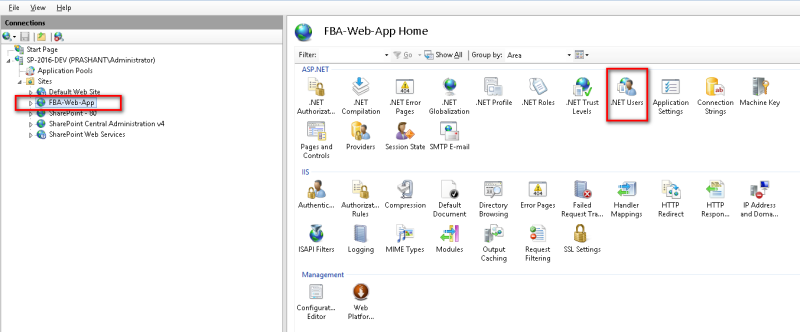
- Go to IIS.
- Select the Web application on the left navigation pane.
- Click on “.Net Users” on the right section.
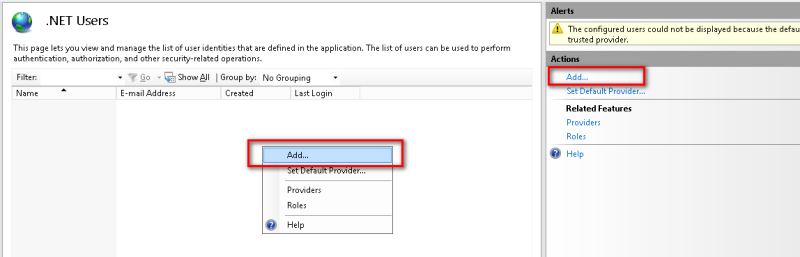
Sometimes, you might encounter the following error. This happens because the default provider is not set at the time you are trying to add Users.

In order to set the default provider, you need to click on the “Set Default Provider” link under Actions pane on the right.

Select the membership provider as we configured in the earlier steps.

Now, you can add the users.
Click on the “Add” link under the Actions pane.
Adding user information as needed.
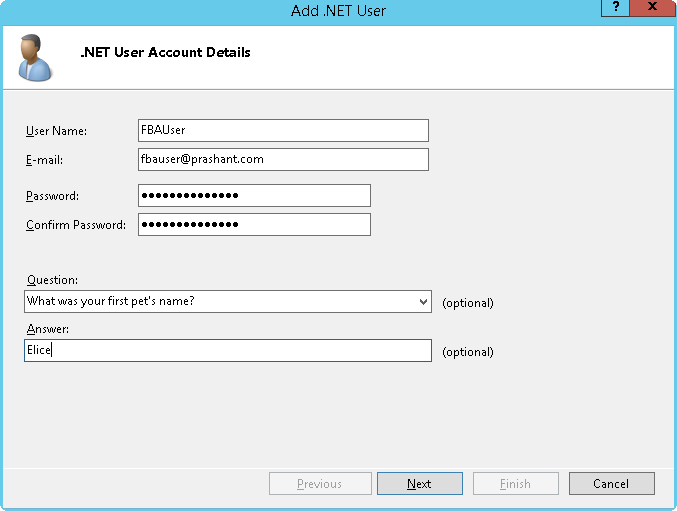
Click “Next”.
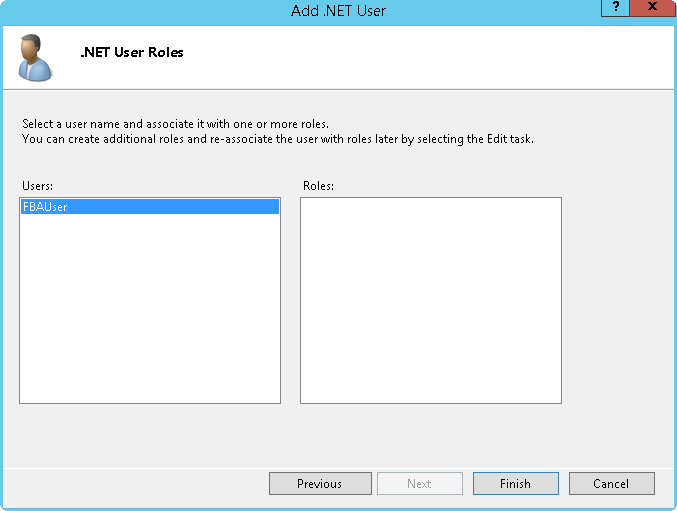
Click “Finish”.
And we can see the first FBA user in our system.

Step 7 Test Forms Based Authentication
Browse the Web application via browser.
We can see the Selection window for choosing the preferred authentication mechanism.

Let’s choose Windows Authentication first, since we did not give explicit permissions to the FBA User yet, that is why system won’t allow the user to login to the SharePoint Site.

And being an authenticated Windows user, we are good to go and able to see the Web application homepage.
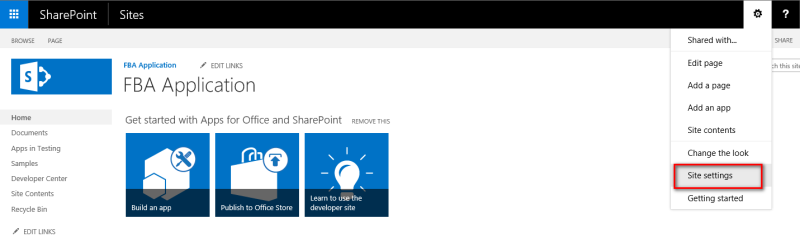
Then, click on “Site Settings”.
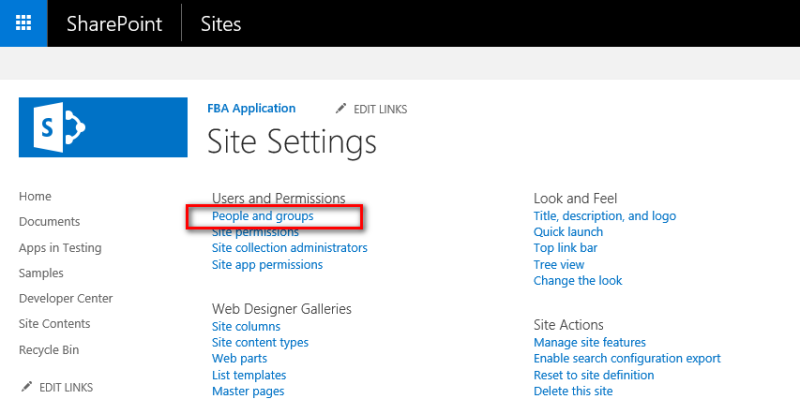
Click on “People and groups”.
Click on “Add Users” to add new user to the desired security group.
In here, I am adding new user to the Members Groups.

Type the name of the FBA user that you have added,
In here, the FBA User name is “FBAUser”.
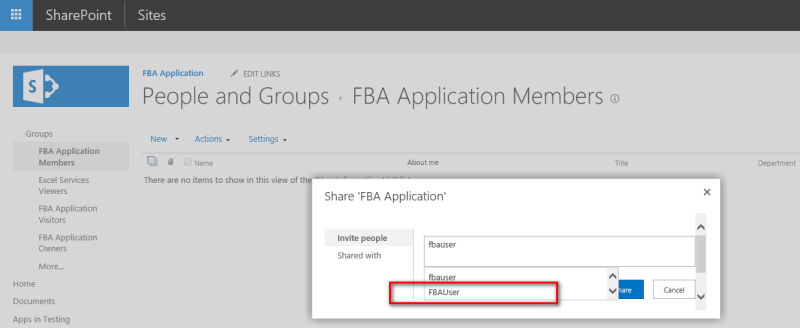
Share the site with FBA user.
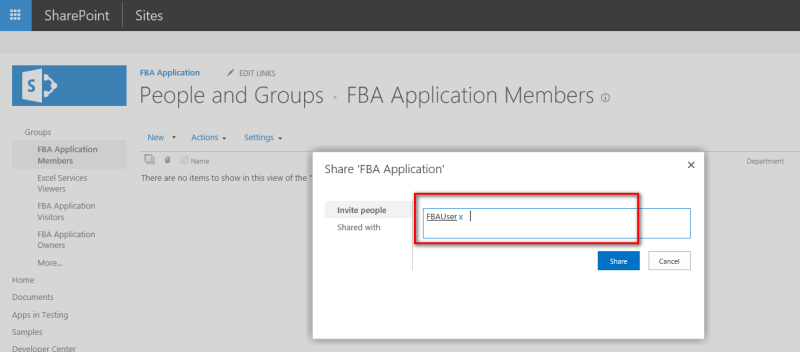
We can see the FBA User added to the Group.

Now, when we are going to browse the Web application and go with Forms Based Authentication, choosing this setting will present default login page as we selected in the earlier steps while enabling Web application with FBA.
Enter FBA username & password.
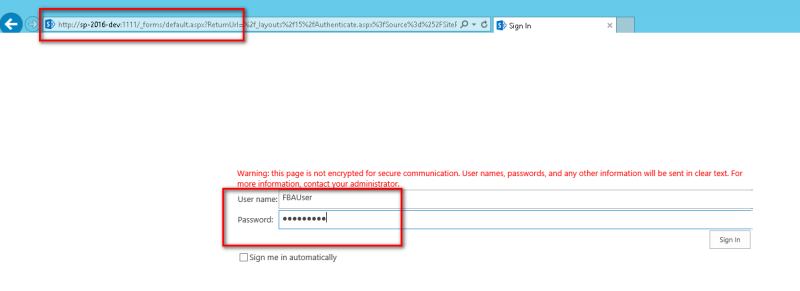
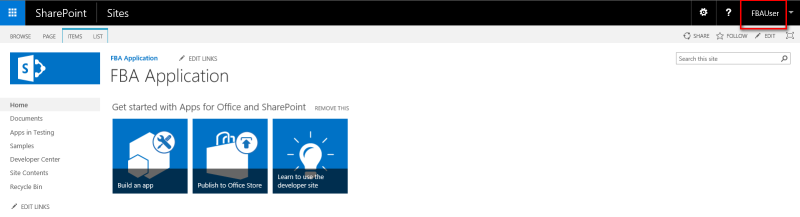
And since we granted the permission to this FBA User in the SharePoint Site, SharePoint allows us to login to the site using FBA user credentials.
That is all for this series.
Hope you find it helpful.
Join the conversation! Your thoughts help the community grow.