

- Master Page (.master)
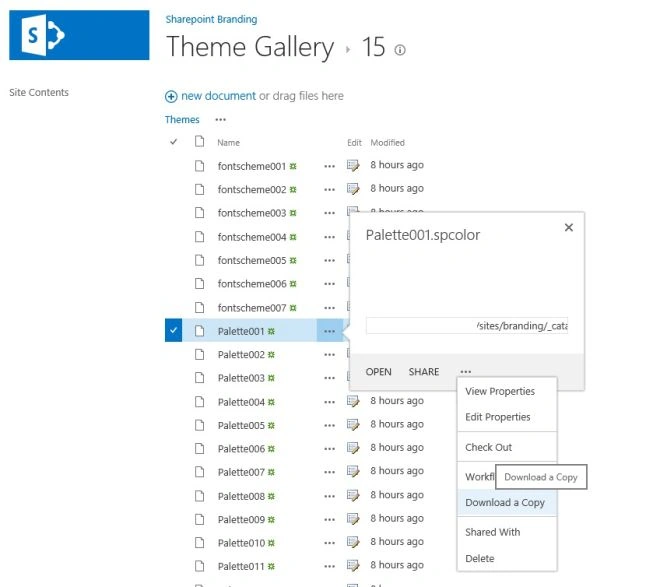
- Fonts (.spfont)
- Colors (.spcolor)
Step 1
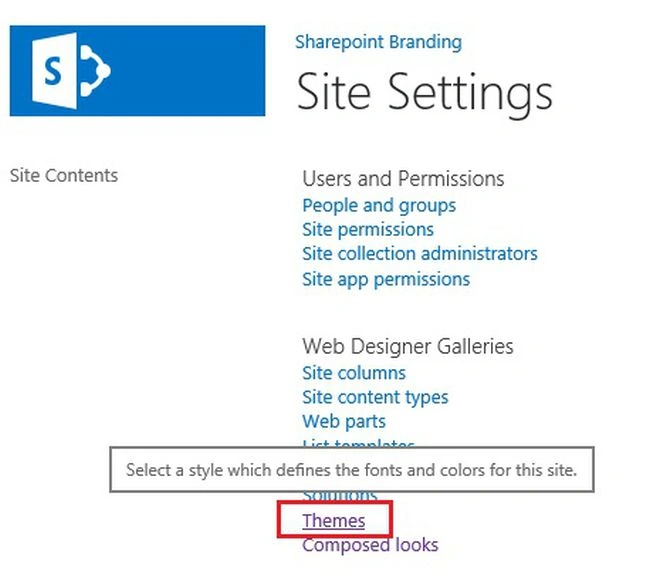
Go to Site Settings -> Web Designer Galleries -> Composed Looks
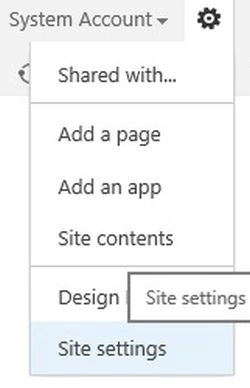
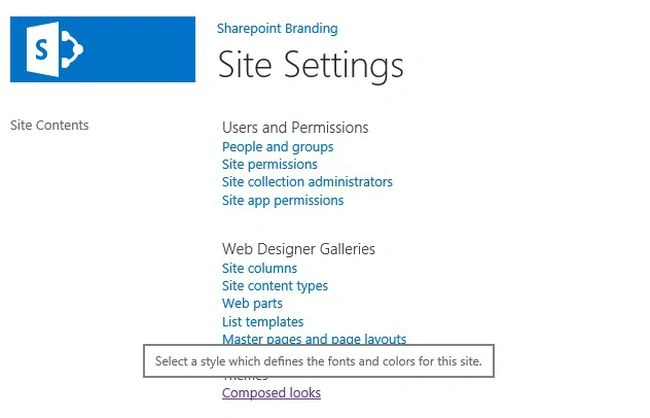
Step 2
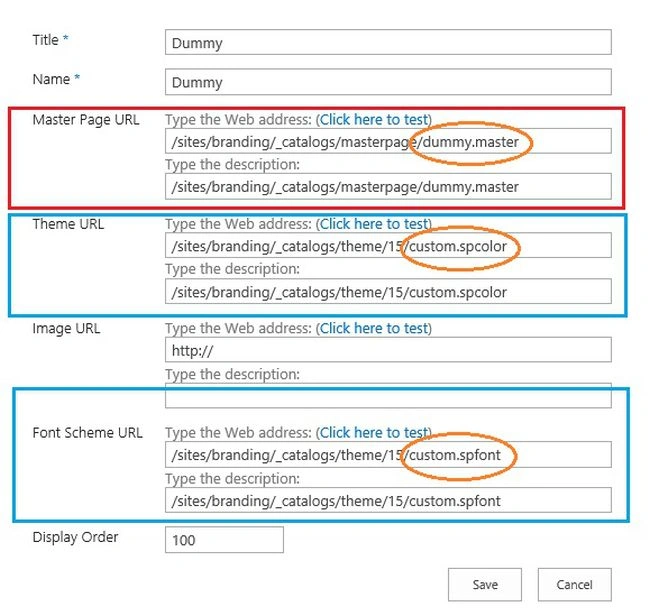
When you click on "new item" in Composed Looks list then one blank form will open with following fields :
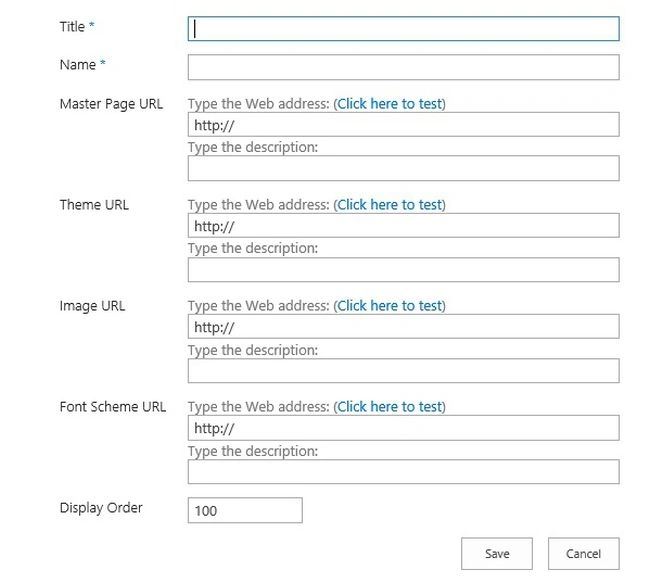
Title: This field is for Title of Custom Theme, you can mention whatever title you want in that field.
Name: This field is for Name of Custom Theme ,you can mention whatever name you want in that field.
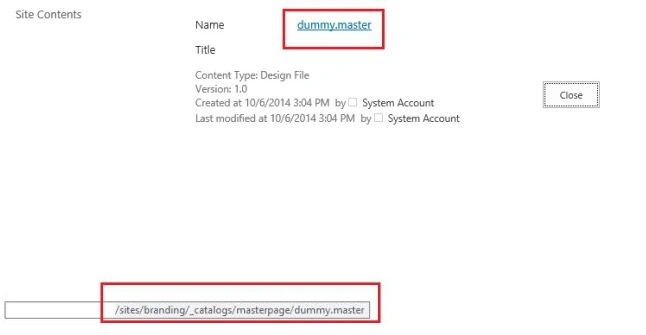
Master Page URL: This field is for Custom Master Page , you have to mention the path of master page in that field.
How to create custom master page ?
Step 3
Go to Site Settings -> Web Designer Galleries -> Master pages and page layouts
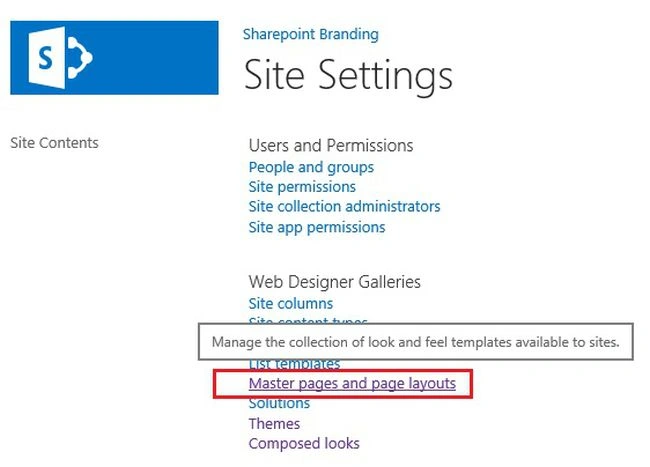
Layouts
When you click on "Master pages and page layouts", Master Page Gallery will open and you can download a copy of any existing master page either seattle.master or oslo.master. In this article seattle.master used for creating custom master page.
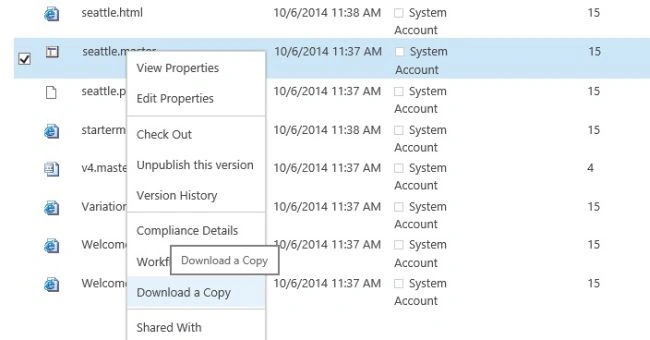
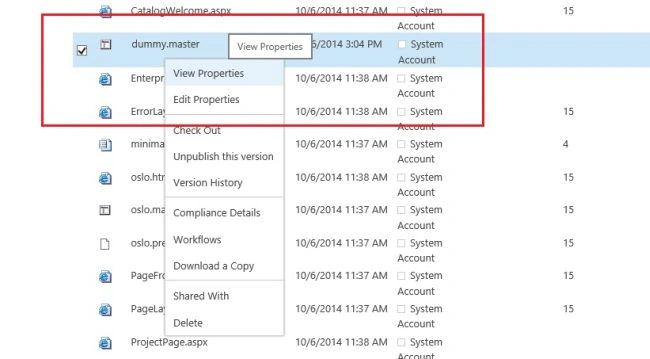
Save it to your local machine and rename it whatever name you want , In this article we renamed it dummy.master.
Step 4
Upload dummy.master in Master Page Gallery and Publish a Major Version.
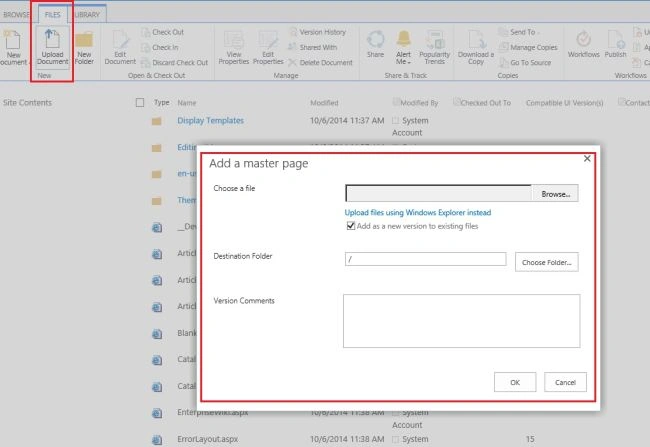
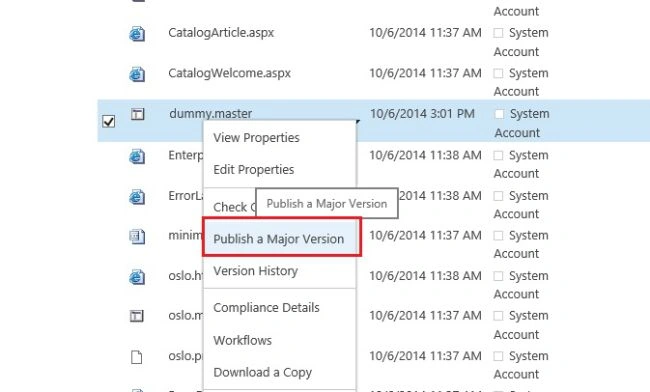
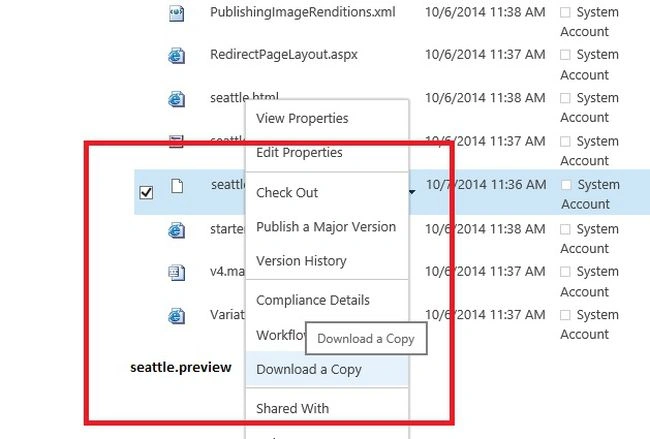
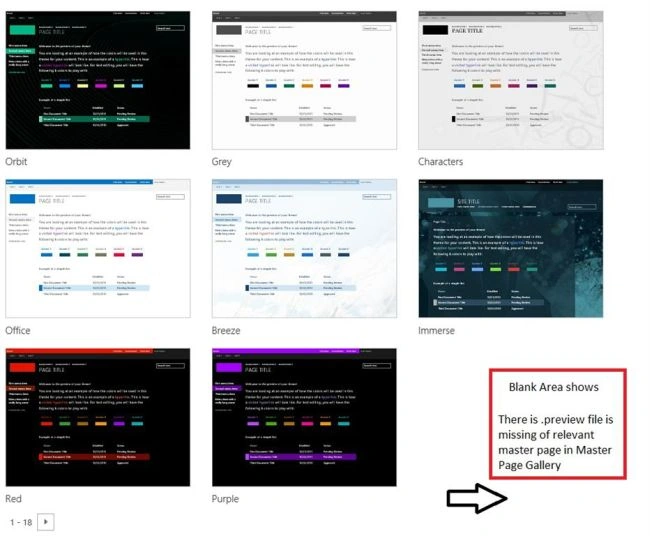
You have to download (.preview ) file of master page, rename it to whatever name you want , but similar to your .master file and upload in Master Page Gallery then publish it in a same manner like as (.master ) file.
Why we need of (.preview) file?
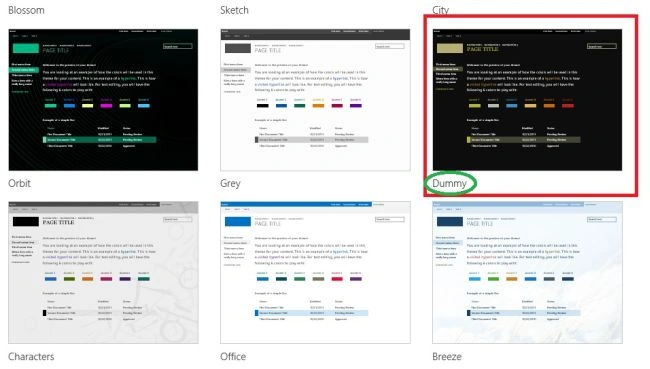
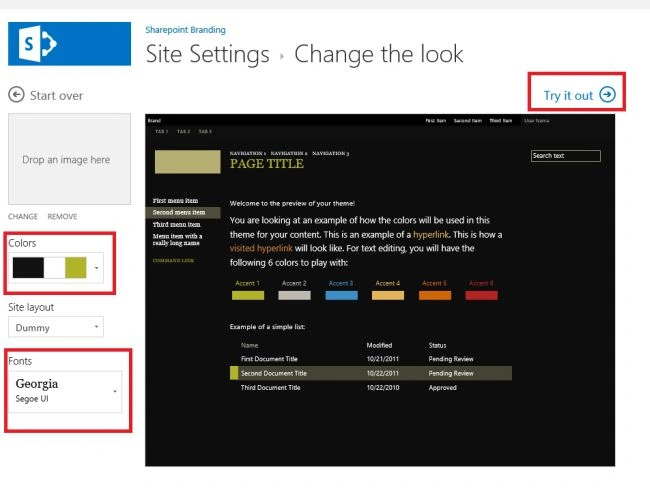
A master page preview is used to render a preview image of the selected theme components. Each master page must have a corresponding master page preview file for the master page to be available in the theming experience.
Join the conversation! Your thoughts help the community grow.