

Introduction
Microsoft has not yet provided support to handle SharePoint List Content Types through Power Apps. However, there is still one idea "under review" at Microsoft.
SharePoint Modern OOB List form already supports handling of multiple Content-Type forms, but if we want to have a Customized view of the form, then Power Apps doesn't support it yet. Although InfoPath supports it in SharePoint Online, this product is approaching the end of its lifecycle. So, to make it function in Power Apps (similar to SharePoint Modern OOB List Form), here is a custom workaround.
Please follow the steps one-by-one as mentioned below. Please note that these steps expect you to have an intermediate level of expertise in Power Apps and Modern SharePoint Online.
Share point modern list configuration
- Create a modern list named "test" in any of your test site collections.
- In List Advanced Settings, Allow management of content types.
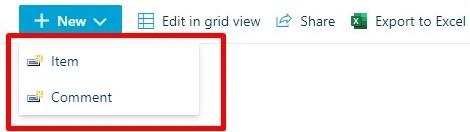
- Add one more existing content type as "Comment" to the List (along with the default Item content type)
- Assign default value “hello” to OOB Title column
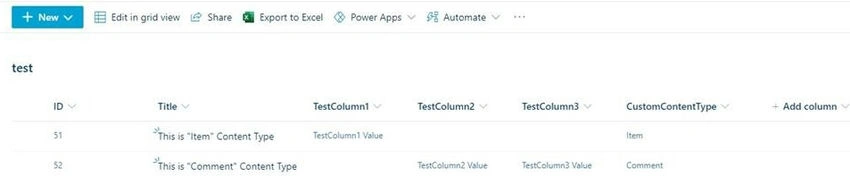
- Add non-mandatory single text column "CustomContentType" for storing Content-Type value (add to all content types, add to default view).
- Add 3 (non-mandatory) single text columns TestColumn1, TestColumn2, TestColumn3 (add to all content types, add to default view).
- (The reason that we need to have all columns as non-mandatory columns in SharePoint is that OOB SharePoint save action will not be execute if other Content-Type Power Apps forms have mandatory columns. Instead, we can make needed fields as mandatory in Power Apps)
- These 4 new columns will be visible in both "Item" and "Comment" List content type
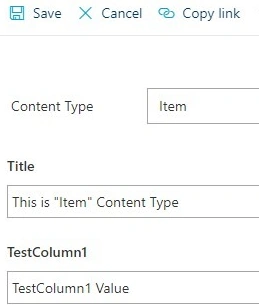
- Remove "TestColumn2" and "TestColumn3" column from Item List Content Type
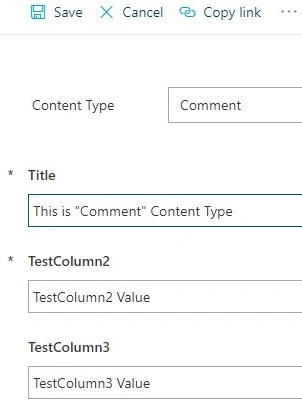
- Remove "TestColumn1" column from Comment List Content Type
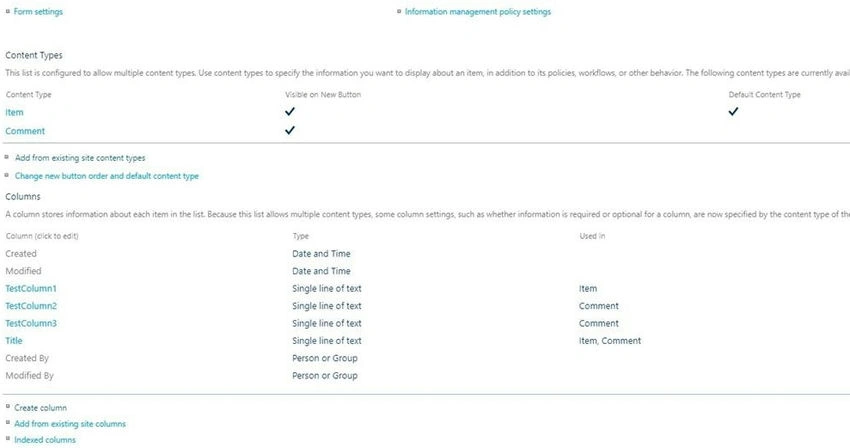
- Open the OOB List new form (of Item Content-Type) and Customize the form in Power Apps
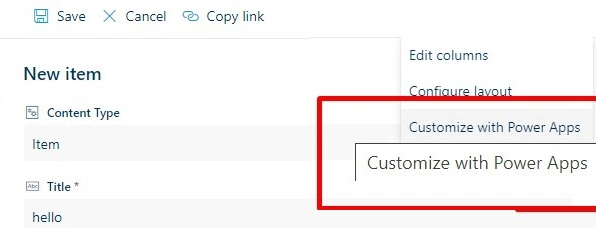
Power apps configuration
Configuring screens
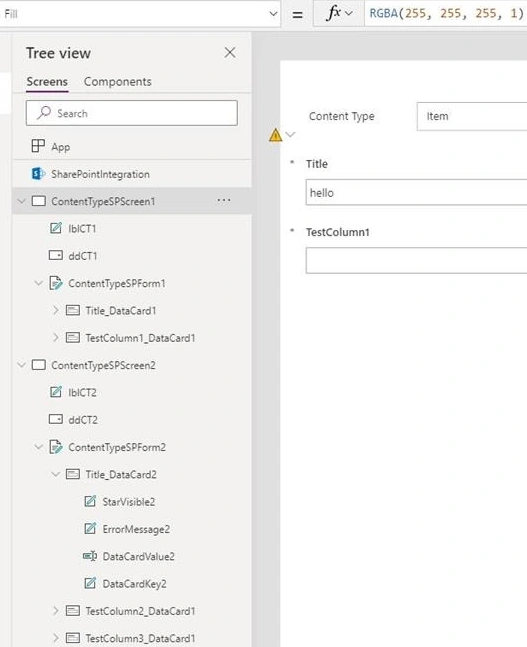
- Now in Power Apps, Create Duplicate Screen of the default screen. Duplicate screen form will have the same data source.
- Rename the Screens to "ContentTypeSPScreen1" and "ContentTypeSPScreen2" respectively.
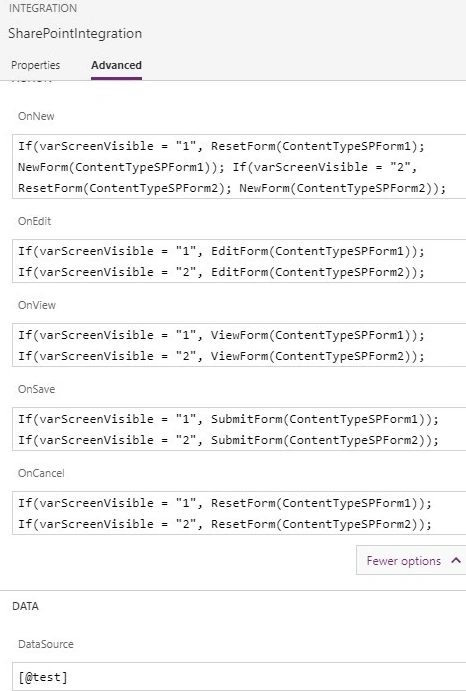
- Set formula on "ContentTypeSPScreen1" screen OnVisible property
Set(varScreenVisible, "1"); - Set formula on "ContentTypeSPScreen2" screen OnVisible property
Set(varScreenVisible, "2");
Configuring forms
- Rename the Forms to "ContentTypeSPForm1" and "ContentTypeSPForm2" respectively
- Set both forms default mode as "New"
- In Forms, Add needed fields of respective OOB content type onto the form:
- Add Title, TestColumn1 and CustomContentType in Item Form "ContentTypeSPForm1"
- Add Title, TestColumn2, TestColumn3 and CustomContentType in Comment Form "ContentTypeSPForm2"
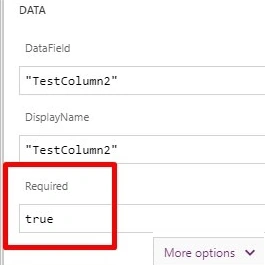
- In "ContentTypeSPForm2" form, make “TestColumn2” as mandatory by Setting "TestColumn2" field "Required" property as true.
- In CustomContentType field in "ContentTypeSPForm1" form, Set "Update" value as "ddCT1.Selected.CTValue" and Visible as "false".
- In CustomContentType field in "ContentTypeSPForm2" form, Set "Update" value as "ddCT2.Selected.CTValue" and Visible as "false".
Join the conversation! Your thoughts help the community grow.