

This multipart series of articles is intended to help you getting ramped up with SharePoint Customization. It's about modifying the default SharePoint user experience, list forms customization, branding, skinning SharePoint portals, etc. When I looked around the "SharePoint Landscape", I noticed the lack of documented experiences in the SharePoint customization area and thus this multipart series of articles was born.
Prerequisites
First you need to have prerequisite skills in .NET Development and in particular ASP.NET Development, you should also have basic understanding of JavaScript, SharePoint and how to use it from the User Interface and of course you should have some experience in using the SharePoint customization tool (SharePoint Designer).
Trick #1 : Hiding List View Toolbar Menu Items!
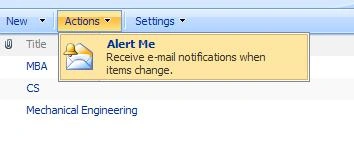
I've gone through SharePoint projects on different scales; a common requirement among most of these projects is hiding some menu items that are implemented by default within the framework of SharePoint. The obvious choice from the SDK is HideCustomAction ! After digging through the web, I found out the following:
-
The "HideCustomAction" feature can merely hide the items which have been rendered through the "CustomAction" feature framework such as Site Actions and Site setting.... etc.
-
ECB (Context Menu) items are rendered by JavaScript from Core.js file so we can't hide them via "HideCustomAction" feature. However, you can add a new menu item in the ECB menu through "CustomAction" feature and hide it again through The "HideCustomAction" feature. In other words," HideCustomAction" feature can be used to hide the ECB menu items that you created via CustomAction but can't be used to hide the out of the box menu items.
-
The ListViewWebPart menu items ( New menu, Upload menu, Actions menu,... etc ) are rendered through a class library as a web control from the Microsoft.SharePoint.dll so they can't be hidden through The "HideCustomAction" feature.
Hmm, I thought of delving back into the world of JavaScript and I came up with some generic functions that can be used to hide any menu item in SharePoint and I decided to share them with the community.
hideListViewToolbarItems("Edit in Datasheet","export to Spreadsheet","view rss feed","settings:create view");
function hideListViewToolbarItems()
{
stan frankPosted Oct 19, 2011, 10:41 AM
It works for me! Thanks!
stan frankPosted Oct 19, 2011, 10:41 AM
It works for me! Thanks!
scott muldowneyPosted Oct 14, 2009, 3:07 PM
I have been trying to get this to work with no luck. All I need is to hide the llist setting button. Any help would be appreciated. [email protected]
valli vemuriPosted Jul 15, 2009, 12:13 PM
Hello Ayman, This is really helpful. Thanks a lot. Bhuvan
UrviPosted May 7, 2009, 8:03 PM
Hello Ayman, I got the coding stuff but as I used this javascript exercise before 5 years so suddenly I wiped out my knowledge could you please let me know, how to execute this coding and what sort of platforms I have to have in my computer...plzz help me out..ASAP.
UrviPosted May 7, 2009, 7:52 PM
it is indeed informative one..looking forward to have more information about javascript. I just love to involve in coding
JasonPosted Mar 31, 2009, 5:30 AM
Is there a similar method to hide the author of an item?
Stephen SchustereditedPosted Feb 18, 2009, 12:44 PMEdited Feb 18, 2009, 12:46 PM
While this works for 98% of the menu items it will not work as written for Views if you are using new default views. In order to make this work when you have created a view and marked it as default a few things must be cleared up: 1. The menu items marks the first default view as menuitem="defaultview". 2. The code above , as written , will assume the first default view is the original default view. In order to fix the code you may have to actually look at your source code after the page has been rendered to make the approriate associations and changes to the array. As you can see in the code posted below I had to use View1 and View2 with the correct ItemName associations to get the actual menu item to hide. Generally a default view that you create and mark as default will cause the old default view to be called View1, then the next View to be View 2, etc.etc. Anyway, just modify the array after determining your view order and it should work properly. Again, this i sonly needed if you are using custom default views and not the standard default view. For example:) var menuItemNames=new Array( "edit in datasheet", "open with windows explorer", "connect to outlook", 'export to spreadsheet', 'view rss feed', 'alert me' ,"create column", "settings:create view", "list settings", "document library settings", "all documents", "explorer view", "all items", "modify this view", "view:create view", "new document", "new item", "new folder", "upload document", "upload multiple documents"); var menuItems = new Array( "EditInGridButton", "OpenInExplorer", "OfflineButton", "ExportToSpreadsheet", "ViewRSS", "SubscribeButton", "AddColumn", "AddView", "ListSettings", "ListSettings", "View1", "View2", "DefaultView", "ModifyView", "CreateView", "New0", "New0", "NewFolder", "Upload", "MultipleUpload" );
dinesh ursPosted Feb 10, 2009, 4:45 AM
The above feature is not working