

Introduction
This multipart series of articles is intended to help you getting ramped up with SharePoint Customization. It's about modifying the default SharePoint user experience, list forms customization, branding, skinning SharePoint portals, etc. In Part 1, I introduced a generic function that can be used to hide the list view toolbar menu items (e.g. New Item, Upload, Edit in Grid view, etc). If you haven't read it yet, I would encourage you do to that first. Today I'll show you another two tricks for customizing the list form toolbar.
Trick #2 : Hiding List Form Toolbar Menu Items!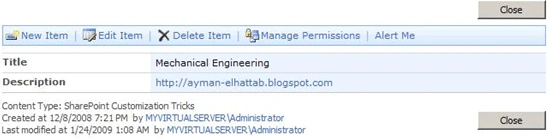
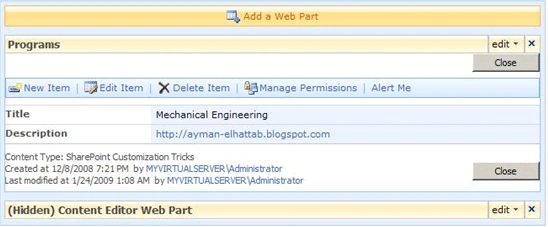
Sometimes, you need to remove some items from the toolbar that appears at the top of DispForm.aspx.
Unfortunately, the "HideCustomAction" feature can merely hide the items which have been rendered through the "Custom Action" feature framework such as Site Actions and Site setting so let's take the same approach we took in Part 1 which is delving back into the world of JavaScript which I really find very handy when it comes to SharePoint customization.
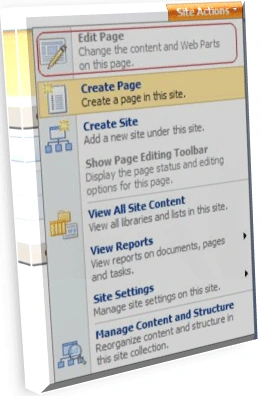
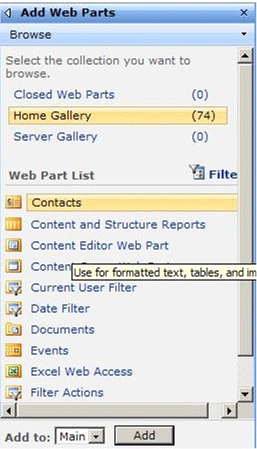
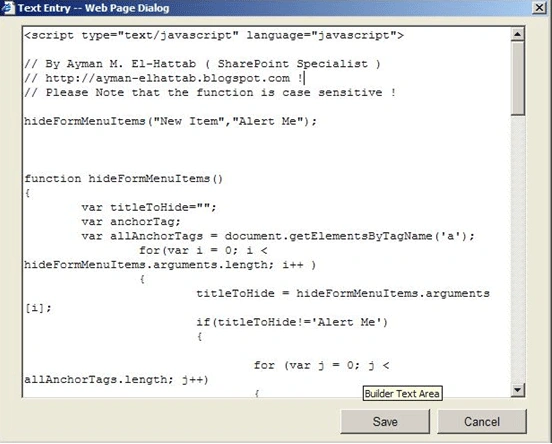
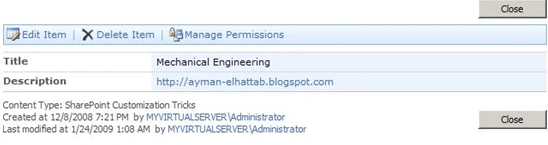
The following function can be used to hide any toolbar item in dispform.aspx. Just call the function passing the names of the items comma separated (e.g. New Items, Alert Me, etc.). The function removes the items and of course the images rendered beside them (if found). Trick #3 will deal with where and how you can add the function to your list form.
Kindly note that the function is case sensitive so take care of the case the toolbar item names are rendered.
hideFormMenuItems("New Item", "Alert Me");
function hideFormMenuItems() {
var titleToHide = "";
var anchorTag;
var allAnchorTags = document.getElementsByTagName('a');
for (var i = 0; i < hideFormMenuItems.arguments.length; i++) {
titleToHide = hideFormMenuItems.arguments[i];
if (titleToHide != 'Alert Me') {
for (var j = 0; j < allAnchorTags.length; j++) {
anchorTag = allAnchorTags[j];
if (anchorTag.title.indexOf(titleToHide) != -1) {
anchorTag.parentNode.parentNode.parentNode.parentNode.
parentNode.style.display = "none";
anchorTag.parentNode.parentNode.parentNode.parentNode.
parentNode.nextSibling.style.display = "none";
break;
}
}
}
else {
for (var k = 0; k < allAnchorTags.length; k++) {
anchorTag = allAnchorTags[k];
if (anchorTag.id.indexOf("SubscribeButton") != -1) {
anchorTag.parentNode.parentNode.parentNode.parentNode.
parentNode.style.display = "none";
break;
}
}
UrviPosted May 7, 2009, 8:35 PM
Hi I am totally new to sharepoint developer 2007. I never touch with software before. Please help me out how to execute the code and see the result with the webdesigning.. it would be great if anyone can help me out. Thank you in advance.
Scott RookeeditedPosted May 7, 2009, 5:42 AMEdited May 7, 2009, 8:22 AM
Great article! Although, when I tried hiding the "Approve/reject Item" button it doesn't work. Any chance that Javascript is getting caught up on the forward slash "/" ? Any idea's how to hide the "Approve/reject Item" button? Thanks! --- UPDATE --- I keep trying to figure this one out. And after a little more perseverance, this is what I came up with. I wanted to share this with everyone. I replaced the following code: if (anchorTag.id.indexOf("SubscribeButton")!=-1) with if (anchorTag.id.indexOf("IOAppDenyItem")!=-1) Thanks for getting me started! Scott Rooke Chicago, IL <script type="text/javascript" language="javascript"> hideFormMenuItems("Approve/reject Item"); function hideFormMenuItems() { var titleToHide = ""; var anchorTag; var allAnchorTags = document.getElementsByTagName('a'); for (var i = 0; i < hideFormMenuItems.arguments.length; i++) { titleToHide = hideFormMenuItems.arguments[i]; if (titleToHide != 'Approve/reject Item') { for (var j = 0; j < allAnchorTags.length; j++) { anchorTag = allAnchorTags[j]; if (anchorTag.title.indexOf(titleToHide) != -1) { anchorTag.parentNode.parentNode.parentNode.parentNode. parentNode.style.display = "none"; anchorTag.parentNode.parentNode.parentNode.parentNode. parentNode.nextSibling.style.display = "none"; break; } } } else { for (var k = 0; k < allAnchorTags.length; k++) { anchorTag = allAnchorTags[k]; if (anchorTag.id.indexOf("IOAppDenyItem") != -1) { anchorTag.parentNode.parentNode.parentNode.parentNode. parentNode.style.display = "none"; anchorTag.parentNode.parentNode.parentNode.parentNode. parentNode.nextSibling.style.display = "none"; break; } } } } var allSpanTags = document.getElementsByTagName("span"); var spanTag; var toolbarRow; var lastCell; for (var m = 0; m < allSpanTags.length; m++) { spanTag = allSpanTags[m]; if (spanTag.id == 'part1') { toolbarRow = spanTag.childNodes[2].firstChild.firstChild; lastCell = toolbarRow.lastChild.previousSibling while (lastCell.style.display == 'none') { lastCell = lastCell.previousSibling; } if (lastCell.innerText == '|') { lastCell.style.display = 'none'; } break; } } } </script>
haric baharPosted Mar 18, 2009, 1:40 PM
Hey how do i hide toolbars items based on the user roles and permission. i am ablie to hide toolbar items but it hides for all users. i want to hide and show the toolbar items based on user roles and permisson . can you please help. Thanks