

It is another great tool to work with SharePoint. It is a free tool and can be used for editing of items inside SharePoint.
Features
Some of the cool features of Designer are:
- It is Free
- WYSIWYG (What you see is what you get) Editor
- No Coding Required
- Useful for Administrators as well as Developers
- Workflow Creation
- Editing of Site, Styles Possible using Designer
- Branding
- Form Customizations
- Visio Integration
- InfoPath Forms Data Source Configuration
- Manage Site Permission, Site Columns etc.
- BCS (Business Connectivity Configuration)
- Create Content Types
- ASP.NET, XML, XSLT, RSS, XHTML support
- SOAP and REST support
- Administrator can restrict the use of Designer on sites
Version
The version compatible with SharePoint 2010 is
SharePoint Designer 2010. The previous version of designer was SharePoint 2007.
The ancestor of SharePoint Designer is Microsoft FrontPage which was a web
editor of the times.
Download Link
You can use the following links to download the 32bit and 64bit version of
Designer 2010:
http://www.microsoft.com/download/en/details.aspx?id=16573
http://www.microsoft.com/download/en/details.aspx?id=24309
Enabling/Disabling Designer Features
To enable/disable the features of SharePoint Designer use the following item:
Site Actions > Site Settings > Site Collection Administration > SharePoint Designer Settings

You can change the following options on the above screen:
- Enable / Disable SharePoint Designer for the Site
- Enable / Disable detaching page from the site definition
- Enable / Disable customizing master pages
- Enable / Disable managing of web site url feature
Running SharePoint Designer
After the installation you can execute SharePoint Designer using the following link:
All Programs > SharePoint > Microsoft
SharePoint Designer 2010
Following is the application snapshot on executing the above link:

Use the Open Site button and you will get the following dialog:

Enter the site url and click the Open button.
Enter the credentials in the appearing dialog.
You will get the site opened in the main Designer window as shown below:

The left side pane shows various features of the site like:
- Lists and Libraries
- Workflows
- Site Pages
- Site Assets
We can select the item from the left pane and the properties are displayed on the right side.
Customizing Site Pages
Now we can try customizing an existing page
using SharePoint Designer. For this create a new list named contacts in the site
deriving from the Contacts template.
Refresh the site in the Designer using the button on left top system menu.

Now select the Lists and Libraries item from the left pane. You will be able to
see list named contacts.

Click on the contacts item and you will get the properties of it.

You can see 3 forms on the Forms pane which are described below:
|
Form |
Description |
|
DispForm.aspx |
Used to display the item details (View command) |
|
EditForm.aspx |
Used to edit the item details (Edit command) |
|
NewForm.aspx |
Used to add a new item (New command) |
Now we can add a new page and apply the Display (View command) to it. Click on the New button from the Forms pane. Enter the following details in the appearing dialog.

Click the Ok button to continue. Now the new
form gets added and acts as the default View form. You can try changing the
color of the form labels, deleting some rows, adding a hyper link, custom
formatting etc. After the changes click the Save button and you are ready to
check the edited page inside SharePoint. (Use the Refresh button to get the
controls)
Inside SharePoint site, add a new contact and use the View Item command for the
newly added item. You can see the following screen:

Note
Please make sure that you are editing only the new custom form. Changing the
SharePoint pages may create problems and hence not advisable to new users.
Editing Master Pages and CSS
We can also edit the Master Pages using the left side link Master Pages.

Click on the v4.master item and it will get opened as shown below. Use the Edit
File option from the appearing page.


You can modify the control properties in the appearing window. There is an option on the bottom of Designer to switch to the Code View from the Design View.

Editing CSS (Cascading Style Sheets)
As you might be knowing the CSS files determines the font sizes, colors and various attributes. Use the Style > Manage Style option to get the CSS properties.
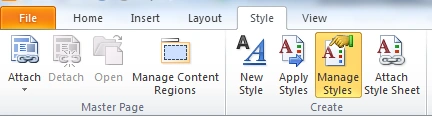
You can see the Manage Styles properties window in the right end bottom of the
designer.

Right click on the item, and use the Edit Item menu item. There you can change
the style of the particular item. Any changes will get reflected in the
SharePoint site on saving.
Working with Controls
We can add / edit controls to the custom pages or master page. Use the Insert menu option to add controls. You can choose from HTML, ASP.NET, SharePoint controls as shown below:

References
http://community.bamboosolutions.com/blogs/sharepoint-2010/archive/2010/04/01/new-features-in-sharepoint-designer-2010.aspx
http://blogs.msdn.com/b/sharepointdesigner/
Summary
In this article we have explored about
SharePoint Designer. The Page Customization, Master Page Editing facilities
using the Designer were explored.
Join the conversation! Your thoughts help the community grow.