

Sign up for an Office 365 Developer Site
- Are you an MSDN subscriber? Visual Studio Ultimate and Visual Studio Premium with MSDN subscribers receive an Office 365 Developer Subscription as a benefit. Redeem your benefit today.
- Do you have one of the following Office 365 subscription plans?
Office 365 Midsize Businessac Office 365 Enterprise E1, E3, E4, or K1Office 365 Education A2, A3, or A4Office 365 Government G1, G3, G4, or K1If so, you can provision a Developer Site from the Office 365 admin center. For more information, see How to: Create a Developer Site within your existing Office 365 subscription.
- You can either start with a free 30-day trial or buy an Office 365 developer subscription (with one user license for either option) using one of the following links. This subscription costs $99.00 per year.
Please refer to Sign up for an Office 365 Developer Subscription and set up your tools and environment for more details.
Install SharePoint Designer 2013
SharePoint Designer 2013 is a free download. To download and install SharePoint Designer 2013 use the following procedure.
To install SharePoint Designer 2013
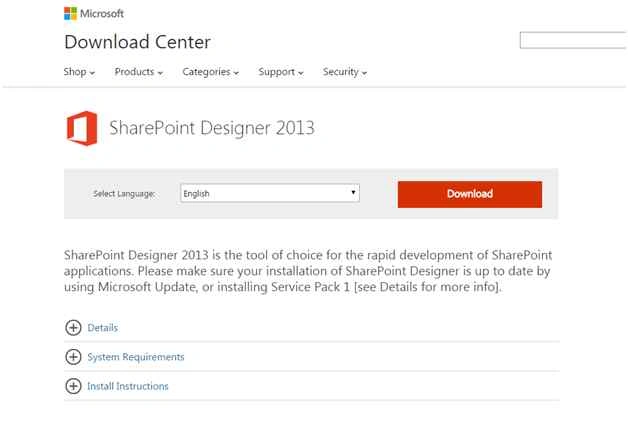
- Open your web browser and navigate to the Microsoft Download Center.
- Click on the Download button.
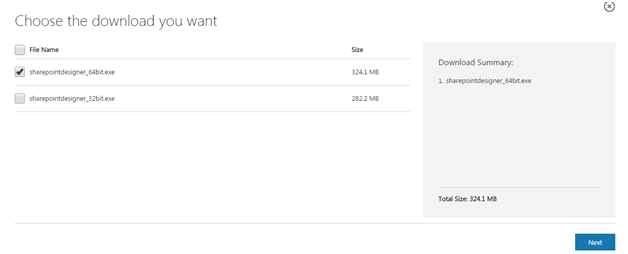
- Select your platform type: 64-bit (x64) or 32-bit (x86). Click on the Next button.
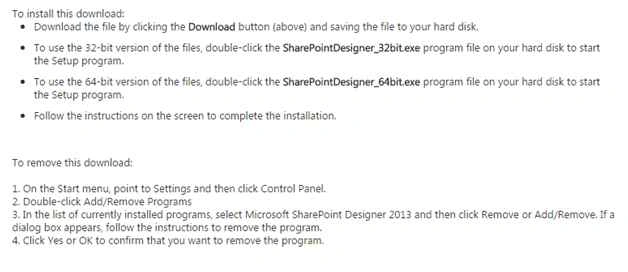
- Follow the instructions to install SharePoint Designer 2013.
The following is the procedure to connect to a SharePoint Online site in SharePoint Designer 2013.
- Open SharePoint Designer 2013.
- Click on Open Site.
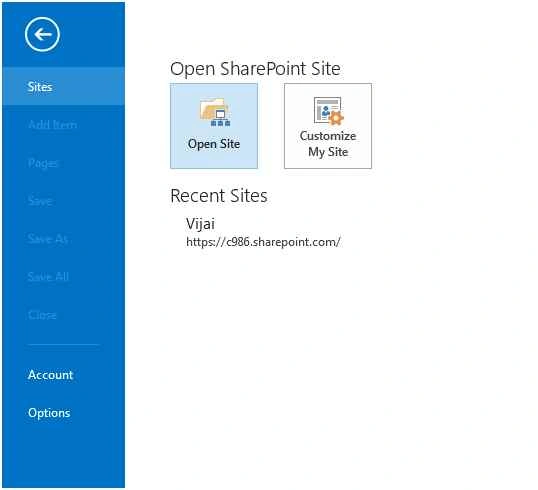
- Enter the site URL and then click on the Open button.
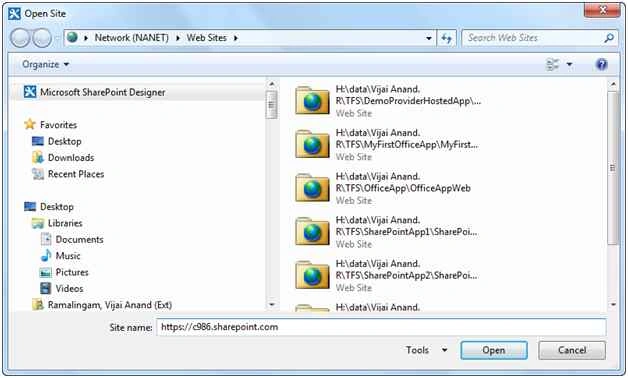
- Enter your credentials, if prompted. Be sure to use credentials that have access to the SharePoint 2013 site.
- The site is opened successfully in the SharePoint Designer 2013.


Akanksha TripathiPosted May 3, 2018, 3:54 AM
I am not able to access sharepoint online url in Sharepoint designer
Victoria WileyPosted Jul 14, 2017, 10:35 AM
Great job! Please, look at my suggestions on this issue http://blog.virtosoftware.com/2017/03/how-to-create-sharepoint-designer-2013-workflow.html.
SriramPosted Jul 2, 2015, 7:32 AM
Good. Please post lot of articles related to workflows for Online. Thanks..........
NitinPosted Jun 15, 2015, 9:33 AM
good one
Rahul Kumar SaxenaPosted Jun 15, 2015, 2:31 AM
Good Show...
Santhakumar MunuswamyPosted Jun 14, 2015, 2:36 AM
Thanks for good work..
Sibeesh VenuPosted Jun 13, 2015, 1:50 PM
Good one.