

SharePoint Framework (SPFx) Extension allows extending the SharePoint user experience. Using SharePoint Framework Extensions, we can customize the overall SharePoint user experience involving notification area, list views, and toolbars. Read more about SPFx extensions here.
In this article, we will explore the application customizer part of SharePoint extensions.
Brief information about Application Customizer
Application customizer provides access to predefined locations on the SharePoint page and allows us to customize them. In this article, we will add header and footer to the SharePoint site using application customizer.
In the classic SharePoint, we used to extend predefined HTML elements or placeholders from master page to display the custom content. In the modern SharePoint, as JavaScript cannot be used on a page, the application customizer helps to implement these scenarios.
Page Placeholders
The application customizer helps to get access to the below zones on a Modern SharePoint page
Implement Application Customizer
Open CustomHeaderFooterApplicationCustomizer.ts under “\src\extensions\customHeaderFooter\” folder.
To get access to placeholders on the page, use the below imports
Update the interface IAlertApplicationCustomizerProperties to include Top and Bottom properties
Implement OnInit method
Implement _renderPlaceHolders method
Include the styles in extension CustomHeaderFooterApplicationCustomizer.ts
Summary
Application customizer SharePoint Framework extension helps to extend the predefined placeholders on Modern SharePoint page. These extensions can be deployed tenant wide.
The application customizer helps to get access to the below zones on a Modern SharePoint page
- Top: Header section of the page
- Bottom: Footer section of the page
Create SPFx Solution
Open the command prompt. Create a directory for an SPFx solution.
Open the command prompt. Create a directory for an SPFx solution.
- md spfx-extensions-applicationcustomizer
Navigate to the above created directory.
- cd spfx-extensions-applicationcustomizer
Run Yeoman SharePoint Generator to create the solution.
- yo @microsoft/sharepoint
Yeoman generator will present you with the wizard by asking questions about the solution to be created.
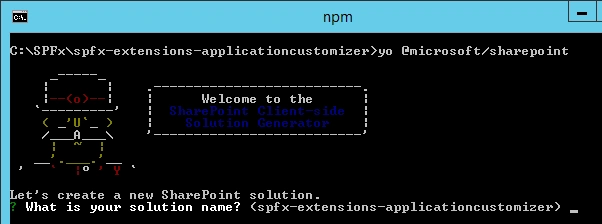
Solution Name
Hit enter to have a default name (spfx-logging in this case) or type in any other name for your solution.
Hit enter to have a default name (spfx-logging in this case) or type in any other name for your solution.
Selected choice - Hit enter
Target for component
Here we can select the target environment where we are planning to deploy the client webpart; i.e. SharePoint Online or SharePoint OnPremise (SharePoint 2016 onwards).
Here we can select the target environment where we are planning to deploy the client webpart; i.e. SharePoint Online or SharePoint OnPremise (SharePoint 2016 onwards).
Selected choice - SharePoint Online only (latest)
Place of files
We may choose to use the same folder or create a subfolder for our solution.
We may choose to use the same folder or create a subfolder for our solution.
Selected choice - Same folder
Deployment option
Selecting Y will allow the app to deploy instantly to all sites and will be accessible everywhere.
Selecting Y will allow the app to deploy instantly to all sites and will be accessible everywhere.
Selected choice - N (install on each site explicitly)
Type of client-side component to create
We can choose to create client side webpart or an extension.
We can choose to create client side webpart or an extension.
Selected choice - Extension
Type of client-side extension to create
We can choose to create Application customizer, Field customizer, or ListView Command Set.
We can choose to create Application customizer, Field customizer, or ListView Command Set.
Selected choice - Application customizer
Application customizer name
Hit enter to select the default name or type in any other name.
Hit enter to select the default name or type in any other name.
Selected choice - CustomHeaderFooter
Application customizer description
Hit enter to select the default description or type in any other value.
Hit enter to select the default description or type in any other value.
Selected choice - Adds custom header and footer to the SharePoint site
Yeoman generator will perform a scaffolding process to generate the solution. The scaffolding process will take a significant amount of time.
Once the scaffolding process is completed, lock down the version of project dependencies by running the below command
Once the scaffolding process is completed, lock down the version of project dependencies by running the below command
- npm shrinkwrap
In the command prompt type the below command to open the solution in the code editor of your choice.
- code .
Solution Structure
The solution structure is similar to client-side web parts with similar configuration options.
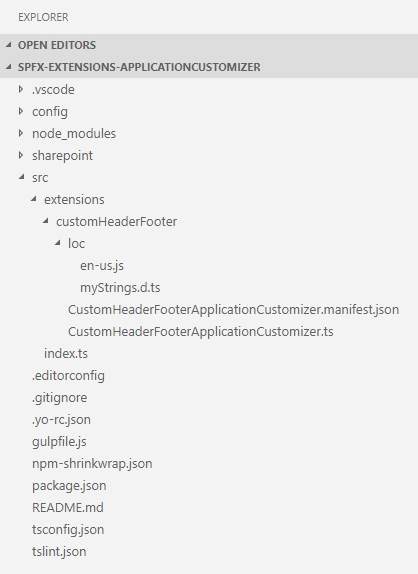
The solution structure is similar to client-side web parts with similar configuration options.
The file CustomHeaderFooterApplicationCustomizer.manifest.json inside the folder “\src\extensions\customHeaderFooter\” defines the extension type and unique identifier for the solution. Please note down the id. We will need it later for debugging purposes.
- {
- "$schema": "https://developer.microsoft.com/json-schemas/spfx/client-side-extension-manifest.schema.json",
- "id": "f58a0902-c9d8-4cce-bd5e-4da887e21bed",
- "alias": "CustomHeaderFooterApplicationCustomizer",
- "componentType": "Extension",
- "extensionType": "ApplicationCustomizer",
- // The "*" signifies that the version should be taken from the package.json
- "version": "*",
- "manifestVersion": 2,
- // If true, the component can only be installed on sites where Custom Script is allowed.
- // Components that allow authors to embed arbitrary script code should set this to true.
- // https://support.office.com/en-us/article/Turn-scripting-capabilities-on-or-off-1f2c515f-5d7e-448a-9fd7-835da935584f
- "requiresCustomScript": false
- }
Open CustomHeaderFooterApplicationCustomizer.ts under “\src\extensions\customHeaderFooter\” folder.
To get access to placeholders on the page, use the below imports
- import {
- BaseApplicationCustomizer,
- PlaceholderContent,
- PlaceholderName
- } from '@microsoft/sp-application-base';
- export interface ICustomHeaderFooterApplicationCustomizerProperties {
- Top: string;
- Bottom: string;
- }
- public onInit(): Promise<void> {
- Log.info(LOG_SOURCE, `Initialized ${strings.Title}`);
- // Added to handle possible changes on the existence of placeholders.
- this.context.placeholderProvider.changedEvent.add(this, this._renderPlaceHolders);
- // Call render method for generating the HTML elements.
- this._renderPlaceHolders();
- return Promise.resolve();
- }
- private _renderPlaceHolders(): void {
- console.log('HelloWorldApplicationCustomizer._renderPlaceHolders()');
- console.log('Available placeholders: ',
- this.context.placeholderProvider.placeholderNames.map(name => PlaceholderName[name]).join(', '));
- // Handling the top placeholder
- if (!this._topPlaceholder) {
- this._topPlaceholder =
- this.context.placeholderProvider.tryCreateContent(
- PlaceholderName.Top,
- { onDispose: this._onDispose });
- // The extension should not assume that the expected placeholder is available.
- if (!this._topPlaceholder) {
- console.error('The expected placeholder (Top) was not found.');
- return;
- }
- if (this.properties) {
- let topString: string = this.properties.Top;
- if (!topString) {
- topString = '(Top property was not defined.)';
- }
- if (this._topPlaceholder.domElement) {
- this._topPlaceholder.domElement.innerHTML = `
- <div class="${styles.app}">
- <div class="ms-bgColor-themeDark ms-fontColor-white ${styles.top}">
- <i class="ms-Icon ms-Icon--Info" aria-hidden="true"></i> ${escape(topString)}
- </div>
- </div>`;
- }
- }
- }
- // Handling the bottom placeholder
- if (!this._bottomPlaceholder) {
- this._bottomPlaceholder =
- this.context.placeholderProvider.tryCreateContent(
- PlaceholderName.Bottom,
- { onDispose: this._onDispose });
- // The extension should not assume that the expected placeholder is available.
- if (!this._bottomPlaceholder) {
- console.error('The expected placeholder (Bottom) was not found.');
- return;
- }
- if (this.properties) {
- let bottomString: string = this.properties.Bottom;
- if (!bottomString) {
- bottomString = '(Bottom property was not defined.)';
- }
- if (this._bottomPlaceholder.domElement) {
- this._bottomPlaceholder.domElement.innerHTML = `
- <div class="${styles.app}">
- <div class="ms-bgColor-themeDark ms-fontColor-white ${styles.bottom}">
- <i class="ms-Icon ms-Icon--Info" aria-hidden="true"></i> ${escape(bottomString)}
- </div>
- </div>`;
- }
- }
- }
- }
Use this.context.placeholderProvider.tryCreateContent to get access the placeholder, without assuming that the placeholder will exist
Custom Styles
Add a file CustomHeaderFooterApplicationCustomizer.module.scss under “\src\extensions\customHeaderFooter\” folder
Add a file CustomHeaderFooterApplicationCustomizer.module.scss under “\src\extensions\customHeaderFooter\” folder
- .app {
- .top {
- height:60px;
- text-align:center;
- line-height:2.5;
- font-weight:bold;
- display: flex;
- align-items: center;
- justify-content: center;
- }
- .bottom {
- height:40px;
- text-align:center;
- line-height:2.5;
- font-weight:bold;
- display: flex;
- align-items: center;
- justify-content: center;
- }
- }
- import styles from './CustomHeaderFooterApplicationCustomizer.module.scss';
Test the extension
Open serve.json under config folder.
Update the properties section to include Top and Bottom messages.
In the command prompt, type the below command
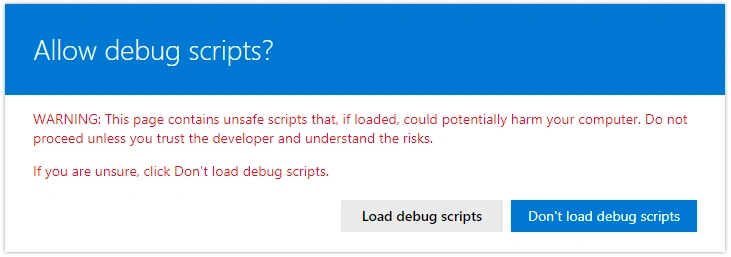
The SharePoint site will open, click “Load debug scripts”
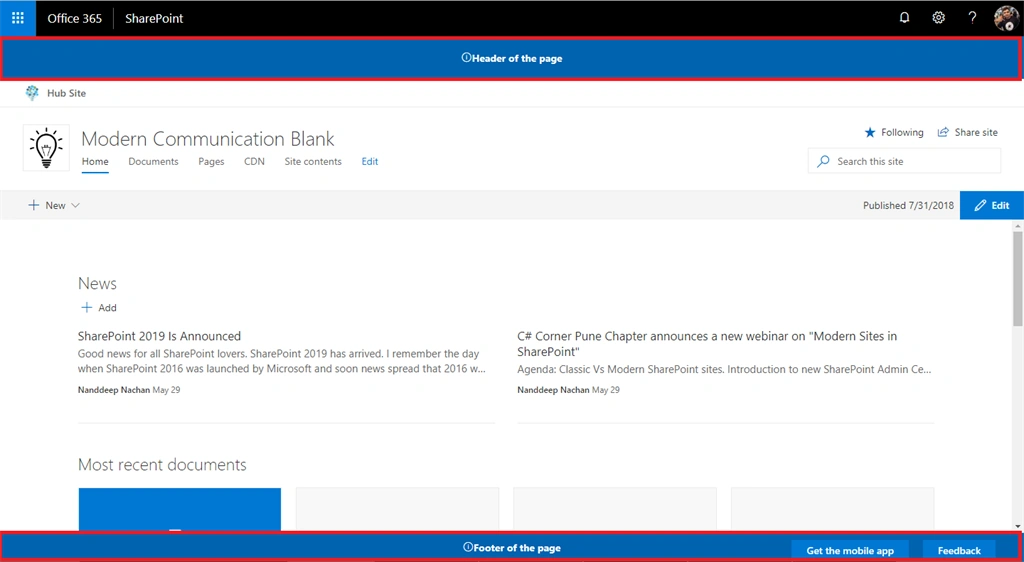
Observe the header and footer on the page.
Open serve.json under config folder.
Update the properties section to include Top and Bottom messages.
- {
- "$schema": "https://developer.microsoft.com/json-schemas/core-build/serve.schema.json",
- "port": 4321,
- "https": true,
- "serveConfigurations": {
- "default": {
- "pageUrl": "https://contoso.sharepoint.com/sites/mySite/SitePages/myPage.aspx",
- "customActions": {
- "f58a0902-c9d8-4cce-bd5e-4da887e21bed": {
- "location": "ClientSideExtension.ApplicationCustomizer",
- "properties": {
- "Top": "Header of the page",
- "Bottom": "Footer of the page"
- }
- }
- }
- },
- "customHeaderFooter": {
- "pageUrl": "https://contoso.sharepoint.com/sites/mySite/SitePages/myPage.aspx",
- "customActions": {
- "f58a0902-c9d8-4cce-bd5e-4da887e21bed": {
- "location": "ClientSideExtension.ApplicationCustomizer",
- "properties": {
- "Top": "Header of the page",
- "Bottom": "Footer of the page"
- }
- }
- }
- }
- }
- }
- gulp serve
Observe the header and footer on the page.
Application customizer SharePoint Framework extension helps to extend the predefined placeholders on Modern SharePoint page. These extensions can be deployed tenant wide.
Vinay KPosted Aug 5, 2021, 4:53 PM
Hi, As I can see that, added custom header is coming on top , but if we want "Hubsite Navigation" as top and below that we want to display custom header how to achieve this?
sayed haiderPosted Oct 15, 2018, 6:11 AM
Hi, i need a little help. How to make footer at the bottom of the page not at the bottom of the window screen??