

Objectives:
- Learn about types of data such as: Lookup Field Type, Personal or Group Type
- How to create a column based on the description of the other columns
- Learn SharePoint Content Type and Site Column
- Working with SharePoint Library List
- Library definition version for SharePoint List
Note: There are two sites and Publishing site Team site
Exercise 01: Back to the Top-Level default SharePoint site
- Click on the link below:
- "View All Site Content" or Type List | Create Link
- Site Actions | Create Link
- On the Custom List category
- Select the link "Custom List"
- Enter the name of the Provinces List
- Enter the Provinces of Vietnam Description
- Check on the option Yes in the "Display on Quick Launch"
- Click "Create" button
Exercise 02: Change the title of the column
- Select Provinces List
- Settings | List Settings |
- On Columns
- Click on Title | Change Title into Province Name
- Maximum number of characters is 50
- Click OK
- Select Province List
- Added Province Name - Ho Chi Minh, Hanoi, Thua Thien Hue
- Click OK
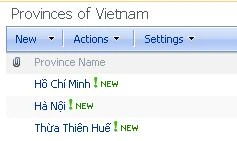
Exercise 03: Defining a lookup field for the column
- Continuing with the Employees List
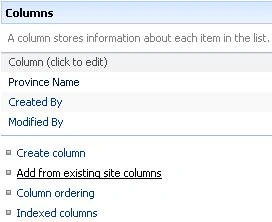
- Click on Create Column
- Column Name: Active
- Yes / No | Default: Yes
- Click Save
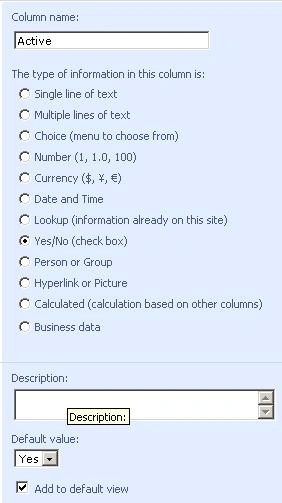
- Click on Create Column
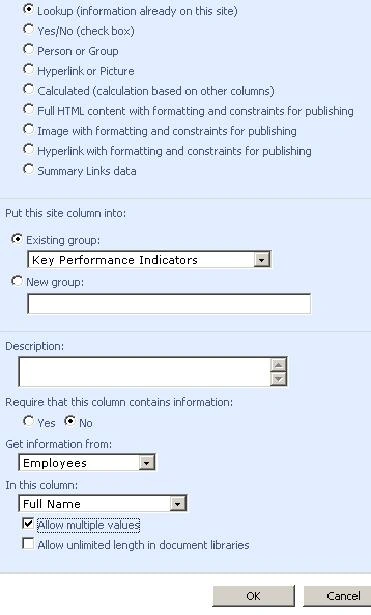
- Column Name: Province
- Lookup | Get information from (select Provinces)
- In this column (select Name Province)
- Click Save
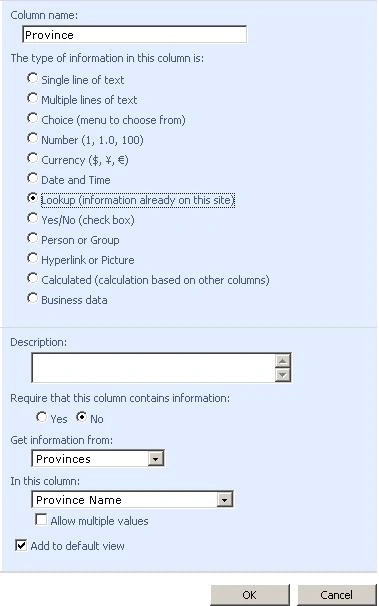
- Click on Create Column
- Column Name: Description
- Multiple lines of text | Multiple lines of text (6)
- Rich text (Bold, nghiêng, text alignment)
- Click Save
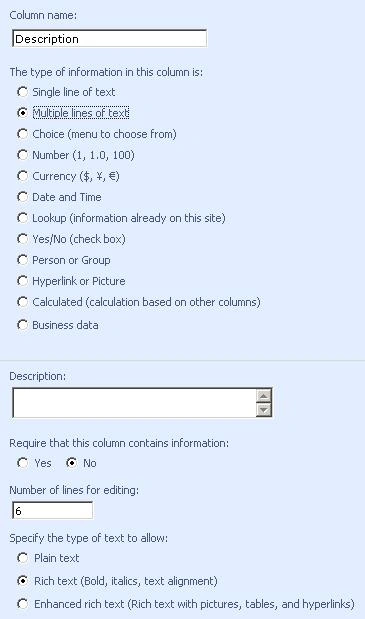
- Open the Employees List
- Enter a few items to SharePoint List
Exercise 04: Understanding Calculation for column string
- Click on the List Employees
- Click on Create Column
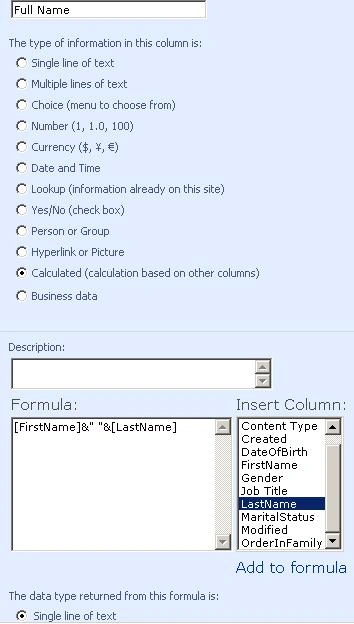
- Column Name: Full Name | Type Calculate
- Connect First Name and Last Name
- Using the expression
- [First Name] & "" & [Last Name]
- Return single line text
- Click Save
Exercise 05: Understanding Calculation type for column number
- Create a new List called Salary
- Click on Create Column
- Data type named Employee Lookup | Get information from (select FullName from Employees)
- BasicSalary name type number
- Calculate SocialIns name type (5% BasicSalary)
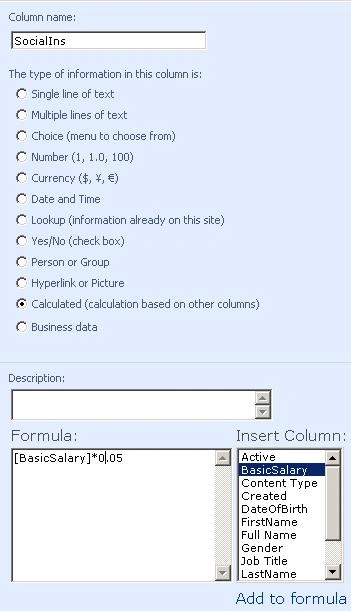
- Calculate MedicialIns name style (2% BasicSalary)
- Calculate the name Union type (1% BasicSalary)
- Calculate IncomeTax name type (10% BasicSalary)
Exercise 06: Working with the Document Library
- Continuing with Sharepoint Site
- Creating a new Sharepoint
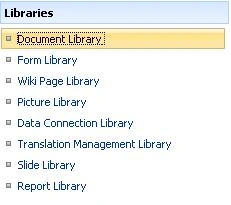
- Select the Document Library
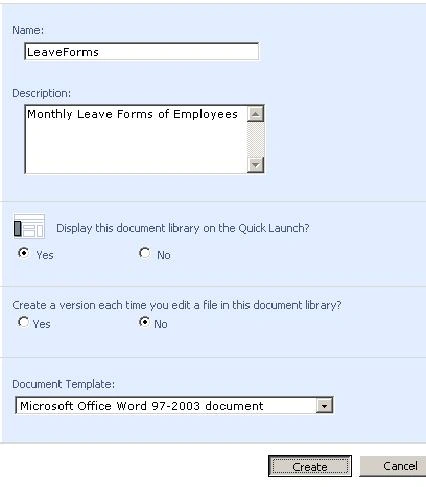
- Named LeaveForms
- Description of the Monthly Employees Leave Forms
- Click Save
- Select the Document Library
- Upload some files
- Select the document library LeaveForms
- View Properties and can change the file name or title
- Click Save
Exercise 07: Create a new folder on the SharePoint Document
- Continuing with the document library list is LeaveForms
- Add new folder
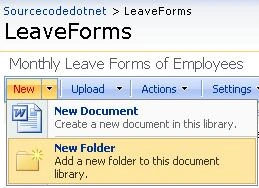
- Named Des2008
- Add new folder
- Upload a few files into this folder excels
Exercise 08: Do not allow to create folder on LeaveForms document
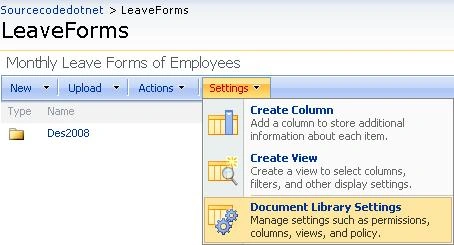
- Select the document library LeaveForms
- Select Settings | Document Library Settings
- In the Advanced Settings
- No option for the Display Check "New Folder" command on the New menu?
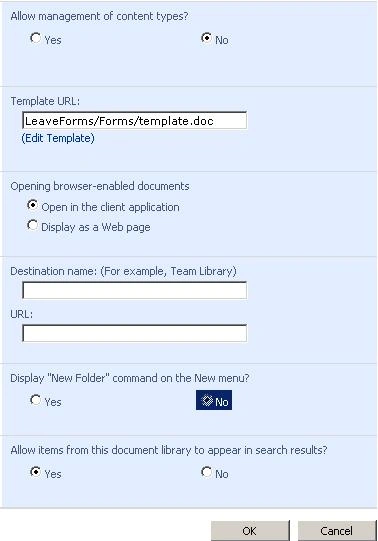
- Click OK
- Click New | New Folder and see if there ?
Exercise 09: Find out about the check out and check in document library
- Continuing with the document library list is LeaveForms
- Logged with an administrator account
- Select the document name | R-Click | Check out document
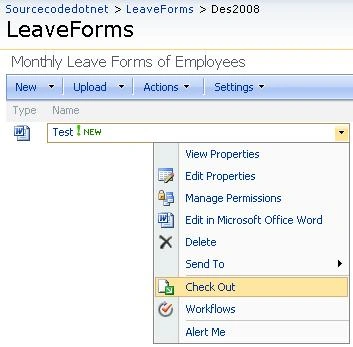
- Edit the properties and change the file name
- Select the document name | R-Click | Check out document
- Open up your browser
- Logged account was added to the site
- Select the document and tried to check out
- Check in document
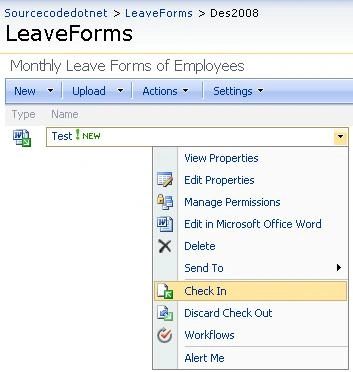
- View properties and change the file name
- Check in document
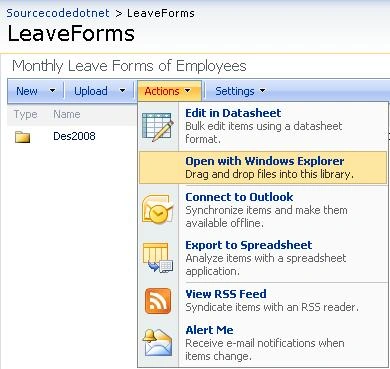
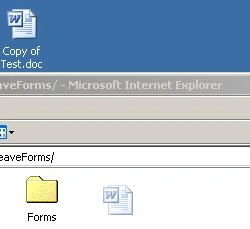
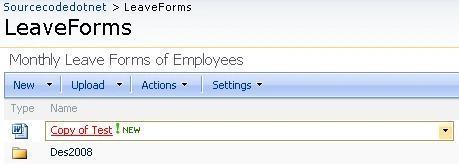
Exercise 10: Find out how to copy files from Windows Explorer to the folder of the SharePoint Document library
Zel IlanoPosted Dec 13, 2015, 9:41 PM
Helpful suggestions ! BTW , if your business have been needing to merge PDF or PNG files , my husband saw a tool here http://www.altomerge.com/ .
Hung HungPosted May 4, 2011, 10:37 AM
On your Top-Level, you will see link "View All Site Content" at QuickLaunch (Menu left).
Larry BirdPosted May 4, 2011, 9:32 AM
Exercise 1 says to click on link below. Where is this link?