

Before coming on to the Time Trigger Azure let's understand the Azure Function first,
Azure Function
Azure Functions is a service that lets you launch serverless applications and run event-triggered code on Microsoft Azure without the need to explicitly manage infrastructure.
Azure Functions enables you to write serverless code to handle events at scale, with minimal overhead and cost.
Time Trigger Azure Function
Timer-triggered Azure functions allow you to run a function on a configurable schedule. Unlike HTTP-triggered Azure functions, timing info is stored in an Azure storage account and then passed to the function on execution.
Overview
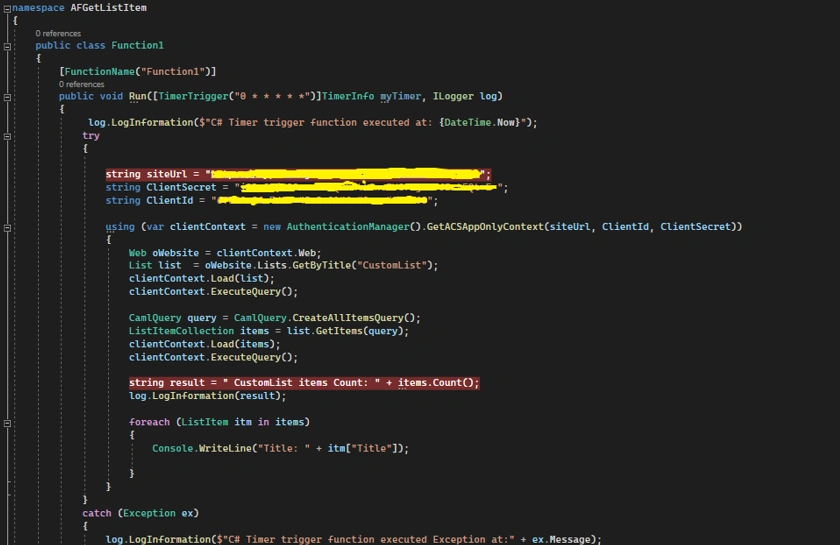
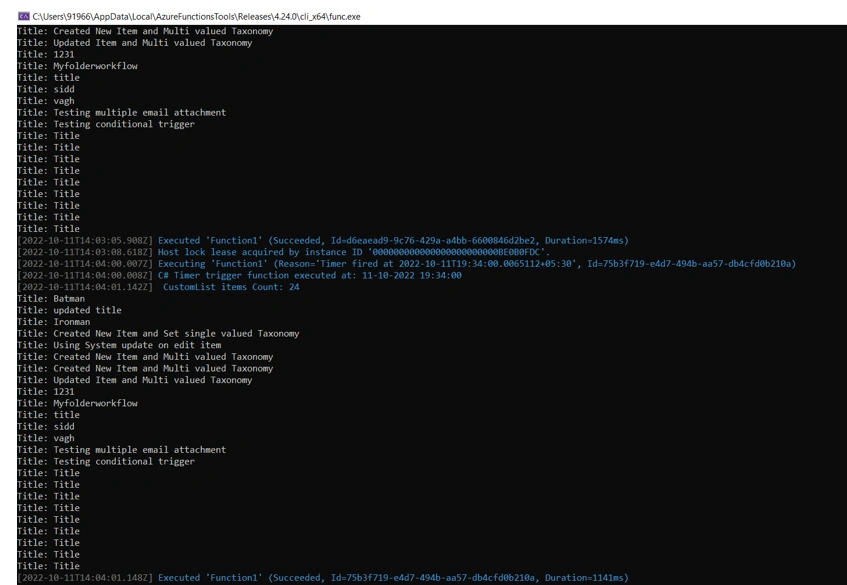
In this article, we will cover SharePoint List CRUD Operation using Time Trigger Azure Function. There can be many occasions where we need to perform scheduled operations with SharePoint Online Lists. In On-Premises we used to have Timer Job to perform any custom operations. Time Trigger Azure Function can be used in similar cases.
Since it will schedule operation, there will not be any user interactions. We will Client ID and Client Secret to authenticate. We will be using SharePoint app-only authentication.
Follow below points,
Open the appregnew.aspx page. click on the Generate button to generate a client ID and client secret.
https://{tenant name}.sharepoint.com/_layouts/15/appregnew.aspx
Note down the retrieved information (client ID and client secret). We will need this in the next steps.
In the Title field, type the name of the App. For App Domain type www.localhost.com and to Redirect URI, type https://www.localhost.com
Create Time Trigger Azure Function Project
For the sake of this article, we are going to create C#.net-based Azure function but you can choose to do it in other supported languages also...
Open Visual Studio (not code) - Create a new Project and Choose Azure Functions.
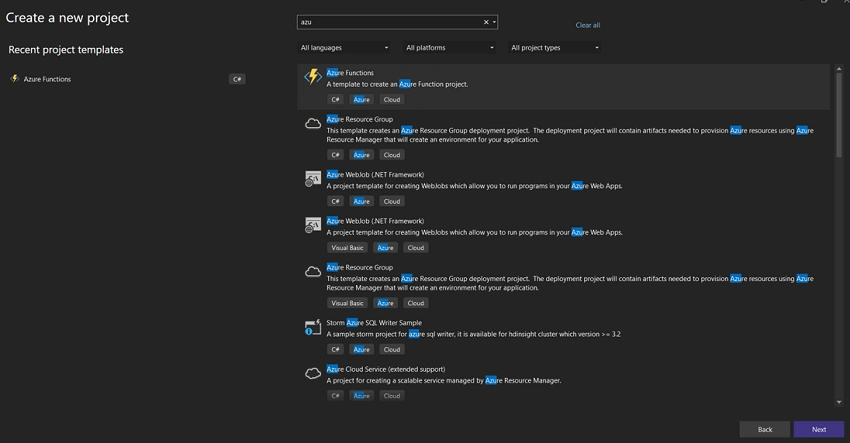
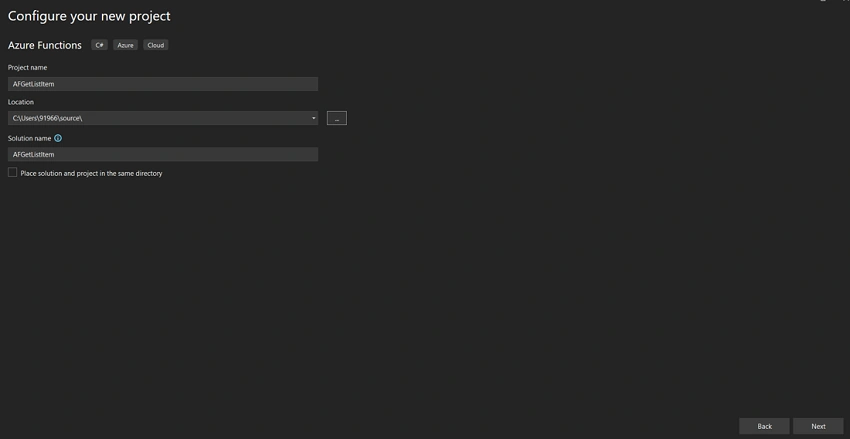
- Choose Project name and solution path and click Next it will ask you the trigger type and .NET version(as in the below screenshot).
- Choose Azure Function and Time trigger in Function Dropdown
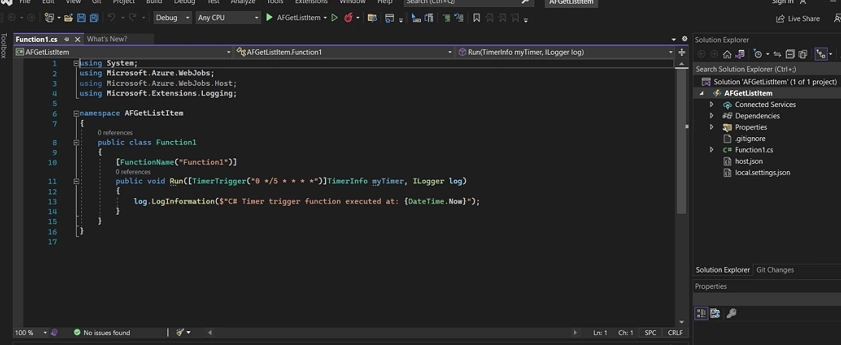
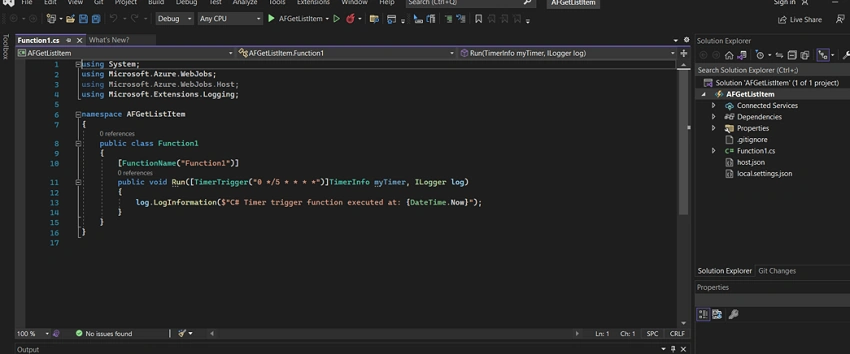
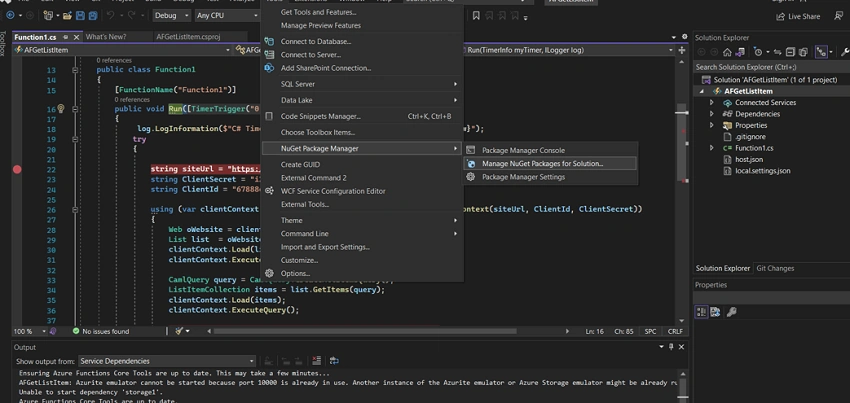
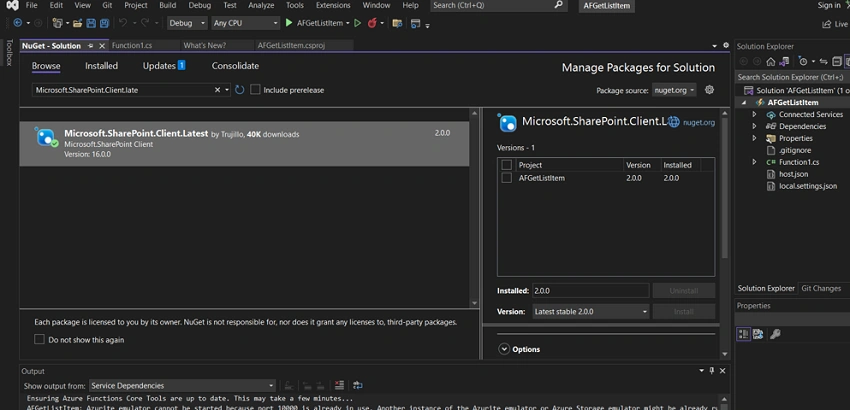
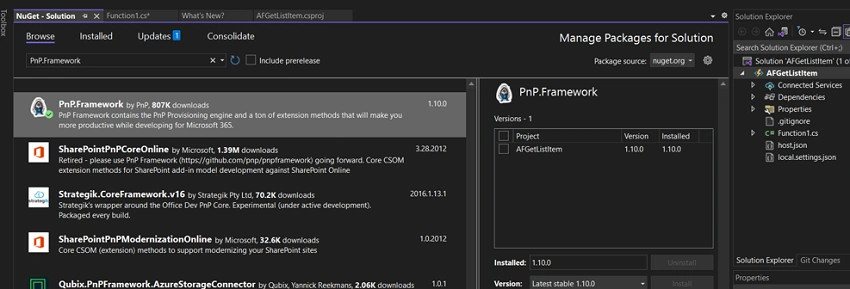
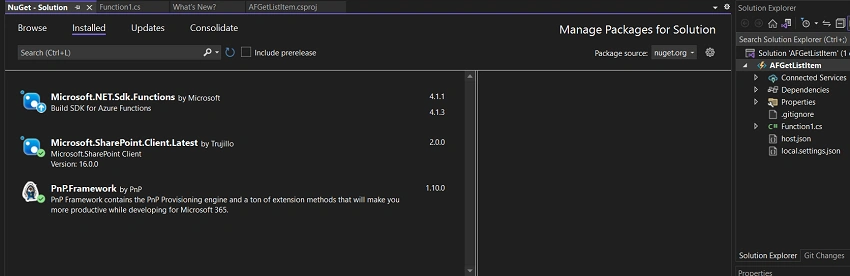
- It would create the project and you should see something like below
Join the conversation! Your thoughts help the community grow.