

Application Insights is a great way to dig deep and troubleshoot issues with any application hosted locally or on the cloud. It's quite easy to configure. There are 3 ways to configure
- Build Time
- Run Time
- Both of above
We can collect the following type of reports diagnostics using Application Insights
- Diagnostic trace logs
- Dependency rates
- Response times
- Failure rates
- AJAX Calls, Exceptions
- Host diagnostics
- Page views and load performance
- User and session counts
- Performance counters
- Custom events and metrics
Let me show you a step by step example how to configure Azure Application Insights to monitor SharePoint Site. In my example below I am configuring office 365 site (It does not matter either local or on Cloud)
- In PowerShell use below command in order to connect with Azure
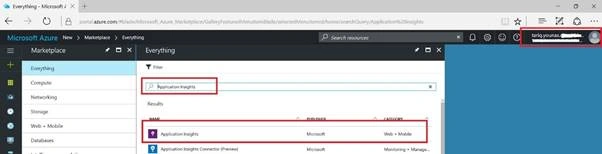
Login-AzureRmAccoun - Click + button and search for "Application Insights"
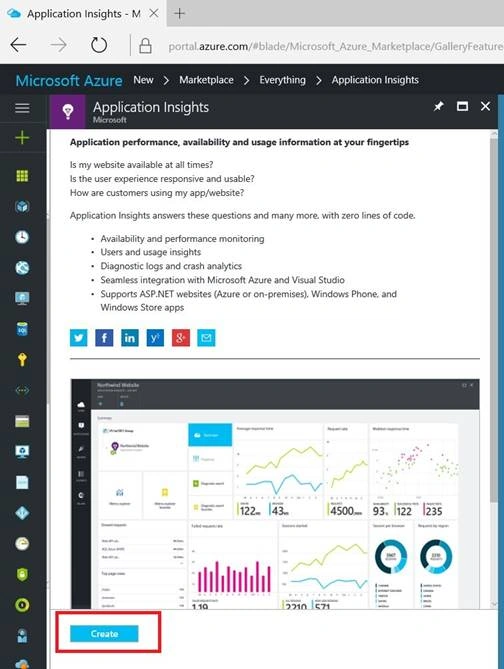
- Click "Create" button
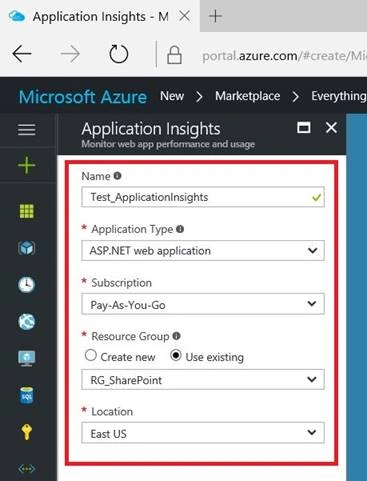
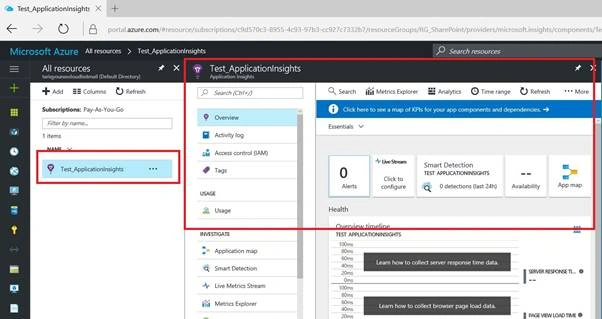
- Provide credentials; I gave the name "Test_ApplicationInsights"
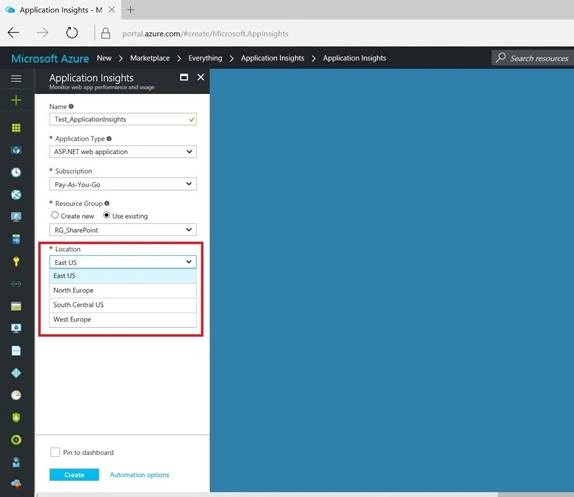
- Service is only available in the following regions right now. Perhaps later Microsoft will offer it in other regions
- Here you can see the properties of "Application Insights"
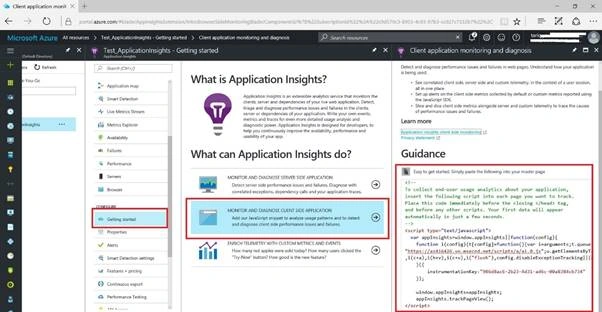
- Click "Getting Started" in order to pull script (This is the script you will insert in your SharePoint site pages)
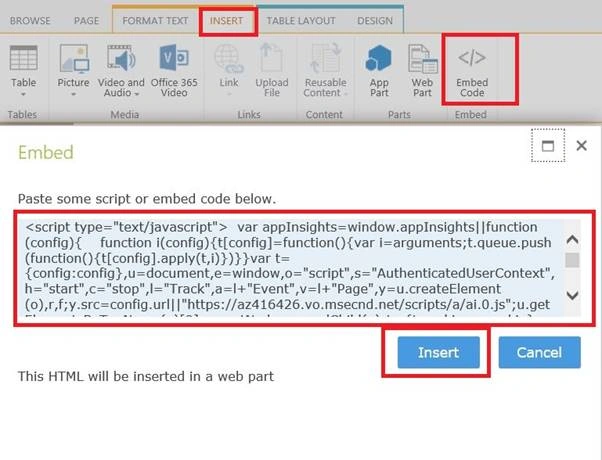
- After copying script paste in SharePoint Site using SharePoint ribbon to insert script as shown below
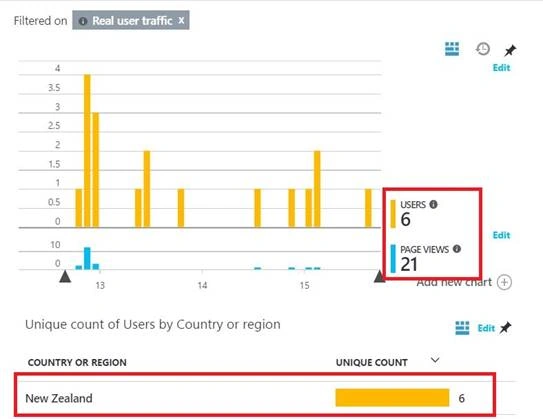
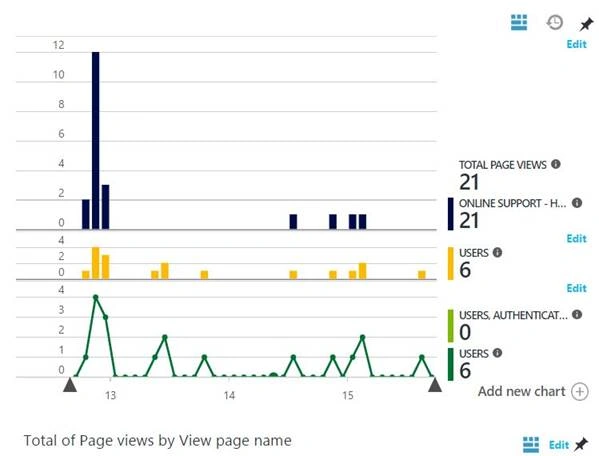
- After inserting users, session and page views will be visible in Azure Portal (Application Insights)
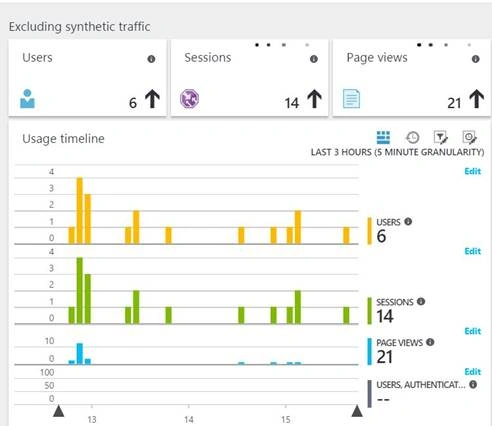
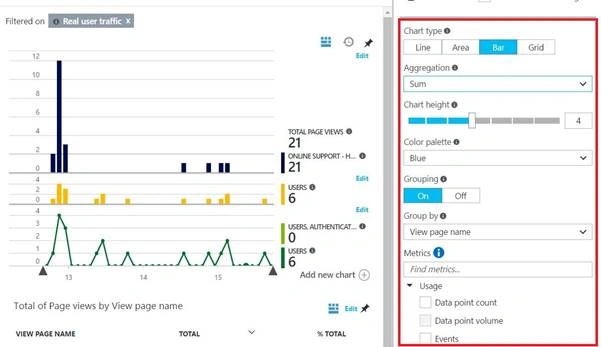
- There you go, you can see the graphs/stats from different angles
Abdul Mannan KhanPosted Apr 20, 2017, 8:31 AM
Thanks for sharing in details with snapshots.