

Introduction
SharePoint Online lets you create dynamic, collaborative pages using web parts—modular components that display content like text, images, documents, or lists. Adding and configuring web parts allows you to customize your pages, improve user experience, and showcase important information effectively.
How to add and configure web parts in SharePoint Online
1. Navigate to Your SharePoint Online Page
Open your browser and go to your SharePoint Online site.
Go to the page where you want to add the web part, or create a new page:
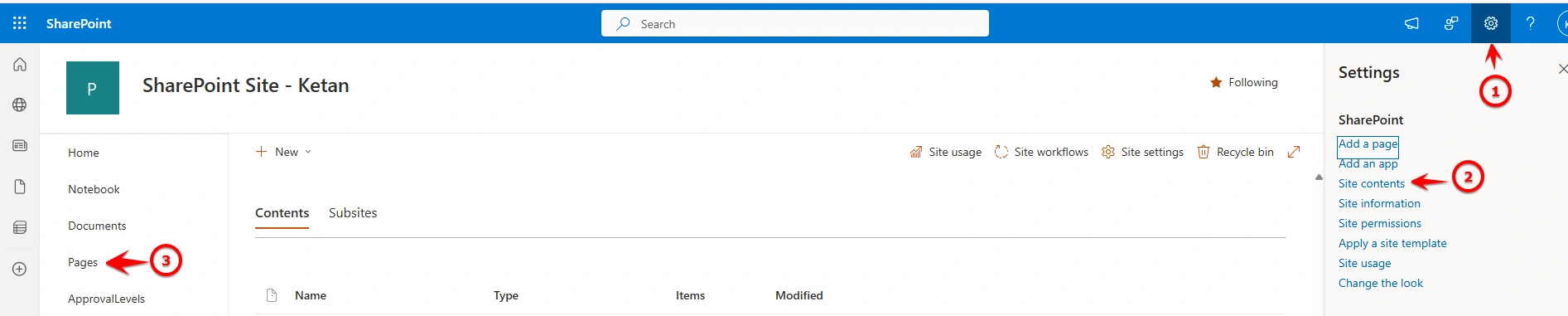
Gear Icon (Settings) → Site Contents → Pages → New → Site Page

2. Enter Edit Mode
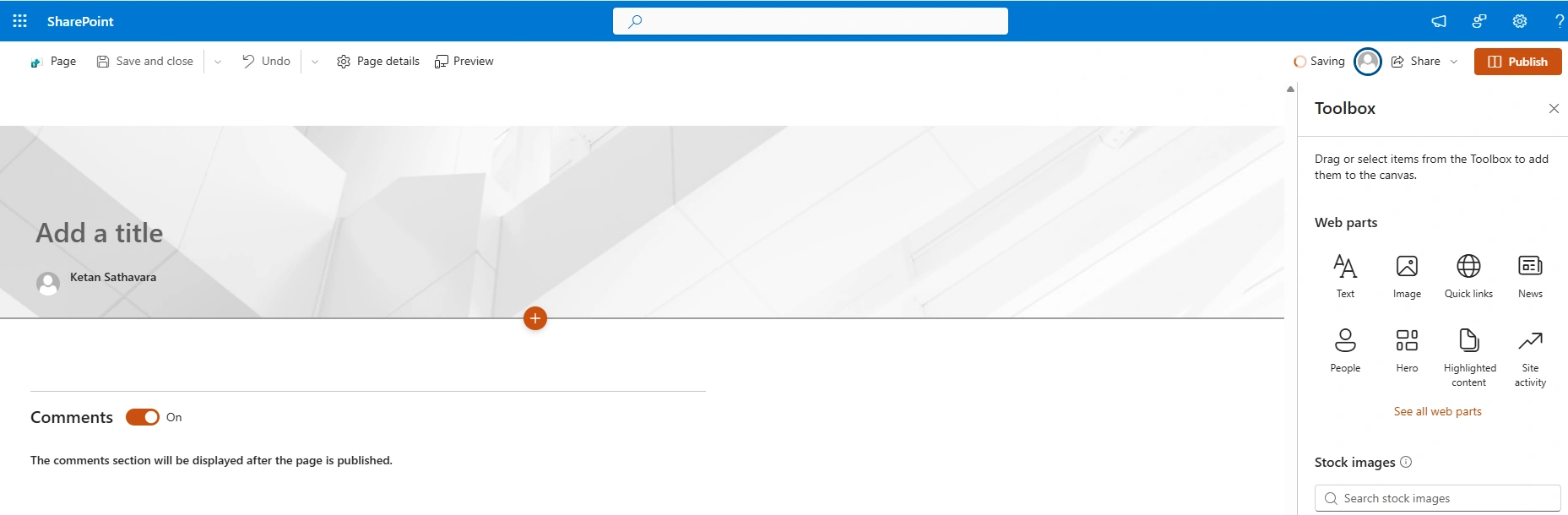
On your page, click Edit (top-right corner of the page).
The page will switch to editing mode, showing sections where you can add web parts.
3. Add a Web Part
Hover your mouse over the section where you want to insert the web part.
Click the “+” icon that appears.
The web part toolbox opens, showing all available web parts.
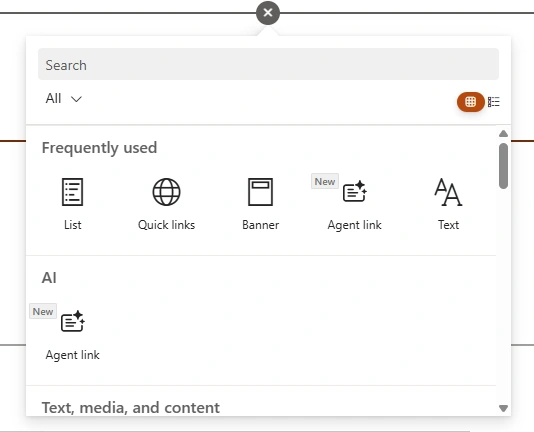
Some common web parts include:
Text – Add formatted text.
Image – Insert an image.
Document Library – Display documents from a library.
Quick Links – Add links to important pages or resources.
News – Display recent news articles from the site.
Click the web part you want to add. It will appear on your page.
4. Configure the Web Part
Hover over the added web part and click the pencil icon (Edit Web Part).
The configuration panel appears on the right side. Depending on the web part, you can:
Change layout or style
Choose the source for content (e.g., a library, list, or page)
Set display options (number of items, sorting, filters)
Adjust formatting (colors, size, font)
After configuring, click Republish or Save as draft to apply changes.
5. Move or Remove a Web Part
Move: Hover over the web part, then click the up/down arrow icon to reposition it within the section.
Remove: Hover, click the trash icon, and confirm removal.
6. Publish Your Page
Once you’re satisfied:
Click Publish at the top-right.
Your page with the configured web parts is now live.
Web Parts in SharePoint Online (Detailed Explanation)
1. What is a Web Part?
A Web Part is a reusable component or modular block that can be added to a SharePoint page to display information such as text, documents, lists, images, videos, or reports.
It allows users to customize SharePoint pages without coding by simply adding and configuring different web parts.
👉 Simple Definition: A Web Part is a building block used to display content on a SharePoint page.
Example
Imagine a Team Site Home Page in Microsoft SharePoint Online.
The page may contain:
News Web Part → shows latest announcements
Document Library Web Part → shows team files
Quick Links Web Part → shortcuts to important resources
People Web Part → shows team members
All these components are separate Web Parts arranged on the same page.
👉 Think of a SharePoint page like a dashboard, and Web Parts are the widgets on that dashboard.
2. Common Web Parts in SharePoint Online
SharePoint provides many modern web parts that can be added to pages.
1. Content Web Parts
These web parts are used to display content like text, images, or visual elements.
Text Web Part
Used to add formatted text.
Example:
Page description
Instructions
Project information
Example content:
Welcome to the HR Portal.
Here you can access policies, forms, and employee benefits information.
Image Web Part
Used to display a single image.
Example:
Company logo
Banner image
Event poster
Image Gallery Web Part
Displays multiple images in a gallery format.
Example:
Event photos
Product showcase
Training images
Divider Web Part
Adds a horizontal line to separate sections of a page.
Example:
Section 1: Company News
Section 2: Important Links
2. Document & Data Web Parts
These web parts display data stored in SharePoint lists or libraries.
Document Library Web Part
Displays documents stored in a SharePoint document library.
Example:
Team site showing:
| File Name | Modified |
|---|---|
| ProjectPlan.docx | Today |
| Budget.xlsx | Yesterday |
Users can:
Open files
Upload documents
Edit files
List Web Part
Displays items from a SharePoint list.
Example: Task list
| Task | Assigned To | Status |
|---|---|---|
| Design UI | John | In Progress |
| Testing | Sarah | Completed |
Highlighted Content Web Part
Displays dynamic content from across the site or sites.
Example:
Automatically show:
Latest documents
Recently modified files
News posts
Example scenario:
Show latest 5 documents modified this week.
Site Activity Web Part
Shows recent activity on a site.
Example:
John uploaded a document
Sarah edited a page
New list item created
3. Navigation Web Parts
These web parts help users quickly navigate to important resources.
Quick Links Web Part
One of the most commonly used web parts.
Used to create shortcuts to:
Pages
Documents
External websites
Example:
| Link |
|---|
| HR Policies |
| Employee Portal |
| Submit Leave |
Sites Web Part
Displays related SharePoint sites.
Example:
Finance Site
HR Site
Marketing Site
Useful for organization portals.
4. Collaboration Web Parts
These web parts help teams collaborate and manage work.
People Web Part
Displays team members or contacts.
Example:
| Name | Role |
|---|---|
| Demo Person1 | Project Manager |
| Demo Person2 | Developer |
Users can see:
Profile
Email
Contact details
Planner Web Part
Shows tasks from Microsoft Planner.
Example tasks:
| Task | Status |
|---|---|
| Design homepage | In Progress |
| Review documents | Completed |
This helps teams track work directly inside SharePoint.
Group Calendar Web Part
Displays shared calendar events from Microsoft Outlook.
Example events:
| Event | Date |
|---|---|
| Project Meeting | 10 March |
| Sprint Review | 12 March |
5. Media & Integration Web Parts
These web parts allow integration with external tools and services.
Embed Web Part
Used to embed:
Videos
Websites
External content
Example:
Embedding a YouTube training video.
Power BI Web Part
Displays reports from Microsoft Power BI.
Example:
Sales dashboard showing:
Revenue
Regional performance
Monthly trends
Microsoft Forms Web Part
Displays forms created using Microsoft Forms.
Example:
Employee survey:
Feedback form
Event registration
Quiz
Users can submit responses directly from the SharePoint page.
3. Types of Web Parts (Conceptual Classification)
Web Parts can be categorized based on how they display content.
1. List-Based Web Parts
These web parts pull data dynamically from SharePoint lists or libraries.
When the data changes, the web part updates automatically.
Examples
Document Library
List
News
Highlighted Content
Example:
If a user uploads a document to the library, the Document Library Web Part automatically shows it.
2. Page-Based Web Parts
These web parts display static or manually configured content.
They do not update automatically.
Examples
Text
Image
Divider
Quick Links
Example:
A Text Web Part containing company introduction remains the same unless edited manually.
4. Example of a SharePoint Page Layout
Example Project Team Page
| Section | Web Part |
|---|---|
| Top Banner | Image Web Part |
| Project News | News Web Part |
| Important Links | Quick Links Web Part |
| Team Members | People Web Part |
| Project Documents | Document Library Web Part |
| Project Tasks | Planner Web Part |
This creates a complete project dashboard.
5. Benefits of Web Parts
Advantages of Web Parts in SharePoint:
Easy page customization
No coding required
Reusable components
Dynamic content display
Integration with Microsoft tools
Improves collaboration
Conclusion
Web parts are the building blocks of SharePoint Online pages, enabling you to display content and engage users effectively. By learning to add and configure them, you can create custom, interactive pages that meet your team’s needs and enhance collaboration.
Mastering web parts is a simple yet powerful way to make your SharePoint sites more dynamic, organized, and user-friendly.
Join the conversation! Your thoughts help the community grow.