

Introduction
In this article, we are going to explain how to show extensions for known file types in Windows 8.
Procedure for showing extensions for a known file type
Step 1
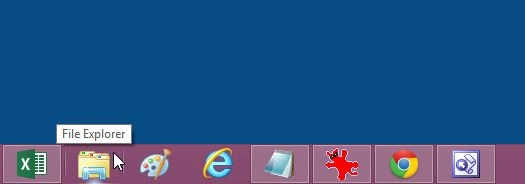
First, we move to the Windows 8 Desktop and open "Windows Explorer".
Step 2
When the Windows Explorer window has opened we then select the "View" tab from the Explorer ribbon and select "Options" and change the folder and search options.

Step 3
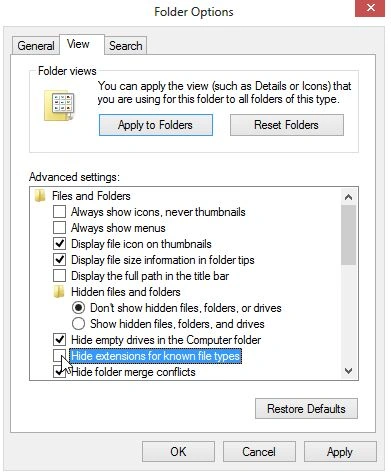
In the Folder Options window click the View tab and then uncheck the box labeled "Hide extensions for known file types".
Step 4
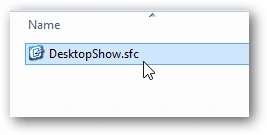
Now file extensions will be shown after the file name for commonly used file types.
Summary
In this article, we learned about Show Extensions For Known File Types in Windows 8.
Join the conversation! Your thoughts help the community grow.