

I would like to say thanks to Microsoft for providing access to some of the resources in the local machine.
I can call it as "Sandbox Barrier". It's just a relax to the barrier. Still, we
do not have full control over the local machine resources.
What is elevated trust mode?
We got this relaxation due to elevated trust mode. This mode enables some features like
- Clipboard Access
Elevated trust mode removes the prompt for permissions to access the clip board.
- HTML Hosting
Display HTML content in the web browser control.
- Removal of Cross Domain Restrictions
Our application can interact with any domain bypassing the normal security check that required the ClientAccessPolicy.xml or CrossDomain.xml files.
- File Access
This enables us to access some of local machine resources without user initiated interaction that invokes the OpenFileDialog. As I mention above, still we are limited user folders such as "My Documents","My Videos","My Pictures","My musics"and any sub folders.
if (App.Current.IsRunningOutOfBrowser && Application.Current.HasElevatedPermissions)
{
string picturesPath = Environment.GetFolderPath(Environment.SpecialFolder.MyPictures);
string path = picturesPath + @"\Aru.jpg";
StreamReader sr = new StreamReader(path);
string line = sr.ReadLine();
while (line != null)
{
line = sr.ReadLine();
}
sr.Close();
}
- Notification Window
The Notification Window is only available in Out-of-Browser (OOB) mode. You can take advantage of this feature to display confirmation of user's actions ("Product saved"), application status ("Application updated, please restart") or warn the user that data were refreshed while he is working on another application.
- COM Interoperability
Direct access to COM enabled applications installed on the clients machine
Configure application to run in
ELEVATED-TRUST-MODE
- Create a Silverlight 4 application. Right
click on the silverlight application, and select properties.
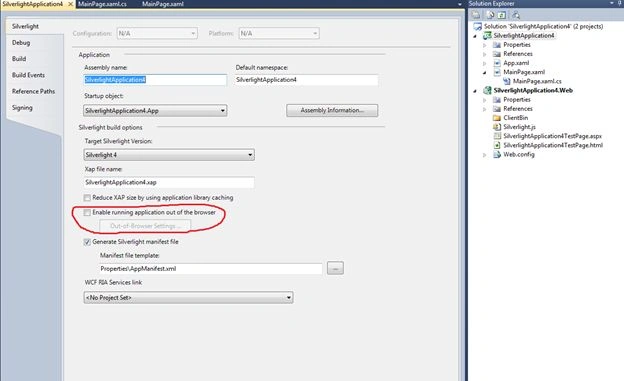
- Select "Enable running application out of browser" check box as shown in figure.
- Once you select the checkbox, you are able
to set OOB settings as given bellow.
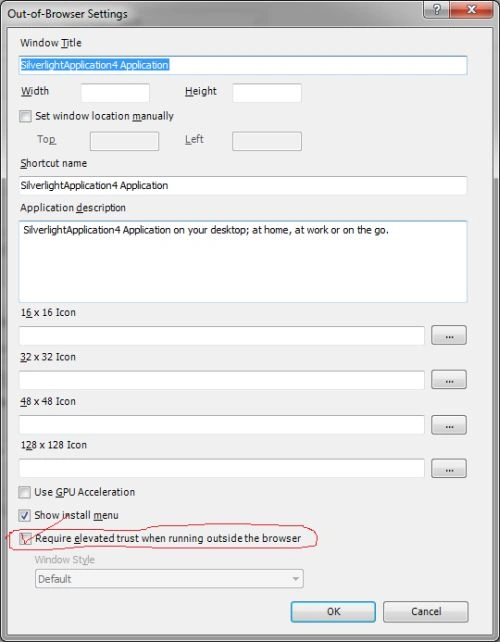
In this OOB settings, select "Require elevated
trust when running outside the browser".
Now, whenever you install the application, then there will be warning popup.
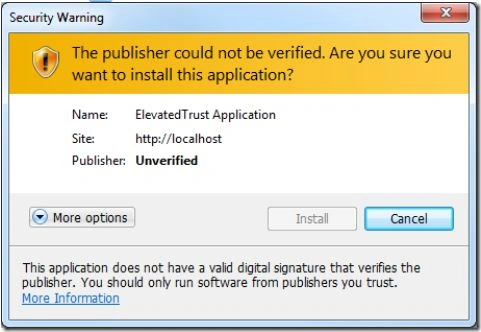
We can customize this popup message using digitally signed XAP.
Jimmy UnderwoodPosted Dec 26, 2011, 12:12 PM
Nice presentation
Manish TewatiaPosted Dec 26, 2011, 1:52 AM
It is indeed a good tutorial with a nice simple example to follow......
Mercy DecostaPosted Dec 26, 2011, 1:48 AM
Thats a great one dear. Thankx for this article