

Accessing data in Silverlight is not direct, as it is a client application we
have to use the service to provide data and interact with database.
LINQ to SQL is an ORM (stands for Object Relational Mapper/Mapping), which
provides a data access layer for the application.
LINQ to SQL classes that are mapped to database tables and views are called
entity classes. The entity class maps to a record, whereas the individual
properties of an entity class map to the individual columns that make up a
record. Create entity classes that are based on database tables or views by
dragging tables or views from Server Explorer/Database Explorer onto the Object
Relational Designer (O/R Designer).
The O/R Designer generates the classes and applies the specific LINQ to SQL
attributes to enable LINQ to SQL functionality (the data communication and
editing capabilities of the DataContext). Reference:
MSDN
The following example will combine the following skills:
-
Using LINQ to query and retrieve data that our Silverlight Application can use
-
Connecting to a WCF Web Service.
-
Using DataGrid control to display data.
To start, create a Silverlight 4
Application in Visual Studio 2010 .
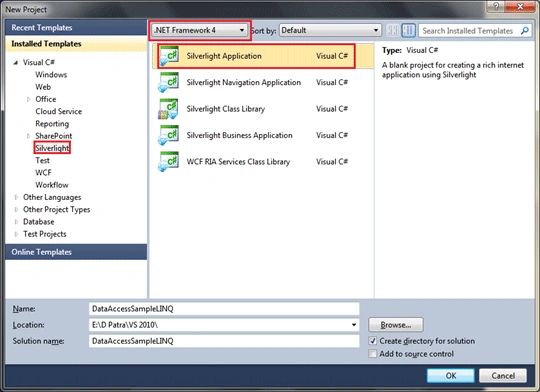
Figure 1
As you see in the figure above, Silverlight 4 is part of .NET Framework 4.0,
Visual Studio 2010 supports multi target support such as you can build
Silverlight 3 applications in Visual Studio 2010.
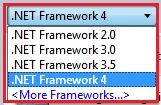
Figure 2
After creating the Silverlight Application in .NET Framework 4 you will find a
dialog asking for Silverlight Project details.
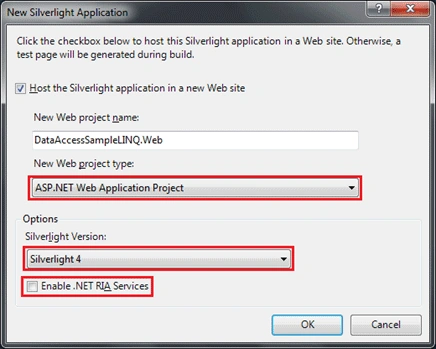
Figure 3
As you see in the figure above, the project template automatically creates a
sample ASP.NET Web Application Project with the default name in the format <SolutionName>
Web.
In the Silverlight Version dropdown we have two options such as Silverlight 4.0
and Silverlight 3.0.
You would see a checkbox field saying "Enable .NET RIA Services", this will
enable RIA Services features in the Silverlight project. But now we will not
select this. As we have a section following completely for RIA Services.
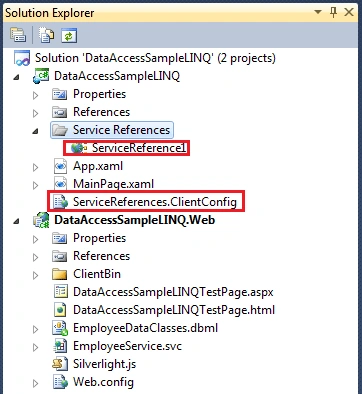
The following solution structure is created.
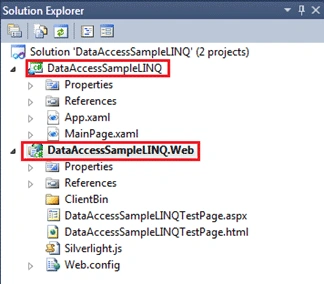
Figure 4
In the above figure, the first project is the Silverlight 4 project and the
second project is the ASP.NET Web project.
By default it creates two pages such as one .aspx page and one .html page to
host the Silverlight plugin. ClientBin folder is created to keep the XAP file
inside it.
Now let's add a LINQ to SQL file into Web project.
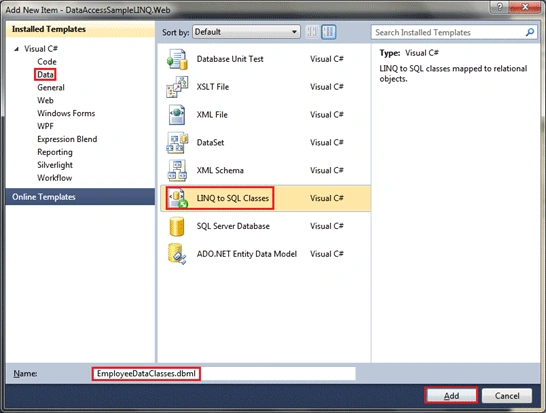
Figure 5
In the New Item dialog box select the Data and from the templates available
select LINQ to SQL classes. Give a name for your file (<Filename>.dbml) and then
add it to the Web project.
After creating the LINQ to SQL Data Classes you will see the designer opened for
you, initially it would be blank as we have not added any connection.
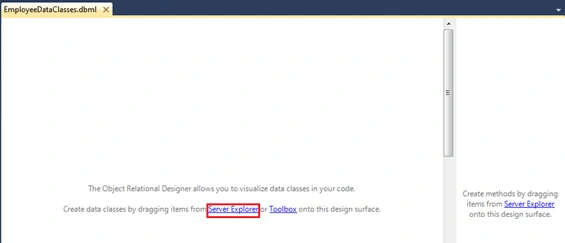
Figure 6
As you see in the above figure above, the designer is empty, ; click on Server
Explorer to connect to a Database in SQL Server.
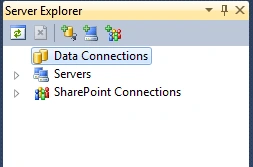
Figure 7
As you see in the figure above, we have no data connections available, let's add
one. Right click on Data Connections and select Add Connection from the
displayed menu.
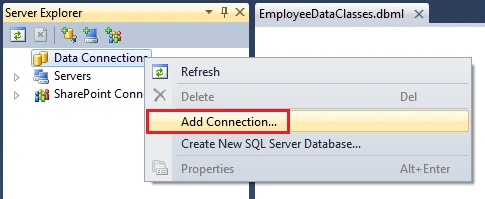
Figure 8
After you select Add Connection, the following "Add Connection" dialog box will
open. Initially all the fields are empty.
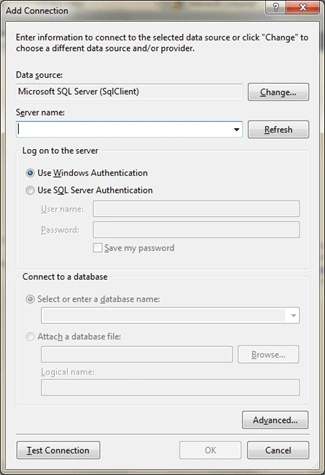
Figure 9
Let's add the Server name (<SystemName>\SQLEXPRESS), and click on Refresh. This
will refresh the Database list based on the Server name provided.
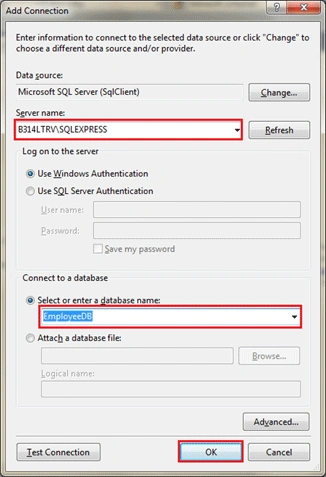
Figure 10
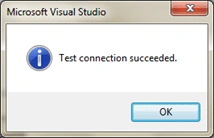
Figure 11
Select your database from the dropdown "Select or enter a database name:", now
we can test the connection by clicking the "Test Connection" button. Press OK to
add the connection and proceed further.
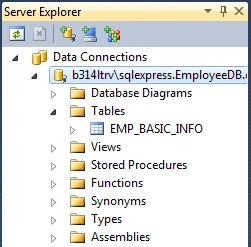
Figure 12
After adding the connection to the project, you can explore the database. Such
as Tables, Views, Stored Procedures, etc… The Web.config file now has the
information about the connection string.
<configuration>
<connectionStrings>
<add
name="EmployeeDBConnectionString"
connectionString="Data Source=B314LTRV\SQLEXPRESS;Initial Catalog=EmployeeDB;Integrated Security=True" providerName="System.Data.SqlClient"/>
</connectionStrings>
</configuration>
Listing
To Adding a table into LINQ to SQL is very easy, just drag the table and drop on
the designer of LINQ to SQL, it will be added.
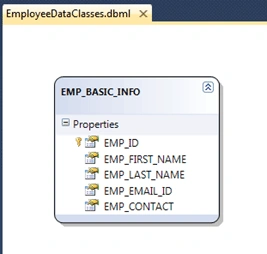
Figure 13
The preceding figure displays the entity (table) added to LINQ to SQL. As per
the information given for the table, it is replicated as it is. Now the good
thing is we can change the names by giving some good names.
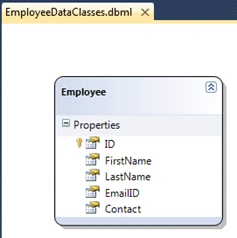
Figure 14
As you see in the preceding figure, we have changed the default names of the
Entity and it's properties. Although we can use the default property without any
issues; for better understanding we changed the names.
We have successfully connected to our database, now we need a service that will
communicate with the Silverlight client application for the database operations.
Let's add a WCF Service in the Web project.
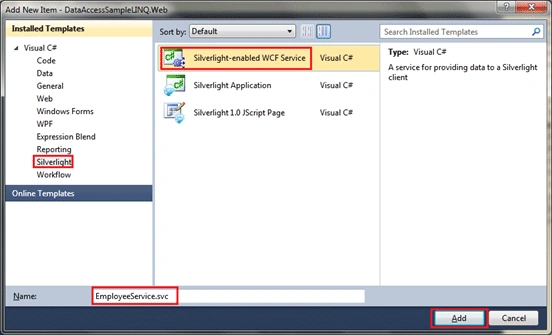
Figure 15
As you see in the preceding figure, we have selected Silverlight from the Add
New Item dialog and then select "Silverlight – enabled WCF Service". Give an
appropriate name and click on Add to add the service.
After the service is created it will open the class file (<Servicename>.svc.cs)
associated with it. This will change the Web.config file for the information
about the service.
After you have added the service you will see the following error message saying
"Failed to generate code for the service reference 'ServiceReference1'".
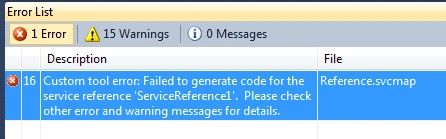
Figure 16
To generate the code automatically we need to configure the Service Reference.
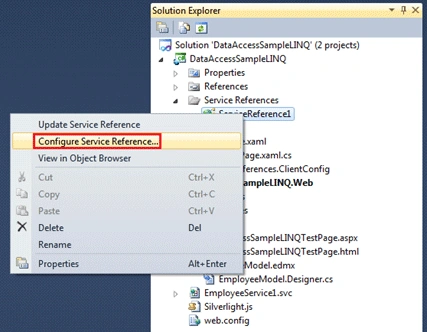
Figure 17
After selecting Configure Service Reference you will see a dialog for Service
Reference Settings. Uncheck "Reuse types in referenced assemblies"
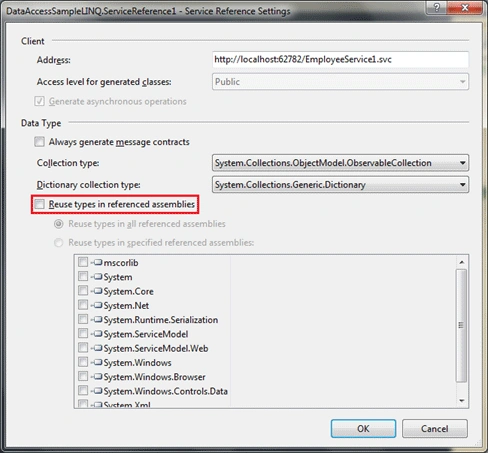
Figure 18
Now update the Service Reference and you will see no errors and the
ServiceReference.ClientConfig file is successfully auto generated.
<system.serviceModel>
<behaviors>
<serviceBehaviors>
<behavior
name="">
<serviceMetadata
httpGetEnabled="true"/>
<serviceDebug
includeExceptionDetailInFaults="false"/>
</behavior>
</serviceBehaviors>
</behaviors>
<bindings>
<customBinding>
<binding
name="DataAccessSampleLINQ.Web.EmpService3.customBinding0">
<binaryMessageEncoding/>
<httpTransport/>
</binding>
</customBinding>
</bindings>
<serviceHostingEnvironment
aspNetCompatibilityEnabled="true"/>
<services>
<service
name="DataAccessSampleLINQ.Web.EmpService3">
<endpoint
address=""
binding="customBinding"
bindingConfiguration="DataAccessSampleLINQ.Web.EmpService3.customBinding0"
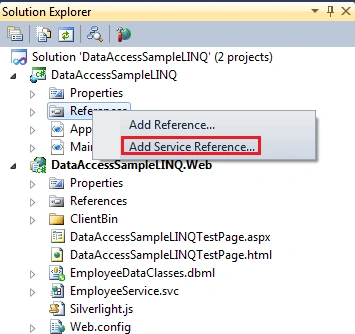
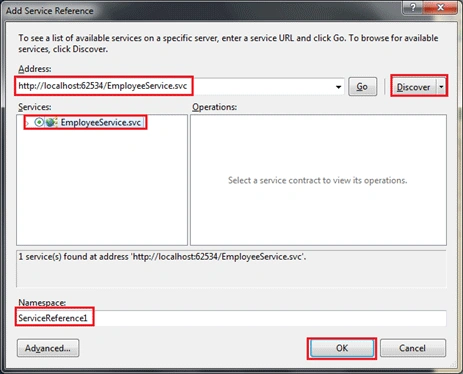

SoloPosted Feb 7, 2013, 4:21 PM
I am developing a SilverLight Web Part for SharePoint 2010 in C#. I have made a LINQ to SQL connection, and it works when I lunch the SilverLight alone. When I lunch SilverLight as a Web Part in SharePoint it does not work. What am I doing wrong?
Former memberPosted Oct 31, 2012, 2:16 AM
how to three tables data show in .pdf format according to user requirement in silverlight ? please give me a demo or example ?plz help me?
Raul Espinosa MtzPosted Sep 29, 2012, 1:58 PM
you have some small omissions in your program