

Here we look an example of simple data binding in WPF. In this example I use a class for Data Binding. Here we look at the program.
Step1: First we create a Grid in our project:
<Grid x:Name="StuInfo">
<Grid.ColumnDefinitions>
<ColumnDefinition Width="Auto" MinWidth="77"></ColumnDefinition>
<ColumnDefinition></ColumnDefinition>
</Grid.ColumnDefinitions>
<Grid.RowDefinitions>
<RowDefinition></RowDefinition>
<RowDefinition></RowDefinition>
<RowDefinition></RowDefinition>
<RowDefinition></RowDefinition>
<RowDefinition></RowDefinition>
</Grid.RowDefinitions>
</Grid>
Step2: After that we create two TextBlocks and Two TextBoxes in our program and we also create a Button (Next) to see the Next Record according to the program.
<TextBlock Text="First Name" Margin="10"></TextBlock>
<TextBlock Text="Last Name" Margin="10" Grid.Row="1"></TextBlock>
<TextBox Text="{Binding fname}" Margin="10" Grid.Column="1"></TextBox>
<TextBox Text="{Binding lname}" Margin="10" Grid.Column="1" Grid.Row="1"></TextBox>
<Button HorizontalAlignment="Left" Margin="0,12,0,9" Name="button1" Width="75" Grid.Column="1" Grid.Row="2">Next</Button>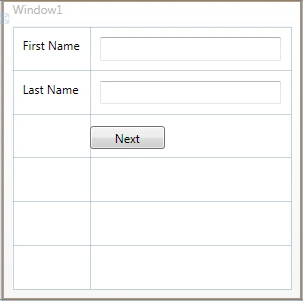
Step3: Now we add a Loaded Event handler in the .cs page. This event will be called when the client wants to load the application:
public partial class Window1 : Window
{
public Window1()
{
InitializeComponent();
this.Loaded += new RoutedEventHandler(Page_Loaded);
}
void Page_Loaded(object sender, RoutedEventArgs e)
{
}
}
Step4: Now we add a class to our program:
public class Stu
{
public string fname { get; set; }
public string lname { get; set; }
}
Step5: Now we write the following code in the Loded Event Handler:
void Page_Loaded(object sender, RoutedEventArgs e)
{
Stu s = new Stu();
{
s.fname = "Mahak";
s.lname = "Garg";
};
this.StuInfo.DataContext = s;
}
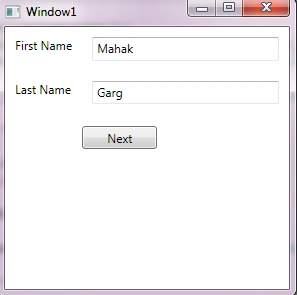
As we mention Binding in TextBox in .xaml page :
<TextBox Text="{Binding fname}" Margin="10" Grid.Column="1"></TextBox>
<TextBox Text="{Binding lname}" Margin="10" Grid.Column="1" Grid.Row="1"></TextBox>
The output will be:
Step6: Now we add another Event Handler, which is for the Next Button:
public Window1()
{
InitializeComponent();
this.Loaded += new RoutedEventHandler(Page_Loaded);
this.button1.Click += new RoutedEventHandler(button1_Click);
}
void button1_Click(object sender, RoutedEventArgs e)
{
Stu s = new Stu();
{
s.fname = "Juhi";
s.lname = "Gupta";
};
this.StuInfo.DataContext = s;
}
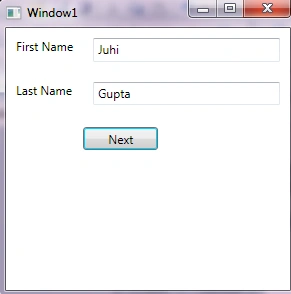
Here we add another data in our program. When we click on the Next Button, the output will be:
Asfend YarPosted Feb 3, 2016, 2:20 AM
cool
wikum wijeysooriyaPosted Aug 18, 2015, 9:09 AM
its simple and very effective.. thanks a lot
KeditedPosted May 7, 2013, 8:25 PMEdited May 7, 2013, 8:25 PM
EDIT: nevermind
tarun tripathiPosted May 10, 2012, 10:29 AM
@ Arjun The answer depends on the context actually.if its which objects we can bind to then it can be any FrameWork Element but the property must be a Dependency property.and furthermore the other context how we want to bind the data (I mean at compiletime or at runtime )then there is Static and Dynamic binding.actually binding in WPF is a huge topic but a very important one. I hope this may be small help to you.
Shrutz MhatzPosted Apr 11, 2012, 12:35 AM
It's a very helpful for beginners keep it up. I have a question to you that what's the need of WPF when we have GDI, GDI+ and DirectX?
Arjun PanwarPosted Apr 10, 2012, 11:52 PM
How many ways binding data in WPF?
Abhishek DubeyeditedPosted Apr 10, 2012, 7:05 PMEdited Apr 10, 2012, 7:06 PM
We want to know how can be fetch data row by row from table in WPF?