

Introduction
This sample shows the uses of mouse events on HTML5 Canvas and broadcasts the drawing to all clients using SignalR.
Tools used
- .NET 4.5
- SignalR
- jQuery
- HTML5
What SignalR is
ASP.NET SignalR is a library for ASP.NET developers that simplifies the process of adding real-time web functionality to applications. Real-time web functionality is the ability to have server code push content to connected clients instantly as it becomes available, rather than having the server wait for a client to request new data.
Output
To test the output, run the application from multiple HTML5 compatible browsers or windows.
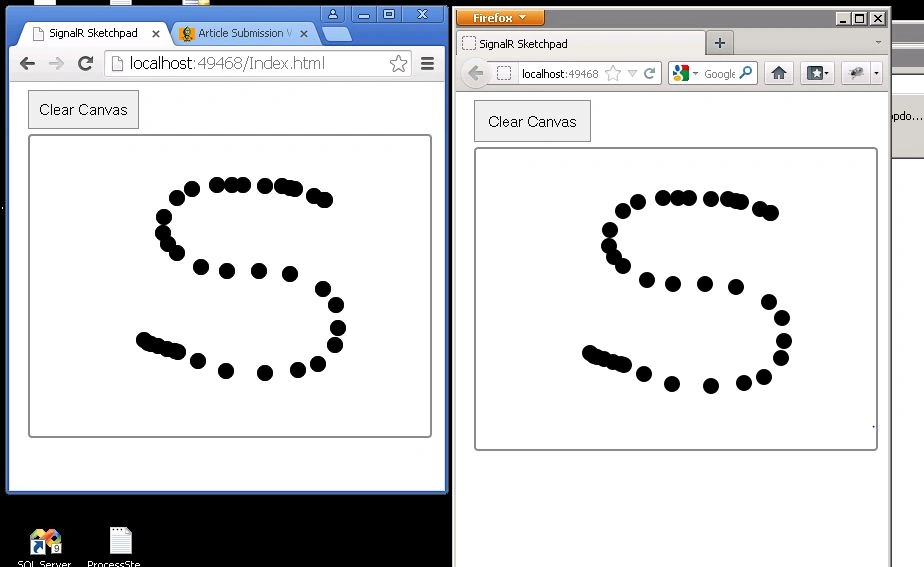
Let us have a look to the code given below.
Step 1
Step 1
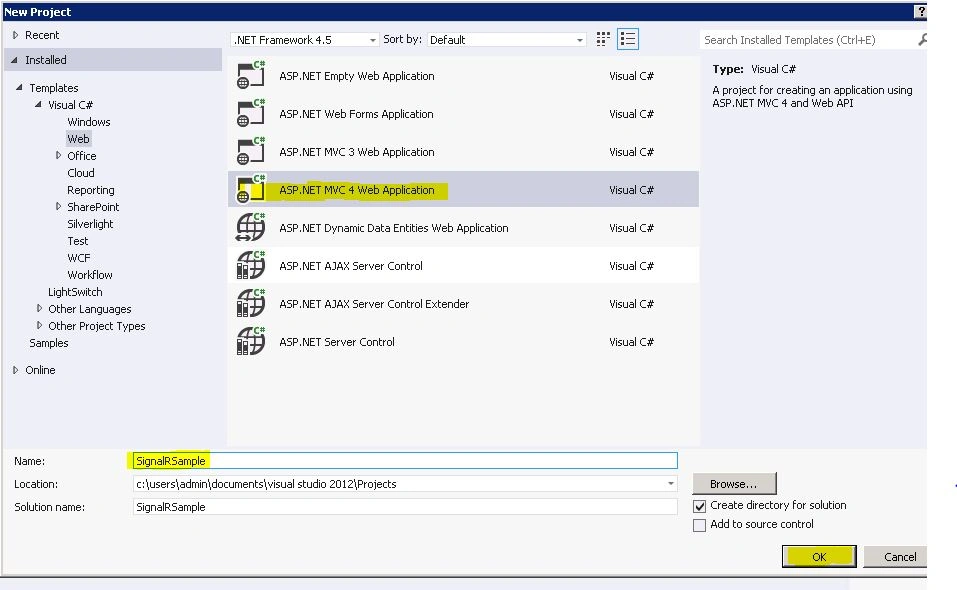
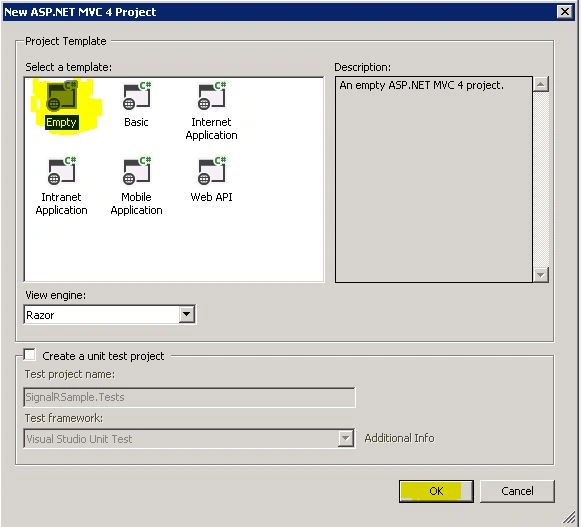
Create a new project as in the following:
Step 2
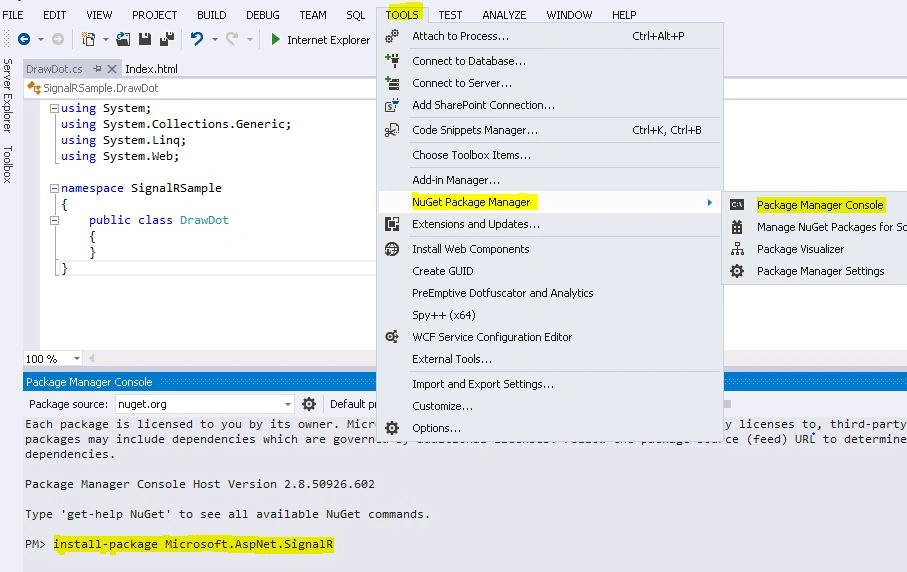
Install the SignalR package from the Nuget Package console as in the following:
Step 3
Add a new class named DrawDot.cs as in the following:
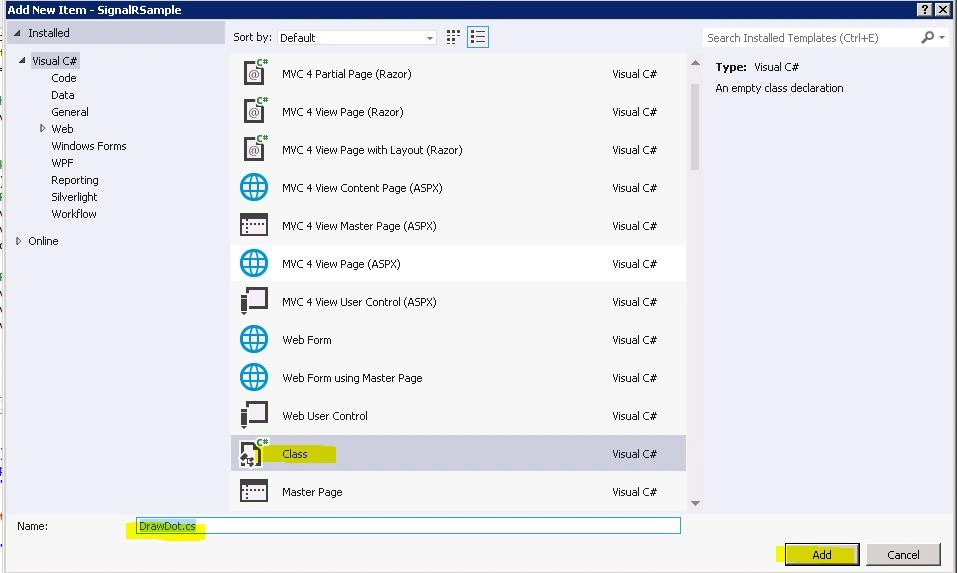
DrawDot.cs
- using System;
- using System.Collections.Generic;
- using System.Linq;
- using System.Web;
- using Microsoft.AspNet.SignalR;
- namespace SignalRSample
- {
- public class DrawDot: Hub
- {
- public void UpdateCanvas(int x, int y)
- {
- Clients.All.updateDot(x, y);
- }
- public void ClearCanvas() {
- Clients.All.clearCanvas();
- }
- }
- }
Step 4
Add a new Class named Startup.cs as in the following:
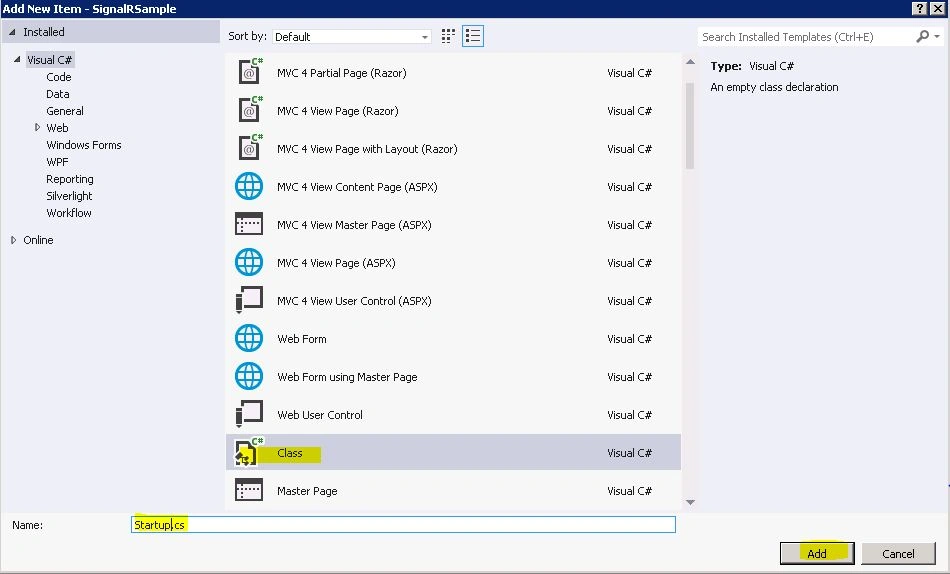
Startup.cs
- using System;
- using System.Collections.Generic;
- using System.Linq;
- using System.Web;
- using Microsoft.Owin;
- using Owin;
- [assembly: OwinStartup(typeof(SignalRSample.Startup))]
- namespace SignalRSample
- {
- public class Startup
- {
- public void Configuration(IAppBuilder app)
- {
- // Any connection or hub wire up and configuration should go here
- app.MapSignalR();
- }
- }
- }
Step 5
Add a new HTML file named index.html and add the code below.
Include jQuery Script and SignalR Client JavaScript.
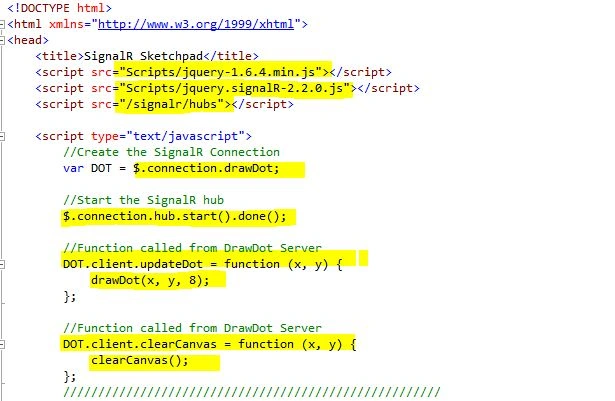
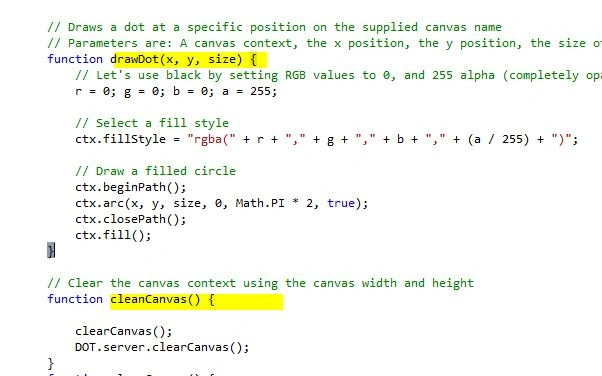
- Include jQuery Script and SignalR Client JavaScript.
- Path for dynamic ../Scripts/Hubs folder.
- Create drawDot Hub Server connection.
- The UpdateDot function is called from the server to update the drawing on the canvas (NOTE: In the server code, the updateDot is in camelCase like UpdateDot).
- ClearCanvas function called by the Server to clear the canvas. (NOTE: In Server code, the clearCanvas is in camelCase like ClearCanvas).
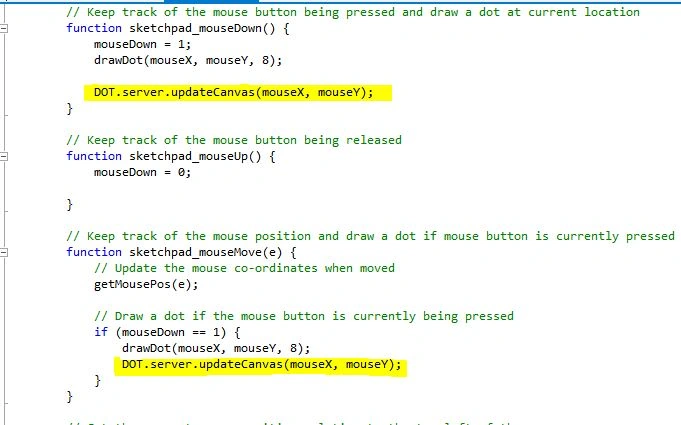
- OnMouseMove and OnMouseDown calls the updateCanvas Server function.
- <!DOCTYPE html>
- <html
- xmlns="http://www.w3.org/1999/xhtml">
- <head>
- <title>SignalR Sketchpad</title>
- <script src="Scripts/jquery-1.6.4.min.js"></script>
- <script src="Scripts/jquery.signalR-2.2.0.js"></script>
- <script src="/signalr/hubs"></script>
- <script type="text/javascript">
- //Create the SignalR Connection
- var DOT = $.connection.drawDot;
- //Start the SignalR hub
- $.connection.hub.start().done();
- //Function called from DrawDot Server
- DOT.client.updateDot = function (x, y) {
- drawDot(x, y, 8);
- };
- //Function called from DrawDot Server
- DOT.client.clearCanvas = function (x, y) {
- clearCanvas();
- };
- //////////////////////////////////////////////////////
- // Variables for referencing the canvas and 2dcanvas context
- var canvas, ctx;
- // Variables to keep track of the mouse position and left-button status
- var mouseX, mouseY, mouseDown = 0;
- // Draws a dot at a specific position on the supplied canvas name
- // Parameters are: A canvas context, the x position, the y position, the size of the dot
- function drawDot(x, y, size)
- {
- // Let's use black by setting RGB values to 0, and 255 alpha (completely opaque)
- r = 0; g = 0; b = 0; a = 255;
- // Select a fill style
- ctx.fillStyle = "rgba(" + r + "," + g + "," + b + "," + (a / 255) + ")";
- // Draw a filled circle
- ctx.beginPath();
- ctx.arc(x, y, size, 0, Math.PI * 2, true);
- ctx.closePath();
- ctx.fill();
- }
- // Clear the canvas context using the canvas width and height
- function cleanCanvas()
- {
- clearCanvas();
- DOT.server.clearCanvas();
- }
- function clearCanvas()
- {
- ctx.clearRect(0, 0, canvas.width, canvas.height);
- }
- // Keep track of the mouse button being pressed and draw a dot at current location
- function sketchpad_mouseDown()
- {
- mouseDown = 1;
- drawDot(mouseX, mouseY, 8);
- DOT.server.updateCanvas(mouseX, mouseY);
- }
- // Keep track of the mouse button being released
- function sketchpad_mouseUp()
- {
- mouseDown = 0;
- }
- // Keep track of the mouse position and draw a dot if mouse button is currently pressed
- function sketchpad_mouseMove(e)
- {
- // Update the mouse co-ordinates when moved
- getMousePos(e);
- // Draw a dot if the mouse button is currently being pressed
- if (mouseDown == 1)
- {
- drawDot(mouseX, mouseY, 8);
- DOT.server.updateCanvas(mouseX, mouseY);
- }
- }
- // Get the current mouse position relative to the top-left of the canvas
- function getMousePos(e)
- {
- if (!e)
- var e = event;
- if (e.offsetX)
- {
- mouseX = e.offsetX;
- mouseY = e.offsetY;
- }
- else if (e.layerX)
- {
- mouseX = e.layerX;
- mouseY = e.layerY;
- }
- }
- // Set-up the canvas and add our event handlers after the page has loaded
- function init()
- {
- // Get the specific canvas element from the HTML document
- canvas = document.getElementById('sketchpad');
- // If the browser supports the canvas tag, get the 2d drawing context for this canvas
- if (canvas.getContext)
- ctx = canvas.getContext('2d');
- // Check that we have a valid context to draw on/with before adding event handlers
- if (ctx)
- {
- // React to mouse events on the canvas, and mouseup on the entire document
- canvas.addEventListener('mousedown', sketchpad_mouseDown, false);
- canvas.addEventListener('mousemove', sketchpad_mouseMove, false);
- window.addEventListener('mouseup', sketchpad_mouseUp, false);
- }
- else
- {
- document.write("Browser not supported!!");
- }
- }
- </script>
- <style>
- /* Some CSS styling */
- .rightside
- {
- float: left;
- margin-left: 10px;
- }
- #sketchpad
- {
- float: left;
- height: 300px;
- width: 400px;
- border: 2px solid #888;
- border-radius: 4px;
- position: relative; /* Necessary for correct mouse co-ords in Firefox */
- }
- #clear_button, #save_button
- {
- float: left;
- font-size: 15px;
- padding: 10px;
- -webkit-appearance: none;
- background: #eee;
- border: 1px solid #888;
- margin-bottom: 5px;
- }
- </style>
- </head>
- <body >
- <div id="sketchpadapp">
- <div class="rightside">
- <input type="submit"
- value="Clear Canvas" id="clear_button" />
- <br />
- <canvas id="sketchpad" height="300"
- width="400"></canvas>
- </div>
- </div>
- </body>
- </html>
References
binto gtPosted Apr 6, 2019, 5:20 AM
How to write text in canvas? write using keyboard..
NitinPosted May 1, 2015, 3:32 AM
good one
Santhakumar MunuswamyPosted Apr 30, 2015, 12:43 AM
good work
Karthik Muthu KaruppanPosted Apr 29, 2015, 6:09 PM
Good