Introduction
In this article I have shown Grouping or Outline of the data into an Excel file. I have used:
- Microsoft Excel 2007 and 2010
- Open XML SDK Tool 2.0 (link to download this tool: http://www.microsoft.com/en-us/download/details.aspx?id=5124)
- WPF application
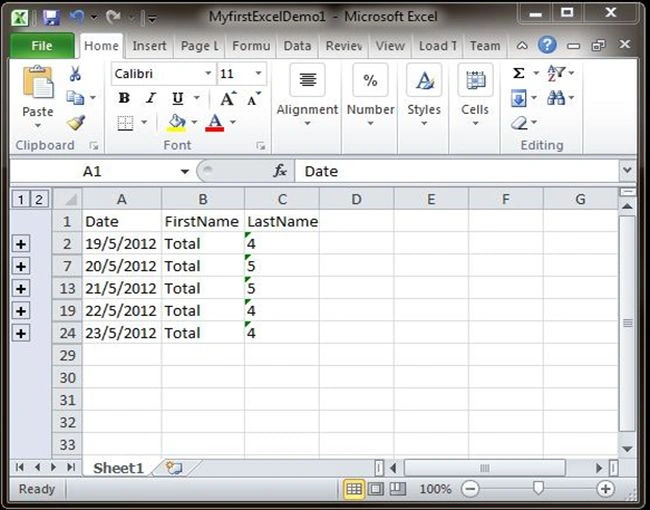
In this article I am creating a new Excel file and adding the Grouping to the data programmatically. I have used the Open XML SDK 2.0 Tool to know more about creating new Excel and Outline (Grouping) in Excel. When the Excel is created it will look like the following image:
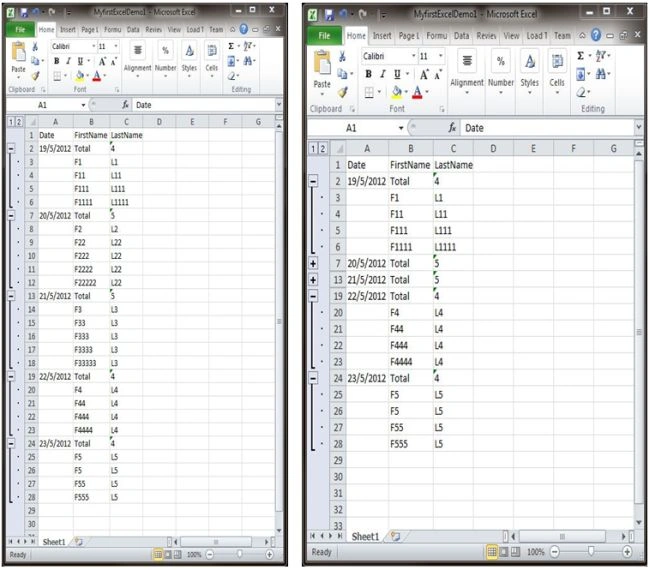
As you expand the data you will be able to see the Excel as in the following image:
Steps
- Create Spreadsheet Document.
- Create the Sheet in Excel.
- Give the Cell Numbers (values) Row Wise in Excel file.
- Give the data Column Wise to insert into Excel.
- Store the Created date Time ,Author.
To create the Spreadsheet Document we need to write the code; see:
///
<summary>
/// To create
Document
///
</summary>
///
<param name="filePath"></param>
public void
CreatePackage(string filePath)
{
//To create package
using (SpreadsheetDocument package =
SpreadsheetDocument.Create(filePath, SpreadsheetDocumentType.Workbook))
{
//To create the sheet
WorkbookPart workbookPart1 = package.AddWorkbookPart();
GenerateWorkbookPart1Content(workbookPart1);
//To add the Cell Numbers
WorksheetPart worksheetPart1 = workbookPart1.AddNewPart<WorksheetPart>("rId1");
GenerateWorksheetPart1Content(worksheetPart1, mainPerson);
//To add the Actual data
SharedStringTablePart sharedStringTablePart1 =
workbookPart1.AddNewPart<SharedStringTablePart>("rId4");
GenerateSharedStringTablePart1Content(sharedStringTablePart1,
mainPerson);
//To store the matadata
SetPackageProperties(package);
}
}
To create the Sheet
///
<summary>
/// To Create
Sheet
///
</summary>
///
<param name="workbookPart1"></param>
private void
GenerateWorkbookPart1Content(WorkbookPart workbookPart1)
{
Workbook workbook1 = new Workbook();
workbook1.AddNamespaceDeclaration("r",
"http://schemas.openxmlformats.org/officeDocument/2006/relationships");
Sheets sheets1 = new Sheets();
Sheet sheet1 = new Sheet() { Name =
"Sheet1", SheetId = (UInt32Value)1U, Id =
"rId1" };
sheets1.Append(sheet1);
workbook1.Append(sheets1);
workbookPart1.Workbook = workbook1;
}
To Give the Cell a value Row Wise
Give the cell number; in other words we have to enter the cell number in which
we want to insert the data. For that we will understand by example "We have 5
rows and 3 columns as Data" that will be represented in Excel like this:
| 0 |
1 |
2 |
| 3 |
8 |
13 |
| 4 |
9 |
14 |
| 5 |
10 |
15 |
| 6 |
11 |
16 |
| 7 |
12 |
17 |
But we need to store all these numbers by row.
Here I have 3 columns so that I have used 0, 1, 2 and then in second row 3, 8
and 13 we have to store a number in this fashion.
If we have 5 columns and 5 rows then we will store like this:
| 0 |
1 |
2 |
| 5 |
10 |
15 |
| 6 |
11 |
16 |
| 7 |
12 |
17 |
| 8 |
13 |
18 |
| 9 |
14 |
19 |
But we have to store it Row-Wise (by rows).
To create the Row
///
<summary>
/// Create the Row
With Formating
///
</summary>
///
<param name="rowIndex"></param>
///
<param name="Outline"></param>
///
<param name="row"></param>
///
<returns></returns>
private static
Row CreateRowWithFormateAndStyle(UInt32
rowIndex, bool Outline, Row row)
{
if (rowIndex == 1)
{
row = new Row() { RowIndex =
(UInt32Value)rowIndex, Spans = new ListValue<StringValue>()
{ InnerText = "1:3" }, DyDescent = 0.25D };//Simple
row
}
else
{
if (Outline)
{
row = new Row() { RowIndex =
(UInt32Value)rowIndex, Spans = new ListValue<StringValue>()
{ InnerText = "1:3" }, DyDescent = 0.25D,
Collapsed = true };//To
give expander
}
else
{
row = new Row() { RowIndex =
(UInt32Value)rowIndex, Spans = new ListValue<StringValue>()
{ InnerText = "1:3" }, DyDescent = 0.25D,
OutlineLevel = 1, Hidden = true, };//To
hide the Row
}
}
return row;
}
Here we are creating the Simple Header Row and then Row with Expander or row
with Outline as per the requirements.
To store the Cell Value
private static
void StoreCellValues(UInt32
rowIndex, bool Outline,
int collectioncount, Row row, ref
int tempCellValue, ref
int val, ref
bool result, List<string>
subTotalColumnArray)
{
foreach (var
item in subTotalColumnArray)
{
string cellRef = item + rowIndex;
if (Outline ==
true && rowIndex > 1)
{
CreateCellandAppendInRow(row, cellRef, tempCellValue);
tempCellValue = tempCellValue + collectioncount;
result = true;
}
else
{
if (cellValue >= 3)//3
means number columns if column counts increse specify that count here
{
CreateCellandAppendInRow(row, cellRef, tempCellValue);
tempCellValue = tempCellValue + collectioncount;
result = true;
}
else
{
CreateCellandAppendInRow(row, cellRef, val);
cellValue = cellValue + 1;
val = cellValue;
result = false;
}
}
}
if (result)
cellValue = cellValue + 1;
}
Now we need to create a cell and add that cell value into it; to do that we need
to write the followng code:
private static
void CreateCellandAppendInRow(Row row1,
string cellRef, int
cellValue, Nullable<UInt32>
styleIndex = null)
{
Cell cell1 = new Cell() { CellReference
= cellRef, DataType = CellValues.SharedString };
CellValue cellValue1 = new CellValue();
cellValue1.Text = Convert.ToString(cellValue);
if (styleIndex !=
null)
cell1.StyleIndex = styleIndex;
cell1.Append(cellValue1);
row1.Append(cell1);
}
This will create the cell and add the value to that cell and append that cell to
the particular row.
To insert Data Column Wise
///
<summary>
/// To store the
Data in excel Column Wise
///
</summary>
///
<param name="sharedStringTablePart1"></param>
///
<param name="persons"></param>
private void
GenerateSharedStringTablePart1Content(SharedStringTablePart
sharedStringTablePart1, List<Mainperson>
persons)
{
SharedStringTable sharedStringTable1 = new
SharedStringTable();
//To give Header values
AddSheredString(sharedStringTable1, "Date");
AddSheredString(sharedStringTable1, "FirstName");
AddSheredString(sharedStringTable1, "LastName");
//TO store values Column Wise
foreach (var
item in persons)//First
Column
{
AddSheredString(sharedStringTable1, item.Date);
foreach (var
item1 in item.person)
{
AddSheredString(sharedStringTable1,
"");
}
}
foreach (var
item in persons)//Second
Column
{
AddSheredString(sharedStringTable1, "");
foreach (var
item1 in item.person)
{
AddSheredString(sharedStringTable1, item1.FName);
}
}
foreach (var
item in persons)//Third
Column
{
AddSheredString(sharedStringTable1, item.Total);
foreach (var
item1 in item.person)
{
AddSheredString(sharedStringTable1, item1.LName);
}
}
//Add the data into the sharedStringTable
sharedStringTablePart1.SharedStringTable = sharedStringTable1;
}
Now we can add the metadata of the Excel file:
private void
SetPackageProperties(OpenXmlPackage document)
{
document.PackageProperties.Creator = "Author
Name";
document.PackageProperties.Created =
DateTime.Now;
document.PackageProperties.Modified =
DateTime.Now;
document.PackageProperties.LastModifiedBy =
"Author Name";
}
After downloading the
source code if you are getting error of DocumentFormate.openXML.dll file then
please download that .dll file from this link.
http://www.google.co.in/url?sa=t&rct=j&q=&esrc=s&source=web&cd=1&sqi=2&ved=0CCAQFjAA&url=http%3A%2F%2Fwww.codeplex.com%2FProject%2FDownload%2FFileDownload.aspx%3FProjectName%3Dclosedxml%26DownloadId%3D177539&ei=BX9-UN6-BcjyrQem_4DABg&usg=AFQjCNGlifv38kpy0U4CmUPCOP650r3YTg&cad=rja.
Or go to codeplex.com
Thank You.


Deepak KvPosted Feb 2, 2016, 12:01 AM
we need to add heading text above the current table(not table header),we have some search criteria like date,time etc,Please help us to incorporate the heading text in current table.Thanks in advance
RajPosted Apr 26, 2015, 11:37 AM
Ho do we go if we want to export html table data,gridview data and image simultaneously in excel
Durga PrasadPosted Jan 21, 2014, 6:02 AM
this was great post..........
liu zhiweiPosted Jul 22, 2013, 5:21 AM
great