

Introduction
This article shows how to make a simple Login Form in ASP.Net Using C#.
There are two inputs, a Username and Word, and a login button. When the user clicks that login button, the user is redirected to a new page (his account page). Otherwise, it gets an error message.
Initial Chamber
Step 1. Open Your Visual Studio 2010 and create an Empty Website; provide a suitable name (LoginForm_demo).
Step 2. In Solution Explorer, you get your empty website, then add two web forms and an SQL Server database as in the following.
For Web Form
Right-click LoginForm_demo (your empty website), then select Add New Item -> Web Form. Name it Login_demo.aspx. Use that process again, add another web form, and name it Redirectpage.aspx.
For SQL Server Database
Right-click LoginForm_demo (your empty website), then select Add New Item -> SQL Server Database. Add the database inside the App_Data_folder.
Database Chamber
Step 3. In Server Explorer, click on your database (Database.mdf), then select Tables -> Add New Table. Make the table like this.
Table -> tbl_data (Don't forget to make the ID as IS Identity = True).
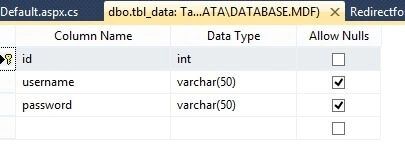
Figure 1. Database Chamber
Now enter some data into your database by right-clicking Tables, then select Show Table Data and enter whatever you want to add in the username and word. I entered the following data.
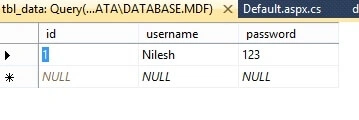
Figure 2. Database Table
We will match this username and word, so if the data is correct, the user is redirected to his account page; otherwise, the user gets an error message.
DESIGN CODE
Step 4. Now make some designs for your application by going to Login_demo.aspx and try the code as in the following.
Login_demo.aspx
Username: |
||
word: |
||
You will get something like this.

Figure 3. Login Form
CODE CHAMBER
Step 5. We will provide some code in the Login_demo.aspx.cs page so that our login form works.
Login_demo.aspx.cs
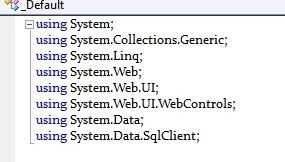
Figure 4. Login Demo
public partial class _Default: System.Web.UI.Page {
    protected void Page_Load(object sender, EventArgs e) {

    }
    protected void Button1_Click(object sender, EventArgs e) {
        SqlConnection con = new SqlConnection(@
        "Data Source=.\SQLEXPRESS;AttachDbFilename=|DataDirectory|\Database.mdf;Integrated Security=True;User Instance=True");
        SqlCommand cmd = new SqlCommand("select * from tbl_data where username=@username and word=@word", con);
        cmd.Parameters.AddWithValue("@username", TextBox1.Text);
        cmd.Parameters.AddWithValue("word", TextBox2.Text);
        SqlDataAdapter sda = new SqlDataAdapter(cmd);
        DataTable dt = new DataTable();
        sda.Fill(dt);
        con.Open();
        int i = cmd.ExecuteNonQuery();
        con.Close();

        if (dt.Rows.Count > 0) {
            Response.Redirect("Redirectform.aspx");
        } else {
            Label1.Text = "Your username and word is incorrect";
            Label1.ForeColor = System.Drawing.Color.Red;

        }


    }
}
Output
This is your final output. As you can see, this is our Default.aspx page (in your terms, Login_demo.aspx). When the user clicks on the login button, the user is redirected to a new page (Redirectpage.aspx).

Figure 5. Output

Figure 6. Welcome Page
I hope you like it. Thank you for reading. Have a nice Day!
kimbo slicePosted Nov 25, 2022, 8:01 PM
This entire site is filled with half written broken english guides, oh and better yet cleartext passwords, if youre going to write a GUIDE then write a GUIDE not what appears to be a skim over it... what'd ya spend, 5-10 minutes slapping this "guide" together?
Dibyajyoti KalitaPosted Aug 26, 2021, 1:46 PM
Hi , works appreciated.
Sagar ThoratPosted Feb 1, 2020, 4:27 AM
What if there are more than 1 user data present.and we want to validate user???????????
P.Suresh KumarPosted Apr 8, 2019, 12:01 AM
Great one! Can you put an article on passing the values from the login page to the next page by checking the values in the database?
Aubrey LovePosted Aug 31, 2018, 11:16 AM
Just a heads up, you are referencing a class with your style1 and style2 but the code for that is not on this page. I also noticed (running this in Visual Studio 2015) that you are missing a javascript reference. Adding the following code in in "web.config" file solves the issue: <appSettings> <add key="ValidationSettings:UnobtrusiveValidationMode" value="None" /> </appSettings>
Deepak JerryPosted Feb 2, 2018, 5:02 AM
Thank you sir it's working !!
Nithish ReddyPosted Nov 30, 2017, 1:57 AM
Nice Article ! How to update username , if needed ?
Asfend YarPosted Mar 3, 2016, 3:41 PM
nice share
Arul RPosted Oct 28, 2015, 5:46 AM
Nice share!!!
Vipul MalhotraPosted Jul 6, 2015, 7:39 AM
nice
Santhakumar MunuswamyPosted May 30, 2015, 12:40 PM
Thanks for nice one
Gopi ChandPosted May 29, 2015, 2:37 PM
Nice demonstration
Santhakumar MunuswamyPosted May 29, 2015, 1:16 PM
Thanks for sharing
NitinPosted May 28, 2015, 1:01 PM
good one
Khargesh RajputPosted May 28, 2015, 6:31 AM
nice
Sibeesh VenuPosted May 28, 2015, 2:19 AM
Good One.
Pankaj Kumar ChoudharyPosted May 27, 2015, 9:53 PM
Nice Explanation @Nilesh Sir.......
Dominique CejaPosted May 27, 2015, 9:28 PM
Thank you sir. Insightful