

Step 1
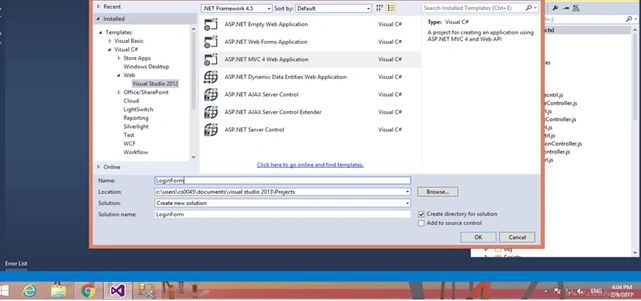
Click New Project in the Start page or in the File menu.
In the New Project dialog, click Web in the left pane and Web Application in the middle pane.
Step 2
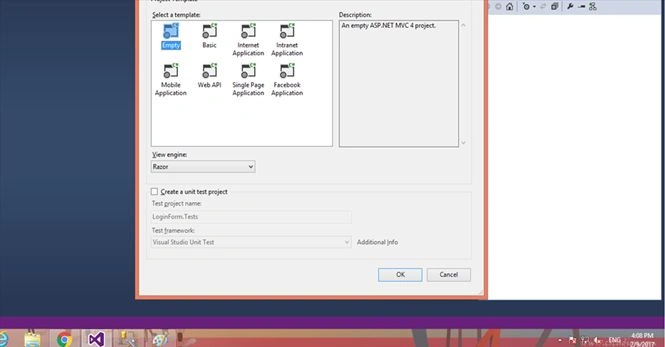
Right click on controller folder > add > click on controller > now enter the name of the controller.
Follow the image given below.
Step 3
Right click on controller folder > add > click on controller >add->class for LoginController.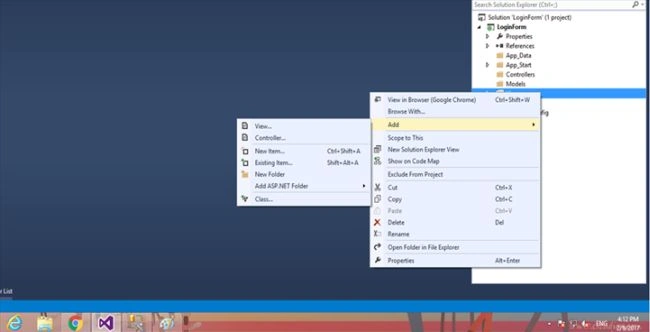
Step 4
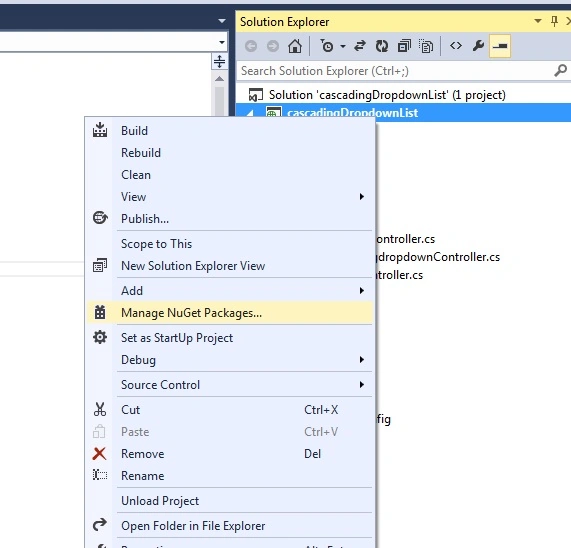
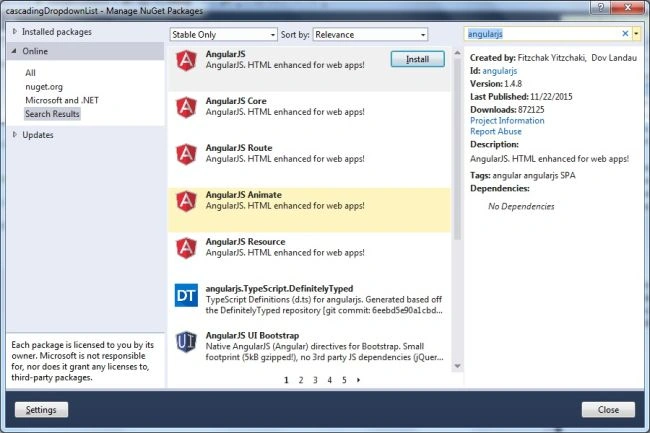
Install Angularjs package. Here, I have explained about installing AngularJS package. You can download AngularJS.
Step 5
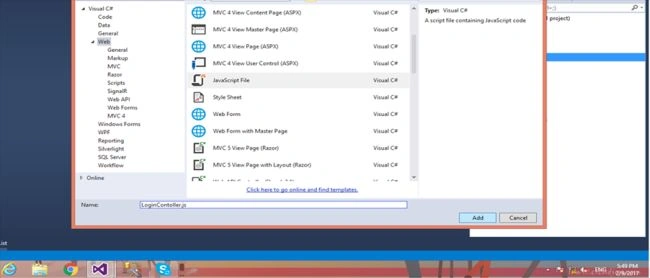
Add three new JavaScript files (module.js, controller.js and Service.js) on "AngulrJs" folder under Script folder.
LoginController & LoginService in JS file creation.
Step 6
Now, the time has come to set up Angular JS Module, Service and Controller. Thus, create a folder with name “Angular” inside the Content folder for the clean code.
Afterwards, add three JavaScript files inside "Angular" folder create.
- module.js
- Loginservice.js
- Logincontroller.js
module.js
We will first initialize and register our Application by creating a new Angular module.
var LoginApp = angular.module(' MyApp ',[]);
A module is a collection of Services, Directives, Controllers, filters, and configuration information.
Logincontroller.js
controller.js file is use to show the data on the view.
- LoginApp.controller('LoginController', ['$scope', ' MyService 'function($scope, MyService) {
- $scope.submit = function() {
- var UserData = {
- Email: $scope.Email,
- Password: $scope.Password,
- }
- MyService.LoginValidate(UserData).then(function(pl) {
- //result data
- alert(pl.data);
- });
- }
- }]);
Loginservice.js
This JavaScript file "factory.js" for fetching the data from the database and provide it to the controller.
- angular.module('LoginApp').service('LoginService', function($http) {
- this.LoginValidate = function(UserData) {
- var result = $http({
- method: "Post",
- url: --XXXXXXXXXXXXXXXXXXX’ //pass UserData values to class file
- data: save
- });
- return result;
- }
- });
Step 7
Add new action into Controller to get view from login, in which I have added "LoginView" action into Logincontroller. Please write the code given below.
Add class Logincontoller add values to the database to send & verify the data.
- public ViewResult LoginForm() {
- return View();
- }
- //pass and check tha value
- public JsonResult Loginvalidate(Userdata) {
- HttpClient client = new HttpClient();
- string _url = ConfigurationManager.AppSettings["webapibaseurl"];
- client.BaseAddress = new Uri(_url);
- client.DefaultRequestHeaders.Accept.Add(new MediaTypeWithQualityHeaderValue("application/json"));
- MediaTypeFormatter jsonFormatter = new JsonMediaTypeFormatter();
- HttpResponseMessage response = client.GetAsync(“URL”).Result;
- string content1 = response.Content.ReadAsStringAsync().Result;
- if (response.StatusCode.ToString() == "OK") {
- return Json(content1, JsonRequestBehavior.AllowGet);
- }
Step 8
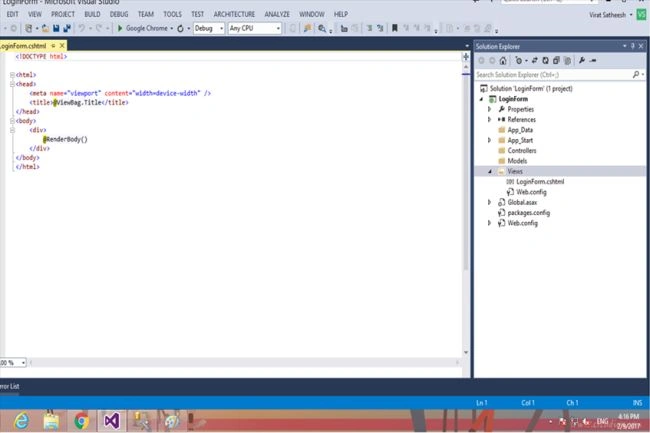
Right click on Index action method > Add view > Enter view name > Add ->LoginForm
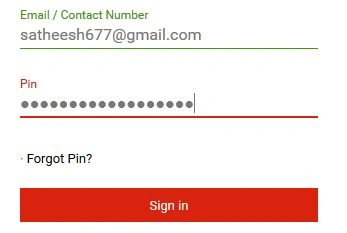
- <!DOCTYPE html>
- <html>
- <head>
- <title>Login</title>
- <script src="~/Scripts/angular.min.js"></script>
- <script src="~/Scripts/Angular/Module.js"></script>
- <script src="~/Scripts/Angular/Logincontroller.js"></script>
- <script src="~/Scripts/Angular/Loginservice.js"></script>
- </head>
- <body ng-app=" LoginApp ">
- <div ng-controller="LoginController">
- <form name="loginform">
- <div style="color:green">{{message}}</div>
- <table>
- <tr>
- <td>User Name</td>
- <td><input type="text" ng-model="Email" name="Email" /></td>
- </tr>
- <tr>
- <td>Password</td>
- <td><input type="text" ng-model="Password" name="Pin" /></td>
- </tr>
- <tr>
- <td></td>
- <td><input type="submit" ng-click="submit()" /></td>
- </tr>
- </table>
- </form>
- </div>
- </body>
- </html>
Step 9
Add new action into controller, which helps in redirecting to the other page. After user login, I have added "Index" action into Logincontroller. Please write the code given below.
- public ActionResult Index() {
- if (Session["Email"] != null) {
- return View();
- } else {
- return RedirectToAction("LoginView");
- }
- }
Step 10
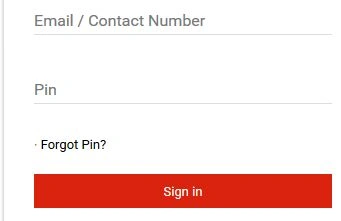
This view page can display after user login. Please write the code given below.
Uni CedielPosted Mar 19, 2018, 12:03 PM
Is exactly what I need, but I have problems in the controller I create the .cs but it generates errors, apart from the fact that I exclude it from the project to see if it works, the interface does not show anything to me, I followed all the steps, and because it means that I understood why you skipped some steps, but you could create a tutorial where it is clearer at the time of performing the actions
Fer RPosted Mar 9, 2018, 12:55 PM
Could be a nice tutorial but I think it was written with a lot of hurry. Name of files change between steps and sequence steps is not explained in some jumps. Thanks for sharing your tutorial but pls try to add some source code, so community can rich the sample. Thanks again.
dipiPosted Jul 20, 2017, 3:08 AM
It actually need a source code
Alberto FilhoPosted Jun 26, 2017, 2:31 PM
And what is the MediaTypeFormatter type?
Alberto FilhoPosted Jun 26, 2017, 2:29 PM
This tutorial is a bit confusing. First you say to create 3 js files in a folder called "AngulrJs" and then you write "create a folder with name “Angular” inside the Content folder" and in then you put a Angular folder inside Script folder. Do you have the project source code to share with us? It`s pretty hard to understand what is writen here. I`m sorry.
Vishal PrajapatiPosted Feb 13, 2017, 10:30 PM
Nice share..Keep up the good work
Manav PandyaPosted Feb 13, 2017, 11:42 AM
Share source code if possiible
Manav PandyaPosted Feb 13, 2017, 11:41 AM
Thanks for sharing this ....