

Introduction
This article describes the basic use and functionality of the MVVM pattern in WPF.
The Model View ViewModel (MVVM) is an architectural pattern used in software engineering that originated from Microsoft, which specializes in the Presentation Model design pattern. It is based on the Model-view-controller pattern (MVC), and is targeted at modern UI development platforms (WPF and Silverlight) in which there is a UX developer who has different requirements than a more "traditional" developer. MVVM is a way of creating client applications that leverage core features of the WPF platform, allows for simple unit testing of application functionality, and helps developers and designers work together with less technical difficulties.
What is a VIEW?
A View is defined in XAML and should not have any logic in the code behind it. It binds to the view model by only using data binding.
What is MODEL?
A Model is responsible for exposing data in a way that is easily consumable by WPF. It must implement INotifyPropertyChanged and/or INotifyCollectionChanged as appropriate.
What is ViewModel?
A ViewModel is a model for a view in the application or, we can say, an abstraction of the view. It exposes data relevant to the view and exposes the behaviors for the views, usually with Commands.
Getting Started
- Creating a WPF Project. Open Visual Studio 2010.
- Go to File => New => Project
- Select Window in installed templates
- Select WPF Application
- Enter the Name and choose the location.
- Click OK
Now create three folders in the root application. The name should be Model, View, ViewModel, and now add a new class in the Model folder. My class name is User, and add this namespace
using System.ComponentModel;
User.cs
public class User : INotifyPropertyChanged
{
    private int userId;
    private string firstName;
    private string lastName;
    private string city;
    private string state;
    private string country;

    public int UserId
    {
        get
        {
            return userId;
        }
        set
        {
            userId = value;
            OnPropertyChanged("UserId");
        }
    }

    public string FirstName
    {
        get
        {
            return firstName;
        }
        set
        {
            firstName = value;
            OnPropertyChanged("FirstName");
        }
    }

    public string LastName
    {
        get
        {
            return lastName;
        }
        set
        {
            lastName = value;
            OnPropertyChanged("LastName");
        }
    }

    public string City
    {
        get
        {
            return city;
        }
        set
        {
            city = value;
            OnPropertyChanged("City");
        }
    }

    public string State
    {
        get
        {
            return state;
        }
        set
        {
            state = value;
            OnPropertyChanged("State");
        }
    }

    public string Country
    {
        get
        {
            return country;
        }
        set
        {
            country = value;
            OnPropertyChanged("Country");
        }
    }

    #region INotifyPropertyChanged Members

    public event PropertyChangedEventHandler PropertyChanged;

    private void OnPropertyChanged(string propertyName)
    {
        if (PropertyChanged != null)
        {
            PropertyChanged(this, new PropertyChangedEventArgs(propertyName));
        }
    }

    #endregion
}
Now right-click on the ViewModel folder and add a new class.
UserViewModel.cs
using System.Windows.Input;
using System.ComponentModel;
using System.Collections.Generic;

class UserViewModel
{
    private IList<User> _UsersList;

    public UserViewModel()
    {
        _UsersList = new List<User>
        {
            new User { UserId = 1, FirstName = "Raj", LastName = "Beniwal", City = "Delhi", State = "DEL", Country = "INDIA" },
            new User { UserId = 2, FirstName = "Mark", LastName = "henry", City = "New York", State = "NY", Country = "USA" },
            new User { UserId = 3, FirstName = "Mahesh", LastName = "Chand", City = "Philadelphia", State = "PHL", Country = "USA" },
            new User { UserId = 4, FirstName = "Vikash", LastName = "Nanda", City = "Noida", State = "UP", Country = "INDIA" },
            new User { UserId = 5, FirstName = "Harsh", LastName = "Kumar", City = "Ghaziabad", State = "UP", Country = "INDIA" },
            new User { UserId = 6, FirstName = "Reetesh", LastName = "Tomar", City = "Mumbai", State = "MP", Country = "INDIA" },
            new User { UserId = 7, FirstName = "Deven", LastName = "Verma", City = "Palwal", State = "HP", Country = "INDIA" },
            new User { UserId = 8, FirstName = "Ravi", LastName = "Taneja", City = "Delhi", State = "DEL", Country = "INDIA" }
        };
    }

    public IList<User> Users
    {
        get { return _UsersList; }
        set { _UsersList = value; }
    }

    private ICommand mUpdater;

    public ICommand UpdateCommand
    {
        get
        {
            if (mUpdater == null)
                mUpdater = new Updater();
            return mUpdater;
        }
        set
        {
            mUpdater = value;
        }
    }

    private class Updater : ICommand
    {
        public bool CanExecute(object parameter)
        {
            return true;
        }

        public event EventHandler CanExecuteChanged;

        public void Execute(object parameter)
        {
            // Code implementation for execution
        }
    }
}
Now let's move on to View, Add a new window in View Folder.
MainPage.xaml
<Window x:Class="WpfMVVMSample.MainWindow"
        xmlns="http://schemas.microsoft.com/winfx/2006/xaml/presentation"
        xmlns:x="http://schemas.microsoft.com/winfx/2006/xaml"
        Title="MainWindow" Height="485" Width="525">
    <Grid Margin="0,0,0,20">
        <Grid.RowDefinitions>
            <RowDefinition Height="Auto"/>
            <RowDefinition Height="*"/>
            <RowDefinition Height="Auto"/>
        </Grid.RowDefinitions>
        <ListView Name="UserGrid" Grid.Row="1" Margin="4,178,12,13" ItemsSource="{Binding Users}">
            <ListView.View>
                <GridView x:Name="grdTest">
                    <GridViewColumn Header="UserId" DisplayMemberBinding="{Binding UserId}" Width="50"/>
                    <GridViewColumn Header="First Name" DisplayMemberBinding="{Binding FirstName}" Width="80"/>
                    <GridViewColumn Header="Last Name" DisplayMemberBinding="{Binding LastName}" Width="100"/>
                    <GridViewColumn Header="City" DisplayMemberBinding="{Binding City}" Width="80"/>
                    <GridViewColumn Header="State" DisplayMemberBinding="{Binding State}" Width="80"/>
                    <GridViewColumn Header="Country" DisplayMemberBinding="{Binding Country}" Width="100"/>
                </GridView>
            </ListView.View>
        </ListView>
        <!-- Textboxes and labels for user details -->
        <TextBox Grid.Row="1" Height="23" HorizontalAlignment="Left" Margin="80,7,0,0" Name="txtUserId" VerticalAlignment="Top" Width="178" Text="{Binding ElementName=UserGrid, Path=SelectedItem.UserId}"/>
        <!-- Other TextBoxes and Labels for User details -->
        <Button Content="Update" Grid.Row="1" Height="23" HorizontalAlignment="Left" Margin="310,40,0,0" Name="btnUpdate" VerticalAlignment="Top" Width="141" Command="{Binding Path=UpdateCommad}" />
        <!-- Textboxes and labels for user's City, State, and Country -->
        <TextBox Grid.Row="1" Height="23" HorizontalAlignment="Left" Margin="80,143,0,0" Name="txtCity" VerticalAlignment="Top" Width="178" Text="{Binding SelectedItem.City, ElementName=UserGrid}"/>
        <!-- Labels for Country, City, State -->
        <!-- Textboxes and labels for Country, City, State -->
    </Grid>
</Window>
App.xaml.cs
Now bind on application startup.
protected override void OnStartup(StartupEventArgs e)
{
    base.OnStartup(e);
    WpfMVVMSample.MainWindow window = new MainWindow();
    UserViewModel VM = new UserViewModel();
    window.DataContext = VM;
    window.Show();
}
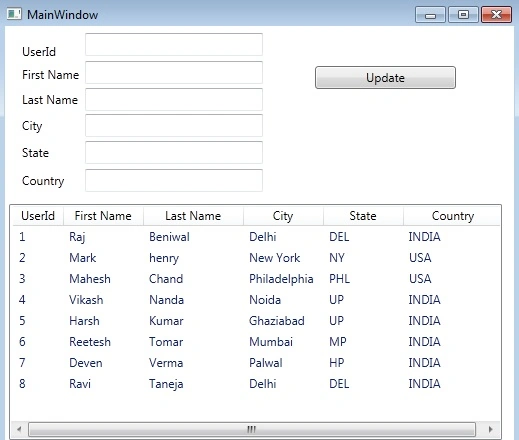
Run the application to see the result.
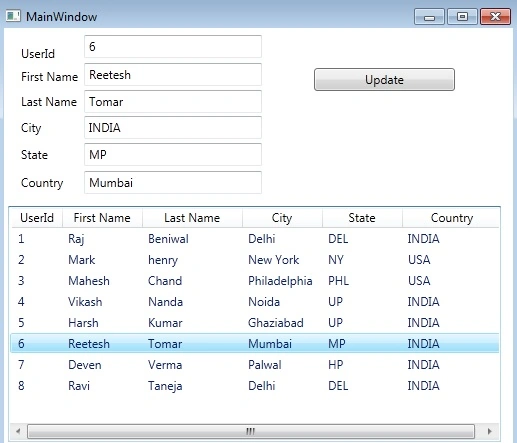
Click on row.
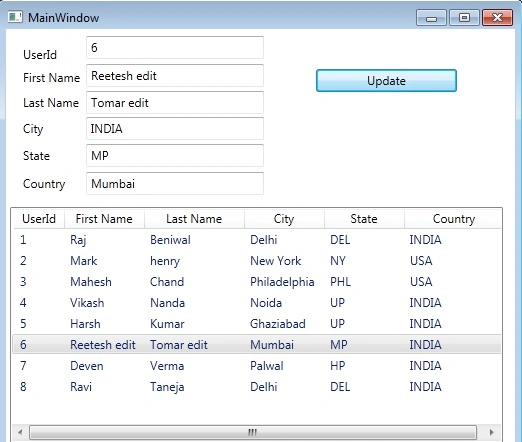
You can edit user details in text boxes and click the update button.
libirasagPosted Mar 8, 2025, 12:10 PM
Thank you so much! This is a great example of how not to make examples. The code does not work already at the View level.
T KPosted Jun 26, 2024, 2:00 PM
Hi Kumar, nice code! Better than any MS course!Something important is missing in your instructions: in app.xaml you has to change the StartupUri="View\MainWindow.xaml", otherwise it will not find the window.
Joshua DahlPosted Feb 20, 2024, 3:27 PM
Can I get a copy of the source code?
Gökhan YılmazPosted Mar 13, 2022, 3:00 PM
How could you manage to insert and update in one command? here is just update example ..what if I want to add a record by using same inputs and one Save button ?
Andreas MayPosted Jan 7, 2022, 6:38 PM
Thank you for providing a ballast-free example! There is a typo in the XAML in line 31. Command="{Binding Path=UpdateCommad}" must be UpdateCommand.
Nico DenicuPosted Dec 20, 2021, 11:03 AM
Hi Raj,Greate article ! If you can implement / point out / update the article with the comments below: - Remove StartupUri="Views/MainView.xaml" from App.xaml - there is a typo in "UpdateCommad" which should be "UpdateCommand". (UserView.xaml) would be nice !
Michael McConnellPosted Aug 19, 2021, 9:30 PM
Anyway to download the complete example?
Mostafa ShehataPosted Mar 21, 2021, 6:31 PM
There's conflict between city and country on selecting item, just replace and it'll be solved
cpt longPosted Jan 13, 2021, 2:03 AM
I believe this "WpfMVVMSample.MainWindow window = new MainWindow(); " should be replaced with this "MainPage window = new MainPage();" in the last function/method you provide named "protected override OnStartUp"
Don JeongPosted Sep 29, 2020, 12:18 AM
To make it work, StartupUri="View/MainWindow.xaml" should be removed in order to use OnStartup method. And there is a type in "UpdateCommad" which should be "UpdateCommand". If those are changed, it'll work well.
Nandrianina RAVELOJAONAPosted Apr 26, 2020, 2:35 PM
Hi, It seemed that the code doesn't work correctly. Any click on any button triggers the change of the ListView. When I add an other button on the window, even if without Command Property, it trigger too the binding on the ListView...
Shivshanker CheralPosted Mar 9, 2020, 8:30 AM
No use of the Update button! and spelling mistakes. it would be an improved one.
Michael McRaePosted Feb 20, 2020, 4:58 PM
I can replicate the window but the style of the interface is different - how do you achieve the windows style aesthetic?
Madhuri KalepalliPosted Jul 12, 2019, 5:31 AM
Getting two windows.please help
Madhuri KalepalliPosted Jul 12, 2019, 5:31 AM
<Application x:Class="StduentMVVM.App" xmlns="http://schemas.microsoft.com/winfx/2006/xaml/presentation" xmlns:x="http://schemas.microsoft.com/winfx/2006/xaml" Startup="Application_Startup" xmlns:local="clr-namespace:StduentMVVM" StartupUri="MainWindow.xaml"> <Application.Resources> </Application.Resources> </Application>
Derick ClackPosted Jun 27, 2019, 10:40 AM
Great article, thanks. One issue is that the path in Command="{Binding Path=UpdateCommad}" path is wrong, it should be UpdateCommand and not UpdateCommad (missing an n). Once you fix that, all the Command routines will be called
chu trungPosted May 25, 2019, 4:51 AM
I can't see list user when I run app
Meherwer AliPosted Oct 3, 2018, 1:44 AM
What is the procedure if we want to update our data on SQL Database when we click on Update Button?
Terri BouldingPosted Aug 20, 2018, 6:03 PM
It didn't work for me either found a post that said check 'App.xmal' properties and change "Build Action" to "Application Definition", It worked when I rebuilt it.
Giri AchantaPosted May 8, 2018, 12:04 AM
OnStartup method not required in App.xaml.cs, just put StartupUri="View/MainPage.xaml" in App.xaml
Anand RajPosted Jul 10, 2017, 1:52 AM
Two windows open on start up
arvind baldaniyaPosted May 4, 2017, 9:16 AM
Raj Solve my Problem
lins antonyPosted May 4, 2017, 7:56 AM
It did not work.Can you please provide the zip code with solution ?It may help me to find the solution
lins antonyPosted May 4, 2017, 7:55 AM
It did not work.Can you please provide zip file with solution?
arvind baldaniyaPosted Mar 17, 2017, 8:29 AM
How to Dynamic Drop Down In MVVM
Ahmed SdPosted Mar 9, 2017, 5:55 AM
It did not work for me until I removed StartupUri from App,xaml. And be careful with the namespaces. Remove Update button as it is useless. This will cause confusion whoever is trying to learn mvvm
Jayant TripathyPosted Jan 13, 2017, 5:38 AM
Great. Working Flawlessly.I am just edited instead of calling onstartup I call it in MainWindow like private void UserViewControl_Loaded(object sender, RoutedEventArgs e) { MVVM_WPF.ViewModel.UserViewModel UserViewModelObject = new MVVM_WPF.ViewModel.UserViewModel(); UserViewControl.DataContext = UserViewModelObject; }
Harinder KumarPosted Sep 4, 2016, 2:50 PM
Getting error on base.OnStartup(e); :(
Gowtham RajamanickamPosted Apr 8, 2016, 8:51 AM
good one
Ha KhalidPosted Oct 2, 2015, 8:05 AM
It's very helpful example for Beginners. Thank,s.
Sakthikumar ThanavelPosted Jun 18, 2015, 7:24 AM
Thanks raj. It very useful to me.
hemanth hemanthPosted Apr 5, 2015, 12:58 AM
Can you please provide zip file with sloution, so that i can download it
SACHIN AGARWALPosted Mar 28, 2015, 5:30 AM
one of the best example.
Abdiwahab FarahPosted Nov 2, 2014, 12:27 PM
Plz Raj I can't seem to override the window in the view folder please upload the sample project
Yadagiri ReddyPosted Oct 17, 2014, 10:55 AM
thank you...Its very Helpful For Beginners in MVVM..
Udaya kumarPosted Oct 3, 2014, 8:07 AM
Thanks raj. This is very helpful for me. Can u explain why other empty window will open.
shrikanth bgPosted Jun 16, 2014, 7:58 AM
Good article, very helpful........its not working for me , kindly please priovide the code ...and Please clarify: there is mainpage.xaml .....but its written to add a window.....Plaese help on this ... will be pleased with ur timely help
cnu abiPosted Mar 7, 2014, 5:34 AM
What hari told is correct. Then what is purpose using Icommand feature, inotifypropertychanged and update button without these things it works fine.
hari vPosted Jan 4, 2014, 8:38 AM
nice example about binding but not implement Icommand feature and Update button it is just for a show, it works all because of binding and of event trigger at lost focus , select user then change name and click on next textbox the data in grid will be changed , no use of update button, anyway thanks bro.
Zoltan RakottyaiPosted Dec 24, 2013, 7:04 PM
Could you share your solution here please. For some unknown reason the listview does not load the 8 sample data
Sangeetha NarayananPosted Sep 25, 2013, 10:25 AM
Nice simple and clear example
Karna NithiPosted Jun 10, 2013, 1:26 AM
Nice Good Example
Santosh YadavPosted Apr 27, 2013, 1:44 PM
fantastic example for beginners. Thanks
sajjad ahmadPosted Feb 21, 2013, 7:26 AM
where is the method and code require to update?
PrageethPosted Jan 4, 2013, 7:54 AM
what I am looking for is not there.without update button click I change some properties, then change the selection to other one, without update button it change? how to overcome this?
Prasad MakkenaPosted Dec 29, 2012, 6:24 AM
Nice good example
Baagii BaagiiPosted Oct 1, 2012, 9:51 PM
nice article, thanks so much...
Amal ESPosted Sep 21, 2012, 2:01 AM
Super article and this is the first time i am feeling comfortable with the MVVM pattern . Slight modifications are required to run this project. As like change the App.xaml file's , this is needed StartupUri="View/MainPage.xaml"> and inside the App.xaml.cs change the code to MVSample.View.MainPage window = new MVSample.View.MainPage(); MVSample is the project's name, so give your project name to that palce that will be yourprojectname.View.MainPage window = new yourprojectname.View.MainPage();
sathish kumarPosted Aug 29, 2012, 2:43 AM
very nice article bro..thanx so much..
tausif ilyasPosted Jul 17, 2012, 8:19 AM
If you want to get this working. Follow the instructions below: Create a WPF application Create the three folders Then move the MainWindow.xaml in to the view folder Then go through the tutorial as above. There isn't really a need for the MainPage.xaml to get this to work. This is a very good article and has given me a good understanding of the MVVM Pattern.
harshal sanghaviPosted Jun 22, 2012, 2:20 AM
Little bit mistaken. Do as I followed. In MainPage.xaml wite code as below: <Page x:Class="WpfDemo.View.MainPage" xmlns="http://schemas.microsoft.com/winfx/2006/xaml/presentation" xmlns:x="http://schemas.microsoft.com/winfx/2006/xaml" xmlns:mc="http://schemas.openxmlformats.org/markup-compatibility/2006" xmlns:d="http://schemas.microsoft.com/expression/blend/2008" mc:Ignorable="d" xmlns:VM="clr-namespace:WpfDemo.ViewModel" xmlns:View="clr-namespace:WpfDemo.View" d:DesignHeight="450" d:DesignWidth="600" Title="MainPage"> <Page.DataContext> <VM:UserViewModel/> </Page.DataContext> <Grid Margin="0,0,0,20"> <Grid.RowDefinitions> <RowDefinition Height="Auto"/> <RowDefinition Height="*"/> <RowDefinition Height="Auto"/> </Grid.RowDefinitions> <ListView Name="UserGrid" Grid.Row="1" Margin="4,220,12,13" ItemsSource="{Binding Users}"> <ListView.View> <GridView x:Name="grdTest"> <GridViewColumn Header="UserId" DisplayMemberBinding="{Binding UserID}" Width="50"/> <GridViewColumn Header="First Name" DisplayMemberBinding="{Binding FirstName}" Width="80" /> <GridViewColumn Header="Middle Name" DisplayMemberBinding="{Binding MiddleName}" Width="80" /> <GridViewColumn Header="Last Name" DisplayMemberBinding="{Binding LastName}" Width="100" /> <GridViewColumn Header="City" DisplayMemberBinding="{Binding City}" Width="80" /> <GridViewColumn Header="State" DisplayMemberBinding="{Binding State}" Width="80" /> <GridViewColumn Header="Country" DisplayMemberBinding="{Binding Country}" Width="100" /> </GridView> </ListView.View> </ListView> <TextBox Grid.Row="1" Height="23" HorizontalAlignment="Left" Margin="80,12,0,0" Name="txtUserId" VerticalAlignment="Top" Width="178" Text="{Binding ElementName=UserGrid,Path=SelectedItem.UserID}" /> <TextBox Grid.Row="1" Height="23" HorizontalAlignment="Left" Margin="102,42,0,0" Name="txtFirstName" VerticalAlignment="Top" Width="178" Text="{Binding ElementName=UserGrid,Path=SelectedItem.FirstName}" /> <TextBox Grid.Row="1" Height="23" HorizontalAlignment="Left" Margin="102,73,0,0" Name="txtMiddleName" VerticalAlignment="Top" Width="178" Text="{Binding ElementName=UserGrid,Path=SelectedItem.MiddleName}" /> <TextBox Grid.Row="1" Height="23" HorizontalAlignment="Left" Margin="102,107,0,0" Name="txtLastName" VerticalAlignment="Top" Width="178" Text="{Binding ElementName=UserGrid,Path=SelectedItem.LastName}" /> <Label Content="UserID" Grid.Row="1" HorizontalAlignment="Left" Margin="5,12,0,274" Name="label1" Height="28" VerticalAlignment="Top" /> <Label Content="Last Name" Grid.Row="1" Height="28" HorizontalAlignment="Left" Margin="5,107,0,0" Name="label2" VerticalAlignment="Top" /> <Label Content="Middle Name" Grid.Row="1" Height="28" HorizontalAlignment="Left" Margin="4,74,0,0" Name="lblMiddleName" VerticalAlignment="Top" /> <Label Content="First Name" Grid.Row="1" Height="28" HorizontalAlignment="Left" Margin="5,40,0,0" Name="label3" VerticalAlignment="Top" /> <Button Content="Update" Grid.Row="1" Height="23" HorizontalAlignment="Left" Margin="310,45,0,0" Name="btnUpdate" VerticalAlignment="Top" Width="141" Command="{Binding Path=UpdateCommad}" /> <TextBox Grid.Row="1" Height="23" HorizontalAlignment="Left" Margin="102,191,0,0" x:Name="txtCity" VerticalAlignment="Top" Width="178" Text="{Binding SelectedItem.City, ElementName=UserGrid}" /> <Label Content="Country" Grid.Row="1" Height="28" HorizontalAlignment="Left" Margin="4,0,0,211" x:Name="label2_Copy" VerticalAlignment="Bottom" /> <TextBox Grid.Row="1" Height="23" HorizontalAlignment="Left" Margin="102,134,0,0" x:Name="txtCountry" VerticalAlignment="Top" Width="178" Text="{Binding SelectedItem.Country, ElementName=UserGrid}" /> <Label Content="City" Grid.Row="1" Height="28" HorizontalAlignment="Left" Margin="5,132,0,0" x:Name="label2_Copy1" VerticalAlignment="Top" /> <TextBox Grid.Row="1" Height="23" HorizontalAlignment="Left" Margin="102,165,0,0" x:Name="txtSTate" VerticalAlignment="Top" Width="178" Text="{Binding SelectedItem.State, ElementName=UserGrid}" /> <Label Content="State" Grid.Row="1" Height="28" HorizontalAlignment="Left" Margin="5,163,0,0" x:Name="label2_Copy2" VerticalAlignment="Top" /> </Grid> </Page> In MainWindow.xaml write code as below: <Window x:Class="WpfDemo.MainWindow" xmlns="http://schemas.microsoft.com/winfx/2006/xaml/presentation" xmlns:x="http://schemas.microsoft.com/winfx/2006/xaml" xmlns:vm="clr-namespace:WpfDemo.ViewModel" xmlns:vw="clr-namespace:WpfDemo.View" Title="MainWindow" Height="450" Width="600"> <Grid> <vw:MainPage Grid.Row="0"/> <GridSplitter Grid.Row="1" HorizontalAlignment="Stretch" VerticalAlignment="Bottom" ResizeBehavior="PreviousAndNext" Height="5"/> <vw:MainPage Grid.Row="2"/> </Grid> </Window> in App.xaml write code as below: <Application x:Class="WpfDemo.App" xmlns="http://schemas.microsoft.com/winfx/2006/xaml/presentation" xmlns:x="http://schemas.microsoft.com/winfx/2006/xaml" StartupUri="View/MainPage.xaml"> <Application.Resources> </Application.Resources> </Application> so you can see result as given here
anubhav chauhanPosted Jun 18, 2012, 5:49 AM
Not working ..............
Karl EdwardsPosted May 4, 2012, 1:30 AM
Just wasted half hour trying to figure out what it should be doing... Shame, this looked like what i needed to get a high level view on mvvm, but it seems it was thrown together without testing it. It's okay until you add the page called MainPage.xaml to the view folder, but not sure what is supposed to happen then. Is the xaml added to that new page or to the MainWindow.xaml, from your code it has been added to MainWindow.xaml and not MainPage. In which case what does MainPage.xaml have to do with anything. Unfortunately confusing and not working as displayed,
NIshant GiriPosted Apr 18, 2012, 3:44 AM
Thnx Dude..! for your valuable work to explain things precisely. TC