

Introduction
Single sign-out is an essential feature for applications that prioritize security and a seamless user experience. In Azure AD B2C, implementing single sign-out ensures that when users log out from one application, they are automatically signed out from all active sessions across multiple applications. This article provides a step-by-step guide to configuring it.
This article continues my previous article on Secure Logout redirects in Azure AD B2C for the Blazor application.
Configure Single sign-out
Configuring Single Sign-Out (SSO) in Azure AD B2C applications involves a combination of steps to ensure users are signed out from all applications and their Azure AD B2C session when they initiate a sign-out process.
Enable Front-Channel Logout
Log in to the Azure portal and hop into the B2C tenant
Go to the application from App Registration, under the Manage section, select Authentication.
Add the front-channel logout URL, as shown in the figure below.
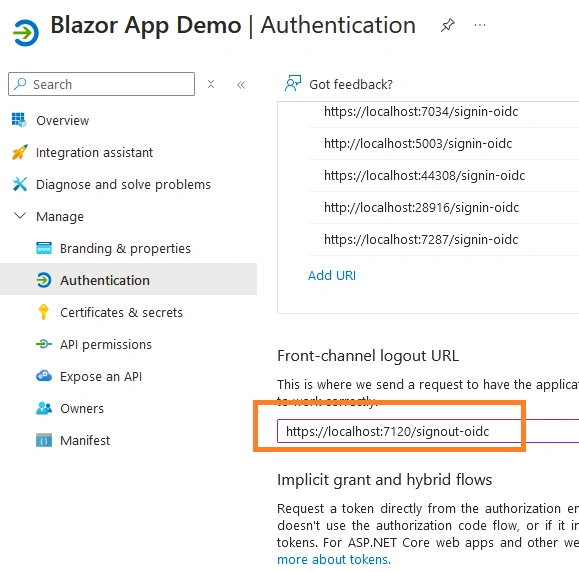
Make sure the front-channel logout URL for all the applications is registered with Azure AD B2C for seamless single-sign-out integration.
Azure AD B2C uses a hidden iframe, so whenever a user logs out from one application, it sends a notification to other applications to end their sessions.
Summary
We have seen step-by-step instructions for enabling front-channel logout, configuring the Azure AD B2C logout endpoint, and implementing logout functionality in the application. Additionally, it highlights testing best practices to ensure the feature works effectively.
Join the conversation! Your thoughts help the community grow.