

In this article, we will learn about the SharePoint Site Column & List Column & Site Content Type; you will be able to know when to use the site column, when to use the list column, and how to use the site content type.
So before we dive into Site Column & List Column and Site Content Type, let's talk about what a column is in SharePoint.
SharePoint Column is a column that is used to store data in table format, or we can store data within lists or libraries in table format. We can create different types of columns like number, choice, date and time, metadata, etc. This makes it easier to store data in SharePoint list and library and to manage filter and view data. There are two types of columns in the SharePoint List Column and Site Column, which are used to manage content and information in an organized and efficient way in SharePoint lists or libraries.
What is a Site Column?
Site Column is a reusable column in SharePoint that we can use at the site level. It means that columns can be created and used across multiple lists and libraries within the site or site collection. Site columns are defined at the site level so they can be applied consistently to lists and libraries within that site or sub-site that is under it.
It provides consistency so that data in every list and library are captured and displayed in the same way, which is used to maintain consistency. For example, you have a department column in your site collection, and you want to add that column to other lists and libraries. If you have a department column as a site column, you can ensure that all lists and libraries use the same data type, options, and settings.
You can manage and update the site column at the central level so that when you make any changes, they will be automatically reflected in that list or libraries where we have used that site column.
Now, we will see how to create a site column and how to use it in a list or libraries.
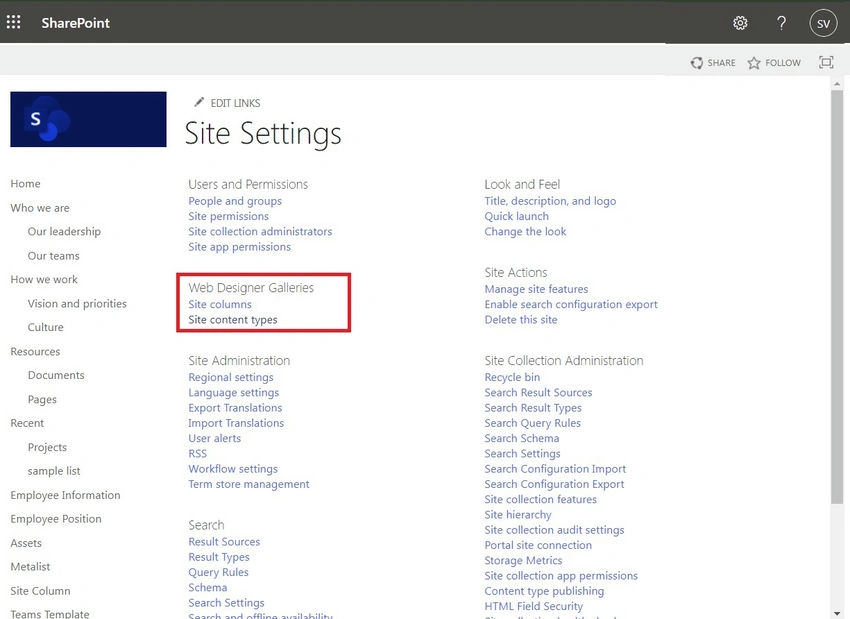
I highly recommend to you all that when you create a site column from site settings choose the Create new group radio button which will create a new group and you can easily find the site column that you have created, Following the steps given in the images.
How do you create and use a Site Column?
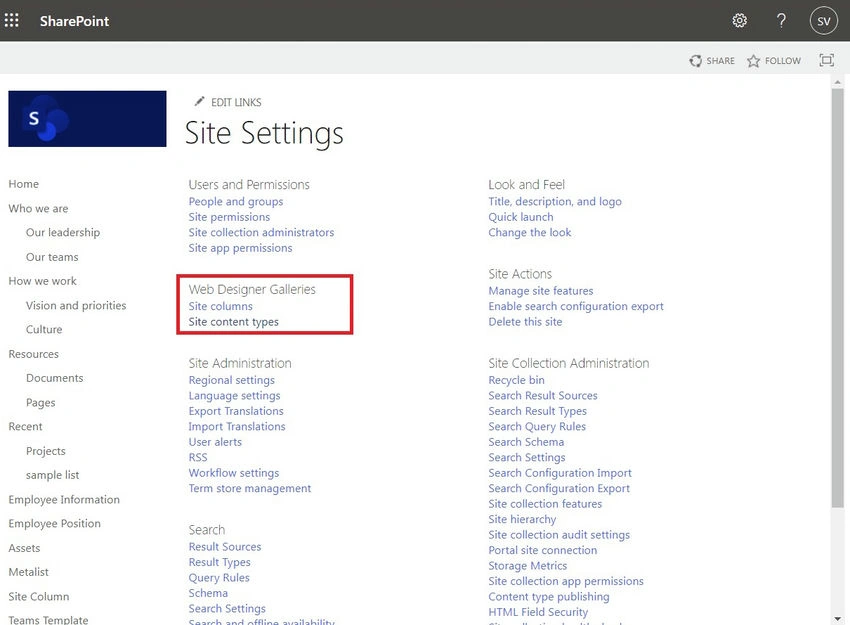
Go to site settings (click on the gear icon) > Site Information > View all site settings > Site column under “Web Designer Galleries” > Click on Create at the top.
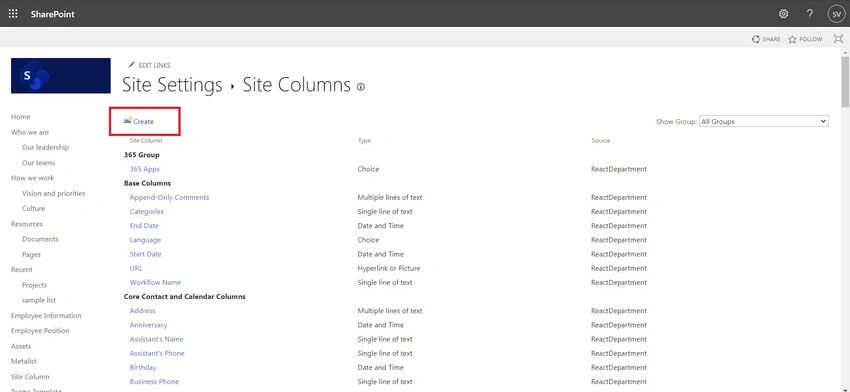
Now select configuration as per your need!
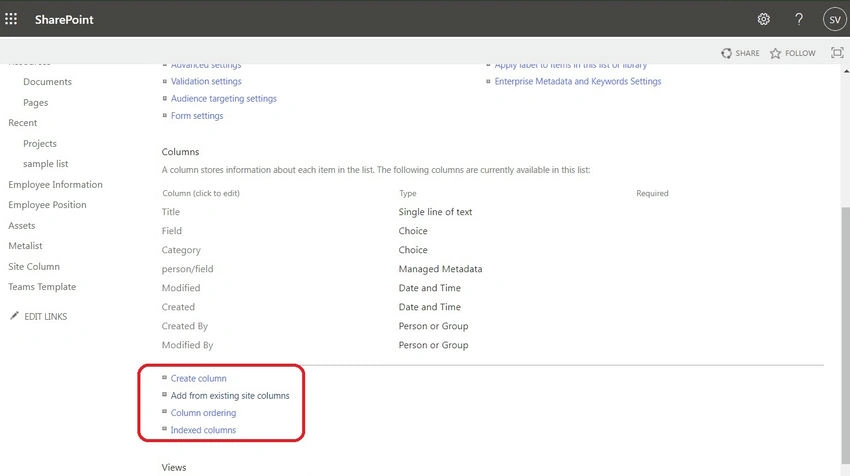
Note. If you are not able to add a site column to your list or libraries, go to the list in which you want to add a site column.
Your List > List Settings > Add from existing Site Columns.
Now let`s talk about the List Column and its uses.
List columns are specific to a particular list or library. Unlike site columns, which can be reused across site collections, list columns can be used only in a particular list or library. List columns are created and used only within the context of the list and library.
List columns are specific to particular lists and libraries and provide full flexibility to customize data. So that we can create columns exactly for needs that don’t affect the other list or library data, the list column is a unique column, so that when there are any changes it will only update the column where it is created. It will not affect other columns. In such a way, there is a direct control to list columns for changes and other updates, unlike it is not managed at the central level.
There is no extra process for creating a List Column.
How to create a list column?
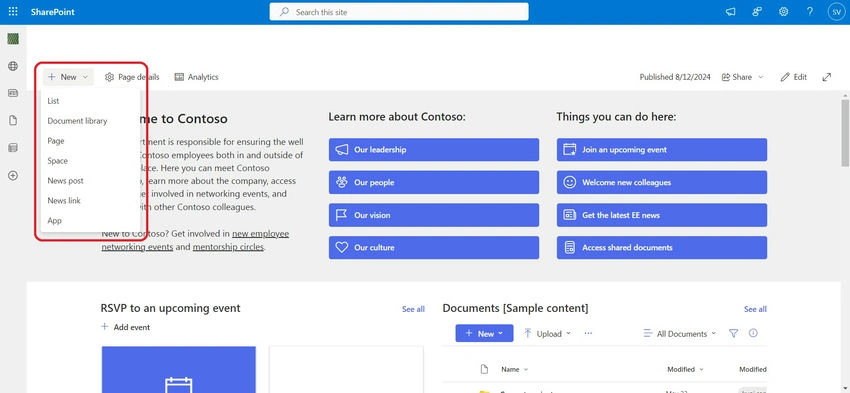
On your SharePoint site home page, you will be able to see the +New button with a drop-down. When you click on it will open a drop-down where you select List and select settings as per need.
Now, compare both and see which type of column to use in different scenarios.
- Scope
- Site Column: scope, we have seen that the site column is reusable across site collection or sub-site, which is created under it.
- List Column: list columns are scoped at the individual list or library level. it is not managed at the central level. They exist only in the list or library where they were created.
- Reusability
- Site Column: highly reusable, once a site column is created it can be used in any list or libraries within the site collection or sub-site that is created under it. Which makes it easy to maintain consistency.
- List Column: Limited use. List columns are specific to the list and libraries in which they were created and can not be reused in other lists or libraries unless we create them manually.
- Management
- Site column: Centrally managed site columns are centrally managed so it is scoped at the site level, which means they is available for use in different lists and libraries within the site collection or sub-site which is under it.
- List Column: Managed locally, list columns are specific to the list or libraries where they were created. Changes in the list column do not affect other columns or data. List columns are often managed manually by the site owner or user.
Where should you use the Site column and List columns?
- Site Column: use the site column for data that needs to be consistent across all over site collection. Or data that needs to be reused across different lists and libraries across site collection.
- List Column: use the list column for unique data that does not need to be reused. Or data that only lists specific.
The best practice is to regularly review columns to ensure that they continue to meet your business requirement and maintain consistency across site collection.
Site Content type
In SharePoint, the Site Content type is a reusable collection of metadata, document templates, or behavior that is associated with items in a SharePoint list or libraries. With content type, you can manage behavior and attribute of items consistently across your SharePoint site or sites.
Site content type simplifies the management of content at the central level and provides consistency. Once you have created a site content type at the site level, it can be reused in multiple lists or libraries and sub-sites. It provides rich functionality that enhances searchability.
Some key components of Site content type
- Name: The name is a unique identifier for the content type, and the name should be descriptive enough to indicate the purpose of the content type, such as "Invoice," "Meeting Minutes," or "Project Plan."
- Columns: columns define metadata associated with a content type. These are the fields that store specific types of information about items or documents.
- Workflows: this is the process that is related to automation, when you create a document it will start an automation process or workflow for approval, send a notification, or trigger a task related to that process. In such a way, workflow helps to streamline operations and ensures that business rules are consistently applied.
- Document Templates: this provides a starting point of a template related to content type, for example, your content type is “Contract” so it could be a pre-formatted Word document with a placeholder for for all related information.
- Policies: provides various rules and behaviors like,
- Retention Policies: These policies determine how long the item should be retained and what action to take when the retention period is over. Like deleting files or archives, etc.
- Auditing: Tracks the actions on the items, like who viewed or modified the item.
- Labeling: apply labels for information management such as “Confidential” or “Internal use only”
- Information Rights Management (IRM): this policy restricts the action on content such as copying, printing, or overwriting.
How do you create Site Content Type?
- Navigate to your SharePoint site setting (gear icon): site from where you want to create content type.
- Site content type: Under the "Web Designer Galleries" or "Site Collection Administration," click on "Site content types."
- Create New Content Type: choose to create a new content type and specify the name and parent content type.
- Add Column: Add the necessary column as needed.
- Use Content-Type: Once created you can add this content type to a list or libraries.
Note. If you are not able to add site content type in your list or libraries, Go to the list in which you want to add site content type:
Your List > List Settings > (Scroll down page) Add from existing Site Content-type.
Add the site content type, and you will see that content type on your list.
Benefits of Site Content Type
- Consistency: The site content type is centrally managed, and once it is created at the site level, it is reusable across multiple lists or libraries within the site and sub-sites. In such a way, in every list or library where site content type is used, the same content type is used all over the site collection.
- Reusability: Once the site content type is created, we can reuse it across the site collection, and if any changes occur, then we don’t need to update those changes manually. It will automatically reflect on that list and libraries where we have used that site content type.
- Improved searchability: site content type gives us the flexibility to add terms and terms stored as per user understanding and convenience. It allows them to add terms that make sense to them, which makes it easier to search particular data or types for users.
- Ease of Management: We have learned that site content type is centrally managed, which means that it is easy to manage complex and large datasets at a central level. So that if there are any changes in that dataset, we don’t need to update it in every list or library where we have used site content type. When we update changes at the central or site levels, they will automatically reflect on the list and libraries where that content type is used.
Best use cases while using site content type
While using site content type, it is essential to follow best practices for effective use.
- Plan Ahead: It is important that the content type you create meets your business needs without the need for any frequent adjustments.
- Use Site Column: Site Columns are reusable across multiple Site Content types, lists, and libraries. This consistency ensures that metadata fields are standardized across your site collection.
- Document Content Type: Documentation helps users and administrators understand the use of site content type and the purpose and structure of each content type. And make sense of how to use it and how it fits into broader business processes.
- Regular Review: Regularly reviewing and updating content type ensures they continue to meet the organizational needs and that they are not becoming redundant. Which also helps with improvements and adjustments.
Conclusion
In this article, we have a clear overview of site columns and list columns and content types in SharePoint and have seen the use of each. Site columns and site content types are full tools to manage content consistency and efficiency. And streamline organization data.
Join the conversation! Your thoughts help the community grow.