

Introduction
During the past years in SharePoint, we have frequently used the following three different types of pages for adding or publishing contents and web parts.
- Web Part Page
- Publishing Page
- Wiki Page
SharePoint Modern UI
In the Modern UI experience, the Microsoft team has introduced a new page model called “Site Page”. This new page type comes with a lot of new features. Some of them are as follows -
- Add new Client web parts, also called SharePoint Framework web parts.
- A new Page canvas, different from other page types. This makes the editing experience a lot easier.
- The ribbon functionality is removed; adding / editing and publishing features are simplified.
- Responsive Design - This page aligns the contents on any devices.
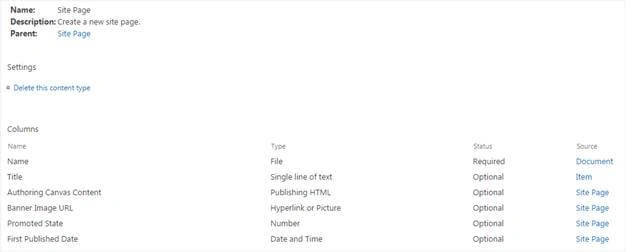
Fig 1: Site Page Content Type
- Authoring Canvas Content - contains the HTML structure of page content
- Banner Image - URL represents the URL of the banner image, which is shown in the background of the page title.
- Promoted State - by default, it is 0. But for the news page, it will be 2.0.
- First Published Date - represents the published date. This contains no value in Site Pages library.
- Site Pages library - has this content type by default, if that site is enabled with the Modern UI experience.
Creating new Site Page
SharePoint Online enables the Modern UI experience. Just go to “Add a Page” menu option under gear button.
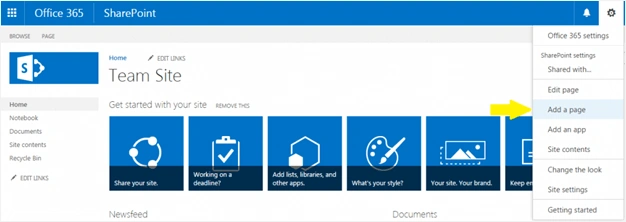
Fig 2: Add a Page
Based on Site Page template, a new page is created in Site Pages library with the name as some junk letters.
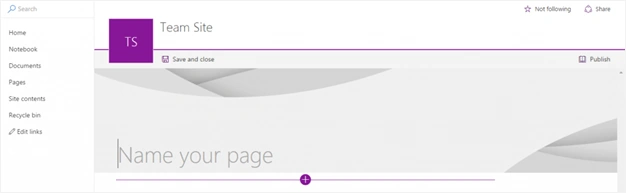
Fig 3: New Site Page
Once we have filled the title area, the junk characters of the page name are replaced with that title.
Click on + (plus) icon from horizontal bar. It shows us the available client-side web parts for that site. Choose any one from the web parts icons to add this web part to the page.
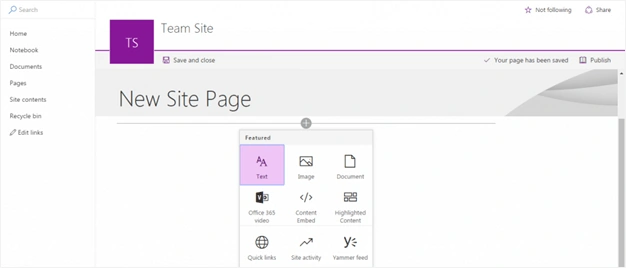
Fig 4: Client Side Web Parts
Now, you can play with the modern Site Page by adding client-side web parts. You can also create and deploy SharePoint Frameworks to deploy, according to your needs.
Summary
Microsoft is bringing huge changes to SharePoint by exploring and bringing all new web features. All kinds of the latest web features can be built on top of this modern UI page model, in the form of client-side or SharePoint Framework web parts.
Madhanmohan DevarajanPosted Dec 20, 2016, 12:27 PM
Thanks for sharing simple and easy methods for site branding.