1. Accesskey Attribute
Using the accesskey attribute we can specify one or more keyboard shortcuts that will select the element on the page.
Example
- <html>
- <head>
- <title>Access key example</title>
- </head>
- <body>
- <form>
- Enetr your Name:
- <input type="text" name="name" accesskey="n" />
- <p />
- Enter Password:
- <input type="password" name="password" accesskey="p" />
- <p />
- <input type="submit" value="Log In" accesskey="s" />
- </form>
- </body>
- </html>
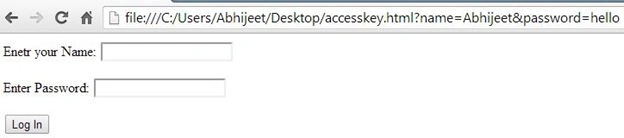
In this example, I have added the accesskey attribute to three input elements.
The key combination required to trigger the accesskey setting differs among platforms. For Windows, it is the Alt key and the accesskey value pressed together.
- press Alt+n to focus on the first input element and enter your name.
- press Alt+p to focus on the second input element and enter the password.
- Alt+s presses the login button, that submits the form.
2. Class Attribute
The class attribute is used to classify or categorize elements. We usually do this so that we can locate elements in the document that belongs to a given class or to apply a CSS style.
Example
- <html>
- <head>
- <title>class example</title>
- <style type="text/css">
- .class2
- {
- background-color: cyan;
- color: black;
- padding: 5px;
- margin: 2px;
- }
- .class1
- {
- font-size: x-large;
- }
- </style>
- </head>
- <body>
- <a class="class1 class2" href="http://www.c-sharpcorner.com/UploadFile/8836be/html5-main-structural-elements/">
- HTML5 Main Structural Elements</a>
- <p />
- <a class="class2 otherclass" href="http://www.c-sharpcorner.com/UploadFile/8836be/make-your-own-music-player-in-android/">
- Make Your Own Music Player in Android</a>
- </body>
- </html>
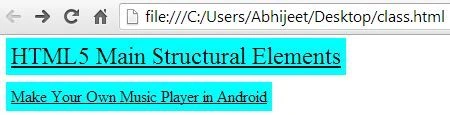
In this example, I used a style element to define two styles; the first is applied to elements that are assigned to class2 and the second is applied to class1.
3. Contenteditable Attribute
The contenteditable attribute allows the user to change the content on the page.
Example
- <html>
- <head>
- <title>contenteditable example</title>
- </head>
- <body>
- <p contenteditable="true">
- Good Morning</p>
- </body>
- </html>
Setting the attribute value to true allows the user to edit the element contents and setting it to false disables this feature.
4. dir Attribute
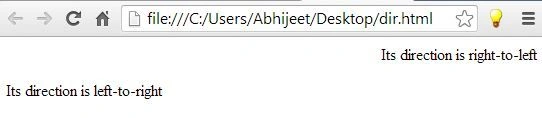
The dir attribute specifies the direction of an element's text.
The two supported values are:
- ltr (for left-to-right text)
- rtl (for right-to-left text)
Example
- <html>
- <head>
- <title>dir example</title>
- </head>
- <body>
- <p dir="rtl">
- Its direction is right-to-left</p>
- <p dir="ltr">
- Its direction is left-to-right</p>
- </body>
- </html>
5. Spellcheck Attribute
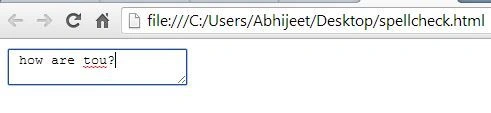
The spellcheck attribute specifies if the browser should check the spelling of an element's content.
Example
- <html>
- <head>
- <title>spellcheck example</title>
- </head>
- <body>
- <textarea spellcheck="true">how are tou? </textarea>
- </body>
- </html>
6. Title Attribute
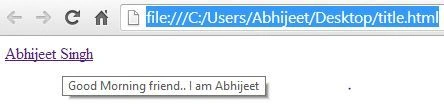
The title attribute provides additional information about an element, that is commonly used by the browser to display tooltip information.
Example
- <html>
- <head>
- <title>title Example</title>
- </head>
- <body>
- <a title="Good Morning friend.. I am Abhijeet" href="http://www.c-sharpcorner.com/authors/8836be/abhijeet-singh.aspx">
- Abhijeet Singh</a>
- </body>
- </html>



Join the conversation! Your thoughts help the community grow.