

Introduction
Working with data, a common need is to manage streams that come from various software. Sometimes there's the necessity to make available to a program the data created by another one, and the phase of data exchange is often entrusted to text files, like Comma Separated Value (CSV) files. That's perfectly OK when the information can be acquired the way they present themselves, but if we need to further elaborate them before importing, a text file is not the most convenient format to work with. That's when DataTables and DataViews from the .NET Framework can be useful, helping us to manage our data in a tabular form. This article shows some brief examples using Visual Basic .NET.
A simple scenario
Consider a sample pipe-separated CSV file like the following:
- Name|Surname|Age|Occupation|City
- John|Doe|30|Developer|New York
- Jack|NoName|25|DBA|Los Angeles
- Mario|Mario|42|Plumber|Unknown
- Laura|Green|25|Developer|Unknown
In those cases, a DataTable is surely what we need. Like the MSDN says, a DataTable represents a table of in-memory data. It is a sort of virtual table, in which we can store data in tabular form (in other words columns and rows), relying on the peculiarities of such a structure (data access, relations and so on). A DataTable can be bound to any control (WPF or WinForms) on which the DataSource or ItemSource property is available.
Create a DataTable from a CSV file
Let's create and populate a DataTable with the data above. For the sake of immediacy, I've written a short snippet to create a file containing our sample data.
Consider the following:
- Const sampleFile As String = "c:\temp\sample.txt"
- '-- Create sample data, writing them to c:\temp\sample.txt
- Dim _sampleData As String = "Name|Surname|Age|Occupation|City" & Environment.NewLine & _
- "John|Doe|30|Developer|New York" & Environment.NewLine & _
- "Jack|NoName|25|DBA|Los Angeles" & Environment.NewLine & _
- "Mario|Mario|42|Plumber|Unknown" & Environment.NewLine & _
- "Laura|Green|25|Developer|Unknown"
- IO.File.WriteAllText(sampleFile, _sampleData)
- '-- Create a datatable from our text file
- Dim dt As New DataTable("Sample")
- '-- Opens sample file, read first line, assign
- For Each l As String In IO.File.ReadLines(sampleFile)(0).Split("|")
- dt.Columns.Add(l)
- Next
The preceding creates the structure of our table. We must now fill it with data. That means we will apply a logic similar to the one used for columns, this time on rows, using the file lines from the second to the last one.
- '-- Read sample data as rows
- Dim nRow As Boolean = False
- For Each l As String In IO.File.ReadLines(sampleFile)
- If Not (nRow) Then nRow = True : Continue For
- dt.Rows.Add(l.Split("|"))
- Next
DataTable as DataSource
We can test our DataTable against a DataGridView (or any other control accepting a DataSource), to check everything is OK. I've added to my Form a DataGridView. We can bind the DataTable to the grid by doing:
- '-- The DataTable could be used as a Data Source
- DataGridView1.DataSource = dt
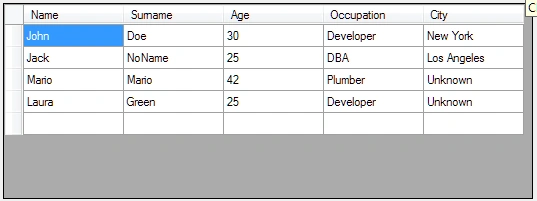
Figure 1: GridView Data
We can observe everything went OK; our data has correctly shown up. They are presented in the way the DataTable was populated; no filter applied, no specific sort order. Each line is found at the index it has in the file (in other words "John Doe" is the first row, "Laura Green" the last one).
Use DataView to sort and filter data
As stated by the MSDN, a DataView represents a databindable, customized view of a DataTable for sorting, filtering, searching, editing, and navigation. The DataView does not store data, but instead represents a connected view of its corresponding DataTable. DataViews allow us to customize the way our data is presented.
Let's say we want to order our DataTable by the Age columns, showing the older people first. We could do that easily, by writing:
Let's say we want to order our DataTable by the Age columns, showing the older people first. We could do that easily, by writing:
- Dim dv As New DataView(dt)
- dv.Sort = "Age DESC"
- DataGridView1.DataSource = dv
- dv.Sort = "Age DESC, Name DESC"

Figure 2: Sort Age in Descending
In the screenshot, note the descending sort by Age, and the secondary descending sort by Name in case of equal Age value. DataViews filter's capabilities are pretty straightforward too. Using the RowFilter property, we could write a concise expression to determine the data we want to show. For example, let's say we want to extract only those records in which the city is Unknown. We could write:
- dv.RowFilter = "City = 'Unknown'"

Figure 3: Record where city is Unknown
A multi-filter can be set by joining different expression with the logic predicates AND and OR. The expression:
- dv.RowFilter = "Age < 30 OR Age=42"
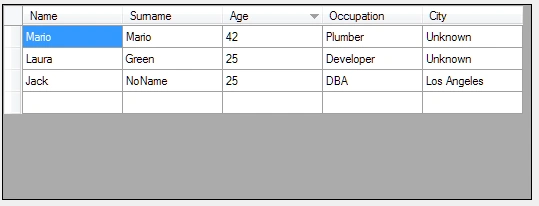
Figure 4: Age between 30 & 42
Because we have only two records where Age is < 30, and only one in which it is = 42.
From DataView to Text
Now, let's assume we want to create a second CSV file, containing only those records in which the field City contains a blank space, sorted by ascending Age field. A simple way to export our data could be:
- Dim dw As New DataView(dt)
- dw.Sort = "Age ASC"
- dw.RowFilter = "City LIKE '% %'"
- Dim lines As String = ""
- For Each r As DataRowView In dw
- lines &= String.Join("|", r.Row.ItemArray) & Environment.NewLine
- Next
- IO.File.WriteAllText("c:\temp\output.txt", lines)

Figure 5: Arbitrary Text File
Source Code
The sample code used in the article can be downloaded here: Sort and Filter CSV files with DataTable and DataView
NitinPosted May 23, 2015, 8:50 AM
good one
Santhakumar MunuswamyPosted May 22, 2015, 2:47 PM
Thanks for sharing