Recently our technical support team received a question from one of our customers about how to sort data in the Web Viewer in SharpShooter Reports. The customer wanted to click a column header to sort the data. The first thing our support team wanted to reply was:
''Unfortunately, our product does not support the requested functionality''. But our products architecture is developed the way that if a customer wants to add some new functionality that is not supported by the product, he can do this programmatically.
The powerful scripting feature in SharpShooter Reports allows developing any reports you cannot even imagine. Thanks to the flexibility of JavaScript and HTML you can create miracles! So, using all these, I tried to implement the data sorting functionality the way the customer wants and would like to tell you how I did this.
First of all, let's see what we need to implement data sorting in the WebViewer.
I used the "SharpShooterWebViewer" sample delivered with the product package as the base for the development. Then, I added the "NWIND.MDB" database to the project that can be found here: "C:\Program Files (x86)\Perpetuum Software\SharpShooter Collection\Resources\Data\". As the next step, I added the "DataSet" that contains database structure and "TableAdapter" to fill the "Customers" table.
Let's start from a report template.
I created a simple template using the wizard which displays the data from the "Customers" table. You can see the template on the Picture 1 below: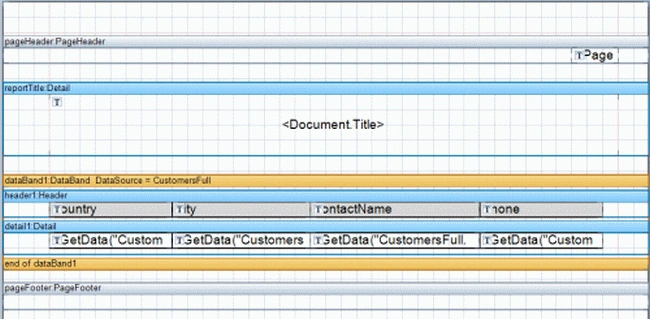
Picture 1. Report Template.
Step 1: Adding sorting conditions
The "DataBand" report element allows implementing data sorting. To do this, it is needed to set a collection of expressions in the "Sort" property of the element. These expressions will be used for data sorting.
On the Pictureture 2 below you can see the expressions set for the dataBand1. These expressions mean that first the data will be sorted by the "Country" field, then by the ''City'' field, and then by the "ContactName" field. The sorting will be performed alphabetically. 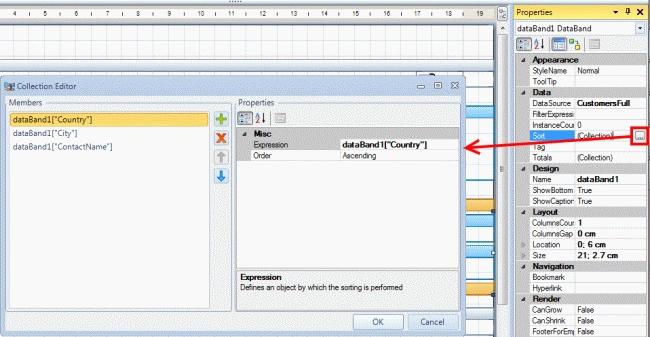
Picture 2: Sorting Expressions.
Step 2: Adding the ability to click a column header
Since a user needs to have the ability to sort the data with the mouse click, report elements should respond to a mouse click. All report elements in SharpShooter Reports have the "Hyperlink" property. When this property is set, the report elements will "report to a user" (throw an event) that they are clicked. A user may ignore (not handle) the event. In this case, a user will go by the link specified in the "Hyperlink" property.
So, let's set the "Hyperlink" property for the headers of our columns the following way:
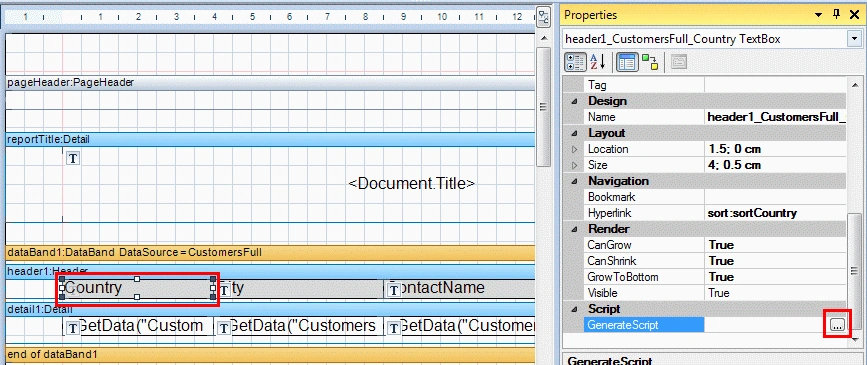
sort:sort<Column name> , where <Column name> is a name of the field from which the data for the column is taken. In our report we will sort the data by 3 columns: the "Country", "City", and the "ContactName". Values of the "Hyperlink" property for them will be correspondingly as follows: "sort:sortCountry", "sort:sortCity", "sort:sortContactName". 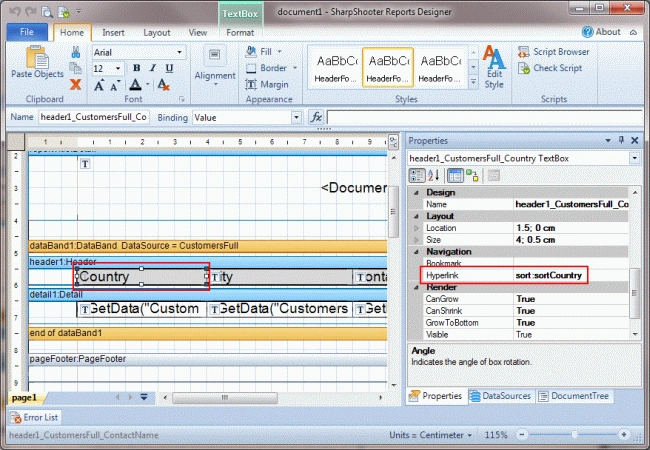
Picture 3. Header property for the "Country" column.
The "Hyperlink" property is set the following way: sort:sort<Column name>. We make it this way to easy understand how to work with the link value in the handler of the link click.
"sort:" means that it is required to do sorting, "sort<Column name>" is the name of the parameter in the report which defines direction of the column sorting.
Step 3: Adding parameters in the report
Let's add parameters to our report. These parameters will define the direction of data sorting. To do this, select the "document1" in the property grid and press the  button near the "Parameters" property.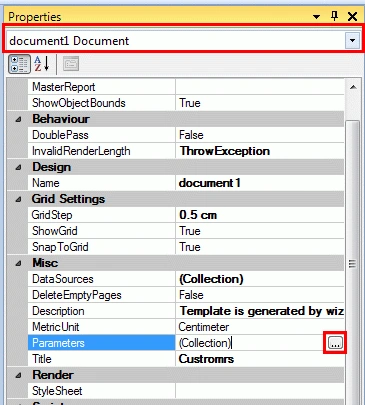
Picture 4. Document properties.
Add three parameters: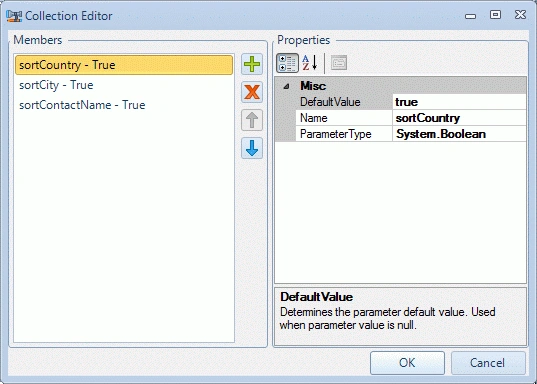
Picture 5. Report parameters.
By default, set the parameters values to "True". This means that sorting will be performed alphabetically.
Step 4: Setting sorting direction
Now let's write a script that will be executed before page generation and set sorting direction in the columns. To do this, select the "page1" in the property grid and press the button near the "GenerateScript" property.
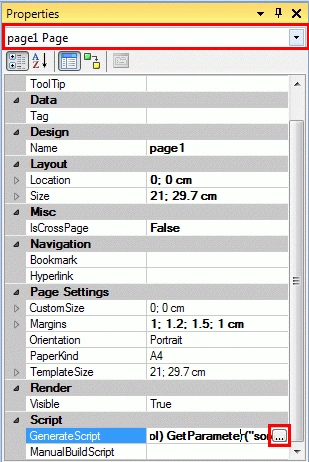
Picture 6. Page properties.
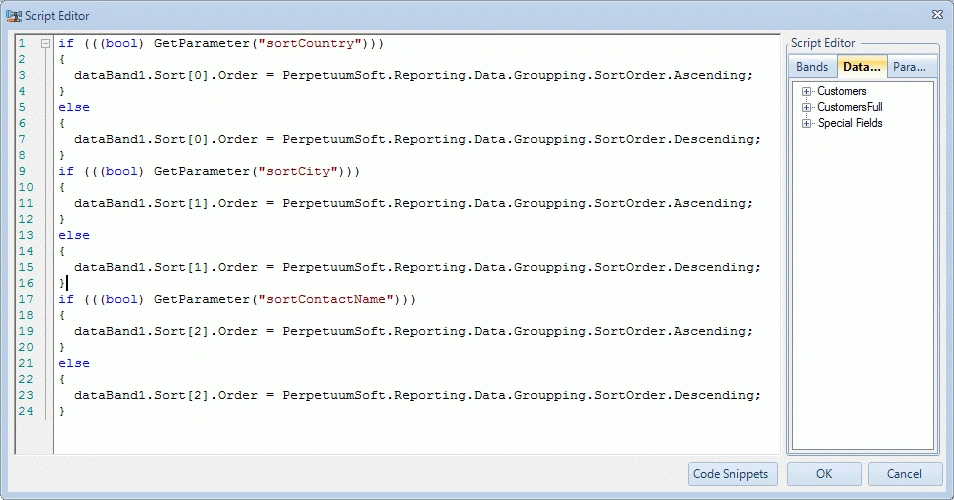
Add the following code to the Script Editor:
if (((bool)GetParameter("sortCountry")))
{
dataBand1.Sort[0].Order = PerpetuumSoft.Reporting.Data.Groupping.SortOrder.Ascending;
}
else
{
dataBand1.Sort[0].Order = PerpetuumSoft.Reporting.Data.Groupping.SortOrder.Descending;
}
if (((bool)GetParameter("sortCity")))
{
dataBand1.Sort[1].Order = PerpetuumSoft.Reporting.Data.Groupping.SortOrder.Ascending;
}
else
{
dataBand1.Sort[1].Order = PerpetuumSoft.Reporting.Data.Groupping.SortOrder.Descending;
}
if (((bool)GetParameter("sortContactName")))
{
dataBand1.Sort[2].Order = PerpetuumSoft.Reporting.Data.Groupping.SortOrder.Ascending;
}
else
{
dataBand1.Sort[2].Order = PerpetuumSoft.Reporting.Data.Groupping.SortOrder.Descending;
}
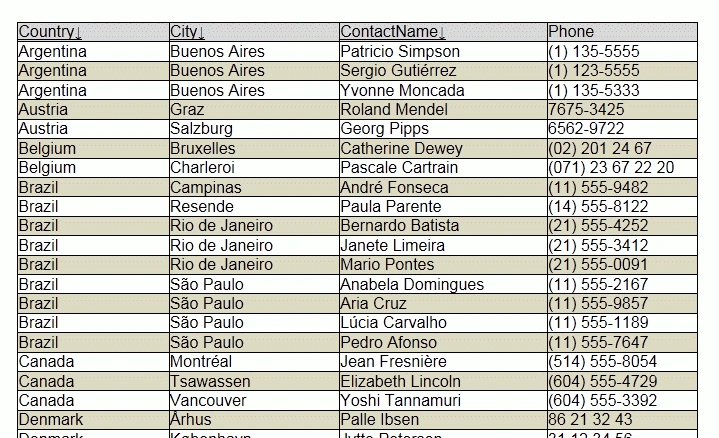
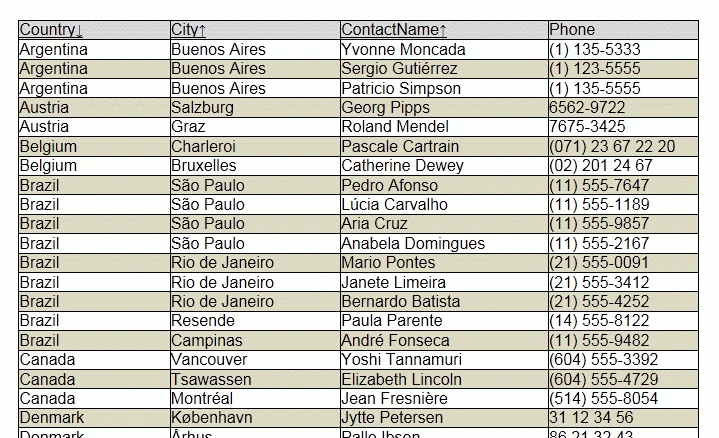
In this code, the sorting direction is set depending on the parameter value. If the parameter value is set to "True", the sorting will be performed alphabetically, and if the parameter value is equal to "False", the sorting will be performed in reverse order.

Sorting in WebViewer
Join the conversation! Your thoughts help the community grow.
Sign in to leave a comment
It is the same account you read, post and publish with — and you will come straight back to this page.
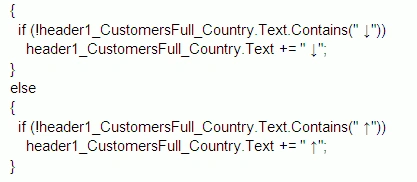
 " condition means that an arrow will not be added to a header if a header repeats on every page.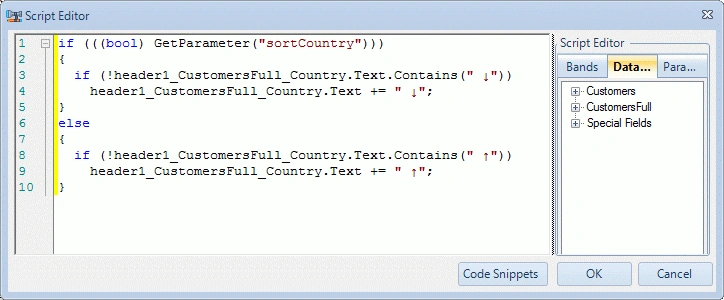
Stephen JohnsonPosted Feb 29, 2012, 10:56 PM
You have presented your article in a very nice manner
Amit MaheshwariPosted Feb 29, 2012, 10:45 PM
Hi, Tanai it's a great effort to accomplish such kind of task about sorting in WebViewer, Having very helpful to us. Thanks for sharing....
Arjun PanwarPosted Feb 29, 2012, 10:42 PM
Really very nice article, thanks for sharing it.