

The importance of regularly backing up SQL Server databases is often stressed, but merely taking backup is not enough to restore a database if a disaster strikes. Having a plan to restore the backup with minimal downtime and data loss is equally important.
In other words, if a database becomes corrupted or inaccessible and the database owner wants to bring it back online within an hour with minimum data loss, it's important to have a robust backup plan.
Backup and Restore Plan
In the event of SQL Server crash, database corruption, etc., you can consider using Log Shipping, Database Mirroring, and other High Availability (HA) techniques to maximize database availability and minimize data loss. But, having a well-defined and tested backup and restore plan is vital for quick disaster recovery. This plan comprises developing a Service Level Agreement (SLA), a document to set acceptable expectations regarding possible data loss, the period of downtime, and the cost of implementing the backup and restore.
An SLA is an agreement between a database administrator and the database owner that provides a level of commitment regarding the availability of the database and its data.
To plan an SLA, it's important to understand the backup and restore requirements (which we will cover in the following sections).
To have an efficient backup and restore plan, let's create a test database, take a backup of the new database, and restore it.
Backing Up SQL Database
Before proceeding with backing up a SQL database, it is important to determine the backup requirements,
- What should be the level of server on which the database will reside?
Losing a week of development changes can be handled, but losing a week of production database changes cannot be accepted. So, you'll need to decide whether you want to keep the database on a development server, production, or test server? - Do we need to back up every database?
If the data is frequently refreshed every few days, you may not need to back up that database. This can help you save resources and time required for taking database backups from another server. - Deciding the backup type depending on how much data loss is acceptable?
You may need to take transaction and log backups in addition to full database backups to avoid downtime and loss of data. This requires using the High Availability (HA) technique and following a rigorous backup regime', but this can cost you a lot of resources, time, and money. - How often and when does a database need to be backed up?
Another factor to consider when backing up a database is when it should be carried out. You should take a full backup at a time when the database is least used and plan log and transactional backups around the full backup schedule. The Log (or transaction log) backups should be scheduled before normal database use to capture all the data changes.
How to Perform SQL Database Backup?
In this section, we will discuss the step-wise instructions on taking full backups. Full database backup is an important component of disaster recovery strategy for any database. That is because the full backup helps restore the database (in the event of catastrophic hardware failure, data corruption, etc.), keeping most of the data intact.
Execute the following query to create a sample database, let's say, DatabaseBackup,
- CREATE DATABASE [DatabaseBackup] ON PRIMARY (
- NAME = N 'DatabaseBackup', FILENAME = N 'C:\SQLData\DatabaseBackup.mdf',
- SIZE = 510000KB, FILEGROWTH = 102300KB
- ) LOG ON (
- NAME = N 'DatabaseBackup_log', FILENAME = N 'C:\SQLData\DatabaseBackup_log.ldf',
- SIZE = 102300KB, FILEGROWTH = 10230KB
- ) GO
Now, let's discuss the process of taking full backup of the 'DatabaseBackup' database,
Using SSMS
Step 1
Open SSMS and connect to an instance of your server.
Step 2
In the Object Explorer window, expand Databases, and then right-click on a database you want to back up, click Tasks > Backup. This will open a dialog box named 'Back Up Database'.
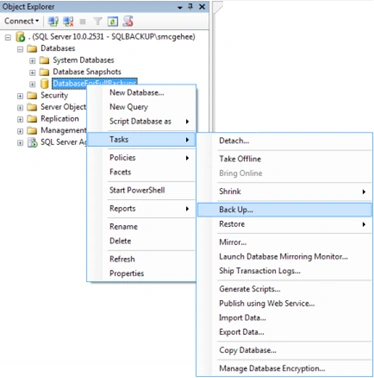

Figure 1 - Select Back Up Task
Step 3
In a General section, do the following,
- Choose the type of backup from the Backup type drop-down list.
- Select Database under Backup Component.
Note
Choose Files and filegroups' option under Backup component when you need to create backup for databases having more than one filegroup. - The information identifying the backup set, including db name and description fields, is displayed in the Backup set section. Also, there's an option to set the expiration date of the database backup file. Setting this date will let the SQL Server know for how long it should keep the backup file.
- Next, specify the backup media under the Destination section for storing the backup.
 Figure 2 - Specify Database Backup Details
 - Click the Add button to open 'Select Backup Destination' window. In this window, click Browse. From the 'Locate Database Files' window, find the SQL backups directory you have created and then specify the name for the backup file, for instance, DatabaseBackup as shown in the figure below,
 Figure 3 - SQL Database Backup File Configuration
 - Once the backup file is configured, click OK. Again click OK from the Select Backup Destination dialog box. This will open the 'Back Up Database' page. Now click on the Options section under 'Select a Page'. This will open the Options page with options as shown in the below image,
 Figure 4 - Configuration Options for SQL Database Backup
Step 4
In the Options page screen, perform these steps,





Join the conversation! Your thoughts help the community grow.