

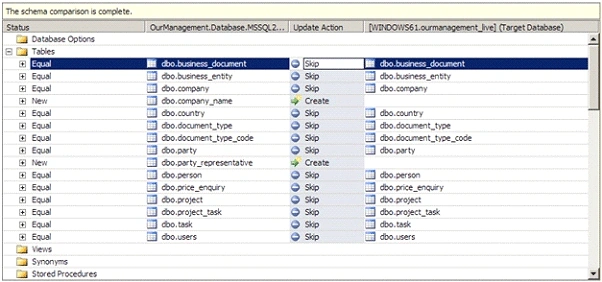
This article explains the new tool in visual studio 2010 which most of the users require seeing the comparison report of the 2 different database schema (say a development and a production db) in order to get the object that has been changed for the current releases.
In the market there are many third party tools available to overcome this process, but in Visual studio 2010 Microsoft has given the inbuilt functionality as a tool to compare the different schema so that the changes can be easily compared and synced in different environment based on the object difference. Microsoft Database server version has many features like database development, version controlling, unit testing, code analysis, code maintenance etc....
Types of Comparison options in Visual Studio 2010
Microsoft has provided different types of schema comparisons in Visual Studio 2010. The user has been given the option to compare the types listed below:
- SQL Server database - Sql server 2008 or 2005 instance compare
- Database project - a project which produces .dbschema file for sql server 2008 and 2005 instance
- Server project - a project which produces .dbschema file for sql server 2008 and 2005 instance that contains definitions for server objects and objects in the 'master'
- Data-tier application component (DAC) project - a project that produces a .dacpac file
- .dbschema file - database or server project output
- .dacpac file - data-tier application component (DAC) project output
Step by Step Process to Compare
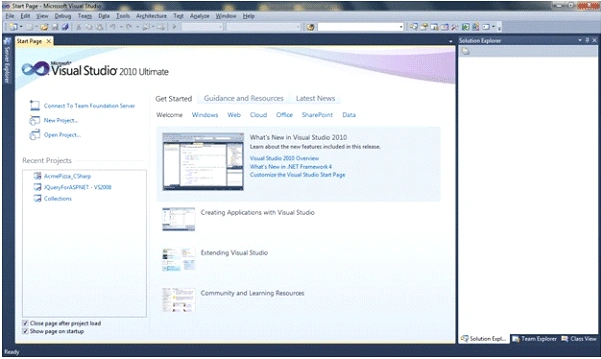
Step 1: Open Visual studio 2010 by moving to Start a Program a Microsoft Visual Studio 2010 a Microsoft Visual Studio 2010.
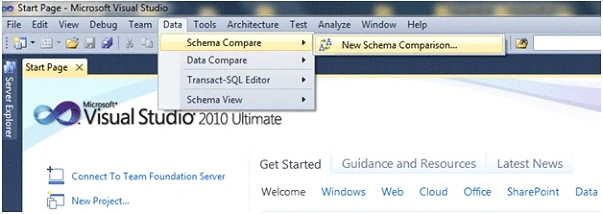
Step 2: Once Visual Studio is opened, go to Data a Schema Compare a New Schema Comparison
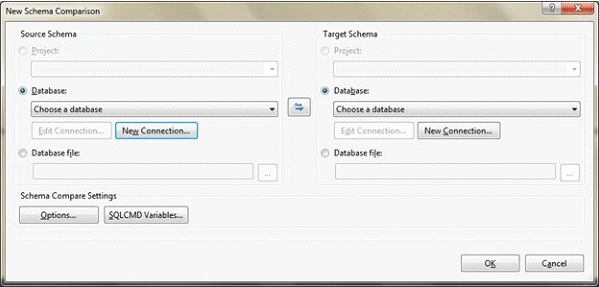
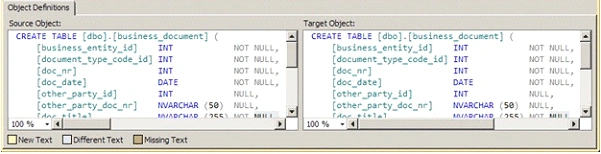
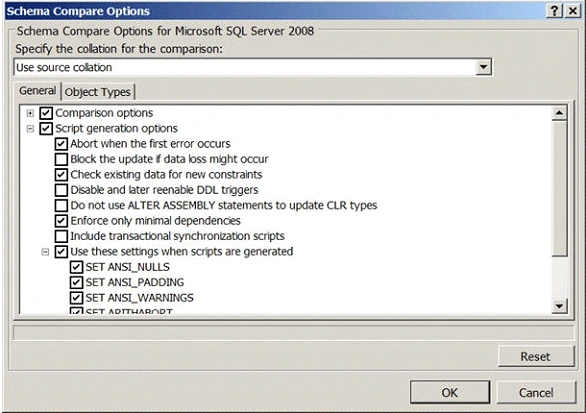
Step 3: You will see a dialog box which requests for the source and destination db and the properties to connect to those db servers as below.

Join the conversation! Your thoughts help the community grow.