
Introduction
In this post, I will show you how to create SSRS Report in ASP.NET MVC5. I hope you will like this.
Prerequisites
As I said earlier, we are going to use Report Viewer in our MVC application. For this, you must have Visual Studio 2015 (.NET Framework 4.5.2) and SQL Server.
SQL Database part
Here, find the scripts to create database and table.
Create Database
USE [master]
GO

/****** Object: Database [DbEmployee] Script Date: 9/29/2016 2:37:24 AM ******/
CREATE DATABASE [DbEmployee]
CONTAINMENT = NONE
ON PRIMARY
( NAME = N'DbEmployee', FILENAME = N'c:\Program Files (x86)\Microsoft SQL Server\MSSQL11.MSSQLSERVER\MSSQL\DATA\DbEmployee.mdf' , SIZE = 3072KB , MAXSIZE = UNLIMITED, FILEGROWTH = 1024KB )
LOG ON
( NAME = N'DbEmployee_log', FILENAME = N'c:\Program Files (x86)\Microsoft SQL Server\MSSQL11.MSSQLSERVER\MSSQL\DATA\DbEmployee_log.ldf' , SIZE = 1024KB , MAXSIZE = 2048GB , FILEGROWTH = 10%)
GO

ALTER DATABASE [DbEmployee] SET COMPATIBILITY_LEVEL = 110
GO

IF (1 = FULLTEXTSERVICEPROPERTY('IsFullTextInstalled'))
begin
EXEC [DbEmployee].[dbo].[sp_fulltext_database] @action = 'enable'
end
GO

ALTER DATABASE [DbEmployee] SET ANSI_NULL_DEFAULT OFF
GO

ALTER DATABASE [DbEmployee] SET ANSI_NULLS OFF
GO

ALTER DATABASE [DbEmployee] SET ANSI_PADDING OFF
GO

ALTER DATABASE [DbEmployee] SET ANSI_WARNINGS OFF
GO

ALTER DATABASE [DbEmployee] SET ARITHABORT OFF
GO

ALTER DATABASE [DbEmployee] SET AUTO_CLOSE OFF
GO

ALTER DATABASE [DbEmployee] SET AUTO_CREATE_STATISTICS ON
GO

ALTER DATABASE [DbEmployee] SET AUTO_SHRINK OFF
GO

ALTER DATABASE [DbEmployee] SET AUTO_UPDATE_STATISTICS ON
GO

ALTER DATABASE [DbEmployee] SET CURSOR_CLOSE_ON_COMMIT OFF
GO

ALTER DATABASE [DbEmployee] SET CURSOR_DEFAULT GLOBAL
GO

ALTER DATABASE [DbEmployee] SET CONCAT_NULL_YIELDS_NULL OFF
GO

ALTER DATABASE [DbEmployee] SET NUMERIC_ROUNDABORT OFF
GO

ALTER DATABASE [DbEmployee] SET QUOTED_IDENTIFIER OFF
GO

ALTER DATABASE [DbEmployee] SET RECURSIVE_TRIGGERS OFF
GO

ALTER DATABASE [DbEmployee] SET DISABLE_BROKER
GO

ALTER DATABASE [DbEmployee] SET AUTO_UPDATE_STATISTICS_ASYNC OFF
GO

ALTER DATABASE [DbEmployee] SET DATE_CORRELATION_OPTIMIZATION OFF
GO

ALTER DATABASE [DbEmployee] SET TRUSTWORTHY OFF
GO

ALTER DATABASE [DbEmployee] SET ALLOW_SNAPSHOT_ISOLATION OFF
GO

ALTER DATABASE [DbEmployee] SET PARAMETERIZATION SIMPLE
GO

ALTER DATABASE [DbEmployee] SET READ_COMMITTED_SNAPSHOT OFF
GO

ALTER DATABASE [DbEmployee] SET HONOR_BROKER_PRIORITY OFF
GO

ALTER DATABASE [DbEmployee] SET RECOVERY SIMPLE
GO

ALTER DATABASE [DbEmployee] SET MULTI_USER
GO

ALTER DATABASE [DbEmployee] SET PAGE_VERIFY CHECKSUM
GO

ALTER DATABASE [DbEmployee] SET DB_CHAINING OFF
GO

ALTER DATABASE [DbEmployee] SET FILESTREAM( NON_TRANSACTED_ACCESS = OFF )
GO

ALTER DATABASE [DbEmployee] SET TARGET_RECOVERY_TIME = 0 SECONDS
GO

ALTER DATABASE [DbEmployee] SET READ_WRITE
GO
Create Table
USE [DbEmployee]
GO

/****** Object: Table [dbo].[Employee_tbt] Script Date: 9/29/2016 2:38:05 AM ******/
SET ANSI_NULLS ON
GO

SET QUOTED_IDENTIFIER ON
GO

SET ANSI_PADDING ON
GO

CREATE TABLE [dbo].[Employee_tbt](
[id] [int] IDENTITY(1,1) NOT NULL,
[Name] [varchar](50) NULL,
[Designation] [varchar](50) NULL,
[Gender] [varchar](50) NULL,
[JoinDate] [date] NULL,
[Salary] [float] NULL,
[City] [varchar](50) NULL,
[State] [varchar](50) NULL,
[Zip] [int] NULL,
CONSTRAINT [PK_Employee_tbt] PRIMARY KEY CLUSTERED
(
[id] ASC
)WITH (PAD_INDEX = OFF, STATISTICS_NORECOMPUTE = OFF, IGNORE_DUP_KEY = OFF, ALLOW_ROW_LOCKS = ON, ALLOW_PAGE_LOCKS = ON) ON [PRIMARY]
) ON [PRIMARY]

GO

SET ANSI_PADDING OFF
GO
After creating the table, you can add some records as shown below for demo.

Create your MVC application
Open Visual Studio and select File >> New Project.
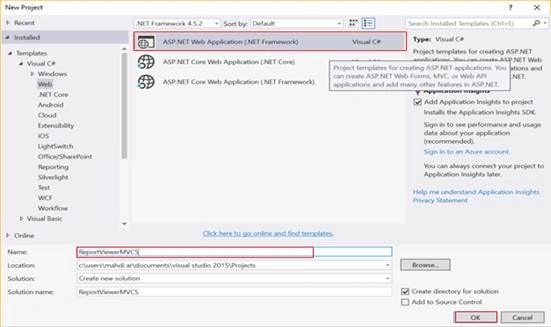
The "New Project" window will pop up. Select ASP.NET Web Application (.NET Framework), name your project, and click OK.
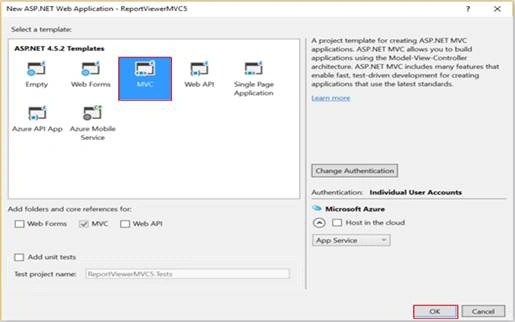
Now, new dialog will pop up for selecting the template. We are going choose MVC template and click OK button.
After creating our project, we are going to add DataSet.
Create DataSet
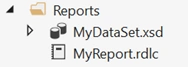
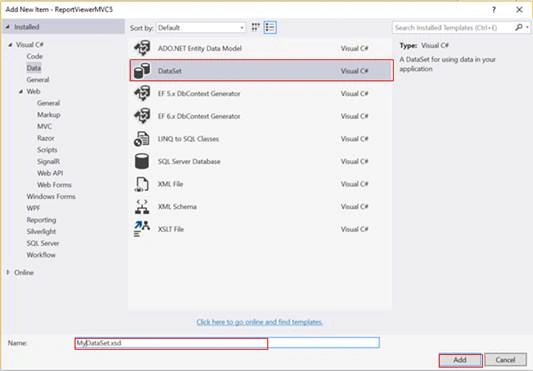
In order to add DataSet component, right click on Reports folder > Add > New Item > Select DataSet > click Add button.
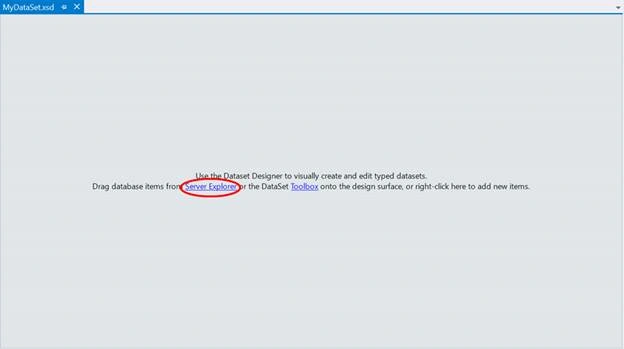
Next, click on Server Explorer link.
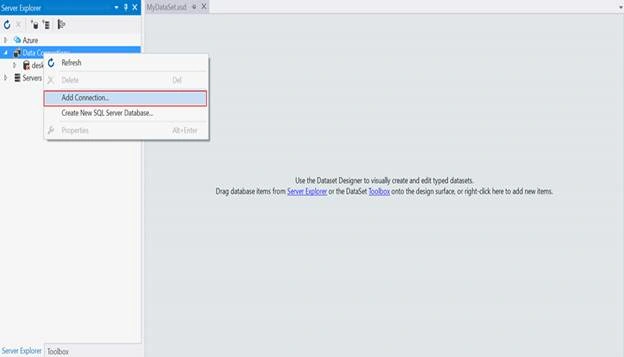
Now, Server Explorer section will be shown as given below. Right click on Data connections > Select Add Connection…
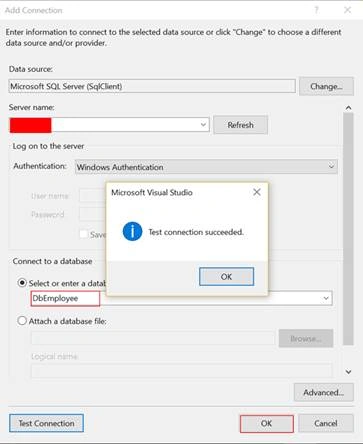
As you can see below, we need to select server name, then via drop down list in connect to a database panel. You should choose your database name. Finally, click OK.
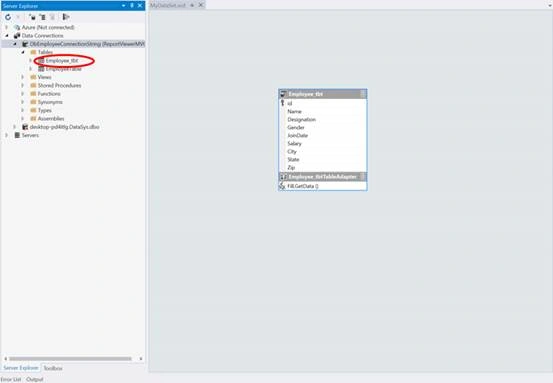
Here, we will work with Employee_tbt table. For this, the next step is to drag our table, as shown below.
Create Report
For creating a report, right click on Reports folder > Add > New Item > Select Reporting. Here, we have three components. Select Report, finally click Add.
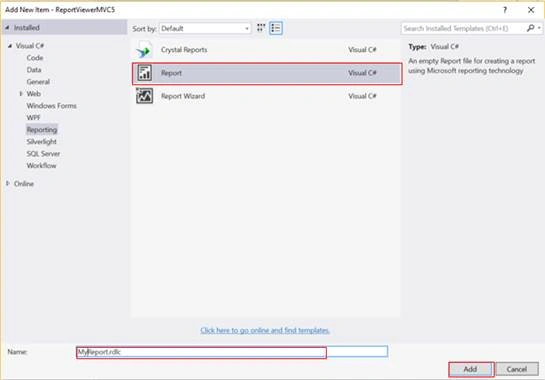
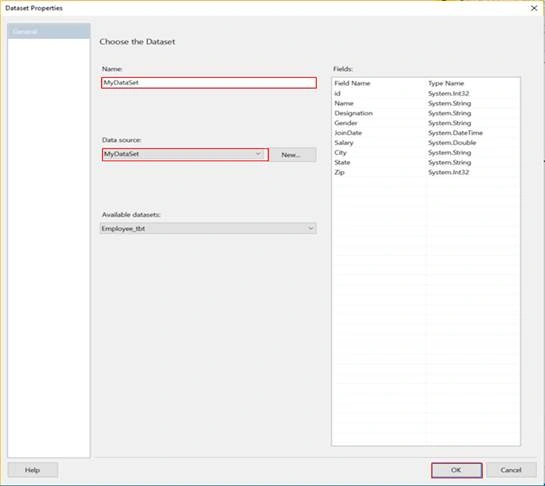
After clicking on Add, new window will pop up. We need to name our Dataset, and choose data source (in this case, via dropdown list, select MyDataSet, which has been created previously).
Next, we will design a table. Specify all fields that you want to display in your report.
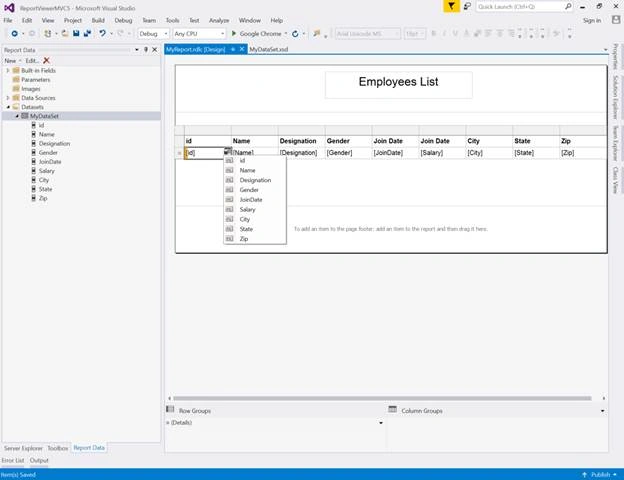
Note - In order to start, you will need to install the ReportViewer for MVC. Run the following command in the Package Manager Console -
PM> Install-Package ReportViewerForMvc
Create a Controller
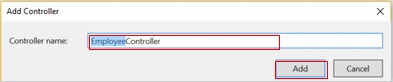
Now, we are going to create a Controller. Right click on the Controllers folder > Add > Controller> selecting MVC 5 Controller – Empty > click Add.
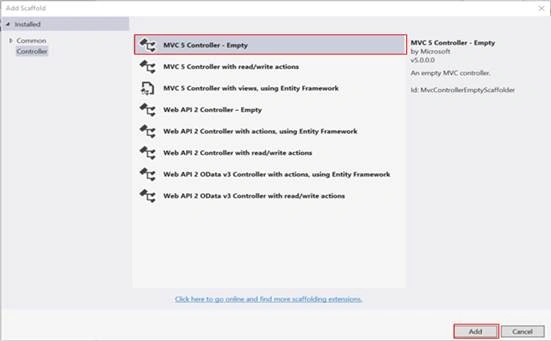
Enter Controller name (‘EmployeeController’).
EmployeeController.cs
using Microsoft.Reporting.WebForms;
using ReportViewerMVC5.Reports;
using System;
using System.Collections.Generic;
using System.Data.SqlClient;
using System.Linq;
using System.Web;
using System.Web.Mvc;
using System.Web.UI.WebControls;

namespace ReportViewerMVC5.Controllers
{
    public class EmployeeController : Controller
    {
        // GET: Employee
        public ActionResult Index()
        {
            return View();
        }
        MyDataSet ds = new MyDataSet();
        public ActionResult ReportEmployee()
        {
            ReportViewer reportViewer = new ReportViewer();
            reportViewer.ProcessingMode = ProcessingMode.Local;
            reportViewer.SizeToReportContent = true;
            reportViewer.Width = Unit.Percentage(900);
            reportViewer.Height = Unit.Percentage(900);
            var connectionString = ConfigurationManager.ConnectionStrings["DbEmployeeConnectionString"].ConnectionString;
            SqlConnection conx = new SqlConnection(connectionString);
            SqlDataAdapter adp = new SqlDataAdapter("SELECT * FROM Employee_tbt", conx);
            adp.Fill(ds, ds.Employee_tbt.TableName);
            reportViewer.LocalReport.ReportPath = Request.MapPath(Request.ApplicationPath) + @"Reports\MyReport.rdlc";
            reportViewer.LocalReport.DataSources.Add(new ReportDataSource("MyDataSet", ds.Tables[0]));
            ViewBag.ReportViewer = reportViewer;
            return View();
        }
    }
}
Here, I’m creating ReportEmployee() action which will select all data from Employee_tbt table.
Explanation
As data provider, I’m using ADO.NET Framework.
- Connect to database by using the following line.
var connectionString = ConfigurationManager.ConnectionStrings["DbEmployeeConnectionString"].ConnectionString; SqlConnection conx = new SqlConnection(connectionString); - Using SqlDataAdapter object which takes two parameters: query and connection object, Fill() method is used for loading data to dataset object.
SqlDataAdapter adp = new SqlDataAdapter("SELECT * FROM Employee_tbt", conx); adp.Fill(ds, ds.Employee_tbt.TableName); - We need to specify report path by using the following line.
reportViewer.LocalReport.ReportPath = Request.MapPath(Request.ApplicationPath) + @"Reports\MyReport.rdlc"; - To refresh our report datasource with new data selected from database table, we need to proceed as follow.
reportViewer.LocalReport.DataSources.Add(new ReportDataSource("MyDataSet", ds.Tables[0]));
Adding View
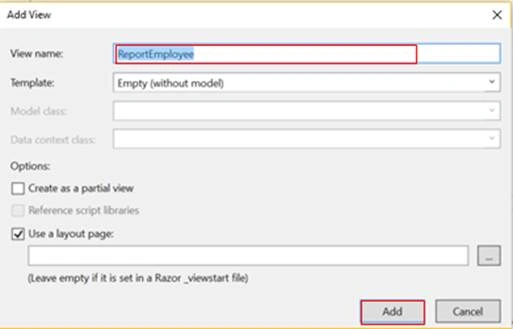
In Employee Controller, right click on ReportEmployee() action. Select Add View and a dialog will pop up. Write a name for your View and click Add.
ReportEmployee.cshtml
@using ReportViewerForMvc;
@{
    ViewBag.Title = "ReportEmployee";
}
@Html.ReportViewer(ViewBag.ReportViewer as Microsoft.Reporting.WebForms.ReportViewer)
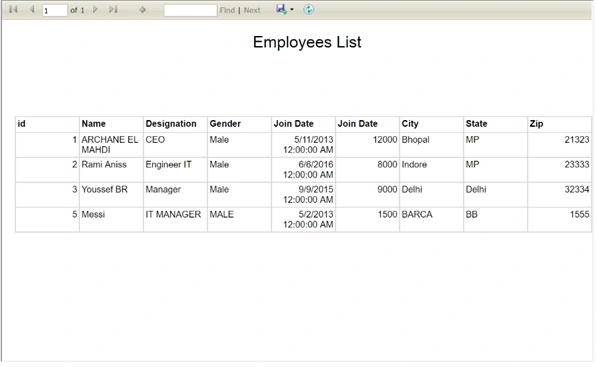
Output
That’s all. Please send your feedback and queries in comments box.
Anto AntonyPosted Jan 23, 2023, 10:11 AM
Is it possible to pull this project from git or any other source, it might be more useful, Thanks
MarioC CharestPosted Nov 21, 2022, 2:02 PM
Install-Package ReportViewerForMvc not available in VS2017
M PPosted Sep 10, 2021, 9:03 AM
Hi. I am using Visual Studio 2017. The 'Data Source Explorer' is unavailable for ASP.net web application projects. I am unable to create a dataset for this project. Any workarounds? Thanks!
atul negiPosted Aug 25, 2021, 11:10 AM
Hi, Thanks for this nice article. I am facing one strange issue, When I am viewing one report in the browser, it is working fine. But when user is opening two tabs and wants to view two different reports: then it is showing same report in two different tabs. Which means I am not able to view multiple reports at the same time. Can you help us in resolving this issue?
Saumya SrivastavaPosted Jan 12, 2021, 8:48 AM
How to call store procedure in adp.Fill(ds, ds.Employee_tbt.TableName);
Saumya SrivastavaPosted Jan 12, 2021, 8:47 AM
How to call store procedure in adp.Fill(ds, ds.Employee_tbt.TableName);
Utsav PabariPosted May 6, 2020, 9:52 AM
ReportViewerMVC5 is not found from Nuget Package Manager so how to solve this error?
Cheruiyot KiruiPosted Aug 29, 2019, 2:39 AM
I don't see tab for previewing the design
satya uPosted May 23, 2019, 1:38 AM
After installing the package ReportViewerForMvc also i cannot find the report in reporting. did i miss anything?
Spandana JastiPosted Nov 16, 2018, 3:28 AM
Thank you Soo Much For this Article :) It's Working
ritzee anzuresPosted Oct 9, 2018, 1:35 AM
Not working...
Shraddha KohadPosted Aug 27, 2018, 3:45 PM
Hi,I do not see "Reporting" option after I right click on Report folder and do the Add > New Item. Please help me, am I missing the any references? I am using Visual Studio 2017 Professional Edition.
Jaime JavierPosted Jun 28, 2018, 4:55 PM
Have you informattion for visual studio 2017? thanks
Hail KPosted Apr 14, 2018, 1:22 AM
Issue: ReportViewerMVC5 namespace cannot be found. can anyone help me with this?
Meta PhalPosted Apr 3, 2018, 5:22 AM
Thanks so much man
derbel derbelPosted Mar 26, 2018, 5:51 AM
Thank youuuu.........
David GPosted Jul 11, 2017, 4:13 PM
Can you post the source file for this? Like others have said, I can not get it working and you are missing a few things that are needed.
sashi RPosted Jun 28, 2017, 6:36 AM
How to get ReportviewerMVC5 reference
Ksheerabdhi TanayaPosted May 17, 2017, 7:15 AM
I fetched the records and after that a blank table is displaying in the page so m unable to see the design even.Kindly suggest any solution.
Muhammad AnusPosted Apr 6, 2017, 12:24 PM
Any one can help me about ssrs on mvc5 how to create???
Muhammad AnusPosted Apr 6, 2017, 12:22 PM
Can you give this project sir .at [email protected] @Html.ReportViewer(ViewBag.ReportViewer as Microsoft.Reporting.WebForms.ReportViewer)
Gustavo T.Posted Apr 4, 2017, 5:25 PM
I want to use in VB, maybe you have a idea to apply on vbhtml.
Valentin GosettoPosted Mar 4, 2017, 5:07 PM
Hi, what about web.config?
Amit Kumar SinghPosted Dec 18, 2016, 10:00 AM
Nice one ..................................
Humayun Kabir MamunPosted Oct 1, 2016, 11:58 PM
Nice...
Manav PandyaPosted Oct 1, 2016, 12:55 PM
Nice one sir ...