

Overview: To develop application over a
Windows Phone platform, we have two popular and modern options: Silverlight and
XNA.
Silverlight is known to enable web developers to create stunning interfaces with
the combination of controls, text, vector graphic, media, animation, and data
binding that can run on a number of platforms and browsers.
Meanwhile XNA is a gaming platform that supports 2D and 3D games meant for Xbox
360, console, and PC.
Silverlight and Window Phone: In developing a Windows Phone application, we can
select one of the two options, which are Silverlight and XNA
Below I have shared some useful points regarding Silverlight with Window phone
- Uses the same base library.
- Integrated with the hardware.
- Integrated with Operating system.
- Uses out of browser model.
Applications using Silverlight in Windows Phone
fully apply navigation techniques in Silverlight 3. Using the frame container,
navigation can naturally be easy to handle, and the navigation to go back is
integrated to the button on the hardware
Visual Studio and Window Phone Development : In the template provided for
application development using the Silverlight platform, there are five types of
project we can choose, depending on what we need.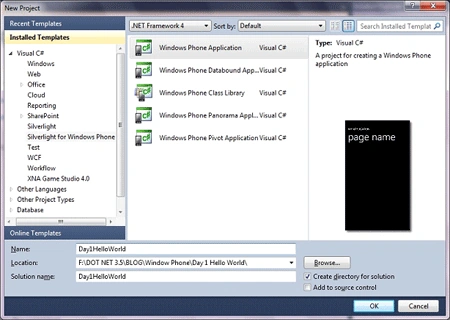
- Window phone application provides an empty page with no control.
- Window phone list application which provides a sample scenario for mater detail data application.
- Window phone panorama application which provides a sample usage of panorama navigation in the application.
- Window phone pivot application which provides sample usage of pivot navigation in the application.
- Window phone class library is to build components that can be reused in other projects.
Window Phone project and default files:
By Default, a project will consist of these files: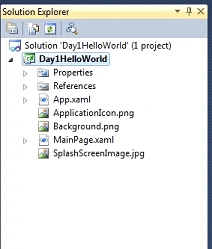
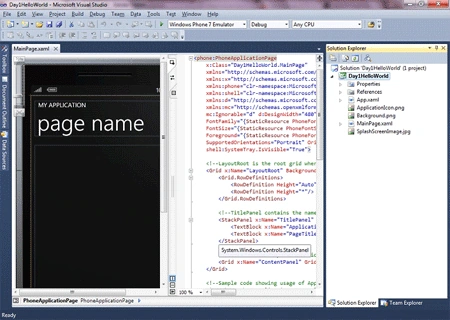
- App.xaml / App.xaml.cs : The application entry point which initializes resources and layout of the application.
- MainPage.xaml /MainPage.xaml.cs : Defines the page with interface in the application.
- Backgroud.png: A graphic file which shows as the application's icon in the application list. This icon can be replaced.
- SplashScreenImage.png: A graphic file that is displayed when the application is launched.
- Properties\ AppManifest.xml: Manifest file for application package generation purposes.
- Properties \ AssemblyInfo.cs: Assembly file that contains information regarding the name and version of metadata attached to the assembly that is generated.
- Properties \ WMAppManifest.xaml: Manifest file with specific metadata regarding windows phone application that defines icon name, initial page etc.
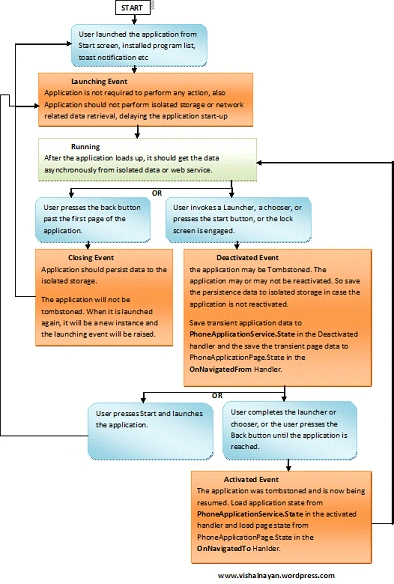
Window Phone Application Life Cycle:
Model execution on a Windows Phone has a complete cycle, from when the
application is launched until it is deactivated. This execution model is
designed to provide a fast, responsive experience at all times. This causes the
Windows Phone to only be able to run one application at a time. This is to
prevent the device from being slow or unresponsive due to the existence of
background applications.
Below are some important terms to understand
- Tombstoning: A procedure in which operating system deactivates the application process as user exits the application. Operating system preserves any information about application's state. When the application is re-launched, the operating system re-starts the process and sends the last know state from before the application was turned off.
- Page State: A state regarding the application page. It includes the scroll position or text filed content.
- Application State: Application condition in which there is no specific association to any page. The condition can be modified using PhoneApplicationService class.
- Persistence data: Data shared by application. This data is stored and retrieved from isolated storage, i.e. application setting.
- Transient State: Transient data are those related to the instance of application. Transient data is stored in state dictionary provided by PhoneApplicationService. Example of transient data is web service query.
Now till now I have discussed about important
State in Window phone application, now it's time to look into Life Cycle in
window Phone.
Below I am discussing about Life Cycle in ascending order.
- Launching: A Windows Phone
application is launched when it is called either because the user pressed
the Back button to said application, selected from application list, or from
tiles in the main screen. Regardless of the way it is called, an instance of
the application will be created, and as the application starts running,
Launching event is started.
Points to remember:
--The application preferably should not retrieve any data from isolated storage. Since the event is generated before the application is active or displayed, doing tasks that consume time, such as accessing isolated storage, may cause unwanted user experience because it slows down the application's launch time.
--Accessing isolated storage, or calling network related actions, should be done asynchronously when application has been loaded.
--When an application is launched, it should look like an entirely new instance.
Running: After launching event is handled the application will start running. In this condition, application defines its condition when the users, for example, navigate through the application page.
Point to remember:
--The only activity that can happen is application incrementally stores data or settings in order to reduce the amount of data to be stored as the application's state changes.
Applications using small amount of data, this becomes ignorable.
--Closing: A sample scenario that starts closing event is when the user presses the device's Back button on an application's initial page.
--Deactivating: When a running application is replaced by another, the previous one will be deactivated. There are several scenarios as to how this event is started. Below are few of them
----By pressing the Start button or due to timeout when the main screen is locked
----An application can also be deactivated by the invocation of a Launcher or Chooser default applications that enables users to do common tasks on a mobile device, such as taking pictures or sending emails.
Join the conversation! Your thoughts help the community grow.