This article explains about how to run an app in indows startup.
A long-awaited feature ( other features include LaunchApp, Restart App) has come to Universal Windows Programming; i.e., we can run our application on Windows startup (User log in to the system). Previously we had done some workaround to run the app in Windows startup, now it's time to say good bye to the workaround.
Note
This API will be supported on Windows Insider Build version 14393 or greater, public version will be available on 17-Oct-17 (windows 10 fall creators update version) onwards
System Requirements
- Windows 10 Insider Build 14393 or greater
- Windows 10 14393 >= SDK
- Visual Studio 2017
Note
This feature only supports Windows desktop
This feature is already available in Desktop bridge (Convert win32 application to UWP app), Now Microsoft has extended this feature to use UWP application. But still some difference is there between the sdesktop bridge app and UWP app ex: Desktop bridge start the app in Windows and user permission isn't required; but UWP app requires user permission the first time the app is launched.
StartupTask class is used to implement this feature.
Let's see an overview of the class & implementation part
1. Changes in package. manifest file
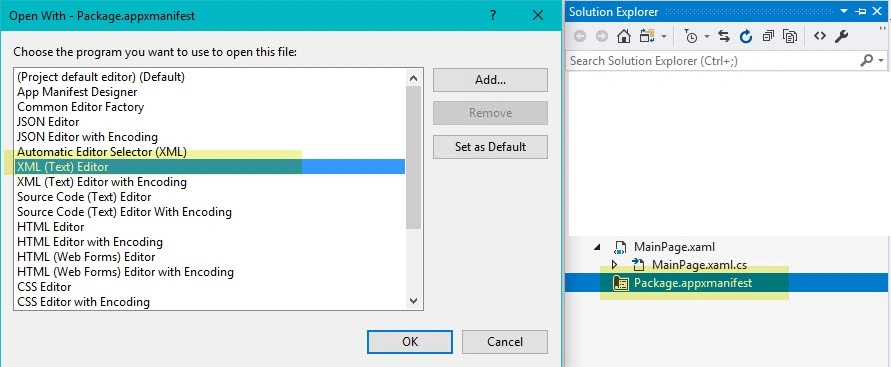
Open Package.appmainfest in XML editor
Add the namespace in the top of the file
- xmlns:uap5="http://schemas.microsoft.com/appx/manifest/uap/windows10/5"
Add the Extension in package. manifest file inside Application tag part
- <uap5:Extension
- Category="windows.startupTask"
- Executable="StartUpTask.exe"
- EntryPoint="TestStartup.App">
- <uap5:StartupTask
- TaskId="{CB3E7961-763E-475F-8847-89DE6E4358AB}"
- Enabled="false"
- DisplayName="UWPStartUp" />
- </uap5:Extension>
Extension package overview
Category - Define the startup category "windows.startupTask"
Executable - Define the executable name ( App executable name)
EntryPoint - Entry point of the executable Name ( like main function )
Task Id - Task id is a unique identifier to find our app task. Assign the TaskId value and use the GUID value so that is unique in the UWP App world.
Enable - Indicates enable or disable when the task run in first time.
Display Name - name of the task appears in the Task Manger (Best practice always uses the App name, so that user can easily find which app is running on windows start up)
2) Startup Task Overview
StartupTask class is used to enable or disable the application in Runtime.
Let's see some of the important properties for StartupTask
StartupTaskState
This is enumeration type, it contains the state of the StartupTask,
- StartupTaskState.Enabled - App is enabled in windows startup
- StartupTaskState.Disabled - App is disabled in windows startup
- StartupTaskState.DisabledByUser - Task was disabled by the user Note: It can be enabled only by the user.
- StartupTaskState.DisabledByPolicy - App is disabled by the administrator or company group policy. Note: It can be enabled only by the administrator.
StartupTask.GetAsync
This function is used to find the TaskState of the application.
StartupTask.GetAsync function take Taskid ( TaskId has declare in the package.mainfest file) as an arugment and return the StartupTaskState.
- var state = await StartupTask.GetAsync("{CB3E7961-763E-475F-8847-89DE6E4358AB}");
StartupTask.RequestEnableAsync
This function is programmtaically enable the task to run the app in windows startup
Note
If the task is disabled by the user or disabled by policy, we cannot enable the app programmatically.
StartupTaskActivatedEventArgs
If the application is started in Windows start up , it provides the information about the Activation.
Let's see with a simple example how use this feature,
Concept
In the Button Click , to read the Taskstate , if the Taskstate is disabled, request to enable the task to run the application in Windows startup
Implementation
Declare the Extension in package. Manifest is explained in top this article
Open VisualStudio -> File -> Visual C# -> Windows Universal -> Blank App(Universal Windows)
goto XAML page -> Add the button -> Create a button click event
Select the Target Version -> 14393 or greater
1. Read the App StartTaskState information using GetAsync function
- public async Task<StartupTask> ReadState()
- {
- var state = await StartupTask.GetAsync("{CB3E7961-763E-475F-8847-89DE6E4358AB}");
- txtStatus.Text = state.State.ToString();
- return state;
- }
2. Button click event handles the state
All the startTaskstate enums are handled in the switch condition. First call the ReadState function to find the startTaskState if the task is in enabled state; there's no need to do any changes just display the information to the user and Task is enabled.
If the task state is disabled, call the RequestEnableAsync() to enable the app run in window startup
DisabledByUser & DisabledByPolicy we cannot enable task via application. It must be enabled by the user.
- private async void Btnclick_OnClick(object sender, RoutedEventArgs e)
- {
- var stateMode = await ReadState();
-
- switch (stateMode.State)
- {
- case StartupTaskState.Disabled:
- var newState = await stateMode.RequestEnableAsync();
- txtStatus.Text = "Request State : " + newState.ToString();
- break;
- case StartupTaskState.DisabledByUser:
- txtStatus.Text = "App has : " + StartupTaskState.DisabledByUser.ToString();
- break;
- case StartupTaskState.Enabled:
- txtStatus.Text = "Startup Task is " + StartupTaskState.Enabled.ToString();
- break;
- case StartupTaskState.DisabledByPolicy:
- txtStatus.Text = "Startup Task is " + StartupTaskState.DisabledByPolicy.ToString();
- txtStatus.Text += "contact administrator";
- break;
- default:
- throw new ArgumentOutOfRangeException();
- }
- }
Build the application and run the application , initialize startup , app startup has been disabled ,
Click the request button , App automatically prompts conformation information to the user.
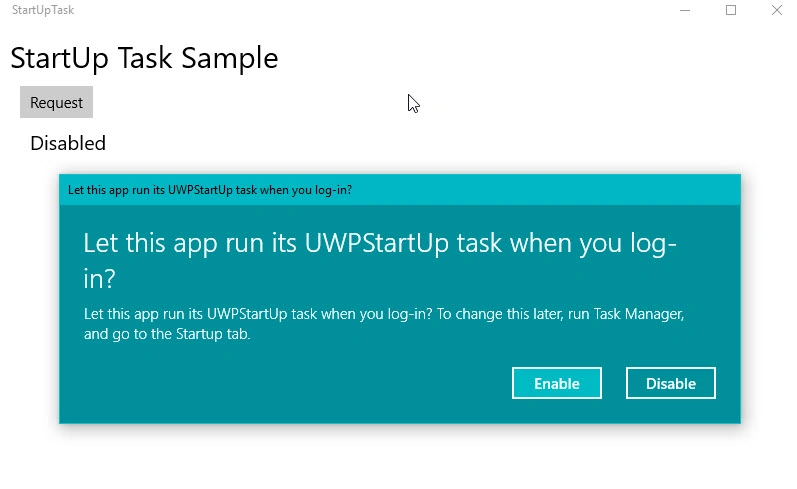
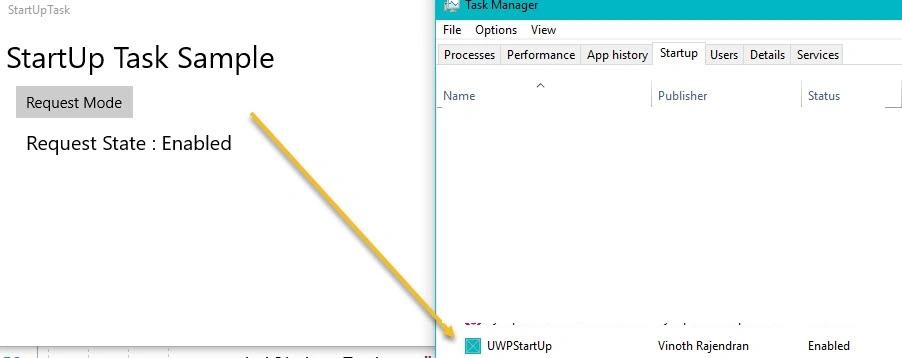
Once user is enabled, App is ready to run in the Windows start up. We can check the state information in the TaskManager
Read the information On windowsStartup
How do we know if our app is running on Windows startup and processing information based the application?
For this the OnActivate function will help us. To launch the application via Windows startup, OnActivated function gets invoked in the application, here we can read the Windows startup information.
First check if the ActivationKind is commandLineLaunch, then convert the IActivatedEventArgs as a StartupTaskActivatedEventArgs . In StartupTaskActivatedEventArgs class contains the StartTaskState information.
Below sample code exaplains how to read the startup information & display the StartTaskState information on Screen.
- protected override void OnActivated(IActivatedEventArgs args)
- {
- string argment = "OnActivated";
- if (args.Kind == ActivationKind.CommandLineLaunch)
- {
- var loadTask = args as StartupTaskActivatedEventArgs;
- if (loadTask != null)
- {
- CStatus.Status = loadTask.Kind.ToString();
- }
- }
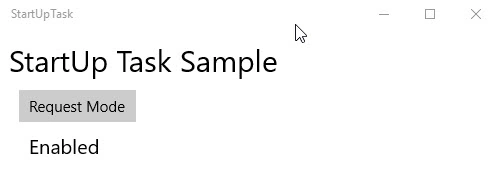
Build & restart the application
 Conclusion
I hope you understood how to use StartupTask API.


Join the conversation! Your thoughts help the community grow.