

The home screen is the first screen in a LightSwitch
application at run time. When we run the LightSwitch application then open the
first screen i.e. called "Home Screen". We can use a static image on the home screen
in our LightSwitch application.
- A Home screen is the starting page of LightSwitch application
- A Home screen contains the information of a website
- There may be many links in a Home screen to other part of web site
- Home screen is initial page which WWW browser shows? covering page of the web site? or web pages on the whole?
- For a Web site developer, a home screen is the first
page presented when a user selects a site or presence on the World Wide Web. It
most often refers to the initial or main web page of a web site, sometimes
called the front page
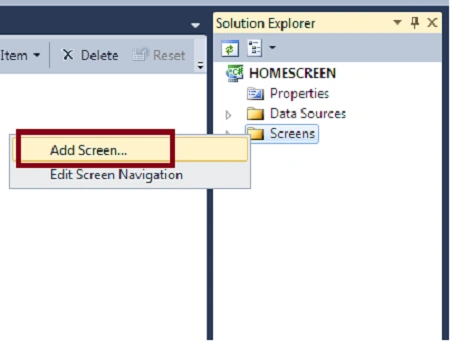
Step 1 : Open Visual Studio LightSwitch->Right click on screen->Add screen.
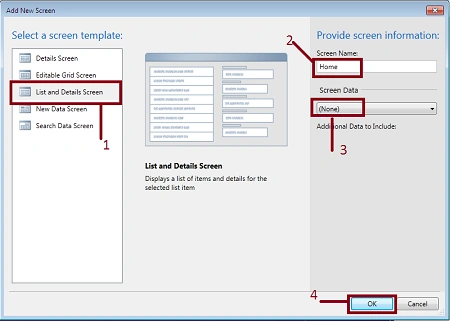
Step 2 : Select list and details screen->Write screen name( Home)->Screen data (None)->Ok.
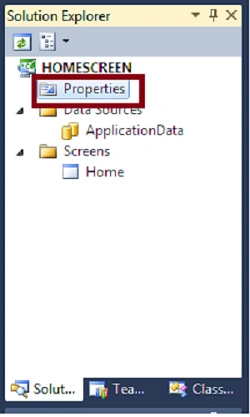
Step 3 : Click on home screen properties.
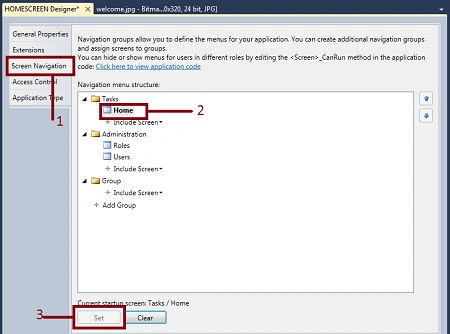
Step 4 : Select screen navigation->Select Home->Click on set.
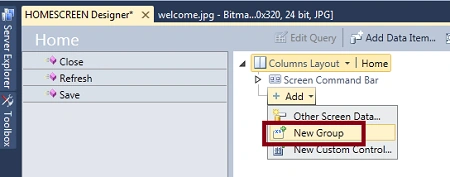
Step 5 : Add new group in home layout.
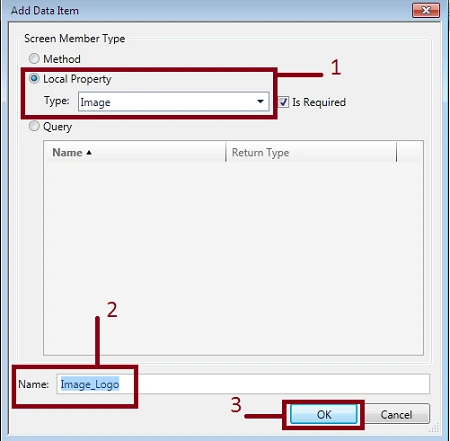
Step 6 : Now add data item->Select local property->Type (image)->Name (Image_Logo)->Ok.
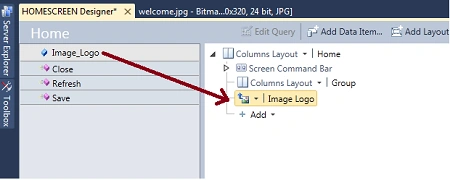
Step 7 : Move Image_Logo from Home screen to columns layout.
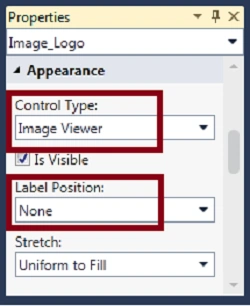
Step 8 : Expand image logo->Select image viewer.
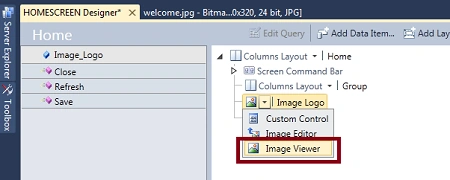
Step 9 : Go to image logo property->Select control type (image viewer) and label position (none).
Step 10 : Click write code->Select Home_InitializeDataWorkspace.

Code :
using System;
using
System.Linq;
using System.IO;
using
System.IO.IsolatedStorage;
using
System.Collections.Generic;
using
Microsoft.LightSwitch;
using
Microsoft.LightSwitch.Framework.Client;
using
Microsoft.LightSwitch.Presentation;
using
Microsoft.LightSwitch.Presentation.Extensions;
namespace
LightSwitchApplication
{
public partial
class Home
{
partial void
Home_InitializeDataWorkspace(List<IDataService>
saveChangesTo)
{
// Write your code here.
Image_Logo = GetImageByName("welcome.jpg");
}
private byte[]
GetImageByName(string fileName)
{
System.Reflection.Assembly
assembly = System.Reflection.Assembly.GetExecutingAssembly();
Stream stream =
assembly.GetManifestResourceStream(fileName);
return
GetStreamAsByteArray(stream);
}
private byte[]
GetStreamAsByteArray(System.IO.Stream
stream)
{
int streamLength =
Convert.ToInt32(stream.Length);
byte[] fileData =
new byte[streamLength];
stream.Read(fileData, 0, streamLength);
stream.Close();
return fileData;
}
}
}
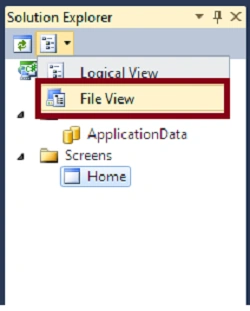
Step 11 : Now click on file view.
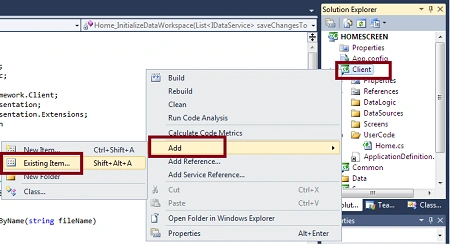
Step 12 : Right click on client->Add->Existing item.
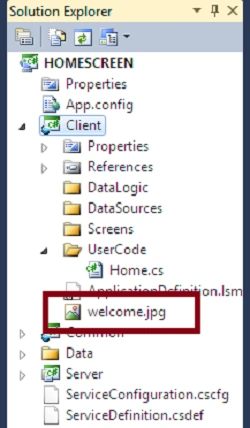
Step 13 : Now you will see welcome. jpg exist in client.
Step 14 : Go to file property->Select build action embedded resource.
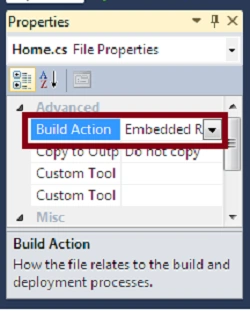
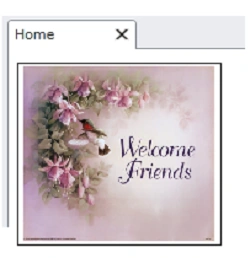
Step 15 : Run application (Press F5).Now you will see welcome image in your Home screen.
Join the conversation! Your thoughts help the community grow.