

Introduction
In today’s dynamic work environment, effective communication is essential for fostering team collaboration and maintaining productivity. Microsoft Teams, a widely used collaboration platform, offers a feature known as status messages that enable users to share their availability and current activities with colleagues. This article explores the effective setup and use of status messages within Teams.
Understanding Status Messages Status messages in Teams are brief text snippets displayed next to your profile picture. They serve as a convenient way to inform others about your current status, whether you are available, busy, away from your desk, or focused on a specific task. Here are key aspects of status messages:
Visibility
Your status message is visible to your contacts within Teams. When someone views your profile or hovers over your name, they can quickly see your current status.
Customization
You can personalize your status message to reflect your specific circumstances.
For instance
- "In a meeting until 2 PM"
- "Working on a project proposal"
- "Taking a short break" Out-of-Office Indication: While status messages indicate your availability, they do not replace Outlook’s out-of-office replies. For prolonged absences, setting an out-of-office message in Outlook ensures effective communication.
Setting Your Status Message Configuring your status message in Teams is a straightforward process.
- Open Teams: Launch the Teams application on your desktop or mobile device.
- Profile Picture: Click on your profile picture located in the top-right corner.
- Set Status Message: Select “Set status message” from the dropdown menu.
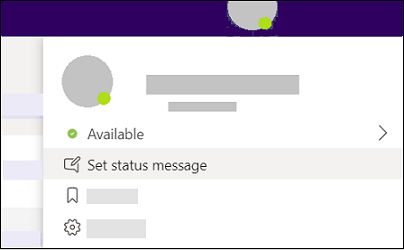
- Compose Message: Enter a concise yet informative status message. and also choose how long you want the message to display before clearing by choosing a duration from the Clear status message after the dropdown.
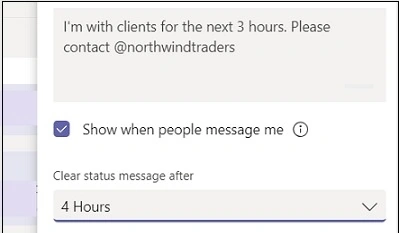
- Save Changes: Click “Done” to apply and save your status message.
Best Practices for Using Status Messages To optimize the utility of status messages, adhere to these best practices.
- Be Specific: Instead of a generic “Busy,” provide context such as “Busy preparing for client presentation.”
- Regular Updates: Keep your status message current. Update it as your availability or focus changes throughout the day.
- Use Emojis: Incorporate emojis to add personality or convey activities. For example, use a 📚 emoji to denote studying or research.
- Respect Privacy: Remember that status messages are visible to colleagues. Refrain from sharing overly personal details.
Conclusion
Status messages within Microsoft Teams serve as a valuable tool for enhancing communication efficiency.
By crafting clear and informative messages, teams can better coordinate activities, minimize disruptions, and stay informed about each other’s availability.
Embrace the opportunity to customize your status message and keep your colleagues informed of your activities.
Effective communication is a collaborative effort, and status messages contribute significantly to achieving this goal. If you have any questions or require further clarification, please feel free to ask.
Join the conversation! Your thoughts help the community grow.