As organizations increasingly rely on AI tools like Microsoft Copilot, the risk of exposing sensitive data buried in old, unclassified files becomes more real. These files, often inactive and untouched for years, may never have been classified or protected, leaving gaps in your data protection strategy.
To close these gaps, Microsoft Purview introduces On-Demand Classification (Preview). This feature allows administrators to manually scan and classify files stored in SharePoint and OneDrive, even if they haven’t been modified or opened in a long time.
What is On-Demand Classification?
On-demand classification is a manual, admin-initiated scan that targets inactive or historical data. It complements Purview’s Continuous Classification, which works in real-time on files when they’re created, accessed, or edited.
Together, these approaches provide full coverage.
- Continuous classification keeps active content protected.
- On-demand classification brings legacy or forgotten files into the classification scope.
Benefits of On-Demand Classification
- Extends classification to files that have never been scanned
- Increases protection without requiring user interaction
- Reduces the chance of unlabeled data being surfaced by AI tools like Copilot
- Ensures classification policies apply to all content, not just active files
Requirements
Need to upgrade from the free to the enterprise version of Microsoft Purview data governance.
Upgrade to Enterprise Microsoft Purview Data Governance | Microsoft Learn
Microsoft E5 Information Protection and Governance license.
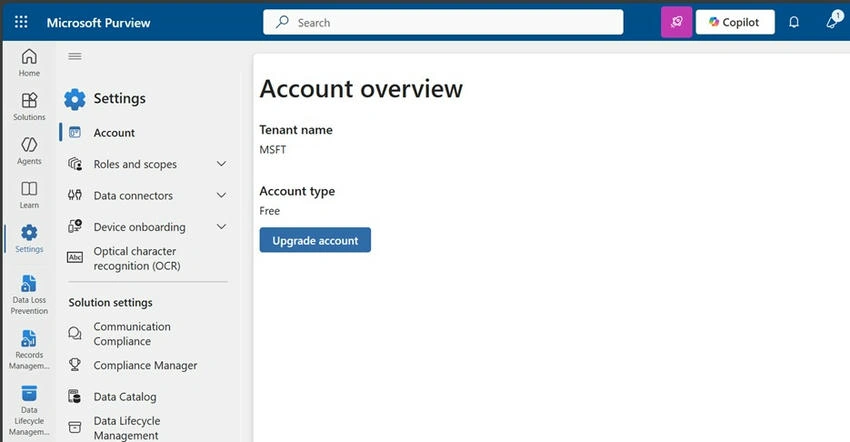
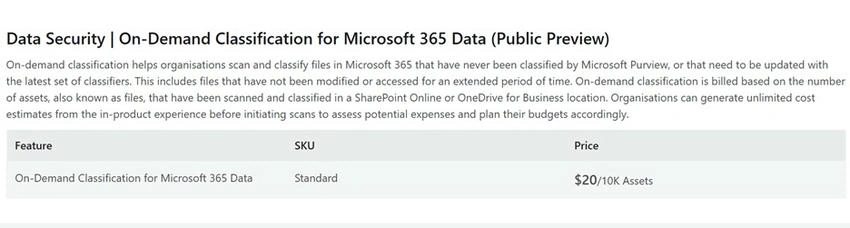
You can check the Azure prices for On-Demand Classification at the link below.
Pricing - Microsoft Purview | Microsoft Azure
Permissions Required
To run a scan, you must be in the Compliance Administrator role group.
To view classification results, you must be in one of the following role groups.
- Content Explorer Content Viewer
- Content Explorer List Viewer
How to Create an On-Demand Classification Scan?
Step 1. Sign in to the Microsoft Purview portal.
Step 2. Navigate to the feature.
Go to
Data loss prevention > Classifiers > On-demand classification.
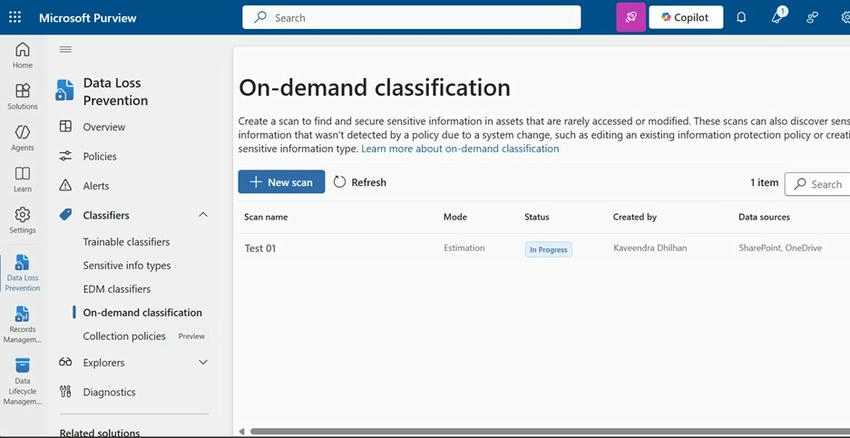
Click New scan to begin.
Step 3. Configure the scan.
- Name and description of the scan
- Scope and locations (choose all sites/accounts or specify particular ones for One Drives)
- Date range of content to scan (by default, files from the last year)
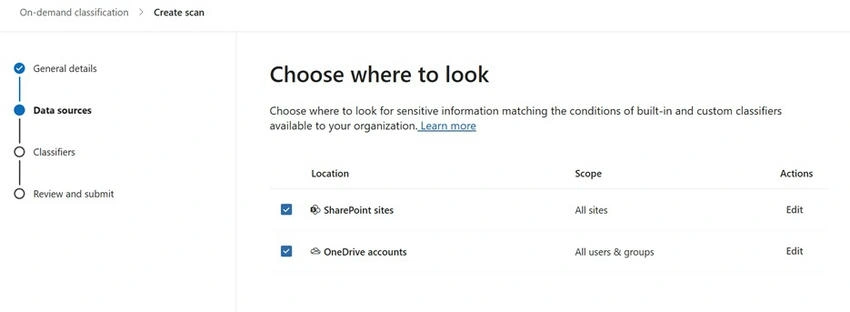
Step 4. Review the scope.
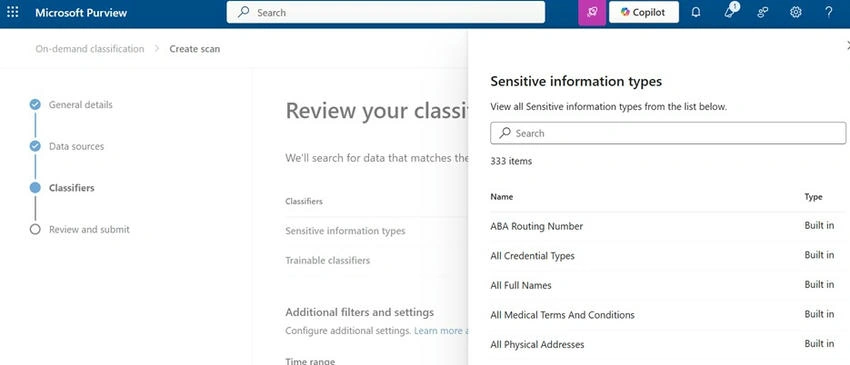
Click View scope to see which Sensitive Information Types (SITs) and classifiers are included. By default, all available classifiers in your tenant will be used.
All the existing SITs can be selected at once. Any custom SITs need to be searched and then created.
Step 5. Estimate the scan.
Once the scan is created, Purview will estimate.
- Number of files to be scanned
- Locations covered
- Estimated cost
You can adjust the scan scope and re-run the estimate if needed by selecting Edit scan.
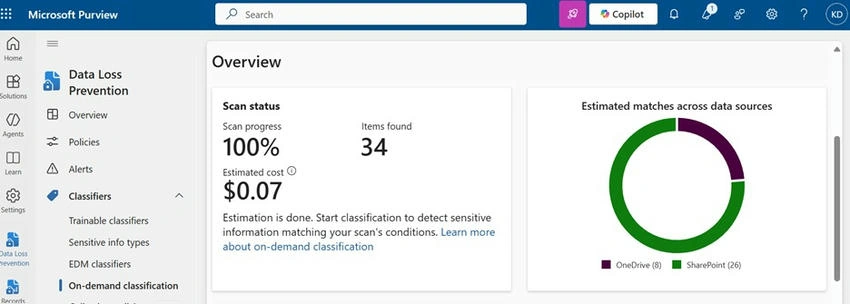
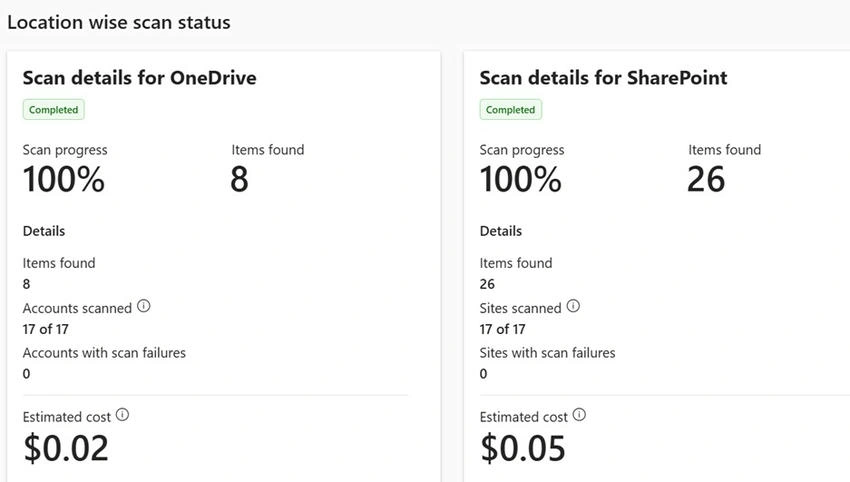
If you don’t have an Azure Subscription, it will only scan but cannot go further to create SITs.

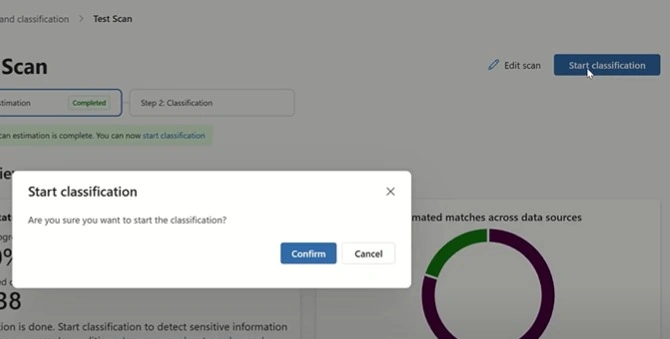
Step 6. Start the classification.
After reviewing the estimate, start the classification by selecting Start classification.
Review Classification Results
To view scan results.
- Return to the On-demand classification page.
- Select your scan from the list.
- Click View scan.
From here, you can,
- Monitor progress
- View matches found
- Review skipped or failed locations
- See the estimated and actual cost
- Cancel the scan if necessary
- View individual items under the Items for review tab and export the list if needed
Important Notes
- You have up to 30 days to start the classification after estimation. A shorter gap ensures more accurate results.
- Each scan can include up to 1,000 locations and 5 million files.
- After scanning, each file is evaluated against your organization’s DLP, Information Protection, Data Lifecycle Management, and Insider Risk Management policies.
- Content Explorer will reflect newly classified items within seven days.
Summary
Microsoft Purview’s On-Demand Classification provides a reliable way to classify and protect older or untouched data. It works alongside continuous classification to help ensure that all data, active or inactive, is protected under the latest security and compliance policies.
This feature is especially useful in a world where AI tools can surface any piece of content, and where overlooked files could quickly become a compliance risk.


Join the conversation! Your thoughts help the community grow.