

What is Kafka?
Kafka, licensed by Apache, is an open-source distributed stream-processing platform that is capable of handling more than trillions of events in a day. This massive platform has been developed by LinkedIn Team, written in Java and Scala, and donated to the Apache.
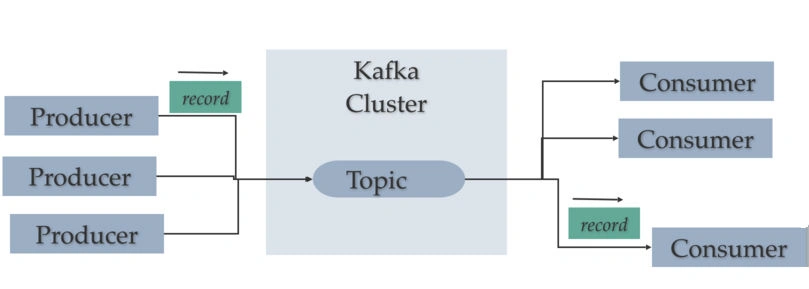
Real-world Applications by LinkedIn
LinkedIn is using Kafka for the scalable messaging system. About six years ago, LinkedIn was facing some problem in their messaging platform and they decided to redesign the infrastructure; that way, they introduced Kafka. That time Kafka was served only 1.4 trillion data over the year of an experiment by the LinkedIn team. Now, Kafka is smart enough to handle way more records.
What do you need on your development computer?
- JDK 1.8
(Download Server JRE according to your OS and CPU from here.
- Single node Kafka cluster
(Download Kafka 2.12-2.2.0 from here.)
Step By Step Kafka Configuration and Installation Process
Here, I am going to explain how to configure and install the Kafka server; please follow the below steps.
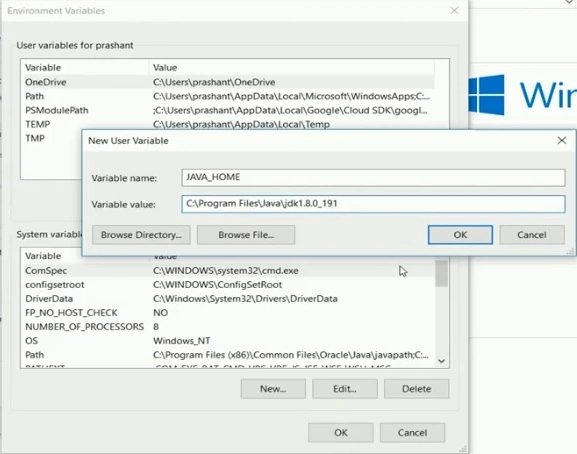
Install JDK 1.8 and set installation path into the Environment Variables on your Windows computer.
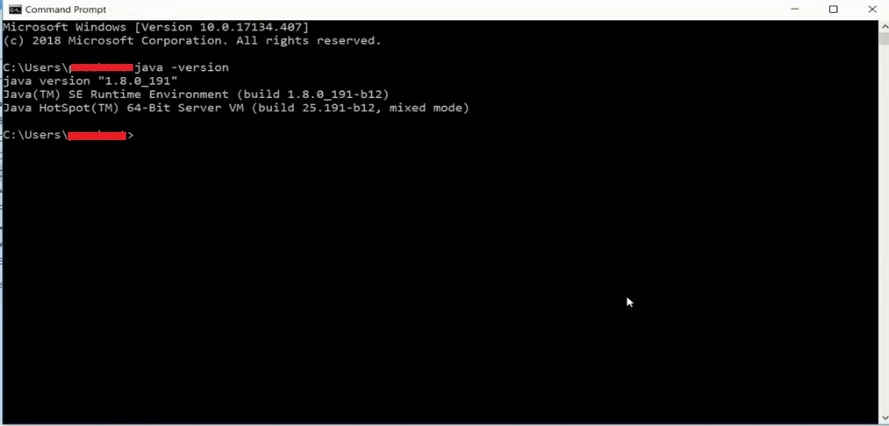
Please check the version of JDK.
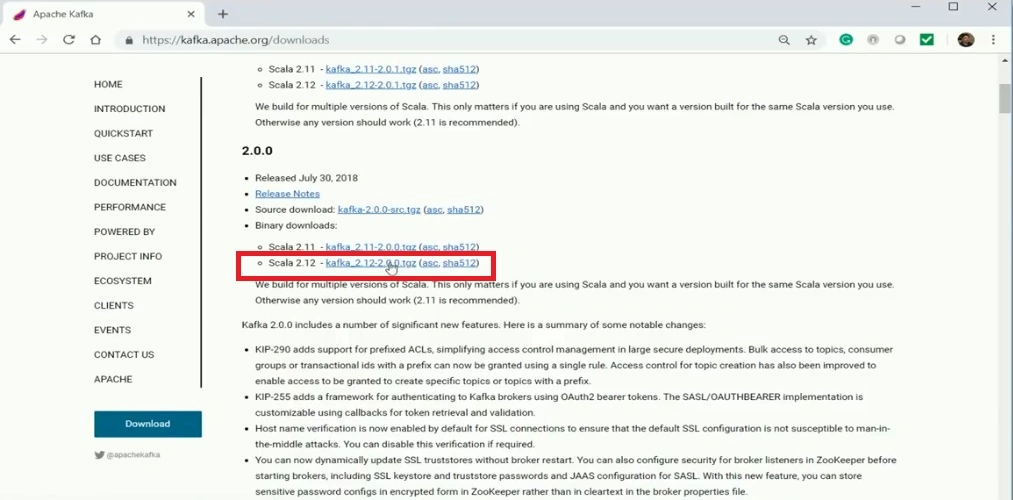
Download the Kafka single cluster by using the following link.
http://kafka.apache.org/downloads
Configure the Zookeeper Properties
After downloading the Kafka single cluster, extract the folder and put it into your local drive. In here, we need to configure the Zookeeper. Zookeeper is basically used to manage the Kafka cluster and provides synchronization within distributed systems.
- Create the folder into the Kafka folder with the name of zookeeper to keep the file log.
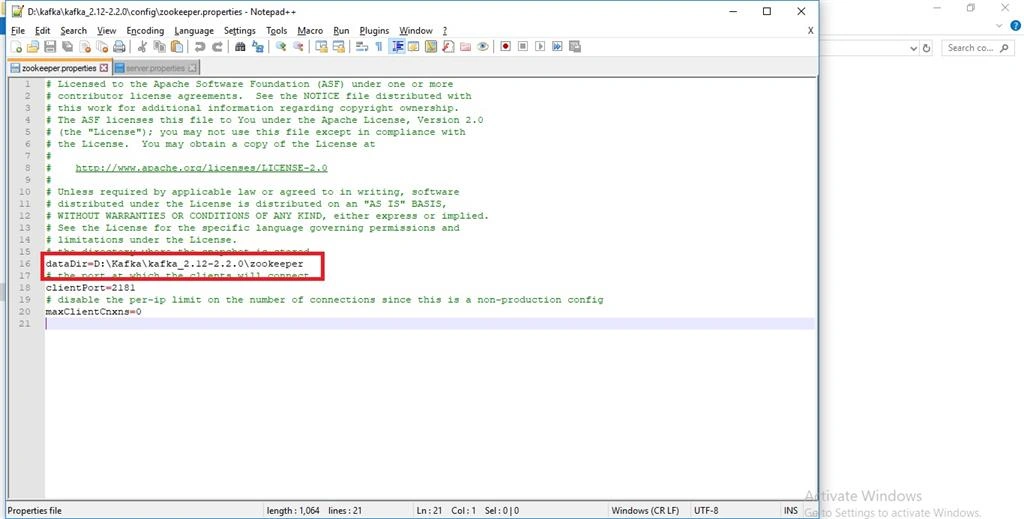
- Go to your Kafka config directory. For me it’s D:\kafka\kafka_2.12-2.2.0\config, edit the zookeeper.properties file and change the following line,
- dataDir=D:\Kafka\kafka_2.12-2.2.0\zookeeper
Configure the Kafka Server Properties
- Create the folder into the Kafka folder with the name of kafka_log to keep the log file.
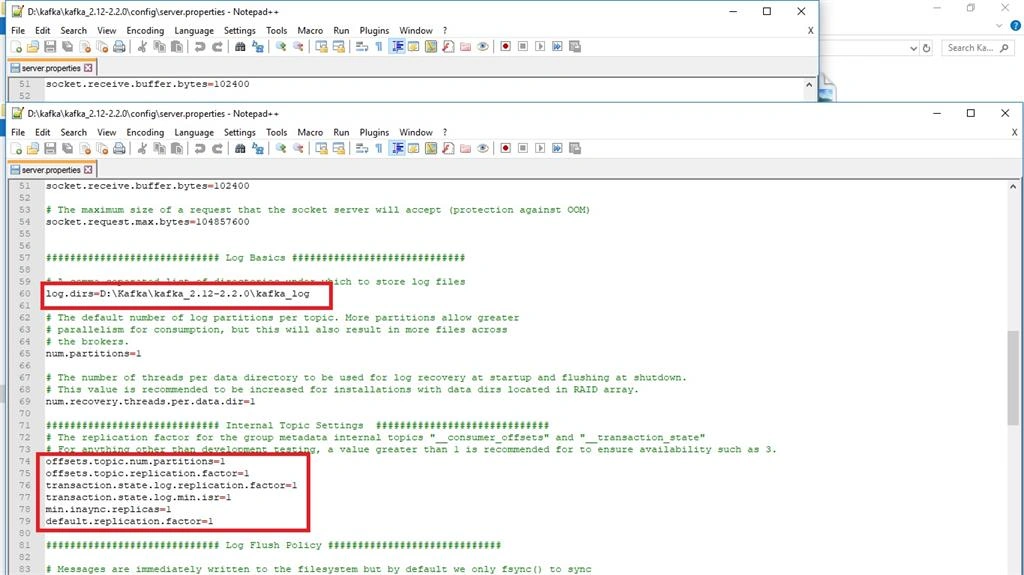
- Go to your Kafka config directory. For me it’s D:\kafka\kafka_2.12-2.2.0\config, edit the server.properties file and change the following line.
- # A comma separated list of directories under which to store log files
- log.dirs=D:\Kafka\kafka_2.12-2.2.0\kafka_log
- # The replication factor for the group metadata internal topics "__consumer_offsets" and "__transaction_state"
- # For anything other than development testing, a value greater than 1 is recommended for to ensure availability such as 3.
- offsets.topic.num.partitions=1
- offsets.topic.replication.factor=1
- transaction.state.log.replication.factor=1
- transaction.state.log.min.isr=1
- min.inaync.replicas=1
- default.replication.factor=1
How to start ZooKeeper and Kafka Server
You need to make sure your ZooKeeper instance is up and running before starting the Kafka server.
So, to run the ZooKeeper and Kafka instance, we need some commands to be available globally. Go to the Windows folder of Kafka folder > copy the path and set the path into the Environment Variable.
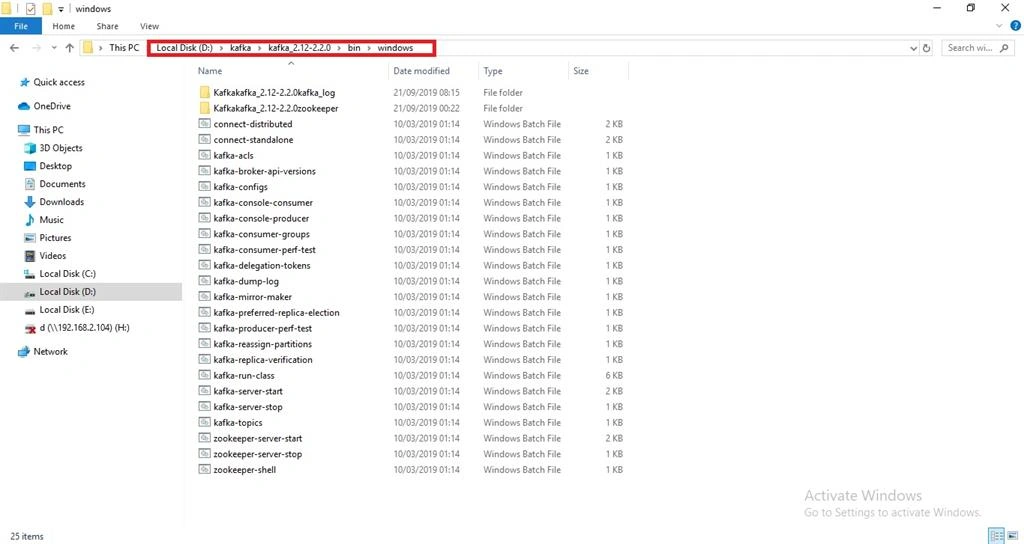
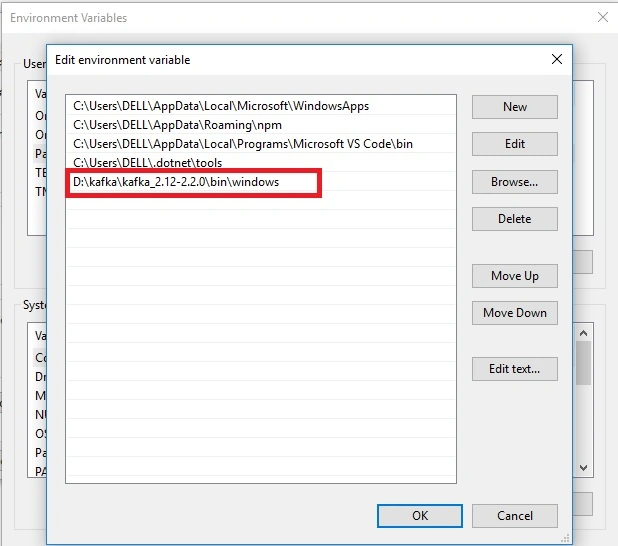
- Go to your Kafka installation directory: For me, it’s D:\kafka\kafka_2.12-2.2.0\bin\windows
- Open a command prompt and run the following command,
- zookeeper-server-start.bat D:\Kafka\kafka_2.12-2.2.0\config\zookeeper.properties
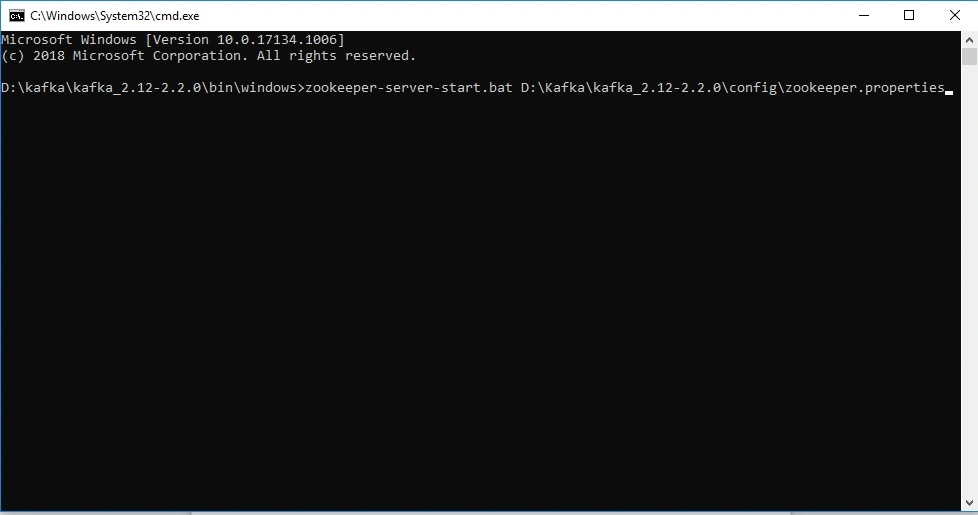
After running the zookeeper follow the below steps.
- Go to your Kafka installation directory: For me, it’s D:\kafka\kafka_2.12-2.2.0\bin\windows.
- Open a command prompt and run the following command,
- kafka-server-start.bat D:\Kafka\kafka_2.12-2.2.0\config\server.properties
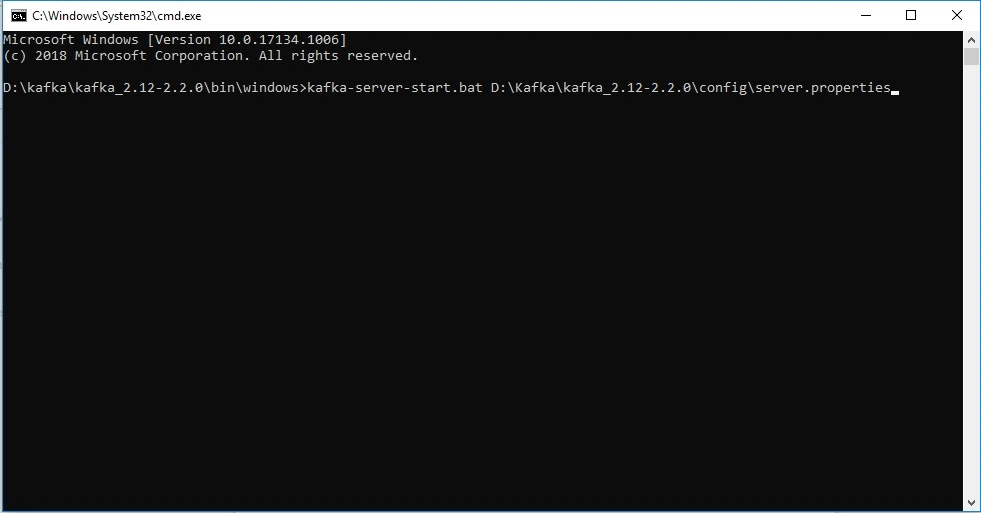
Creating Topics
The Kafka topic has been divided into the number of partitions; you can say it is an anatomy of Kafka. It is the most essential part of this distributed messaging system. Topic should have a name to understand the purpose of the message that is stored and published into the server.
Now the time to create a topic with the name of “chat-message”. We are running it into only one Kafka server.
- Go to your Kafka installation directory: For me, it’s D:\kafka\kafka_2.12-2.2.0\bin\windows
- Open a command prompt and run the following command,
- kafka-topics.bat --create --zookeeper localhost:2181 -replication-factor 1 --partitions 1 --topic chat-message
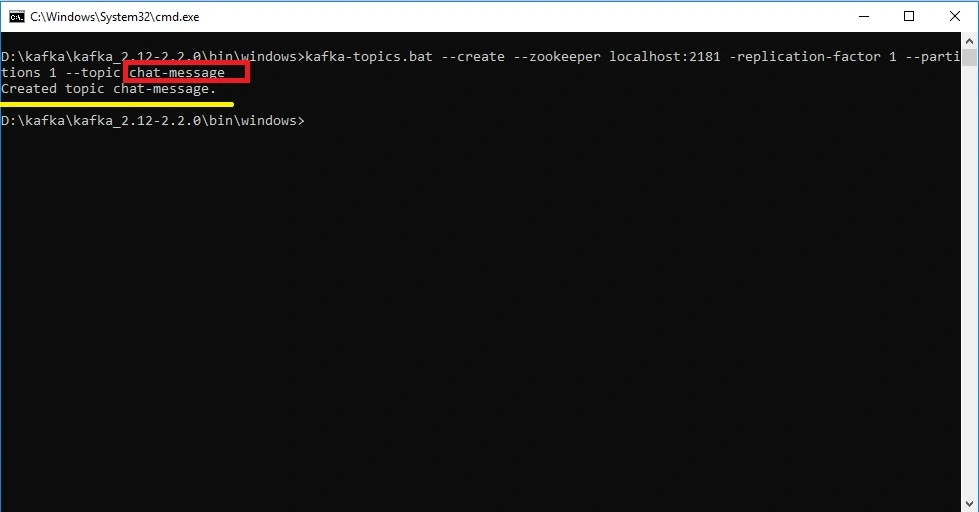
Creating a Producer and Consumer the Topic from the Kafka Server
First of all, we need to consume the topic from the server, so for that follow the below steps
- Go to your Kafka installation directory: For me, it’s D:\kafka\kafka_2.12-2.2.0\bin\windows
- Open a command prompt and run the following command,
- kafka-console-consumer.bat --bootstrap-server localhost:9092 --topic chat-message --from-beginning
After consuming the topic we need to produce the message by the following command.
- kafka-console-producer.bat --broker-list localhost:9092 --topic chat-message
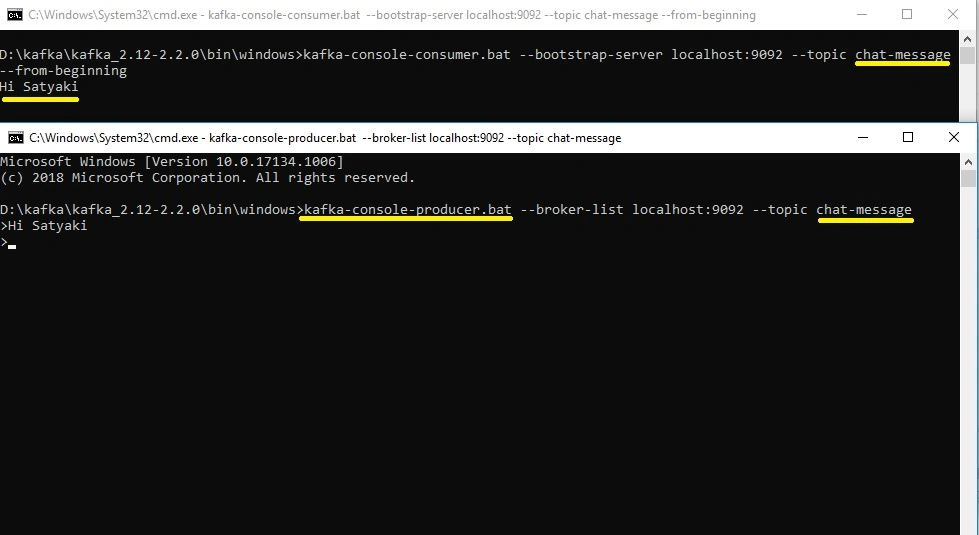
In here, the message is coming from the Kafka server through the chat-message topic and in the second window, we can see the message that we have produced through the Kafka server.
Bhanu SinghPosted Aug 9, 2020, 5:58 AM
D:\kafka\kafka_2.13-2.6.0\bin\windows>kafka-server-start.bat D:\kafka\kafka_2.13-2.6.0\config\server.properties is not working and throwing error "The system cannot find the path specified."
Rouse RousePosted May 22, 2020, 10:15 AM
Great article. thanks for the time to put that up.
Teofil BOCANCEAPosted Jan 17, 2020, 5:42 PM
Great article! very clear and easy to follow - thanks.
Taha MubarakPosted Dec 22, 2019, 6:14 AM
Thank you very much .
Sourav Kumar DasPosted Sep 26, 2019, 11:30 PM
Liked this Article..
Sourav Kumar DasPosted Sep 26, 2019, 11:30 PM
Great Article Sir.