

Save Workflow as Template
Step1: Create new reusable workflow using SPD 2013.

Step 2: Save and Publish it.

Step 3: Now save workflow as template using SPD 2013.

Popup information


Step 5: Download copy of workflow from site assets library as shown below. Template get saved in as .wsp format.

WSP Format

Step 1: Open new site in browser. Now we need to deploy WSP into WebPart Galleries.

Step 2: Go to Site settings, then Solutions under “Web Designer Galleries”. Upload wsp into it and activate the feature.

Step 3: After solution is activated, it is listed under solution galleries section.
Step 4: Enable feature at site level. Go to site setting, then manage site feature. New workflow feature listed there as shown in image. We need to activate it.

Step 5: Cross check weather workflow copy has done or not for new site
Open site in SPD 2013. Go to Workflows tab. Under Reusable Workflow section, you will get new entry of copied workflow as shown below,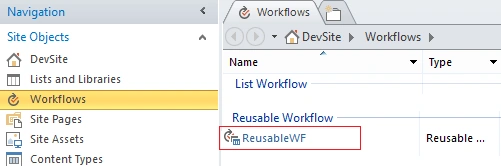
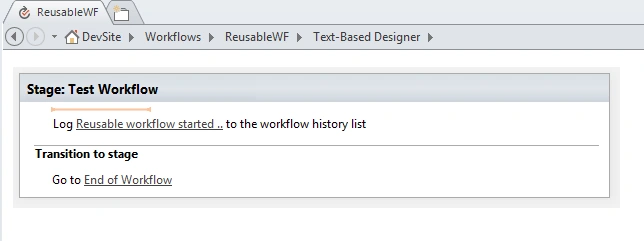
Step 6: Check workflow content? Is content copied properly or not??
Open workflow in SPD 2013. Click on edit workflow link, you will get workflow content same as original site workflow.
Aleksandrs SPosted Aug 23, 2019, 8:54 AM
Thank you for sharing, it worked in my case pretty well.
Akshay ShuklaPosted Sep 18, 2018, 11:19 PM
Hi Rupali, thank you for this amazing solution, I have a question can you provide a solution for migrating workflows (non-reusable) created using SPD 2010. I have to migrate a whole solution including lists and workflows. Lists are easy to migrate but workflows are a bit complex. Please kindly share link if you have already written any such article.
Abhijeet khopadePosted Oct 21, 2016, 5:30 AM
Really nice post. Is it possible to do this using C# or Powershell?
Santhakumar MunuswamyPosted Dec 22, 2015, 9:09 AM
Thanks for sharing
Humayun Kabir MamunPosted Dec 22, 2015, 2:12 AM
Nice...
Sibeesh VenuPosted Dec 22, 2015, 12:00 AM
Nice Share