

Introduction
SharePoint 2013 site is a personal site for individual users in an organization. Although an organization can customize its sites, by default, the top of every page displays the tabs for Newsfeed, SkyDrive, and the sites. These social features are tightly integrated into SharePoint 2013 and are provided as my site. In this article, I will explain how to create and configure my site in SharePoint 2013.
Pre-Requisites
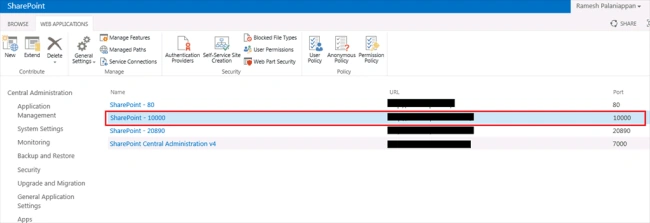
- Go to the SharePoint 2013 central administration site.
- Create a new Web Application.
Create a My Site collection
- Go to the SharePoint 2013 central administration site.
- Click Application Management.
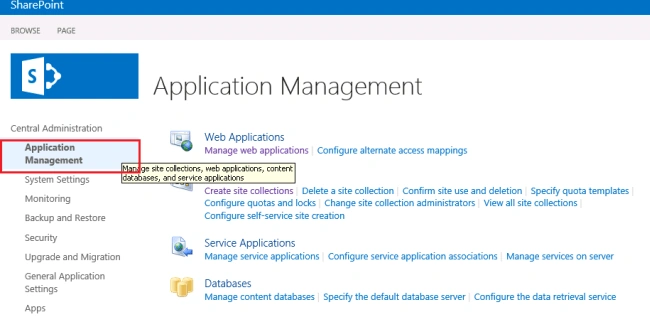
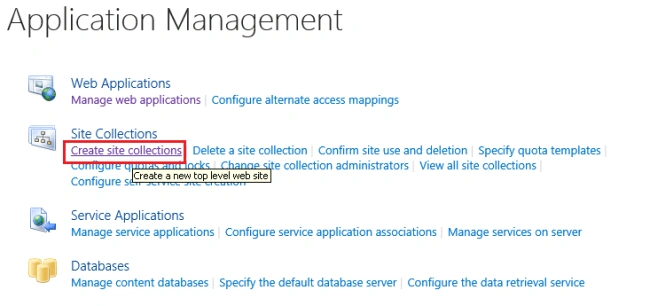
- Click on Create Site Collection.
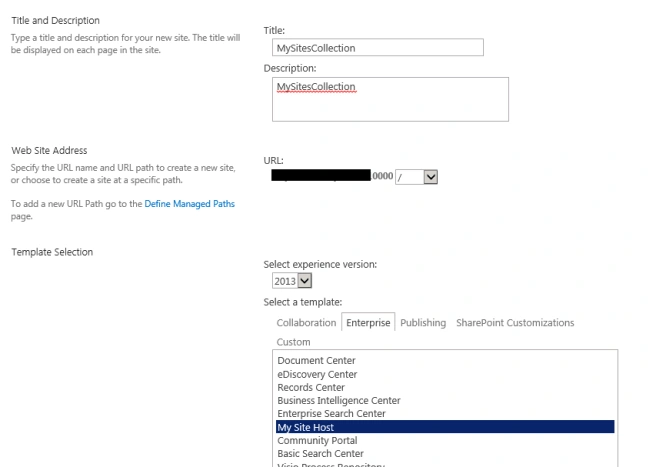
- Give the Title, Description, and Site URL in the respective sections.
- Select 2013 as the select experience version list in the Template Selection section.
- In the Select a Template section, on the Enterprise tab, click My Site Host.
- Give primary site collection administrator and secondary site collection administrator.
- Click OK to create My Site.
Wildcard Inclusion to the web application
- Go to the SharePoint 2013 central administration site.
- Click Application Management.
- Click Manage Web Application.
- Click created “MySiteCollection”.
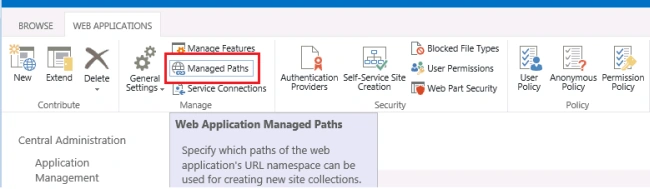
- On the top navigation tab, click the Managed path.
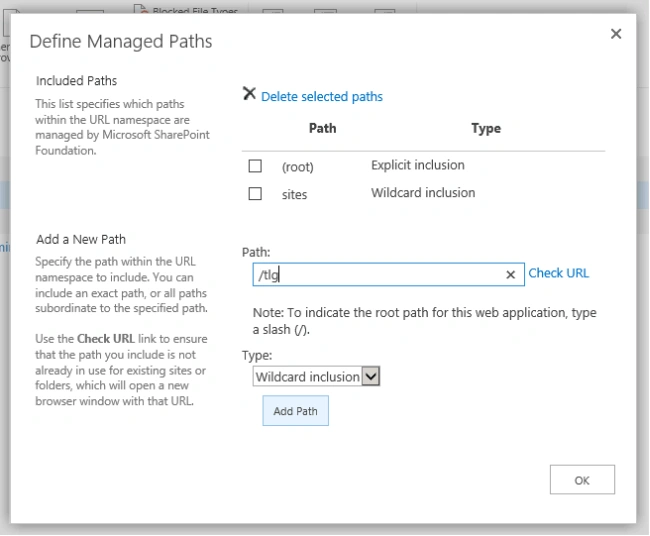
- In a dialog box, in the Add a New Path section, in the Path, type “/tlg” followed by clicking Add Path and click OK.
Enable self-service site creation
- Go to the SharePoint 2013 central administration site.
- Click Application Management.
- In the Application Management section, click Manage Web Applications.
- Select the Web Application created.
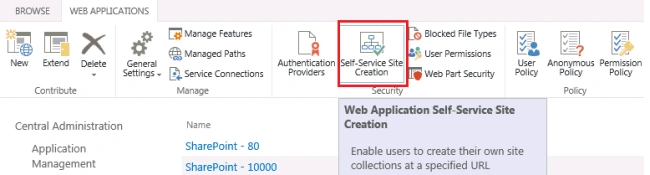
- On the Web Applications tab, in the Security group, click Self-Service Site Creation.
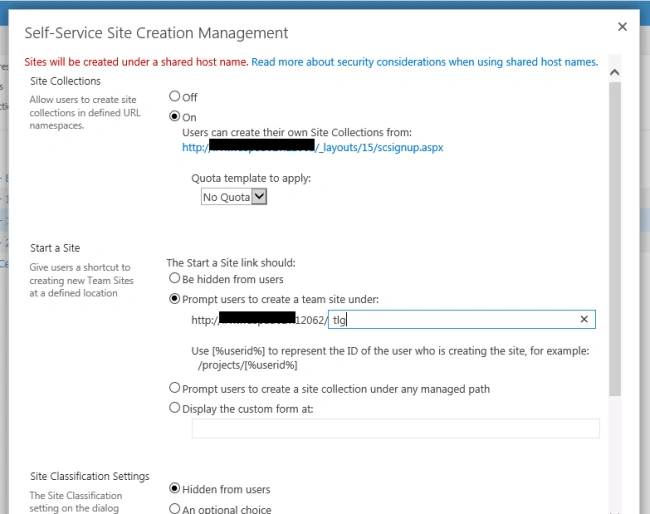
- “On” the site collection.
- Set the settings as shown below.
- Click OK in the dialog box.
Configure the User Profile service application
- Go to the SharePoint 2013 central administration site.
- Click Application Management.
- Click Manage Service Application.
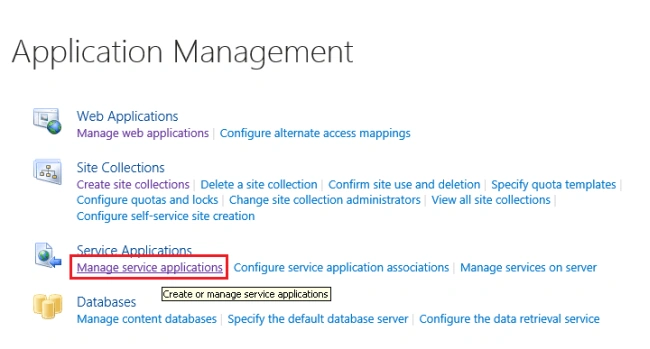
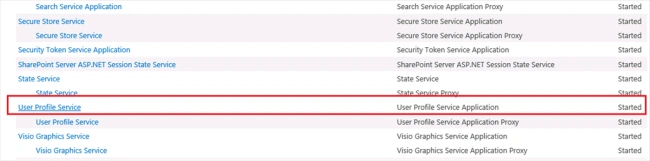
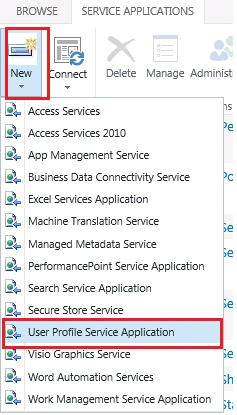
- Click the “User Profile Service” Application. If “User Profile Service” is not present, create the new user profile Service by New -> User Profile Service Application and complete the steps.
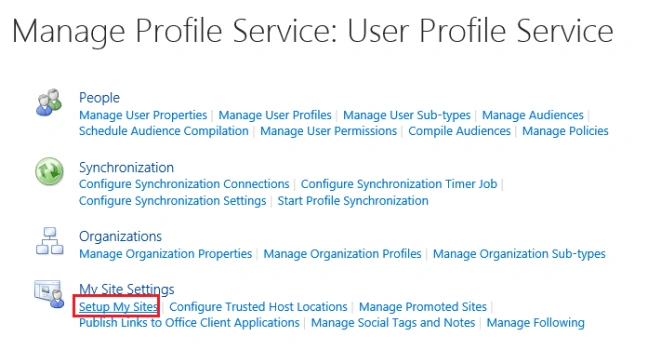
- On the Manage Profile Service page, click “Setup My Site” under My Site Settings.
- Enter “My Site Host location” as the site that we created, and the location is /tag.
- Click OK.
Enable User Profile Service Application for Activity Feed Job
- Go to the SharePoint 2013 central administration site.
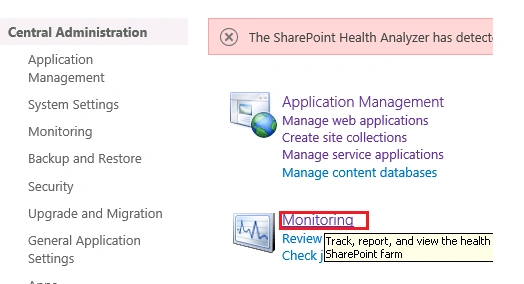
- Click Monitoring
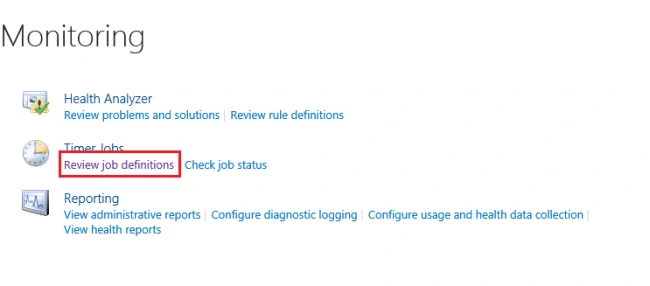
- Click Review job definition.
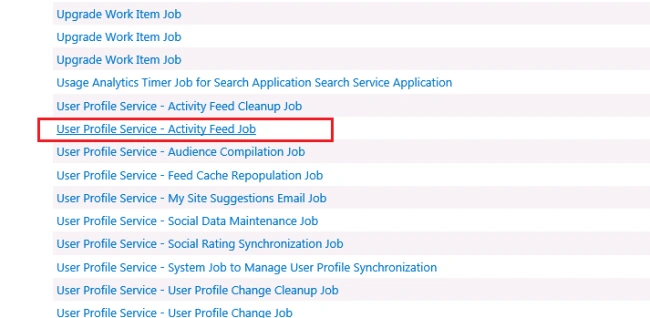
- Click “User Profile Service – Activity Feed Job”.
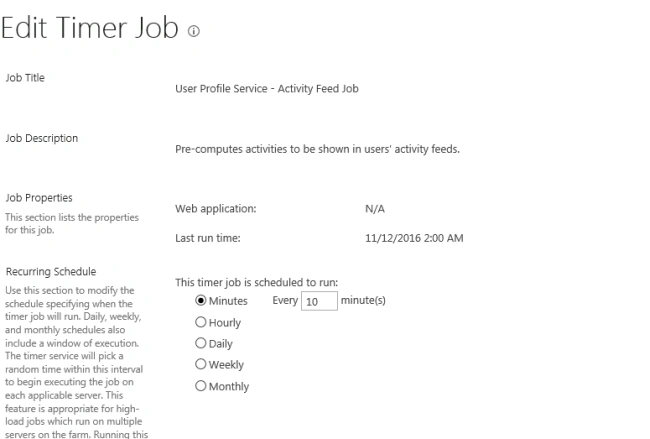
- Change the job settings and click Run now.
Configure “Following” settings for My Site
- Go to the SharePoint 2013 central administration site.
- Click Application Management.
- Click Manage Service Application.
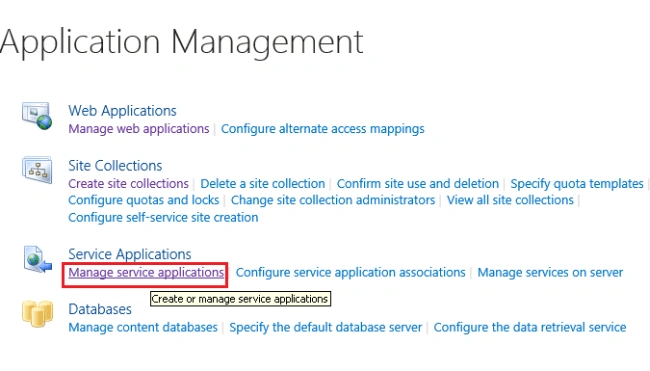
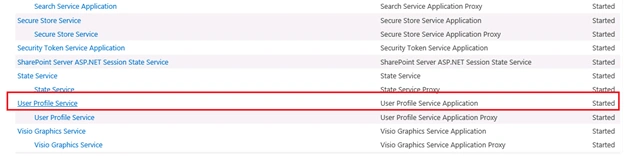
- In the list of services, click “User Profile Services”.
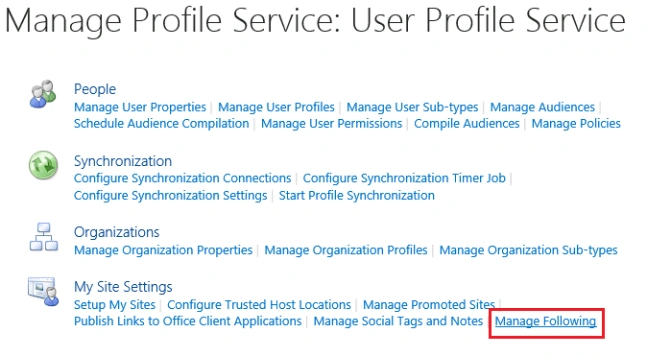
- Click Manage Following under My Site Settings.
- Change the values for the people, documents, and sites mentioned below.
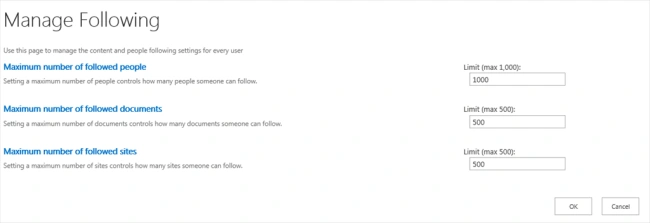
- Click OK.
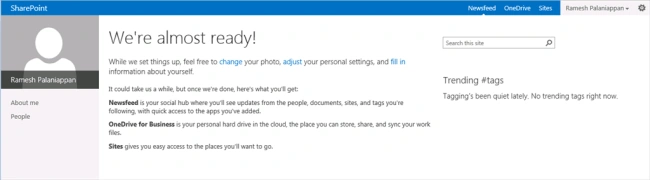
Thus, My Site has been created, and the user profile service has been configured for my site.
Summary
Thus, you have learned how to create and configure my site in SharePoint.
Paul PetrePosted May 14, 2021, 8:35 AM
I've got this problem on two different instances.First of all check that you have installed My Site Host like this: https://www.dotnetfunda.com/articles/show/1313/configuring-my-sites-in-sharepoint-2010 In my case on the first instance it was missing the search site configured correctly. I've configured it as in the link bellow: http://ntcoder.com/bab/2017/06/13/configure-sharepoint-searchcenter-url/ On the second instance I had sharepoint 2013 installed on sql server 2019 and one of the functions returned an error: UserProfile.RetrieveUser() Exception (UserId = '00000000-0000-0000-0000-000000000000'): System.Data.SqlClient.SqlException (0x80131904): Cannot continue the execution because the session is in the kill state. SqlCommand: 'dbo.profile_GetUserProfileData' Exception occurred loading user profile (/Person.aspx?accountname=username): Microsoft.Office.Server.UserProfiles.UserProfileException: An error was encountered while retrieving the user profile The error comes from User Profile Service Application_ProfileDB procedure profile_GetViewerRights. In this procedure replace: RETURN dbo.GetViewerRights(@partitionID, @RecordId, @ViewerRecordId, @ViewerNTName, @ManagerNTName, @correlationId) WITH DECLARE @result int select @result = dbo.GetViewerRights(@partitionID, @RecordId, @ViewerRecordId, @ViewerNTName, @ManagerNTName, @correlationId) return @result Hope this helps Good Luck
bharath APosted Nov 28, 2017, 7:17 AM
Will it display entire documents which are shared for the particular user.?
Madhanmohan DevarajanPosted Nov 15, 2016, 12:19 PM
Easy step by step guide for Mysite creation, Thanks Ramesh!
Anu VPosted Nov 13, 2016, 11:02 PM
Very nice article sir.....