

Introduction
List definitions are the templates for creating the list and defining a schema for a SharePoint list. It contains information on what views are being used, which columns and content types are being used, and other metadata information. ListInstance is actually a list in which we need to specify the template id of the ListDefinition. From one ListDefinition, we can create multiple List instances. In this article, I will explain how to create List Definition and List Instance in SharePoint 2013 using Visual Studio.
Pre-Requisites
- Open Visual Studio.
- Open New Project dialog box. Expand Office/SharePoint node and then choose SharePoint Solutions.
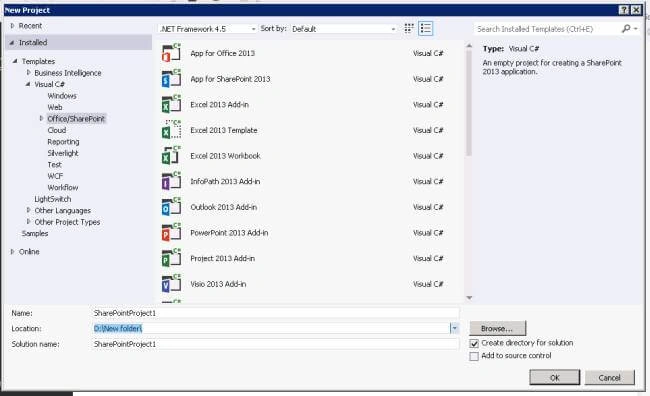
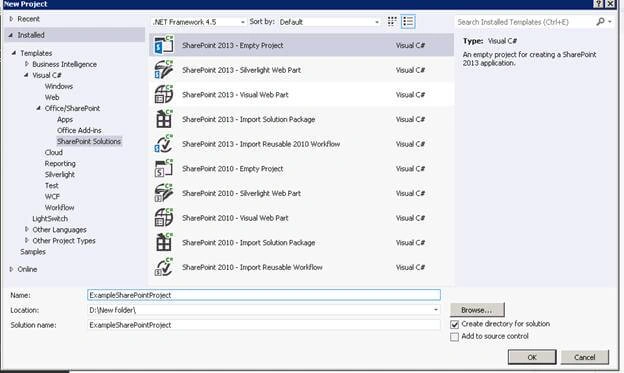
- Choose the SharePoint 2013 – Empty Project template. Name the project as ExampleSharePointProject.
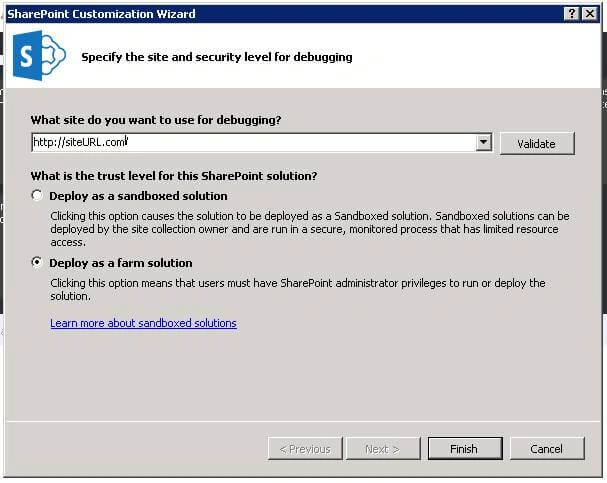
- Choose the "Deploy as a farm solution" option button and choose Finish button.
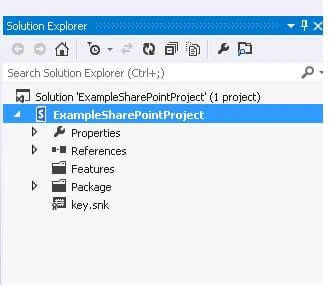
- ExampleSharePointProject SharePoint project gets created.
- Create the site columns in the ExampleSharePointProject.
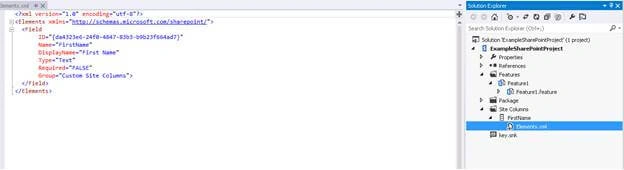
- Create the site Content types in the ExampleSharePointProject.
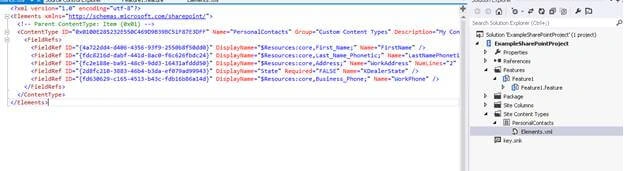
Create List Definition
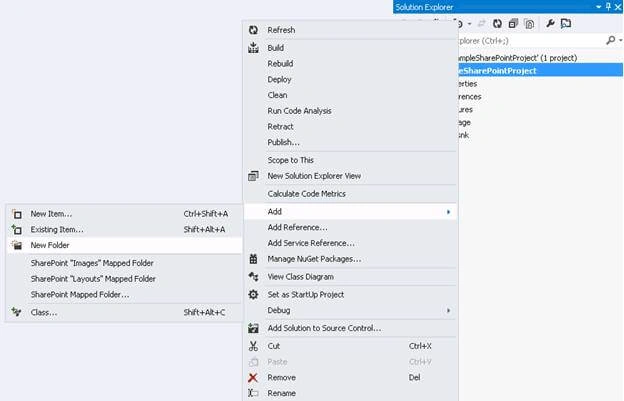
- Right click on ExampleSharePointProject -> Add -> New Folder. Add name the as “Lists”.
- Right click on Lists folder ->Add -> New Item.

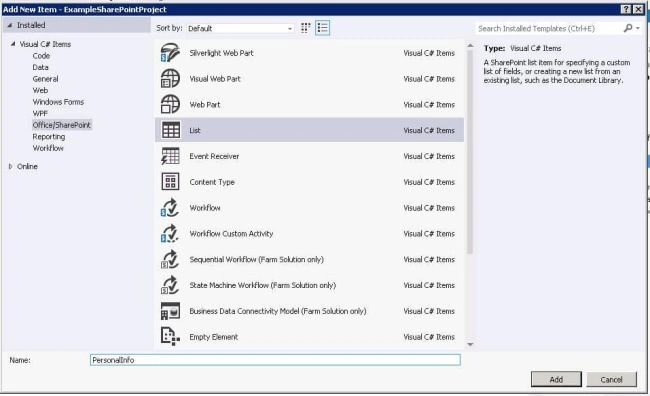
- Add List from the Add New Item window. Name it as “PersonalInfo”.
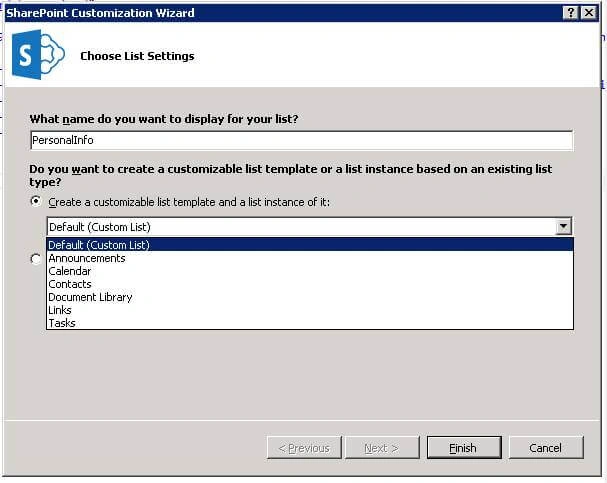
- Select the list template as customizable or create a list instance based on an existing list template in site.
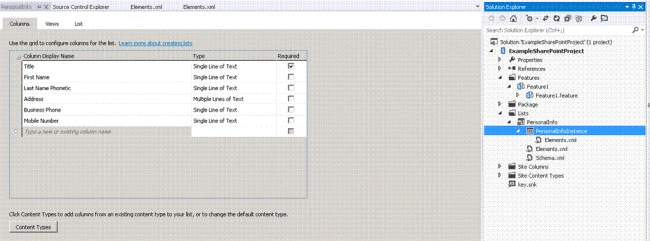
- Select the column from the site column we created or default existing site column.
- Create the “Views” in the Views tab as per our wish.

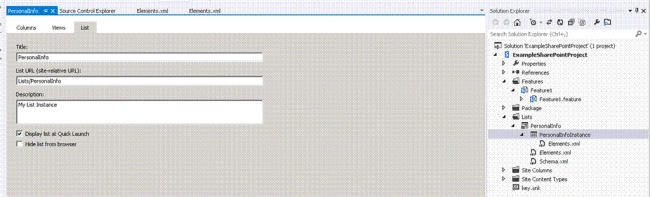
- Check the URL and give the description to the list in List tab.
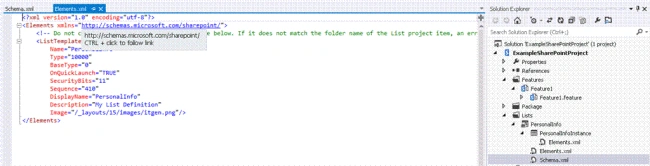
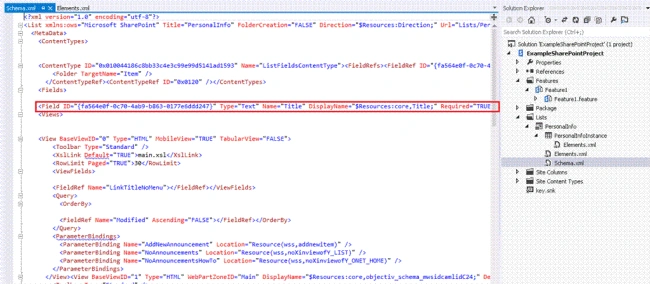
- Elements.xml and Schema.xml file will show the same information as we created.
Create List Instance
- Open the Element.xml created under the PersonalInfoInstance list.
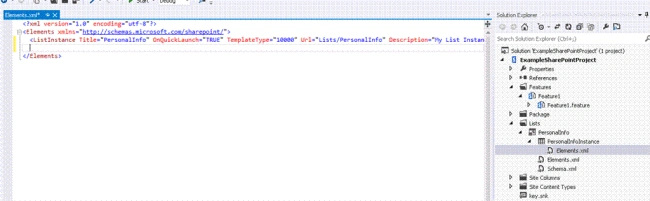
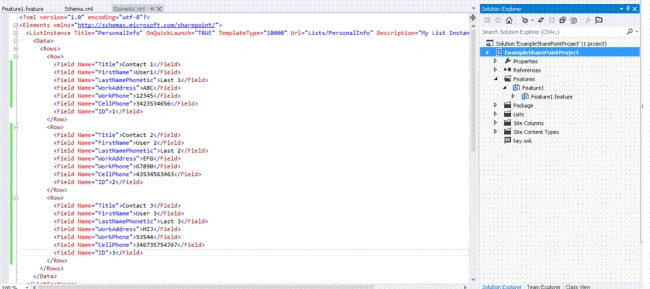
- Create the list instance by adding <Data> tag and <Rows>. Inside this tags we can create as name instance we want by using <Row> tag as shown in following image.
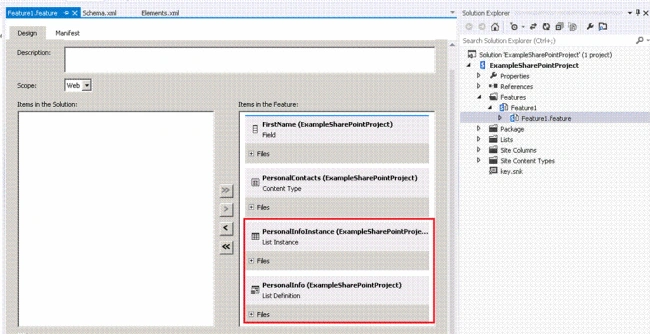
- Once you create a site column, site content type, list definition and list instance, you will notice that Visual Studio has automatically added a Feature to the project and included the new site column “FirstName” and content type “PersonalContacts” and list definition and instance “PersonalInfo” in it.
- Build and deploy the SharePoint solution.
- Open the SharePoint site, go to “Site Content”. PersonalInfo list got created.

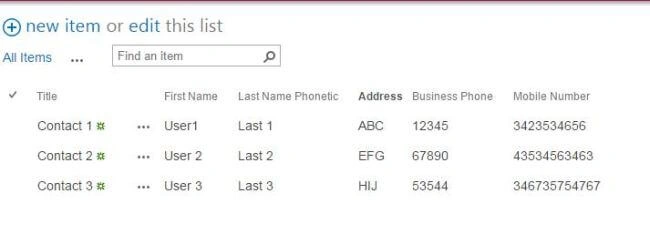
- Click on the list created. We are able to see the list instance value added to the list.
Anu VPosted Oct 2, 2016, 6:13 AM
Nice..
Humayun Kabir MamunPosted Oct 2, 2016, 1:38 AM
Nice...
Tarun DPosted Sep 30, 2016, 1:02 AM
Nice one. Thanks for sharing..