

File Upload
We have used Azure Blob Storage for file upload.
Overview of Blob Storage
Azure Blob Storage is Microsoft's Object Storage Solution for the cloud. Blob Storage is optimized for storing massive amounts of unstructured data. Unstructured data is the data that does not adhere to a data model or definition, such as text or binary data.
To use the Blob Storage, you have to create an account on the Azure portal.
Navigate to your new Storage Account in the Azure Portal.
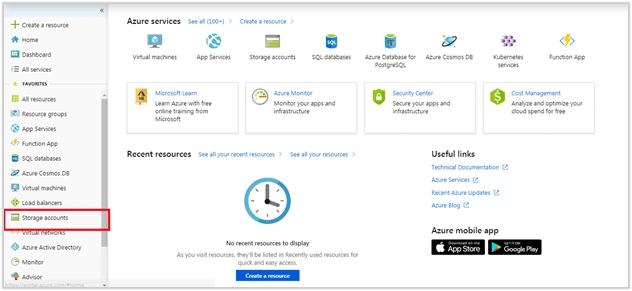
- Open Windows Azure account and click "Storage Account" in the left menu bar.
- The selected option will be redirected into Storage Account page and there, you click on "Add".
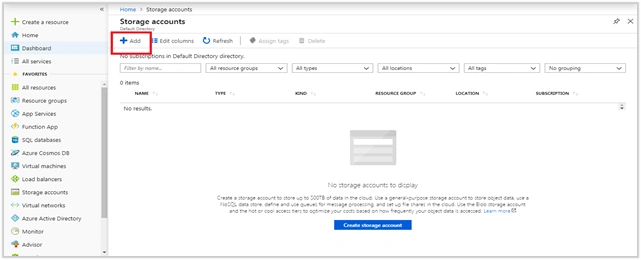
- Select the subscription in which you want to create the Storage Account.
- Under the Resource Group field, select "Create new". Enter a name for your new resource group, as shown in the following image.
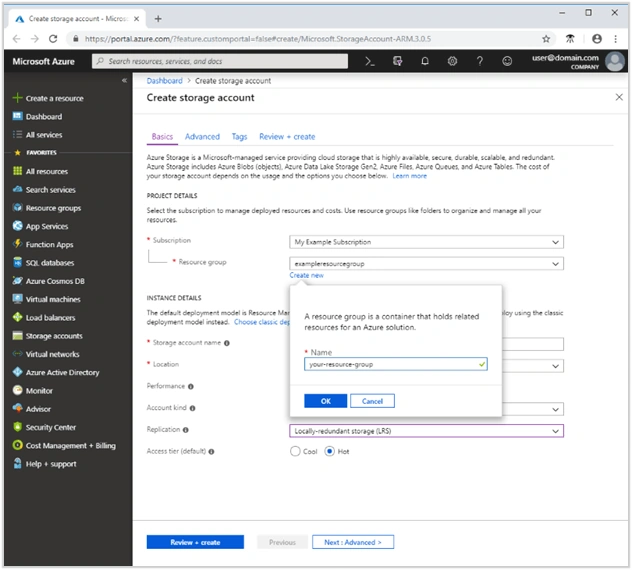
- Next, enter a name for your storage account. The name you choose must be unique across Azure. The name also must be between 3 and 24 characters in length and can include numbers and lowercase letters only.
- Select a location for your storage account or use the default location.
- Select "Review + Create" on the bottom of the screen. Do not select "Create" in the next step.
- Locate your storage account.
- In the Settings section of the storage account overview, select Access keys. Here, you can view your account access keys and the complete connection string for each key.
- Find the connection string value under key1 and select the "Copy" button to copy the connection string. You will add the connection string value to an environment variable in the next step.
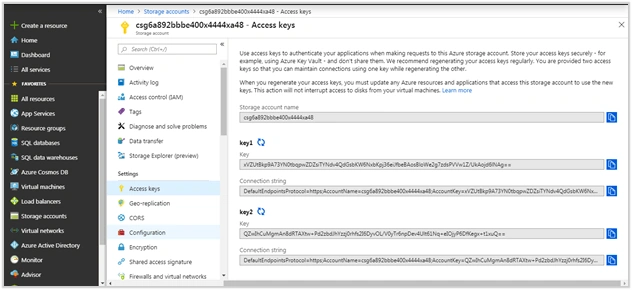
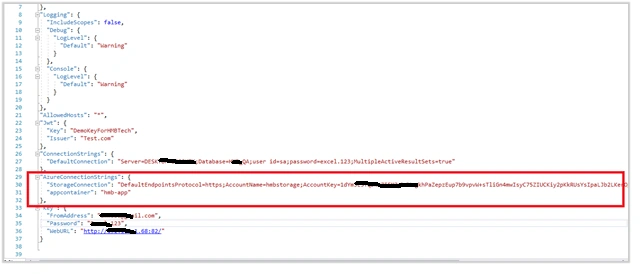
- Save storage connection string in the appsettings.json file. Also, add container name for storage.
.NET CODE Implementation
Use the following code implementation on your Visual Studio framework.
- "AzureConnectionStrings": {
- "StorageConnection": "DefaultEndpointsProtocol=https;AccountName=hstorage;AccountKey=1dYm3E5YqDkxZF5MJybdMngkhPaZepzEup7b9vpvW+sTliGn4mwIskRUsYsIpaLJb2LKerOg==;EndpointSuffix=core.windows.net",
- "appcontainer": "h-app"
- },
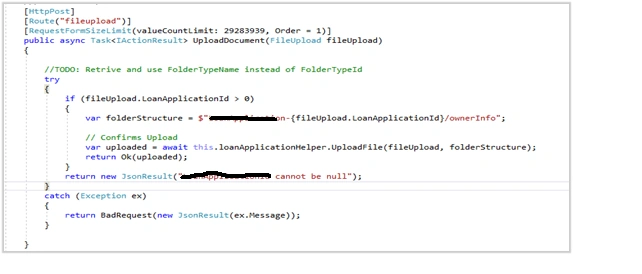
- Create the folder name dynamically based on the Application Id.
CODE
- #region "Document upload"
- /// <summary>
- /// document upload
- /// </summary>
- /// <param name="licenseAgreementDocs"></param>
- /// <returns></returns>
- [HttpPost]
- [Route("fileupload")]
- [RequestFormSizeLimit(valueCountLimit: 29283939, Order = 1)]
- public async Task < IActionResult > UploadDocument(FileUpload fileUpload) {
- //TODO: Retrieve and use Folder TypeName
- try {
- if (fileUpload.ApplicationId > 0) {
- var folderStructure = $” Application - {
- fileUpload.ApplicationId
- }
- /ownerInfo";
- // Confirms Upload
- var uploaded = await this.ApplicationHelper.UploadFile(fileUpload, folderStructure);
- return Ok(uploaded);
- }
- return new JsonResult("Id cannot be null");
- } catch (Exception ex) {
- return BadRequest(new JsonResult(ex.Message));
- }
- }#endregion
- After initialization of container, it will return the blob storage name, URI.
CODE
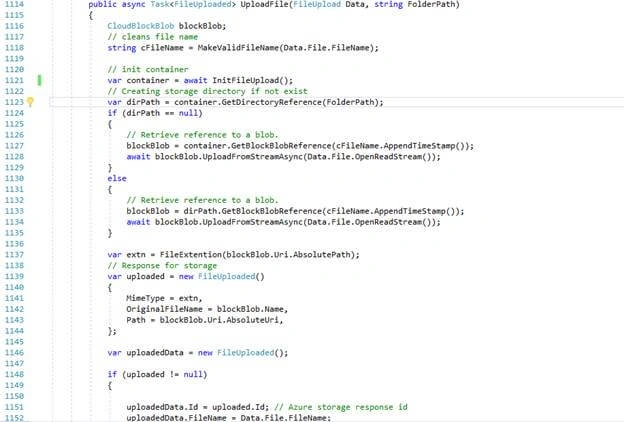
This method is used to upload a file from .NET development to Azure Storage Account.
- /// <summary>
- /// common upload document
- /// </summary>
- /// <param name="Data"></param>
- /// <param name="FolderPath"></param>
- /// <returns></returns>
- public async Task<FileUploaded> UploadFile(FileUpload Data, string FolderPath)
- {
- CloudBlockBlob blockBlob;
- // cleans file name
- string cFileName = MakeValidFileName(Data.File.FileName);
- // init container
- var container = await InitFileUpload();
- // Creating storage directory if not exist
- var dirPath = container.GetDirectoryReference(FolderPath);
- if (dirPath == null)
- {
- // Retrieve reference to a blob.
- blockBlob = container.GetBlockBlobReference(cFileName.AppendTimeStamp());
- await blockBlob.UploadFromStreamAsync(Data.File.OpenReadStream());
- }
- else
- {
- // Retrieve reference to a blob.
- blockBlob = dirPath.GetBlockBlobReference(cFileName.AppendTimeStamp());
- await blockBlob.UploadFromStreamAsync(Data.File.OpenReadStream());
- }
- var extn = FileExtention(blockBlob.Uri.AbsolutePath);
- // Response for storage
- var uploaded = new FileUploaded()
- {
- MimeType = extn,
- OriginalFileName = blockBlob.Name,
- Path = blockBlob.Uri.AbsoluteUri,
- };
- var uploadedData = new FileUploaded();
- if (uploaded != null)
- {
- uploadedData.Id = uploaded.Id; // Azure storage response id
- uploadedData.FileName = Data.File.FileName;
- uploadedData.OriginalFileName = uploaded.OriginalFileName;
- uploadedData.Path = uploaded.Path;
- uploadedData.Size = Convert.ToInt32(Data.File.Length);
- uploadedData.MimeType = Data.File.ContentType;
- uploadedData.FileType = FileExtention(uploaded.Path);
- uploadedData.Status = true;
- uploadedData.OwnerId = Data.OwnerId;
- uploadedData.ApplicationId = Data.ApplicationId;
- }
- return uploadedData;
- }
- /// <summary>
- /// cleans filename
- /// </summary>
- /// <param name="name"></param>
- /// <returns></returns>
- public static string MakeValidFileName(string name)
- {
- string invalidChars = System.Text.RegularExpressions.Regex.Escape(new string(System.IO.Path.GetInvalidFileNameChars()));
- string invalidRegStr = string.Format(@"([{0}]*\.+$ )|([{0}]+)", invalidChars);
- var cname = System.Text.RegularExpressions.Regex.Replace(name, invalidRegStr, "_");
- return cname.Replace(" ", "-").ToLower();
- }
- /// <summary>
- /// Get File extention from file name
- /// </summary>
- /// <returns></returns>
- public string FileExtention(string path)
- {
- var extn = Path.GetExtension(path);
- return extn.Substring(1, extn.Length - 1);
- }
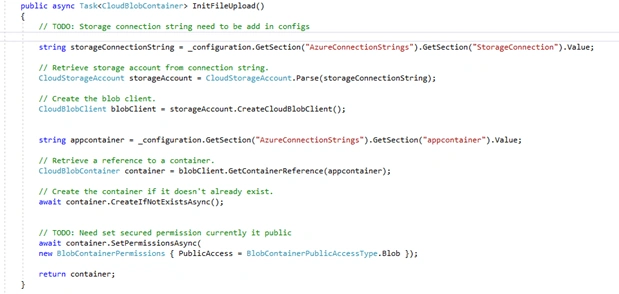
- Use this Storage Connection String to file upload. (Helper Class)
CODE
This will read and connect a trust to Windows Azure through connection strings.
- /// <summary>
- /// Initializing Storage and Storage clients
- /// </summary>
- /// <returns></returns>
- public async Task < CloudBlobContainer > InitFileUpload() {
- // TODO: Storage connection string need to be add in configs
- string storageConnectionString = _configuration.GetSection("AzureConnectionStrings").GetSection("StorageConnection").Value;
- // Retrieve storage account from connection string.
- CloudStorageAccount storageAccount = CloudStorageAccount.Parse(storageConnectionString);
- // Create the blob client.
- CloudBlobClient blobClient = storageAccount.CreateCloudBlobClient();
- string appcontainer = _configuration.GetSection("AzureConnectionStrings").GetSection("appcontainer").Value;
- // Retrieve a reference to a container.
- CloudBlobContainer container = blobClient.GetContainerReference(appcontainer);
- // Create the container if it doesn't already exist.
- await container.CreateIfNotExistsAsync();
- // TODO: Need set secured permission currently it public
- await container.SetPermissionsAsync(new BlobContainerPermissions {
- PublicAccess = BlobContainerPublicAccessType.Blob
- });
- return container;
- }
- Save the file name, URI in DB.
I hope this helps.
Join the conversation! Your thoughts help the community grow.