

Introduction
In this article you will learn how we to use a Style element in a Metro style application. It is very useful in the situation that we want to give the same design style for a control that is used multiple times. It avoids the work of writing separate code for each control of the same type. Unlike a HTML page for which we use the style element in a Metro style application in the Page.Resource section and use the setter attribute to assign the property.
Here we will take some TextBlocks and TextBoxes using for style on it. The common design section of all TextBlocks and TextBoxes put in a Style elements as Style1 and Style2. To use this style for a control we use the property of the control style={StaticResources Style1}.
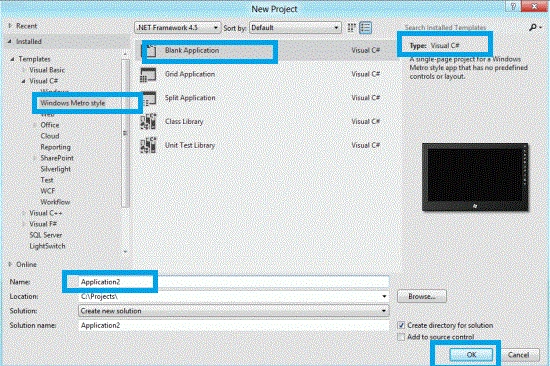
Step 1 : First of all you will create a new Metro Style Application. Let us see the description with images of how you will create it.
- Open Visual Studio 2011
- File -> New -> Project
- Choose Template -> Visual C# -> Metro Style Application
- Rename this Application
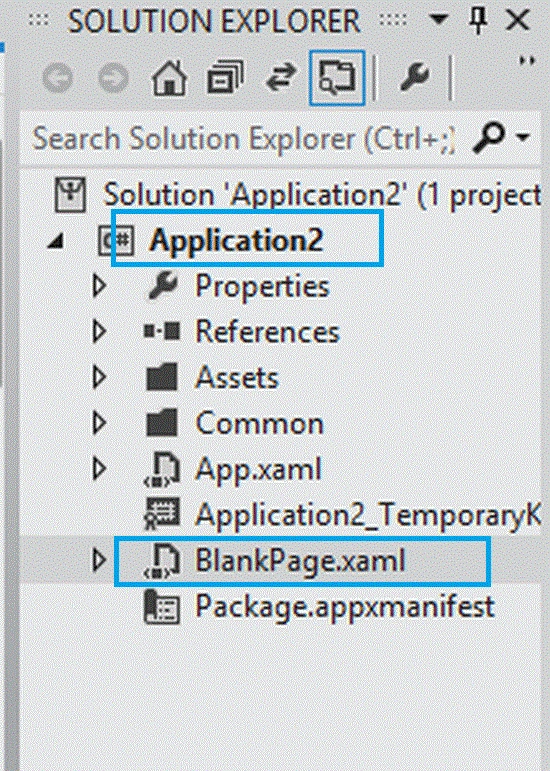
Step 2 : In the Solution Explorer there are two files that we will primarily work with; BlankPage.xaml and BlankPage.xaml.cs files.
Step 3 : The BlankPage.xaml file is as in the following code:
Code :
<Page
x:Class="Application2.BlankPage"
xmlns="http://schemas.microsoft.com/winfx/2006/xaml/presentation"
xmlns:x="http://schemas.microsoft.com/winfx/2006/xaml"
xmlns:local="using:Application2"
xmlns:d="http://schemas.microsoft.com/expression/blend/2008"
xmlns:mc="http://schemas.openxmlformats.org/markup-compatibility/2006"
mc:Ignorable="d">
<Page.Resources>
<Style x:Name="style1" TargetType="TextBlock">
<Setter Property="Foreground" Value="Red"></Setter>
<Setter Property="FontSize" Value="20"></Setter>
<Setter Property="TextWrapping" Value="Wrap"></Setter>
<Setter Property="Margin" Value="0"></Setter>
</Style>
<Style x:Name="style2" TargetType="TextBox">
<Setter Property="Background" Value="Yellow"></Setter>
<Setter Property="Foreground" Value="Blue"></Setter>
<Setter Property="TextWrapping" Value="Wrap"></Setter>
</Style>
</Page.Resources>
<Grid x:Name="LayoutRoot">
<Grid.RowDefinitions>
<RowDefinition Height="0.112*"/>
<RowDefinition Height="0.081*"/>
<RowDefinition Height="0.058*"/>
<RowDefinition Height="0.054*"/>
<RowDefinition Height="0.052*"/>
<RowDefinition Height="0.056*"/>
<RowDefinition Height="0.056*"/>
<RowDefinition Height="0.529*"/>
</Grid.RowDefinitions>
<Grid.ColumnDefinitions>
<ColumnDefinition Width="0.333*"/>
<ColumnDefinition Width="0.022*"/>
<ColumnDefinition Width="0.312*"/>
<ColumnDefinition Width="0.333*"/>
</Grid.ColumnDefinitions>
<Grid.Background>
<LinearGradientBrush EndPoint="0.5,1" StartPoint="0.5,0">
<GradientStop Color="Blue" Offset="1"/>

Join the conversation! Your thoughts help the community grow.