
Contents
- Tortoise SVN
- Browsing Local Folders and Files
- SVN Browsing Using a Command Prompt
- SVN Browsing Using C#
- Note
- References
Tortoise SVN
Tortoise SVN is a free open-source Windows client for the Apache Subversion version control system. Tortoise SVN is a central repository that manages files and directories over time. Files and directories are stored in a hierarchical structure in SVN. Here, we can upload and manage files in an effective manner. If a change is made to an uploaded file, SVN is smart enough to recover an older version of the file, and examine the history of how and when your data has changed and who changed it.
Browsing Local Folders and Files
If we want to browse files locally, we will use the sealed classes in C# “FolderBrowsingDialog” and “OpenFileDialog”. After this level, we cannot inherit these classes since they are sealed classes. So by using the preceding classes from C#, it will open up the file and folder dialog as in Figures 2.1 and 2.2.
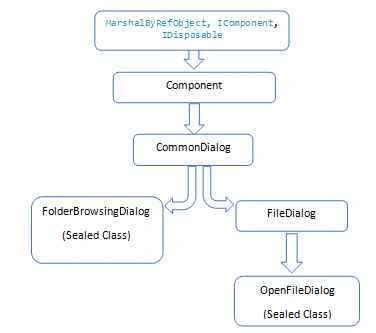
Figure 1.1
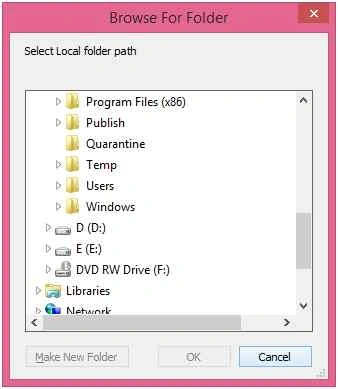
Figure 2.1
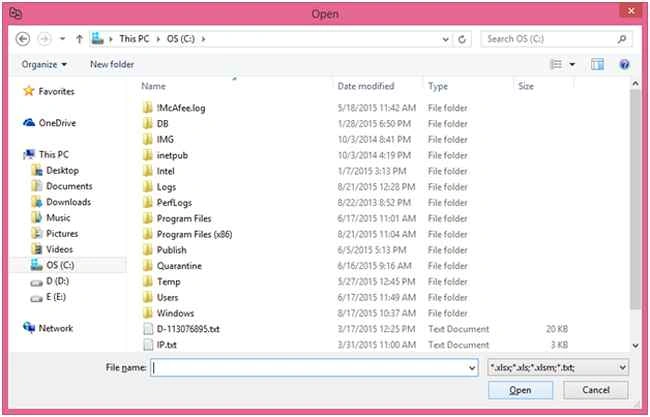
Figure 2.2
There are the following two ways to browse remote files in SVN.
- Generally, users will checkout the file from SVN (make it a local copy) and use the preceding C# classes to read files and access folders.
- The second method is to open the SVN repository directly from the .NET application and select the files or folders. Again this can be done in one of the following two ways.
- using Command Prompt
- using C#
SVN Browsing using Command Prompt
Generally, Tortoise SVN provides the commands we can execute in a command prompt interface. You can find all the commands in the Tortoise SVN Help document.
Open the command prompt, change the working directory path to “C:\Program Files\TortoiseSVN\bin” (the installation path of Tortoise SVN).
The following is the command to open the SVN repo browser.
TortoiseProc.exe /command:repo browser /path:” SVNPATH” /outfile:” path\to\file”
In the preceding command, we have the following three parameters.
- /command: repo browser: Starts the repository browser dialog, pointing to the URL of the working copy given in /path or /path that points directly to an URL.
- /path:” SVNPATH”: Here, we should provide the SVN path to be opened. The path should be enclosed in double quotes, and there is no space between the /path: and “SVNPATH”.
- /out file:”path\to\file”: Once the repo browser is opened, we will be selecting the file or folder from the browser. After selecting the file, the selected URL and revision are written to that file when the repository browser is closed. The first line in that text file contains the URL, and the second line is the revision in text format. The path should be enclosed in double quotes, and there is no space between the /out file: and ”path\to\file”.
So finally, the selected file path from the SVN repo browser is stored in the output file path.
SVN Browsing using C#
Now, we have the command to be executed from the command prompt. The same command can also be executed from .NET using the following code.
using System;
using System.Diagnostics;
class Program
{
    private void ExecuteSVNCommand(string SVNCommand)
    {
        try
        {
            ProcessStartInfo processStartInfo = new ProcessStartInfo();
            processStartInfo.WorkingDirectory = @"C:\Program Files\TortoiseSVN\bin";
            processStartInfo.RedirectStandardInput = true;
            processStartInfo.CreateNoWindow = true;
            processStartInfo.WindowStyle = ProcessWindowStyle.Hidden;
            processStartInfo.FileName = "cmd.exe";
            processStartInfo.UseShellExecute = false;
            processStartInfo.Arguments = SVNCommand;
            Process process = Process.Start(processStartInfo);
            process.WaitForExit();
            int exitCode = process.ExitCode;
            if (exitCode == 0)
            {
                // Success
            }
            else
            {
                // Failed
            }
        }
        catch (Exception ex)
        {
            // Catch Exception
        }
    }
    static void Main(string[] args)
    {
        // Your code here
    }
}
Note. If we pass the preceding command to this method, it will exit with the exit code of 1 and it will throw an exception of type “System.InvalidOperationException”. So the command to be passed is.
string command = @"/c " + "TortoiseProc.exe /command:repobrowser /path:" + SVNURL + " /outfile:" + OUTPUT_PATH;
Here “/c” tells cmd that we want it to execute the command that follows and then terminate.
I have used the OUTPUT_PATH file path extension as .xls so that the first cell will hold the selected URL of SVN, and the second cell will hold the revision in text format. You can provide “.txt” as well.
shashi shekharPosted Apr 5, 2017, 2:12 AM
We wrote the code, result is displaying success, Even then file is not getting transfered from svn server to our server. Could you please suggest what might be the issue at our end.
Kothai KrishnamoorthyPosted Aug 23, 2015, 11:55 AM
Thank you..
RakeshPosted Aug 22, 2015, 1:29 PM
Good
Yashwanth MuthineniPosted Aug 22, 2015, 7:20 AM
Nice share
Santhakumar MunuswamyPosted Aug 22, 2015, 6:34 AM
Nice Article. Thanks for sharing
Turker TunaliPosted Aug 22, 2015, 4:58 AM
I want to automate Commit process by providing files and explanations from our ticket system. Does this way comfortable way for me?
Sumit JoshiPosted Aug 22, 2015, 3:28 AM
Thanks for sharing......
Mohammed IbrahimPosted Aug 22, 2015, 2:57 AM
nice share
Vaikesh K PPosted Aug 22, 2015, 2:48 AM
Nice one
Chervine BhiwooPosted Aug 22, 2015, 1:51 AM
Good one
Rajeesh MenothPosted Aug 22, 2015, 1:47 AM
Nice One..
Gowtham KPosted Aug 22, 2015, 1:03 AM
Nice one
Nilesh JadavPosted Aug 22, 2015, 12:03 AM
Good Post
Gopi ChandPosted Aug 21, 2015, 11:38 PM
Nice article to start with :)
Karthikeyan KPosted Aug 21, 2015, 9:21 PM
Good one