

When working with Microsoft Fabric Notebooks, it is common to work with data that lives in more than one Lakehouse. Instead of creating a separate Notebook for every Lakehouse, Microsoft Fabric allows you to attach multiple Lakehouses to the same Notebook and switch between them when needed.
In this article, I’ll demonstrate this using two Lakehouses: Sales and Marketing. The Sales Lakehouse contains a dbo.sales_analytics table, while the Marketing Lakehouse contains a dbo.marketing_analytics table.
Connecting Multiple Lakehouses to a Notebook
I started by creating a Fabric Notebook and attaching both the Sales and Marketing Lakehouses to it. Add data items --> From Onelake catalog
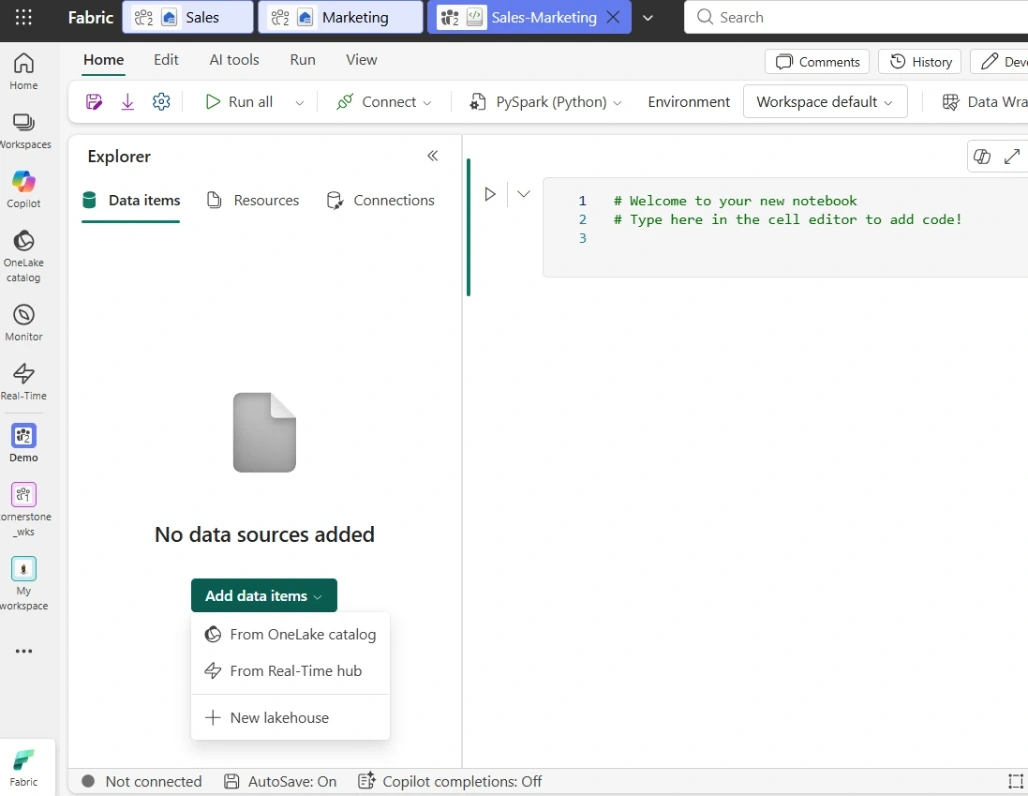
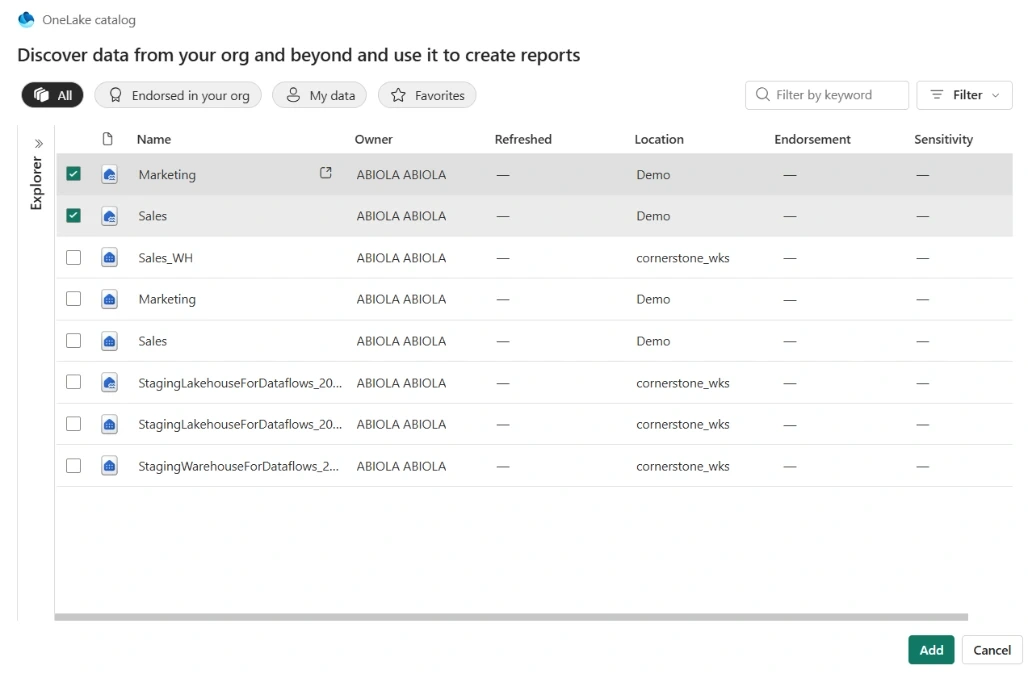
Once both Lakehouses are connected, they become available within the Notebook environment. This means I can work with data from either Lakehouse without having to create separate Notebooks.
For example, the Sales Lakehouse contains:
dbo.sales_analytics
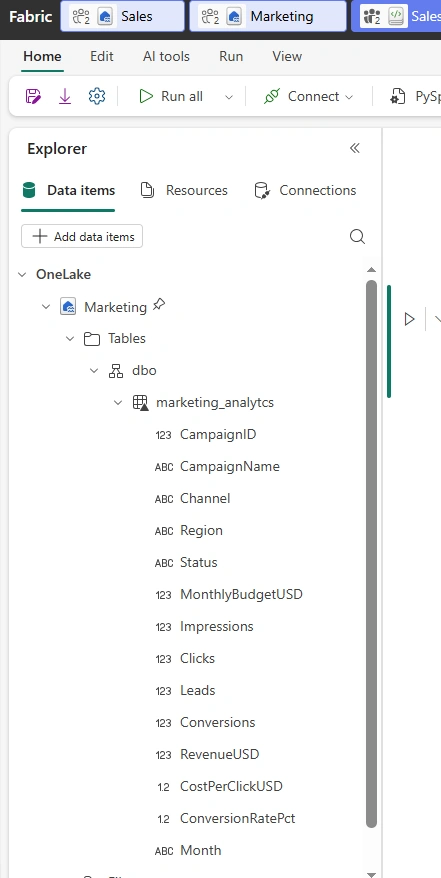
while the Marketing Lakehouse contains:
dbo.marketing_analytics
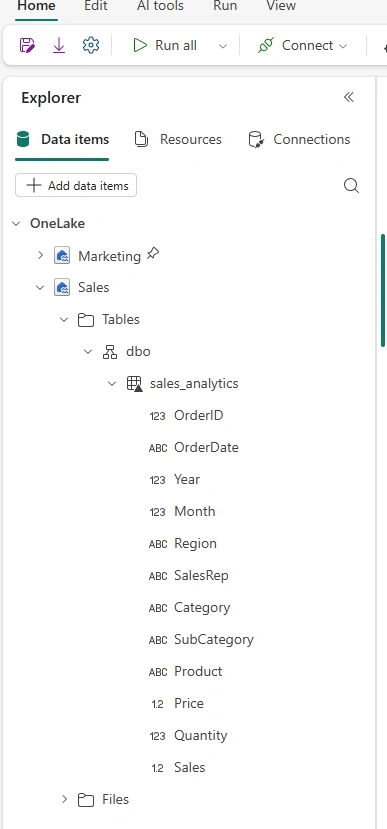
The important part here is that both Lakehouses are connected to the same Notebook.
Switching Between Lakehouses
One useful feature of Fabric Notebooks is the ability to switch the active Lakehouse from within the Notebook interface.
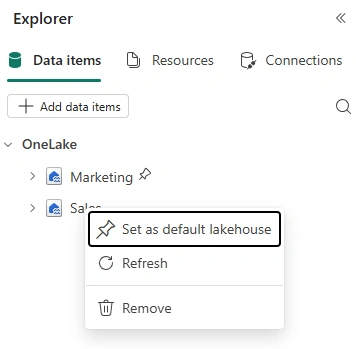
Marketing Lakehouse is the current Lakehouse with pin indicator. If I intend to switch, I can select the Sales Lakehouse as the active Lakehouse and work with the sales_analytics table. To switch, right-click on the Sales Lakehouse (or click on the ellipsis). Then, I can click Select as default lakehouse
As seen below, the Sales Lakehouse has been promoted to the top of the Marketing Lakehouse.
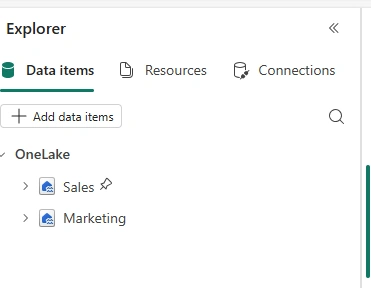
I can also switch the active Sales Lakehouse back to Marketing and work with the marketing_analytics table, all within the same Notebook.
This can be particularly useful when building data engineering or analytics workflows where data is distributed across multiple Lakehouses.
Working with the Sales Lakehouse
After switching the active Lakehouse to Sales, I can access the sales data from the Notebook.
For example:
df = spark.sql("SELECT * FROM dbo.sales_analytics")

display(df)
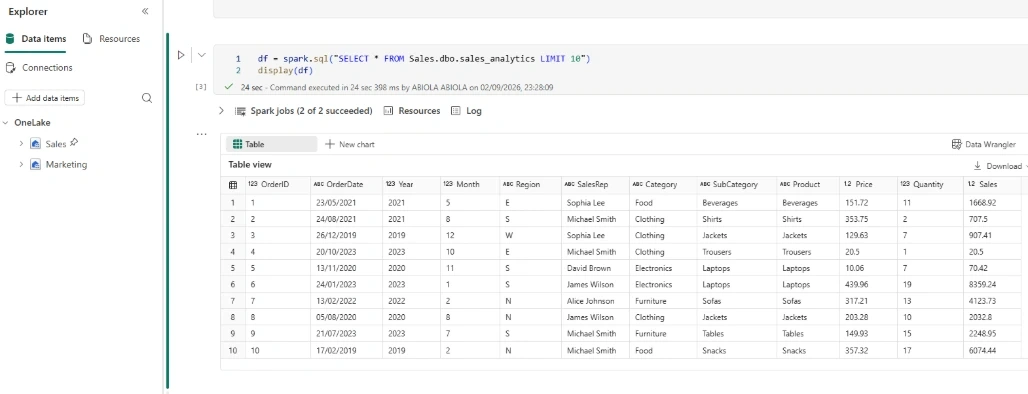
Because Sales is the active Lakehouse, the table can be referenced directly using its table name.
I don't need to create another Notebook just to work with the Sales Lakehouse.
Query Marketing Analytics Table
Note, I don't necessarily need to switch to the Marketing Lakehouse before I can query the inherent marketing_analytics table!
For example, I can simply author the SparkSQL code shown before to read the data from the marketing_analytics
df = spark.sql("SELECT * FROM dbo.marketing_analytics")

display(df)
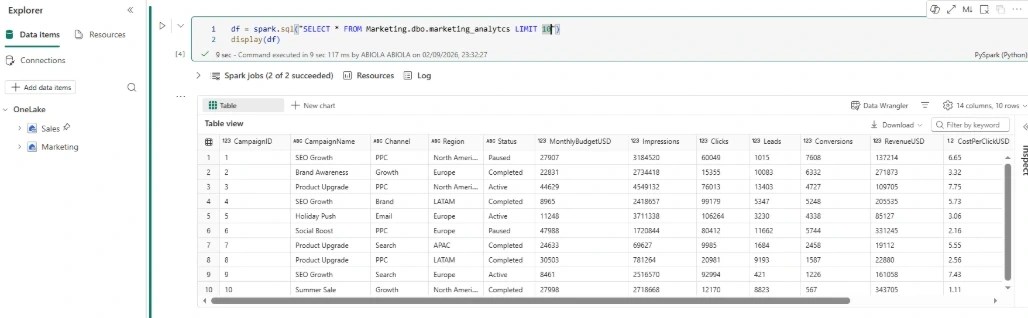
Being able to switch Lakehouses makes the Notebook much more flexible because I can move between different Lakehouse environments without leaving the Notebook or creating additional Notebooks.
Why Switching Lakehouses Is Useful
At first, this might seem like a small feature, but it can be very useful when designing Fabric data engineering solutions.
For example, imagine an organisation has separate Lakehouses for different business domains:
Sales Lakehouse
    └── dbo.sales_analytics

Marketing Lakehouse
    └── dbo.marketing_analytics
A single Notebook can be connected to both Lakehouses. Depending on the task I'm performing, I can switch between them and work with the appropriate data.
This can help reduce the number of Notebooks required in a Fabric workspace and make development more convenient.
It can also be useful when demonstrating Fabric capabilities, developing data transformation logic, or working with multiple business-domain Lakehouses.
One Notebook, Multiple Lakehouses
The key takeaway is that a Fabric Notebook doesn't necessarily have to be tied to just one Lakehouse.
By connecting multiple Lakehouses and switching the active Lakehouse when required, I can use a single Notebook to work with data across different Lakehouse environments.
In this example, I started with the Sales Lakehouse, queried dbo.sales_analytics, switched to the Marketing Lakehouse, and then queried dbo.marketing_analytics — all from the same Fabric Notebook.
This provides a simple and convenient way to work across multiple Lakehouses while keeping related development activities within a single Notebook.
Join the conversation! Your thoughts help the community grow.