In SharePoint on-premise, we know that administrators are able to configure the synchronization of values from different sources to SharePoint User Profile application; however, it is quite different in synchronization of values from Azure Active Directory (AAD) to the SharePoint User Profile Service Application (UPA).
While working in SharePoint Online project, I implemented a very interesting task to sync a property from Azure Active Directory to SharePoint Online.
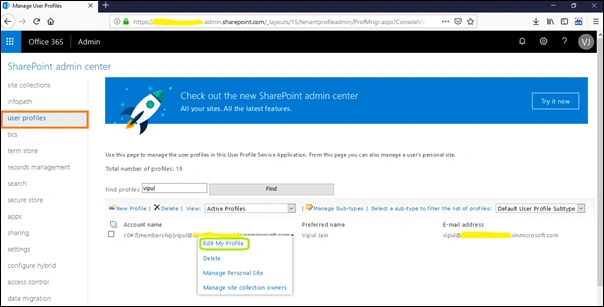
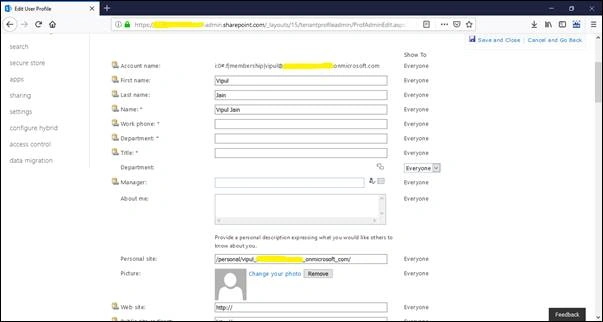
In SharePoint Online, you can see User Profile properties of a user ("SharePoint Admin Centre > User Profiles > Manage User Profiles > Edit User Profile") as below.
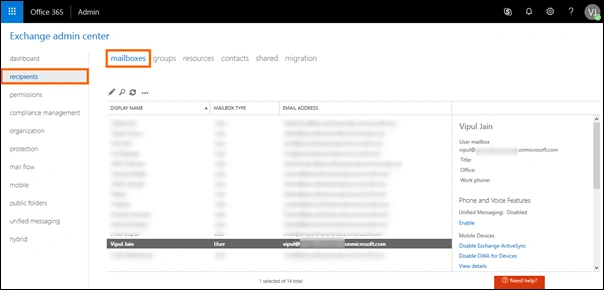
First, let’s understand the Azure Active Directory (AAD) mailbox's structure and the custom attributes (Go to Exchange Admin -> mailboxes).
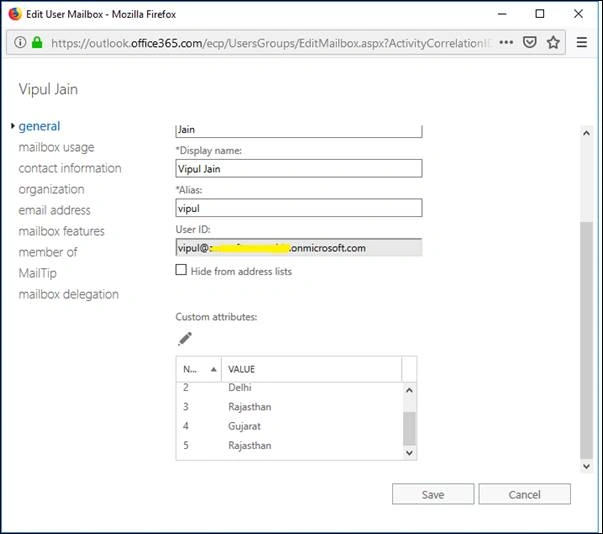
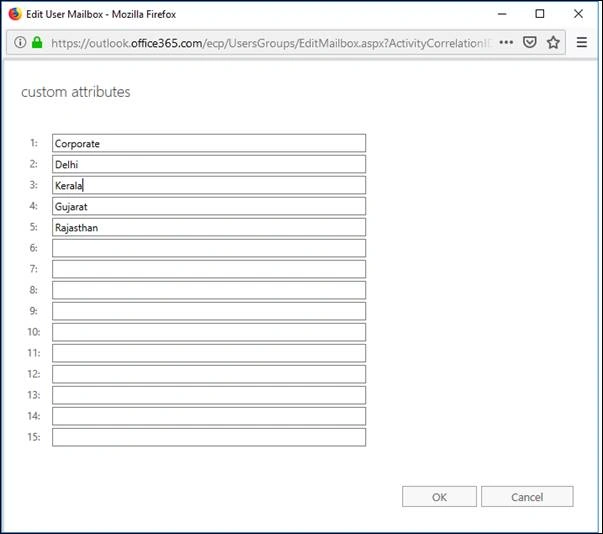
Double-click the username (in my case, it was Vipul Jain). Then, a window will open where we can set the Custom Attribute or property.
In my requirement, I needed to update a custom property, i.e., Circle, available in SharePoint Online with the value of the above custom attribute value (I took the 5th attribute, so in PowerShell code, we need to specify CustomAttribute5).
 Fig: Initially Circle Property is Blank
Prerequisites
To run the PowerShell, install the following.
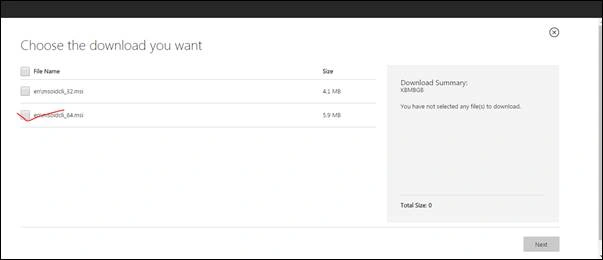
- Download and install MS Online Sign-in Assistant from the URL: https://www.microsoft.com/en-us/download/details.aspx?id=41950
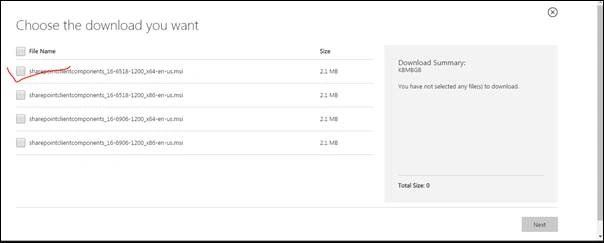
- Download and install Office365 CSOM Package from this URL: https://www.microsoft.com/en-us/download/details.aspx?id=42038
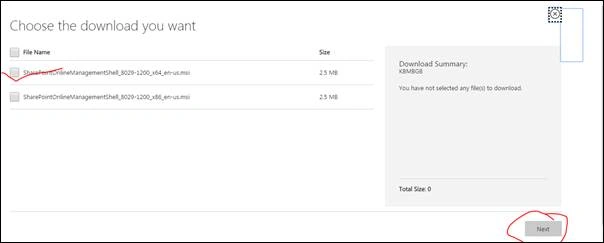
- Download and install SharePoint Online Module from this URL: https://www.microsoft.com/en-us/download/details.aspx?id=35588
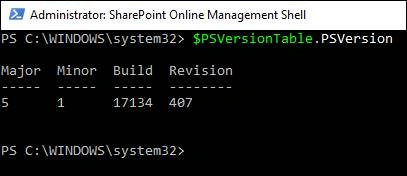
- Run the below command to check the version of PowerShell.
$PSVersionTable.PSVersion
NOTE
If the PowerShell version is less than or equal to 3, then update the PowerShell version.
In my case, below is the screenshot of the PowerShell version.
Steps for running the PowerShell
- Open the SharePoint Online Management Shell and Run as Administrator.
- Run the below commands,
[Install-Module -Name AzureRM –AllowClobber] –> Yes to all
[Install-Module MSonline] –> Yes to all
[Install -Module Microsoft.Online.SharePoint.PowerShell] –> Yes to all
- Use the below command to connect to Office 365 environment.
$session = New-PSSession -ConfigurationName Microsoft.Exchange -ConnectionUri “https://ps.outlook.com/powershell/” -Credential $cred -Authentication Basic -AllowRedirection
- Import the variable created in step 3.
Import-PSSession $session–AllowClobber
Once the above steps are executed in SharePoint Online Management Shell, run the below PowerShell code to update the “Circle” property.
- Import-Module MSOnline
- Import-Module Microsoft.Online.SharePoint.PowerShell
-
- # add SharePoint CSOM libraries
- Import-Module 'C:\Program Files\Common Files\Microsoft shared\Web Server Extensions\16\ISAPI\Microsoft.SharePoint.Client.dll'
- Import-Module 'C:\Program Files\Common Files\Microsoft shared\Web Server Extensions\16\ISAPI\Microsoft.SharePoint.Client.Runtime.dll'
- Import-Module 'C:\Program Files\Common Files\Microsoft shared\Web Server Extensions\16\ISAPI\Microsoft.SharePoint.Client.UserProfiles.dll'
-
- # Defaults
- $spoAdminUrl = https:
- $overwriteExistingSPOUPAValue = "True"
-
- # Get credentials of account that is AzureAD Admin and SharePoint Online Admin
- $credential = Get-Credential
- Try {
- # Connect to AzureAD
- Connect-MsolService -Credential $credential
-
- # Get credentials for SharePointOnline
- $spoCredentials=New-Object Microsoft.SharePoint.Client.SharePointOnlineCredentials($credential.GetNetworkCredential().Username, (ConvertTo-SecureString $credential.GetNetworkCredential().Password -AsPlainText -Force))
- $ctx = New-Object Microsoft.SharePoint.Client.ClientContext($spoAdminUrl)
- $ctx.Credentials = $spoCredentials
- $spoPeopleManager = New-Object Microsoft.SharePoint.Client.UserProfiles.PeopleManager($ctx)
-
- # Get all AzureAD Users
- $AzureADUsers = Get-MSolUser -All
-
- ForEach ($AzureADUser in $AzureADUsers) {
-
- $targetUPN = $AzureADUser.UserPrincipalName.ToString()
- if ($targetUPN -eq "user_name") {
-
- $displayName =(get-mailbox $targetUPN).CustomAttribute5
-
- $targetUPN = $AzureADUser.UserPrincipalName.ToString()
- $targetSPOUserAccount = ("i:0#.f|membership|" + $targetUPN)
-
- # Check to see if the AzureAD User has a displayName specified
- if (!([string]::IsNullOrEmpty($displayName))) {
- # Get the existing value of the SPO User Profile Property Circle
- $targetUserTestCircle = $spoPeopleManager.GetUserProfilePropertyFor($targetSPOUserAccount, "Circle")
- $ctx.ExecuteQuery()
-
- $userTestCircle = $targetUserTestCircle.Value
-
- # If target property is empty let's populate it
- if ([string]::IsNullOrEmpty($userTestCircle)) {
- $targetspoUserAccount= ("i:0#.f|membership|" + $AzureADUser.UserPrincipalName.ToString())
- $spoPeopleManager.SetSingleValueProfileProperty($targetspoUserAccount, "Circle", $displayName)
- $ctx.ExecuteQuery()
- }
- else {
- # Target property is not empty
- # Check to see if we're to overwrite existing property value
- if ($overwriteExistingSPOUPAValue -eq "True") {
- $targetspoUserAccount = ("i:0#.f|membership|" + $AzureADUser.UserPrincipalName.ToString())
- $spoPeopleManager.SetSingleValueProfileProperty($targetspoUserAccount, "Circle", $displayName)
- $ctx.ExecuteQuery()
- }
- else {
- # Not going to overwrite existing property value
- Write-Output "Target SPO UPA Circle is not empty for $targetUPN and we're to preserve existing properties"
- }
- }
- }
- else {
- # AzureAD User displayName is empty, nothing to do here
- Write-Output "AzureAD displayName Property is Null or Empty for $targetUPN"
- }
- }
- }
- }
- Catch {
- [Exception]
- echo $_.Exception.GetType().FullName, $_.Exception.Message
- }
NOTE
Update the SharePoint tenant details, custom attribute number, and custom SharePoint user profile property name in the above code based on your requirement.
Here is the important command used in the above code.
Get-Mailbox
This cmdlet is used to view the mailbox objects and attributes, populate property pages, or supply mailbox information to other tasks.
Output
Once the above PowerShell code is executed in SharePoint Online Management Shell, the property is updated as shown below.
Summary
In this article, we studied how we can update a custom user profile property in SharePoint Online (Office 365) from Azure Active Directory using PowerShell. In continuation to this, in the next article, I will write about how we can schedule the PowerShell script using Windows Task Scheduler.
Happy Coding!!



Carla MillerPosted Aug 21, 2019, 11:40 AM
I have run this, but after I enter the user/pass for the first time, it just sits. I commented out line 32 for "if ($targetUPN-eq "user_name") {, but that did not make it run. There are 2 lines that read exactly the same, which is $targetUPN = "AzureADUser.UserPrincipalName.ToString()" which is line 31 and 39. I tried commenting one of those out, but that did not make any difference
Andrew ChambersPosted Mar 22, 2019, 12:41 PM
Did you write the followup article on scheduling the PowerShell script? Asking as this code requires multiple prompts for passwords and am interested in how you get around that.
Andrew ChambersPosted Mar 22, 2019, 12:39 PM
Thanks for this article. Word to others you need to comment out the line: if ($targetUPN -eq "user_name") as it will only look for that single user.